

Patch critical CVEs immediately and isolate any site showing signs of compromise before you do anything else. If you cannot deploy a full fix today, apply compensating controls (a web application firewall rule, login rate limiting, or temporary feature disablement) while you test the real patch.
Run this checklist before anything else:
- Check your current core, plugin, and theme version numbers against the WordPress.
- Search for matched CVE identifiers, cross-referencing NVD and the CISA Known Exploited Vulnerabilities catalog.
- Apply an immediate compensating control if the fix isn’t ready: a WAF rule, a rate limit on wp-login.php, or an IP allowlist for wp-admin.
- Back up files and the database, then stage the patch before touching production.
One flagged CVE on the CISA list changes the maths entirely. If a vulnerability affecting your stack shows up there, it’s being actively exploited somewhere right now, not theoretically exploitable in a lab.
Key Takeaways
Patching WordPress vulnerabilities effectively requires accurate inventory, risk-based prioritisation, staged testing, and post-fix verification, in that order, every time.
| Point | Details |
|---|---|
| Verify before you patch | Confirm the vulnerable code path is actually reachable on your specific configuration before allocating dev time. |
| Prioritise by exploitability | Unauthenticated, actively exploited CVEs on the CISA KEV list jump the queue ahead of everything else. |
| Never skip staging | Test checkout, login, and cron behaviour before any patch reaches production. |
| Verify and document after patching | Re-scan, check file checksums, and keep evidence before closing the remediation ticket. |
| Consider a specialist partner | Wpcto handles detection, testing, and deployment under agreed SLAs so agencies stop absorbing emergency patch work internally. |
Table of Contents
- How do you check if your WordPress site is exposed?
- What’s the right order to apply WordPress security fixes?
- How do you deploy a WordPress patch safely?
- What can you do if a patch isn’t available yet?
- How do you confirm a WordPress vulnerability fix actually worked?
- What are the most common WordPress vulnerability types and their fixes?
- How do WordPress security releases, CVEs and backports actually work?
- How should agencies structure a vulnerability response runbook?
- Sources
How do you check if your WordPress site is exposed?
Start with an inventory. You cannot judge whether a CVE applies to you until you know exactly what’s installed. Run wp core version, wp plugin list --update=available, and wp theme list via WP-CLI to get a clean list of versions in seconds, rather than clicking through the dashboard on twenty client sites.
Cross-check that inventory against the WordPress Security team’s official release notes, the NVD database, and the CISA KEV catalog. Vendor advisories matter too, particularly for premium plugins that don’t always post to wordpress.org.
Automated scanners flag far more “vulnerabilities” than actually threaten you; tools like the AI crawlability audit help you focus on real risks rather than false positives. A scanner might report a plugin version match against a known CVE, but the vulnerable code path may sit behind a feature you’ve never enabled, or require authentication you’ve already locked down elsewhere. This is why manual validation matters before you burn developer hours on a fix that changes nothing. A structured security audit approach, checking exploitability against your actual configuration, catches this before it wastes a sprint.
Pro Tip: Keep a simple spreadsheet mapping each client site to its plugin inventory and last patch date. It sounds basic, but it’s the single fastest way to answer “are we exposed?” the moment a new CVE drops.
| Validation question | Why it matters |
|---|---|
| Is the vulnerable code path reachable? | Some vulnerabilities require a specific setting or endpoint that may be disabled by default. |
| Is the affected feature actually enabled? | A plugin’s vulnerable module might be installed but never activated. |
| Does the version match exactly? | CVEs often apply to a narrow version range, not “the plugin” generally. |
Watch your logs for unexpected admin account creation, new scheduled tasks (cron jobs you didn’t add), and file timestamp changes on core files that should never be edited. Any one of these on its own might be innocent. Two together, right after a public disclosure, is a strong signal something has already gone wrong.
What’s the right order to apply WordPress security fixes?
Not every fix deserves the same urgency. A vulnerability that requires no authentication and has active exploit reports against it needs attention today. A low-severity issue on an internal admin-only feature can wait for your normal patch window.
Work through fixes in this order:
- Unauthenticated, actively exploited vulnerabilities on internet-facing components. These jump the queue regardless of what else is scheduled.
- Critical and high-severity CVEs confirmed against your installed version, especially on commerce or membership sites where a breach touches customer data.
- Plugin and theme patches for anything flagged critical, even where exploitation hasn’t been reported yet.
- Abandoned or unmaintained plugins with known unpatched CVEs. If the developer hasn’t shipped a fix and won’t, remove or replace it rather than waiting.
- Routine, non-critical updates that follow your normal maintenance schedule.
Where you can, enable auto-updates for WordPress core’s security releases. WordPress increasingly pushes forced updates for the most severe issues precisely because most site owners patch too slowly, and the WordPress hardening guidance for agencies consistently traces breaches back to outdated components, weak credentials, and permissive file permissions rather than novel attack techniques.
If a patch risks breaking a client’s checkout flow or a heavily customised theme, don’t skip it. Apply a compensating control instead:
- A WAF rule blocking the specific exploit pattern.
- A temporary IP allowlist restricting wp-admin access to your team.
- Feature disablement if the vulnerable functionality isn’t business-critical.
Then schedule the real fix into a staged deployment within days, not months.
Pro Tip: After any vulnerability disclosure affecting your stack, rotate admin credentials and enforce two-factor authentication across every account with publishing or admin access. Attackers scan disclosed CVEs for weeks after the patch ships, betting on sites that haven’t updated yet.
How do you deploy a WordPress patch safely?
A rushed patch that breaks checkout is its own kind of incident. Before deploying anything, confirm you have a verified backup covering both files and the database, not just one or the other.
Run through this pre-deployment checklist:
- Verified backup taken within the last few hours, not last week.
- A staging copy where the same patch has already been applied and tested.
- PHP version and Composer dependency compatibility confirmed.
- Smoke tests covering login, checkout, and any custom form submissions.
For deployment, WP-CLI scripted updates give you a repeatable, auditable process across multiple sites, far more reliable than clicking “update” in twenty separate dashboards. Agencies managing custom themes or plugins benefit from a proper CI/CD branch flow, deploying through a pipeline rather than editing production directly.
Test these specifically in staging before you go live:
- Checkout and payment flow, if the site sells anything.
- Login and any membership or gated-content access.
- Caching behaviour, since a patch can silently break a cache rule.
- Critical cron tasks, particularly on membership or subscription sites.
If a site runs with DISALLOW_FILE_MODS set, in-dashboard updates won’t work at all. Push updates through a deployment user or your CI pipeline instead, keeping the constant in place as a genuine security control rather than a nuisance to bypass.
Pro Tip: Treat every emergency patch like a mini-release, not a firefight. A five-minute smoke test after deployment catches most regressions before the client notices anything changed.
What can you do if a patch isn’t available yet?
Sometimes the fix simply isn’t ready, the vendor is slow, or the update itself carries real risk to a complex build. Compensating controls buy you time without leaving the door open.
Common mitigations include:
- Virtual patching via WAF rules that block known exploit patterns for that specific CVE.
- Rate limiting or CAPTCHA on login endpoints to blunt brute-force and credential-stuffing attempts.
- Restricting or disabling XML-RPC, a frequent target for automated attacks.
- IP allowlisting for wp-admin access, restricting it to your team’s known addresses.
- Disabling the specific vulnerable feature if it isn’t essential to the site’s function.
A WAF rule blocking SQL injection payload patterns (unexpected UNION SELECT strings or encoded quote characters in URL parameters) or blocking obvious XSS attempts (script tags in form fields) covers a large share of exploit attempts without touching a line of the site’s own code.
Take a site fully offline or serve a maintenance page only when the vulnerability is unauthenticated, actively exploited, and no interim control meaningfully reduces the risk. That’s a narrow set of cases, but when they hit, hesitation costs more than the downtime.
Pro Tip: If you manage multiple client sites, edge WAF and CDN rules applied at the network level protect every site behind them simultaneously. One rule, dozens of sites covered, while you work through tested patches at your own pace.

| Situation | Recommended mitigation |
|---|---|
| No patch available yet | Deploy a virtual patch via WAF targeting the specific exploit pattern. |
| Repeated login attempts detected | Add rate limiting or CAPTCHA on wp-login.php. |
| Vulnerability is unauthenticated and actively exploited | Take the site offline or serve a maintenance page until fixed. |
How do you confirm a WordPress vulnerability fix actually worked?
Closing the ticket without verification is how the same issue reappears three weeks later. Re-scan the site against multiple vulnerability feeds after patching, confirming the version now sits outside the affected range on both NVD and any vendor advisory.
Check these before you sign off:
- File checksums against the known-good core distribution, flagging anything modified outside a normal update.
- Recent file changes across the wp-content directory, looking for anything added around the disclosure date.
- Database integrity, particularly the users and options tables.
- Logs for failed exploitation attempts, new user accounts, or admin activity around the disclosure window.
Collect version output, scan reports, and staging test results before closing the remediation ticket. That evidence trail matters if the same client asks six months later what happened and what you did about it.
Pro Tip: Run a restoration drill from backup at least quarterly, and keep the runbook that documents the process current. A backup nobody has actually restored from is a hope, not a plan.
What are the most common WordPress vulnerability types and their fixes?
Most WordPress incidents fall into a handful of recurring categories. Knowing the pattern speeds up both diagnosis and the fix.
- Cross-site scripting (XSS): malicious scripts injected through unsanitised form fields or URL parameters, often via comment fields or plugin settings. Fix: escape all output using WordPress’s built-in functions (
esc_html(),esc_attr(),esc_url()), per OWASP’s XSS guidance. - SQL injection (SQLi): unsanitised input reaching a database query directly. Fix: use
$wpdb->prepare()for every query touching user input, documented in the wpdb class reference. - Remote code execution (RCE): often via insecure file upload handling or deserialisation flaws in a plugin. Fix: restrict file upload types strictly, update the vulnerable plugin immediately, and remove write access to executable file types in upload directories.
- Cross-site request forgery (CSRF): an attacker tricks an authenticated user into submitting an unwanted action. Fix: verify nonces on every state-changing form using
wp_verify_nonce(). - Privilege escalation: a flaw lets a lower-privileged user gain admin capabilities. Fix: audit role capabilities regularly and patch immediately, since this category is almost always exploited quickly once disclosed.
The pattern across nearly every serious WordPress incident isn’t a novel zero-day. It’s an old plugin, a weak credential, or a file permission nobody revisited after launch.
Abandoned plugins are the quiet risk in this list. If the developer hasn’t shipped a security fix and the plugin hasn’t seen an update in a year or more, replace it rather than hoping the next disclosure never lands on your stack.
How do WordPress security releases, CVEs and backports actually work?
The WordPress Security team runs a responsible disclosure process through HackerOne, testing and clearing every reported issue before it becomes a public release. Fixes for supported older versions get backported, meaning a site running WordPress 6.4 can still receive a security fix without being forced onto the latest major version.
For the most severe issues, WordPress sometimes enables forced automatic updates, pushing the fix to sites regardless of their update settings. That’s a deliberate response to how slowly many site owners patch manually.
| Term | What it means for you |
|---|---|
| Backport | Older supported versions still receive the security fix, no major upgrade required. |
| Forced update | Critical fixes deploy automatically, even on sites with auto-updates disabled for other releases. |
| Release notes | The official notes list CVE and GHSA references for exactly what changed. |
How should agencies structure a vulnerability response runbook?
A repeatable process beats a heroic scramble every time a CVE drops. Structure the response as: detect → assess → test → deploy → verify → document, with clear ownership at each stage.
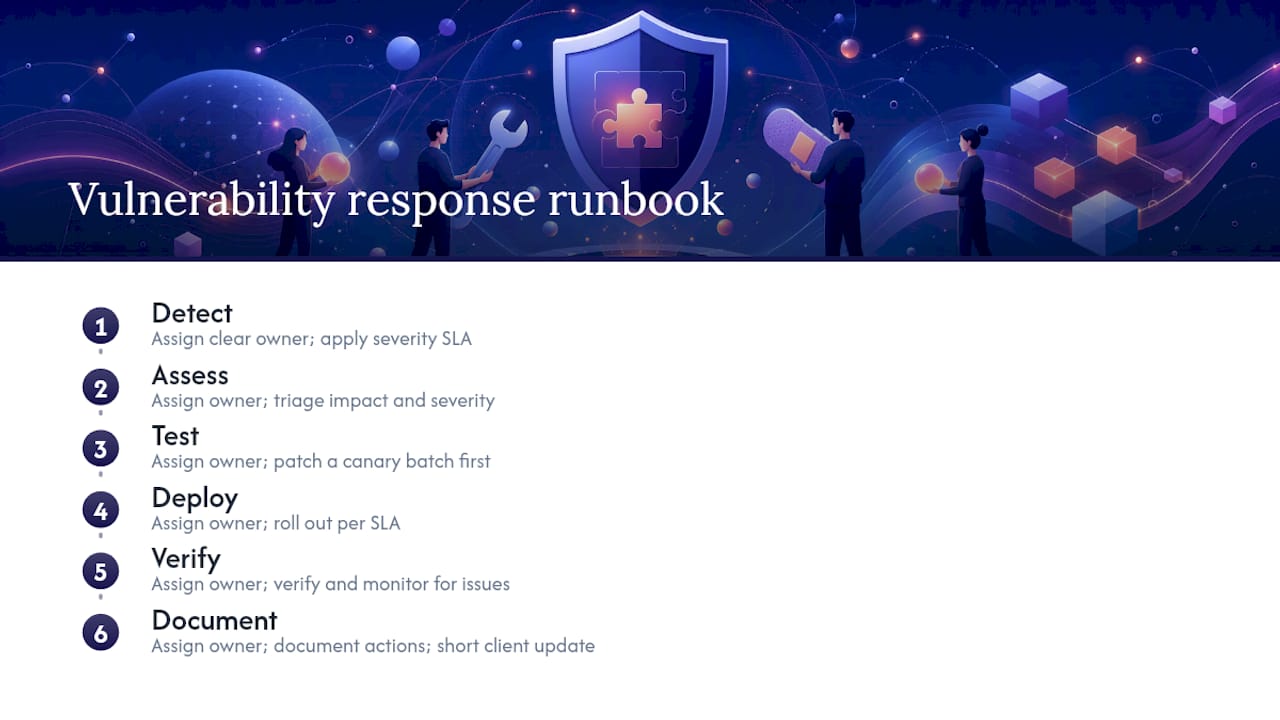
Set SLAs by severity, with critical issues requiring response within a very short timeframe.
2. High: within a week.
3. Medium and low: next scheduled maintenance window.
For client communication, keep it short: what happened, what you’re doing, and when it’ll be resolved. Clients rarely need the technical detail; they need confidence you’re already on it.
On billing, structure emergency CVE response as either a defined incident rate inside your maintenance retainer or a transparent billable incident with a stated SLA, agreed before the emergency, not during it.
Pro Tip: Group client sites into canary batches. Patch a small group first, watch for issues for a few hours, then roll out to everyone else. It catches the rare breaking update before it hits your whole client base at once.
If you’re not sure how much unpatched risk is quietly sitting across your client portfolio, and what it’s actually costing you in unbilled emergency hours, the WordPress Profit Calculator shows the number in under 90 seconds.
Why prioritising fixes correctly matters more than patching fast
Agencies that let every client run a different plugin stack pay for it during every disclosure cycle, chasing down which of forty sites actually needs the fix. Standardising your stack across clients, even loosely, turns “which sites are affected?” from a day of investigation into a five-minute query. Speed matters less than knowing, immediately, where the risk actually sits.
How Wpcto handles vulnerability response so your team doesn’t have to
Wpcto is the alternative to absorbing every emergency WordPress ticket into your own team’s evenings and weekends. Where an in-house process means someone on your team dropping creative work to chase a plugin patch, Wpcto sits behind your agency handling detection, testing, and deployment under agreed SLAs, without ever touching the client relationship you own.
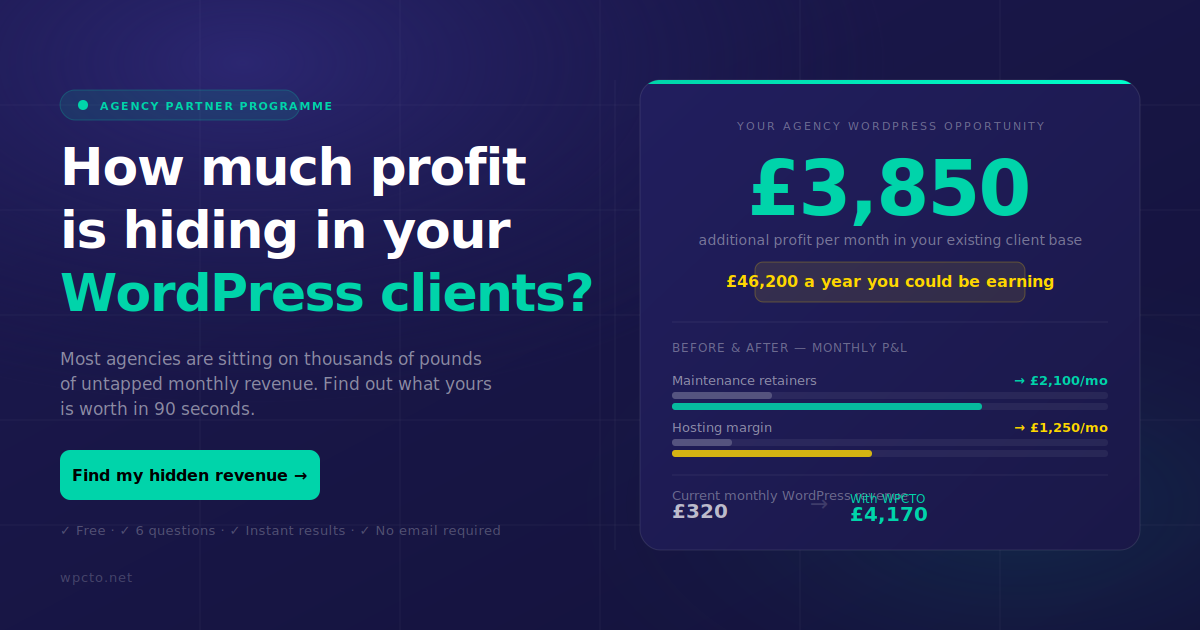
Three things change immediately when Wpcto handles this for you: standardised response times instead of ad-hoc scrambling, a centralised inventory across every client site so you know instantly what’s exposed, and tested rollback procedures so a patch never becomes its own incident. Services cover emergency patching, managed updates, security monitoring, and fractional CTO support for agencies that need senior technical judgement without hiring for it.
If you want to see what this is actually worth across your existing client base, run the WordPress Profit Calculator and check the number in under 90 seconds. Or look at Wpcto’s support services directly if you already know you’re ready to hand this over.
Sources
- Reporting security vulnerabilities — WordPress Core handbook
- CVE‑2026‑60137 — NVD
- CISA Known Exploited Vulnerabilities catalog