

What are WordPress plugins?
WordPress plugins are packages of code that extend your website’s capabilities beyond what WordPress provides out of the box. Built from PHP, CSS, and JavaScript, they add new features or expand existing ones without touching the core WordPress files. That separation is what makes them safe and practical.
Think of WordPress core as the chassis of a car. It gives you the engine and the wheels. Plugins are everything else: the navigation system, the climate control, the sound system. You add what you need, and you can remove it just as easily.
A plugin can be tiny. Hello Dolly, one of the earliest WordPress plugins, is just 100 lines of code. At the other end of the scale, a full ecommerce system like WooCommerce runs to thousands of files. The format is the same; the scope varies enormously.
Key plugin categories to know from the start:
- SEO (e.g. Yoast SEO)
- Page building (e.g. Elementor)
- Contact forms (e.g. Contact Form 7)
- Security (e.g. Wordfence)
- Caching and performance (e.g. LiteSpeed Cache)
- Site migration and backup (e.g. All-in-One WP Migration)
The WordPress Plugin Directory lists over 50,000 free plugins. Whatever your site needs, there is almost certainly a plugin for it.
What do WordPress plugins actually do?

Plugins solve specific problems that WordPress core does not address on its own. A fresh WordPress install gives you a publishing platform. Plugins turn it into whatever your business actually needs.
Common uses include:
- SEO optimisation: tools like Yoast SEO guide you through writing titles, meta descriptions, and structured data so search engines can index your content properly. For agencies managing client sites, WordPress SEO automation can reduce the manual effort involved.
- Spam control: Akismet filters comment spam automatically, keeping your site clean without manual moderation.
- Ecommerce: WooCommerce adds a full shop, inventory management, and payment processing.
- Security: plugins like Wordfence run firewalls and malware scans around the clock.
- Performance: caching plugins store static versions of your pages so the server does less work on every visit.
- Forms and data capture: Contact Form 7 and WPForms let visitors get in touch without any custom coding.
Most plugins follow a free-and-premium model. The free version covers core functionality; a paid upgrade unlocks advanced features or priority support. Premium plugins are typically sold directly by the developer, either as a one-off purchase or an annual subscription.
Popular WordPress plugins you should know
The plugins below appear consistently across the most-used lists in 2026. Each one has earned its place through active installations, update frequency, and community trust.
| Plugin | Category | Key function |
|---|---|---|
| Elementor | Page builder | Drag-and-drop visual editor |
| Yoast SEO | SEO | On-page optimisation and schema |
| Contact Form 7 | Forms | Lightweight contact form creation |
| LiteSpeed Cache | Performance | Server-level caching and optimisation |
| Wordfence | Security | Firewall, malware scanning, login protection |
| All-in-One WP Migration | Migration and backup | Full site export, import, and restore |
Elementor powers millions of websites worldwide. Its drag-and-drop editor lets you build pages visually without writing a line of code, and version 4 introduced atomic building blocks for finer layout control.
Yoast SEO has over 27,000 ratings on WordPress.org and remains the go-to plugin for on-page SEO. It analyses your content in real time, flags readability issues, and generates XML sitemaps automatically.
Contact Form 7 is deliberately minimal. It creates forms using simple shortcodes and handles submissions without bloating your site. For straightforward enquiry forms, nothing comes close for simplicity.
LiteSpeed Cache works at the server level, which makes it faster than many alternatives that operate purely in PHP. It handles image optimisation, CSS minification, and database cleanup alongside its core caching function.
Wordfence runs a web application firewall and scans your files for malware on a schedule you set. It also monitors login attempts and blocks brute-force attacks before they reach your database.
All-in-One WP Migration is trusted by over 60 million sites for moving WordPress installations between hosts or environments. It packages your entire site into a single file for upload elsewhere, with no database configuration required.
Pro Tip: Before installing any plugin, check its “Last Updated” date and active installation count on WordPress.org. A plugin that has not been updated in over a year is a security risk, regardless of how many stars it has.
Where to find and how to install WordPress plugins
The WordPress Plugin Directory is the safest starting point. Every plugin listed there has been reviewed, is available for free download, and can be installed directly from your admin dashboard.
Installing from the dashboard (the most common method):
- Log in to your WordPress admin area.
- Go to Plugins > Add New.
- Use the search bar to find the plugin you want.
- Click Install Now, then Activate.
That is it. The plugin is live on your site.
Uploading a ZIP file:
Some premium plugins are not listed in the directory. Developers provide them as ZIP files after purchase.
- Go to Plugins > Add New > Upload Plugin.
- Choose the ZIP file from your computer.
- Click Install Now, then Activate.
Manual installation via SFTP:
For developers or when dashboard access is restricted, you can upload the plugin folder directly to /wp-content/plugins/ using an SFTP client such as FileZilla. Once uploaded, activate it from the Plugins screen in your dashboard.
Free plugins from the directory are the right choice for most beginners. Premium plugins are worth considering when you need advanced features, dedicated support, or a plugin that is actively maintained by a commercial team.
How to manage WordPress plugins safely
Choosing and installing a plugin is the easy part. Keeping your plugin library healthy over time is where most sites run into trouble, and where agencies quietly absorb hours of unbilled work.
Plugin quality varies widely, even within the official directory. Before installing anything, check:
- Ratings and reviews: look for consistent positive feedback, not just a high average from a handful of votes.
- Update frequency: a plugin updated within the last three months is a good sign; one untouched for over a year is not.
- Active installations: higher numbers generally mean more community testing and faster bug fixes.
- Compatibility: the plugin listing shows which WordPress version it has been tested with. Avoid plugins that lag behind the current core version.
Once installed, regular updates are the single most effective way to keep your site secure. Outdated plugins are one of the most common entry points for attackers. Automating minor updates reduces the risk of a site sitting unpatched for weeks.
Plugin bloat is a real problem. Every active plugin adds PHP execution time and database queries to each page load. Keep your plugin list lean: if a plugin is not actively contributing to the site, deactivate and delete it. A focused plugin that does one thing well is almost always preferable to an all-in-one tool that does ten things adequately.
Compatibility conflicts between plugins are the most common cause of unexpected site breakage. Always test updates on a staging environment before applying them to a live site. If you do not have a staging setup, that is worth addressing before your plugin library grows any further.
Pro Tip: If you manage WordPress sites for clients, use the free WordPress Profit Calculator to see exactly how much time and revenue your team is spending on plugin updates and maintenance. Most agencies are surprised by the number.
For agencies, the cumulative weight of plugin management across a client portfolio adds up fast. Security patches, compatibility testing, update rollbacks, the occasional emergency fix at an inconvenient hour. None of that is billable creative work, and none of it is why your clients hired you. Wpcto’s agency maintenance services handle all of it, so your team stays focused on the work that actually moves your business forward.
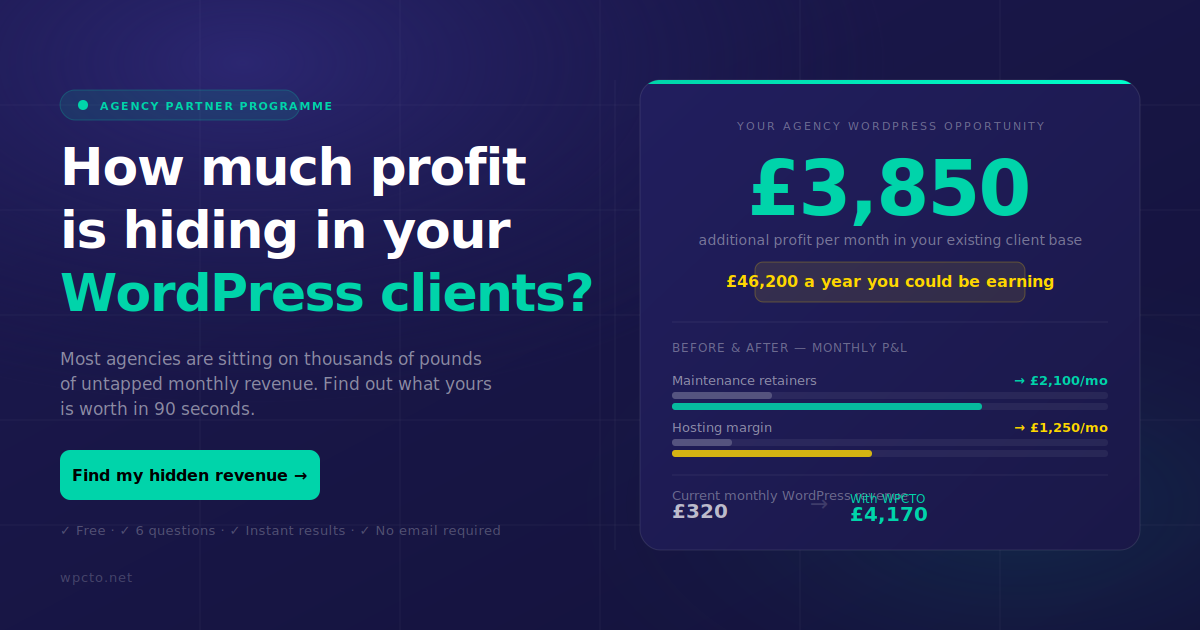
If you want to understand the full cost of managing WordPress manually across your client base, the WordPress Profit Calculator gives you a clear picture in under 90 seconds. It is free, takes no setup, and the results tend to be eye-opening.
Key takeaways
WordPress plugins are modular code packages that extend WordPress safely, and choosing, installing, and maintaining them well is what separates a reliable site from a liability.
| Point | Details |
|---|---|
| Plugins extend WordPress safely | They add features without touching core files, keeping updates and maintenance clean. |
| The Plugin Directory is your starting point | Over 50,000 free plugins are available and installable directly from your dashboard. |
| Six plugins dominate in 2026 | Elementor, Yoast SEO, Contact Form 7, LiteSpeed Cache, Wordfence, and All-in-One WP Migration cover the most common site needs. |
| Outdated plugins are a security risk | Check update frequency and compatibility before installing, and keep everything current after. |
| Plugin management costs agencies real time | Use the WordPress Profit Calculator to quantify the maintenance burden across your client base. |