

A custom post type (CPT) in WordPress is a named content type stored as a distinct value in the post_type column of the wp_posts table, giving WordPress a separate admin screen, URL pattern, and template hierarchy for that content. To create one, call register_post_type() on the 'init' hook and set 'show_in_rest' => true for block-editor and REST API compatibility. If you prefer no code, a plugin such as Custom Post Type UI handles registration through an admin interface. Both the WordPress Developer Resources and the WordPress are the authoritative references to bookmark.
Key takeaways
Custom post types are one of the most practical tools in WordPress development: register them correctly once, and they handle content architecture for the lifetime of a site.
| Point | Details |
|---|---|
Register on 'init' hook |
Calling register_post_type() on any other hook risks missing taxonomy and rewrite setup. |
| Keep identifiers ≤20 characters | The wp_posts column enforces this limit; exceeding it causes silent failures. |
| Use plugins, not themes | CPTs in functions.php become inaccessible when the theme changes. |
Set show_in_rest => true |
Required for the block editor and any REST API or headless integration. |
| Flush rewrite rules on activation only | Flushing on every page load adds unnecessary overhead to every request. |
Table of Contents
- What is a custom post type in WordPress, technically speaking?
- When should you actually create a custom post type?
- How to register a custom post type with
register_post_type() - Plugin vs theme: where should CPT registration live?
- How the admin interface responds to your
supportsandlabelsarguments - How to display CPT content on the front end
- Querying CPTs with
WP_Queryand the REST API - Permalinks, rewrite rules and flushing safely
- Common pitfalls and best practices: a quick reference
- Two worked examples:
bookandeventCPTs - Agency implementation checklist and handover guide
- The part most CPT guides get wrong
- Sources
What is a custom post type in WordPress, technically speaking?
WordPress ships with a handful of built-in post types: post, page, attachment, revision, nav_menu_item, custom_css, and customize_changeset. Every piece of content, regardless of type, lives in the same wp_posts table. A CPT is simply a new value for the post_type column in that table — not a new database table.
Think of a CPT as three things working together: a registered identifier string, an $args array that tells WordPress how to treat the content, and a set of template rules that control front-end display. That registration array is what unlocks a dedicated admin menu, custom URL slugs, and its own REST API endpoint.
The built-in types you need to know about — and whose names you must never reuse as CPT identifiers:
post— standard blog postspage— hierarchical pagesattachment— media library itemsrevision— auto-saved draftsnav_menu_item— navigation menu entries
Reserved prefixes such as wp_ are also off-limits. WordPress itself enforces a 20-character limit on the post_type identifier, so plan your naming accordingly.
When should you actually create a custom post type?
The clearest signal is when content needs its own editorial workflow, distinct URLs, separate archives, or taxonomies that do not belong alongside blog posts. If you find yourself adding ten custom fields to a standard post just to make it behave like a product listing or an event, a CPT is the right call.
Common use cases agencies build repeatedly:
- Products — for lightweight catalogues that do not need full WooCommerce overhead
- Events — with date meta, location, and a dedicated archive
- Portfolio pieces — separate from blog posts, with project-specific fields
- Team members — staff profiles with role, bio, and headshot
- Case studies — structured client work with outcome metrics
- Testimonials — short-form social proof with author and rating
- Recipes — ingredients, prep time, and nutritional data
Pro Tip: If you are shoehorning content into standard posts using five or more custom fields just to distinguish it from blog content, stop. A CPT gives you maintainable separation that your client’s future developer will thank you for.
The decision is not always a CPT. A single page with a repeating ACF flexible content layout can suit small, non-archived content sets. But once you need pagination, taxonomy filtering, or a dedicated sitemap entry, a CPT earns its place.
How to register a custom post type with register_post_type()
Registration must happen on the 'init' hook, and 'show_in_rest' => true is non-negotiable for any site using the block editor. Here is a minimal, production-ready example:
add_action( 'init', 'agency_register_book_cpt' );

function agency_register_book_cpt() {
    $labels = array(
        'name'               => 'Books',
        'singular_name'      => 'Book',
        'add_new_item'       => 'Add New Book',
        'edit_item'          => 'Edit Book',
        'view_item'          => 'View Book',
        'all_items'          => 'All Books',
        'search_items'       => 'Search Books',
        'not_found'          => 'No books found.',
    );

    $args = array(
        'labels'            => $labels,
        'public'            => true,
        'show_ui'           => true,
        'has_archive'       => true,
        'rewrite'           => array( 'slug' => 'books' ),
        'supports'          => array( 'title', 'editor', 'thumbnail', 'excerpt' ),
        'show_in_rest'      => true,
        'capability_type'   => 'post',
    );

    register_post_type( 'agency_book', $args );
}
The key arguments and what they control:
| Argument | What it does |
|---|---|
public |
Exposes the CPT to queries, admin, and the front end |
show_ui |
Generates the admin menu and edit screens |
has_archive |
Creates a paginated archive at the rewrite slug |
rewrite |
Sets the URL slug; use 'with_front' => false to strip the blog base |
supports |
Controls which editor meta boxes appear (title, editor, thumbnail, etc.) |
capability_type |
Base capability string; use 'post' unless you need custom roles |
show_in_rest |
Enables the block editor and REST API endpoint |
rest_base |
Overrides the default REST route segment |
taxonomies |
Attaches existing taxonomies at registration time |
Pro Tip: Prefix your identifier — agency_book rather than book — and keep it under 20 characters. Two plugins registering book will silently conflict, and you will not know until a client’s content disappears from the wrong archive.
One critical rule: never call flush_rewrite_rules() on every page load. Call it once, on plugin activation, or ask the client to visit Settings > Permalinks after any CPT change. Calling it on every request adds measurable overhead to every page.
Plugin vs theme: where should CPT registration live?
Always register CPTs in a plugin, not in functions.php. Official WordPress guidance is explicit: if a CPT is registered in a theme and the theme is switched, every post of that type becomes inaccessible. The content is still in the database, but WordPress cannot find it.
For agency projects, two approaches work well:
- A site-specific plugin — a small, single-purpose plugin committed to the project repository. It contains only the CPT and taxonomy registrations for that client site.
- A shared agency utility plugin — a private plugin your agency maintains across client sites, containing common CPT patterns you reuse (events, team members, testimonials).
Include an activation hook in whichever plugin you choose:
register_activation_hook( __FILE__, function() {
    agency_register_book_cpt();
    flush_rewrite_rules();
});
This flushes rewrite rules once on activation, avoiding 404s without the performance cost of flushing on every load. Put CPT registration under version control, write a brief test that confirms the post type exists after activation, and document any behaviour changes in your deployment notes.
How the admin interface responds to your supports and labels arguments
The supports array is what your client actually sees when they open the edit screen. Each value maps directly to a UI element:
title— the post title field (almost always required)editor— the block editor or classic editor content areathumbnail— the featured image meta boxrevisions— revision history trackingcustom-fields— the native custom fields meta box (rarely needed if using ACF)excerpt— the excerpt meta boxcomments— comment and discussion settings
Labels control every string in the admin: menu names, button text, and accessibility strings. Getting them right matters for client handover. A client who sees “Add New Post” when they expect “Add New Event” will raise a support ticket.
For admin positioning, menu_position accepts an integer (5 sits below Posts, 20 below Pages), and menu_icon accepts any Dashicons slug or a base64-encoded SVG. A clean admin for non-technical clients means hiding meta boxes they should not touch and using clear, plain-English labels throughout.

Advanced Custom Fields is the most practical way to build structured meta editing interfaces alongside CPTs. It replaces the native custom fields box with a purpose-built field group, which is far more usable for clients.
How to display CPT content on the front end
WordPress resolves templates for CPTs using the same hierarchy it uses for standard posts. The two files to know:
single-{post_type}.php— renders a single CPT entry (e.g.single-agency_book.php)archive-{post_type}.php— renders the paginated archive (e.g.archive-agency_book.php)
If neither file exists, WordPress falls back to single.php and archive.php respectively. Two conditional functions are useful in templates: is_post_type_archive() checks whether the current page is a CPT archive, and post_type_archive_title() outputs the CPT’s archive label.
To include CPT posts in the home blog feed or another standard archive, use pre_get_posts:
add_action( 'pre_get_posts', function( $query ) {
    if ( $query->is_home() && $query->is_main_query() ) {
        $query->set( 'post_type', array( 'post', 'agency_book' ) );
    }
});
The is_main_query() check is not optional. Without it, the filter also modifies admin list table queries, which produces unexpected results in the dashboard. The WordPress Developer Resources documentation on working with custom post types covers this pattern in detail.
Querying CPTs with WP_Query and the REST API
WP_Query accepts a post_type parameter as a string or an array:
- Single CPT query:
$books = new WP_Query( array(
    'post_type'      => 'agency_book',
    'posts_per_page' => 10,
    'orderby'        => 'date',
    'order'          => 'DESC',
) );
- Multiple post types in one query:
$query = new WP_Query( array(
    'post_type' => array( 'agency_book', 'agency_event' ),
    'posts_per_page' => 6,
) );
- Combined with
tax_queryandmeta_queryfor filtered results — useful for events within a date range or portfolio pieces tagged with a specific service.
When 'show_in_rest' => true is set, WordPress automatically creates a REST endpoint at /wp-json/wp/v2/{rest_base}. You can override the route segment with 'rest_base' => 'books' to get /wp-json/wp/v2/books instead of the default. For expensive queries — large archives with complex meta conditions — consider transient caching to avoid repeated database hits on high-traffic pages. WordPress SEO automation tools can also help surface CPT content in search results once the REST API is properly configured.
Permalinks, rewrite rules and flushing safely
The rewrite argument controls the URL slug your CPT uses. A minimal setup:
'rewrite' => array(
    'slug'       => 'books',
    'with_front' => false,
),
'with_front' => false prevents the blog base (often /blog/) from prepending to your CPT URLs, which is almost always what you want for non-blog content.
Keep slugs short, lowercase, and hyphenated. Avoid WordPress reserved words: post, page, category, tag, author, date, feed, search, comments, attachment. Colliding with a reserved word produces silent routing failures that are frustrating to debug.
One SEO caution: changing a CPT slug after content is published changes every URL for that post type. Plan slugs before launch, not after. If you must change them post-launch, set up 301 redirects immediately and update any internal links or sitemaps.
Common pitfalls and best practices: a quick reference
| Rule | Why it matters |
|---|---|
Prefix identifiers (agency_book not book) |
Prevents conflicts with other plugins or themes |
| Keep identifiers ≤20 characters | Matches the wp_posts column size limit |
Never use wp_ prefix |
Reserved for WordPress core |
Register on 'init', not 'after_setup_theme' |
Ensures taxonomies and rewrite rules are available |
Set show_in_rest => true on modern sites |
Required for block editor and headless/API use |
| Flush rewrite rules on activation only | Flushing on every load degrades performance |
| Validate and sanitise all meta inputs | Prevents XSS and injection via custom field data |
Use map_meta_cap when restricting access |
Gives granular control over who can edit CPT entries |
| Document CPTs in handover notes | Future maintainers need to know slugs, labels, and REST bases |
Security deserves a specific mention. Meta values saved via CPT edit screens must be sanitised before storage (sanitize_text_field(), absint(), wp_kses_post() depending on the field type) and escaped on output. Do not rely on the block editor to sanitise for you.
Two worked examples: book and event CPTs
Minimal book CPT
The registration shown in the how-to section above is production-ready. A few notes on file naming and templates:
- Template file:
single-agency_book.phpandarchive-agency_book.php - The slug
bookskeeps URLs clean:yoursite.com/books/great-expectations/ - Avoid
bookas the identifier; another plugin almost certainly uses it
Event CPT with date meta
add_action( 'init', 'agency_register_event_cpt' );

function agency_register_event_cpt() {
    register_post_type( 'agency_event', array(
        'label'        => 'Events',
        'public'       => true,
        'has_archive'  => true,
        'rewrite'      => array( 'slug' => 'events', 'with_front' => false ),
        'supports'     => array( 'title', 'editor', 'thumbnail', 'excerpt' ),
        'show_in_rest' => true,
        'menu_icon'    => 'dashicons-calendar-alt',
    ) );
}
For event dates, store them as Ymd integers (e.g. 20261201) in post meta. This format sorts correctly in meta_query with 'type' => 'NUMERIC' and avoids timezone parsing issues. Use Advanced Custom Fields to build the date picker UI rather than a raw text input — clients will not enter dates in the correct format without one.
Key points for both examples:
- Register taxonomies (genre for books, event category for events) using
register_taxonomy()before or alongside the CPT, then attach via the'taxonomies'parameter - Export CPT data using the native WordPress exporter (Tools > Export, filtered by post type) or a plugin such as WP All Export
- Import follows the same path: WP All Import handles CPT data cleanly when field mapping is set up correctly
Agency implementation checklist and handover guide
Building a CPT for a client site is straightforward. Handing it over cleanly is where agencies often lose time and credibility. Here is the checklist we recommend at Wpcto:
Registration and deployment:
- Register the CPT in a site-specific plugin, not the theme
- Include an activation hook that calls
flush_rewrite_rules() - Commit the plugin to version control with a clear commit message
- Run a post-activation test confirming the post type exists and the archive resolves
Handover documentation should include:
- CPT identifier, singular label, plural label, and archive slug
- Supported features list and any hidden meta boxes
- Taxonomy names and their slugs
- REST API endpoint URL and any custom
rest_base - Example
WP_Queryfor the most common query the theme uses - Export instructions (Tools > Export > select post type)
Client training points:
- Where to find the CPT in the admin menu
- How to add, edit, and publish entries
- Which fields are required vs optional
- What happens to URLs if a slug is changed (explain this clearly)
If your agency manages multiple client sites with CPT-based content structures, there is likely uncaptured revenue sitting in those relationships. Structured content services, ongoing maintenance, and content migrations are all billable. The Wpcto WordPress Profit Calculator shows you exactly how much in under 90 seconds — it is worth running against your current client list before your next agency review.
For agencies that want CPT-based sites maintained, updated, and supported without absorbing the hours internally, Wpcto’s agency WordPress services handle the ongoing delivery so your team stays focused on creative work.
The part most CPT guides get wrong
Most tutorials treat CPT registration as a one-time technical task. Write the code, flush the rules, move on. That framing misses the real risk, which is not in the registration itself but in everything that happens after it.
The conventional advice — “just add it to functions.php” — is still repeated across dozens of popular guides despite being explicitly discouraged in official documentation. Agencies that follow it discover the problem only when a client switches themes and their entire portfolio archive vanishes. The content is recoverable, but the support call is not billable, and the trust damage is real.
The second gap is show_in_rest. Many older tutorials omit it entirely because they predate the block editor. In 2026, any CPT without 'show_in_rest' => true is effectively broken for clients using Gutenberg, and it will not appear in REST API responses for headless or decoupled builds. This is not a minor oversight; it is a structural incompatibility that surfaces as a confusing blank editor or a missing API endpoint.
What actually matters first: get the identifier right before anything else. A poorly named CPT — too long, unprefixed, or colliding with a reserved word — creates problems that are genuinely difficult to fix in production without breaking URLs or losing query results. Spend two minutes on naming. It saves hours later.
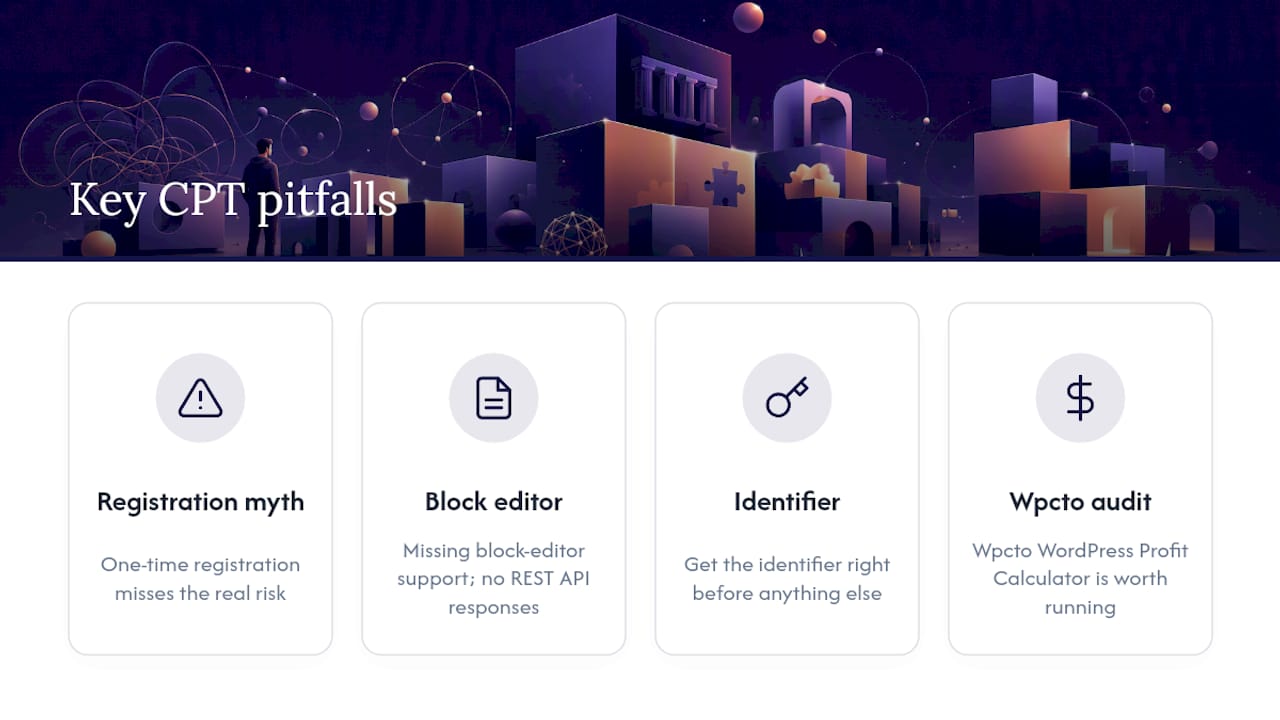
The Wpcto WordPress Profit Calculator is worth running if your agency has clients with CPT-based sites that have grown organically over time. Structured content that was built well is a strong foundation for ongoing retainers. Structured content that was built carelessly is a support liability. Knowing which you have is the first step.