

Every British business that relies on a WordPress site faces a real risk, with over 30,000 websites hacked daily worldwide. The impact hits fast, threatening revenue and reputation for UK entrepreneurs who need safe, uninterrupted website access. This guide shows British business owners exactly how to spot a hack, secure access, and rapidly restore control, offering trusted steps for urgent recovery and long-term website security.
Table of Contents
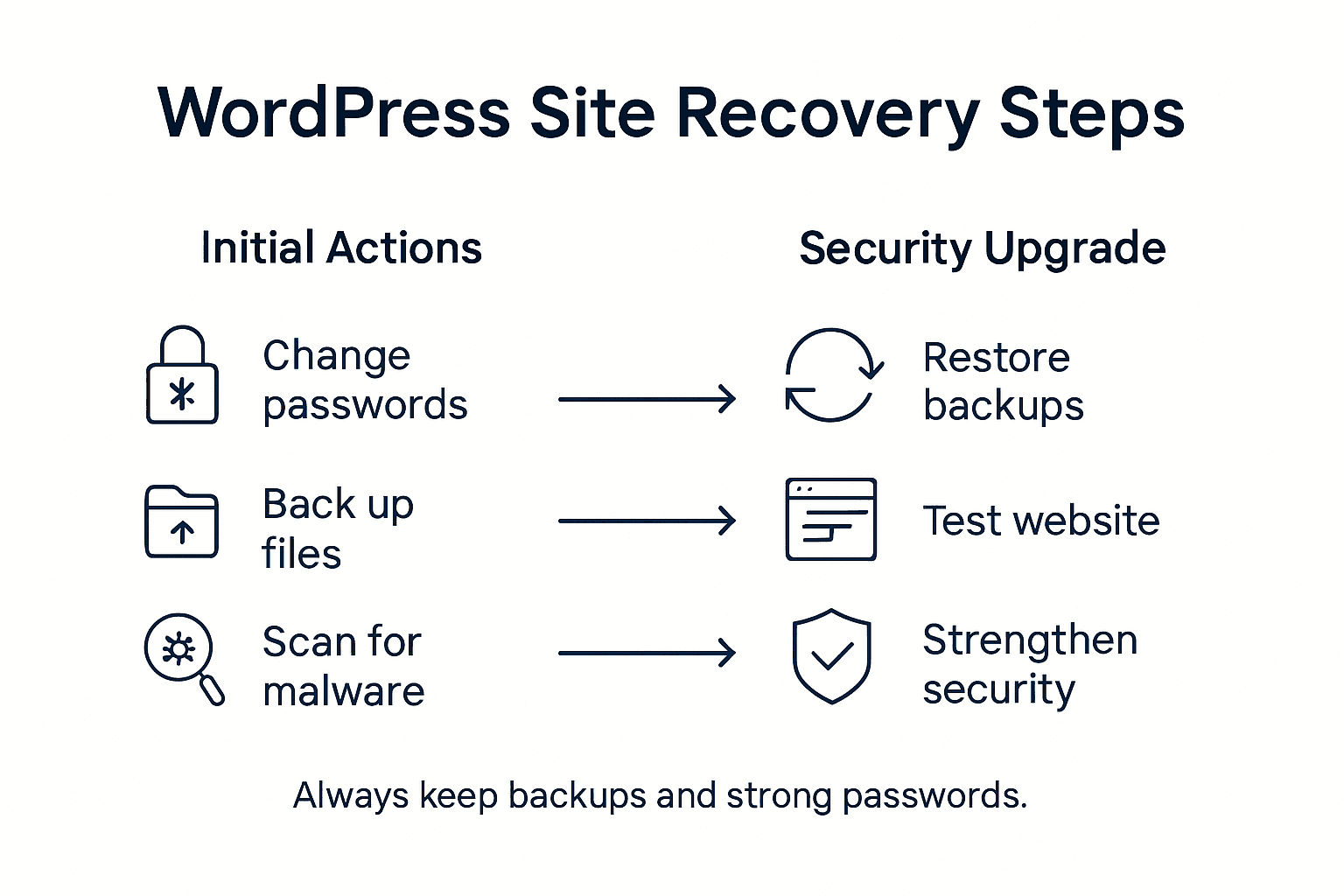
- Step 1: Identify The Hack And Secure Access
- Step 2: Back Up Your Compromised Website Files
- Step 3: Remove Malware And Unauthorised Code
- Step 4: Restore Clean Backups And Plugins
- Step 5: Test, Verify, And Strengthen Security
Quick Summary
| Key Point | Explanation |
|---|---|
| 1. Update All Login Credentials | Change all passwords immediately to prevent further unauthorised access and secure sensitive accounts. |
| 2. Create Comprehensive Backups | Ensure you back up all files and the database to protect your data from loss and facilitate recovery. |
| 3. Use Professional Malware Scanners | Conduct thorough scans with trusted tools to detect and eliminate malicious code throughout your site. |
| 4. Restore From Clean Backups | Select the most recent clean backup to restore your site, ensuring no malicious files are reintroduced. |
| 5. Implement Strong Security Measures | Develop and enforce security protocols, including two-factor authentication and regular vulnerability checks. |
Step 1: Identify the hack and secure access
Restoring a hacked WordPress website requires swift and strategic action to regain control and protect your digital assets. In this critical first stage, you will systematically detect signs of compromise and immediately secure your website’s access points.
Understanding the hack begins with recognising unusual website behaviour. Red Website Design highlights several key indicators that signal a potential security breach. Watch for unexpected page redirects, strange pop-ups, unfamiliar admin user accounts, search engine warnings about malware, or significant drops in website performance. Your website might display random advertisements, contain hidden malicious code, or suddenly rank poorly in search results. These symptoms suggest unauthorised access and potential data manipulation.
To secure access, start by changing all login credentials immediately. This means updating passwords for your WordPress admin account, hosting control panel, FTP accounts, and database access. Use strong, unique passwords with a combination of uppercase and lowercase letters, numbers, and special characters. Disable any administrator accounts you do not personally recognise or create. Implement two-factor authentication for an additional layer of security. Consider temporarily restricting login attempts from specific IP addresses to prevent brute-force attacks.
Here is a quick reference to the roles of essential WordPress accounts during a recovery:
| Account Type | Recommended Action | Security Impact |
|---|---|---|
| WordPress Administrator | Update password immediately | Prevents further unauthorised access |
| Hosting Control Panel | Reset credentials | Blocks hacker control at server level |
| FTP Accounts | Change passwords | Secures website file management |
| Database Access | Assign strong credentials | Protects stored site data |
| Unfamiliar Admin Accounts | Disable and investigate | Removes potential malicious users |
Quick expert insight: Always maintain an offline backup of your website files and database before making significant changes, ensuring you can restore your site if complications arise during the recovery process.
Beginner’s professional advice: Create a comprehensive password management strategy that includes regular credential updates and unique passwords for each digital platform.
Step 2: Back up your compromised website files
In this critical stage of website recovery, you will create comprehensive backups of your compromised WordPress site, ensuring you preserve all essential data before initiating restoration procedures. Understanding why WordPress website backups matter is fundamental to protecting your digital assets.
To begin backing up your compromised files, you will need to access your website through multiple methods. First, use your hosting control panel to create a complete site backup, which typically includes all website files and databases. Most hosting providers offer one click backup solutions or integrated backup tools. If your hosting platform does not provide this feature, download your entire website directory via FTP or File Manager, ensuring you capture all WordPress core files, themes, plugins, and uploaded media content. Pay special attention to capturing your entire WordPress installation directory, including the critical wp-content folder that contains your unique website configurations.
Next, export your WordPress database using phpMyAdmin or your hosting provider’s database management tool. This step is crucial as your database contains all website content, user information, posts, pages, and critical configuration settings. Generate a comprehensive SQL dump that includes all tables, ensuring you have a complete snapshot of your website’s content and structure. Store these backup files in multiple secure locations, such as an external hard drive, cloud storage service, and a separate computer to prevent potential data loss.

Professional tip: Always verify your backup files’ integrity by attempting a test restoration on a separate development environment before proceeding with major recovery efforts.
Beginner’s professional advice: Create an automated backup strategy that generates regular site backups and stores them in multiple secure, geographically separated locations to minimise potential data loss risks.
Step 3: Remove malware and unauthorised code
Removing malware and unauthorised code is a critical step in restoring your compromised WordPress website, requiring methodical and thorough investigation to eliminate potential security threats. WordPress security experts recommend a comprehensive scanning approach to detect and remove malicious code.
Begin by utilising professional malware scanning tools specifically designed for WordPress environments. These tools can automatically detect suspicious files, hidden scripts, and potential backdoors that manual inspection might overlook. Popular security plugins like Wordfence, Sucuri, or MalCare offer robust scanning capabilities that examine your entire WordPress installation for indicators of compromise. Pay special attention to core WordPress files, theme directories, and plugin folders where malicious code frequently hides. Run multiple scans from different security tools to cross verify results and ensure no potential threats remain undetected.
Manual investigation is equally important in the malware removal process. Carefully review recently modified files, looking for unexpected PHP scripts, suspicious javascript injections, or unfamiliar code snippets that do not align with your original website configuration. Focus on files within the wp-content directory, particularly in theme and plugin folders. Remove any unrecognised administrator accounts, deactivate and delete suspicious plugins, and replace core WordPress files with fresh downloads from the official WordPress repository. Be prepared to perform a complete website restoration if the infection appears extensive or challenging to isolate.
Professional tip: Always maintain a clean, isolated testing environment where you can safely analyse and clean potentially infected files without risking further contamination of your live website.
Beginner’s professional advice: Create a comprehensive malware removal checklist that includes scanning tools, manual file verification steps, and a systematic approach to identifying and eliminating security threats.
Step 4: Restore clean backups and plugins
Restoring your WordPress website after a security breach requires precise and methodical handling of your clean backup files and essential plugins. Website restoration experts recommend a strategic approach to recovering compromised site infrastructure.
Begin by carefully selecting the most recent clean backup that predates the security incident. Verify the backup’s integrity by checking file timestamps and comparing them against known safe versions of your website. Use your hosting control panel or a reliable backup plugin to restore the entire WordPress installation, ensuring you replace all core files, themes, and uploaded media content. When reinstalling plugins, prioritise understanding which plugin updates are critical for site security, and only reactivate verified clean versions from trusted sources. Avoid reinstalling plugins directly from the compromised website backup instead download fresh copies from the official WordPress plugin repository.
After restoration, conduct a comprehensive review of your website configuration. Systematically validate each restored element, checking database integrity, verifying user permissions, and ensuring no residual malicious code remains. Cross reference your restored files with clean copies and run additional security scans to confirm the website’s structural soundness. Remember that restoration is not just about recovering data but rebuilding a secure digital environment that protects against future vulnerabilities.
Professional tip: Create a detailed restoration log documenting every step of the recovery process, which will help identify potential weak points and improve future security strategies.
Beginner’s professional advice: Develop a routine verification process that involves regular backup checks and staging environment testing to maintain ongoing website health and security.
Step 5: Test, verify, and strengthen security
The final stage of your WordPress website recovery involves comprehensive testing and strategic security reinforcement to prevent future vulnerabilities. The National Cyber Security Centre recommends systematic vulnerability checks to ensure your website remains protected against potential threats.
Official WordPress UK security protocols emphasise the importance of thorough verification processes. Begin by conducting multiple layers of security testing using professional scanning tools that assess your website for potential weaknesses. Implement robust security plugins that offer continuous monitoring, perform regular malware scans, and provide real time threat detection. Configure these tools to run automated security checks and generate comprehensive reports that highlight any emerging vulnerabilities. Pay special attention to user permissions, reviewing and limiting administrative access to only essential team members. Enable two factor authentication, implement strong password policies, and consider using advanced security measures like IP address restrictions and login attempt monitoring.
Beyond technical configurations, develop a proactive security strategy that includes regular website audits, timely plugin and theme updates, and consistent backup procedures. Create a dedicated staging environment where you can test security updates and configurations before applying them to your live website. Monitor your website’s performance, track unusual activities, and stay informed about the latest WordPress security best practices. Consider engaging with professional WordPress security services that can provide ongoing monitoring and rapid response to potential security threats.
Professional tip: Establish a quarterly security review process that systematically evaluates your website’s security infrastructure and identifies potential improvement areas.
Beginner’s professional advice: Develop a comprehensive incident response plan that outlines clear steps for addressing potential security breaches quickly and effectively.
The table below summarises how different recovery actions help strengthen security for the future:
| Recovery Step | Long-Term Security Benefit | Implementation Frequency |
|---|---|---|
| Two-factor authentication | Reduces risk of account breach | After major updates |
| Automated backup strategy | Ensures quick data recovery | Regularly (daily/weekly) |
| Malware scanning | Detects threats early | Weekly or after changes |
| Routine permissions review | Limits potential exploit paths | Quarterly |
| Staging environment testing | Prevents deploying vulnerabilities | Before major updates |
Take Control of Your WordPress Security Today
Encountering a hacked WordPress website can be overwhelming. The challenge of swiftly identifying breaches, securely removing malware, and restoring your site while preventing future attacks requires expert knowledge and immediate action. If you struggle with complex steps like changing administrator credentials, handling backups, or reinforcing your site against vulnerabilities, you are not alone. WPCTO.net specialises in tailored WordPress management and support solutions designed to tackle these exact challenges with precision and trustworthiness.
Don’t wait for the next breach to compromise your business. Discover how our proactive security enhancements, quick fix services, and strategic consulting can safeguard your digital presence right now. Start by visiting WPCTO.net and explore how our professional WordPress website management can restore your peace of mind. Need immediate assistance with restoring a hacked WordPress UK site? Reach out for expert support and keep your website safe and optimised today.
Frequently Asked Questions
What should I do first if my WordPress website has been hacked?
To start restoring your hacked WordPress website, immediately change all login credentials including your WordPress admin, FTP, and hosting control panel passwords. Implement strong, unique passwords and enable two-factor authentication to enhance security.
How can I back up my compromised WordPress files before restoring?
You can back up your compromised website by accessing your hosting control panel to create a complete site backup, or by downloading your entire website directory via FTP. Ensure to also export your WordPress database using phpMyAdmin to preserve all critical data.
What steps are involved in removing malware from my hacked WordPress site?
Begin removing malware by using professional scanning tools designed for WordPress to detect suspicious files and hidden scripts. Follow this by manually inspecting the wp-content directory and removing any unfamiliar code or suspicious plugins.
How do I restore my website using clean backups after a security breach?
Choose the most recent clean backup from before the incident and verify its integrity. Use your hosting control panel to restore the entire WordPress installation while ensuring you only reinstall verified plugins from trusted sources.
What measures can I take to strengthen my website’s security after recovery?
After restoring your site, implement two-factor authentication, regularly review user permissions, and create an automated backup strategy to enhance security. Conduct these actions consistently, ideally quarterly, to protect against future vulnerabilities.
Why is it important to have a staging environment for my WordPress site?
A staging environment allows you to safely test security updates and configurations before applying them to your live website. This reduces the risk of deploying vulnerabilities and helps ensure a smoother, more secure site operation.