

Back up the database plus wp-content and store copies offsite. Enable automated backups now, and verify a restore before you need one.
Both halves of your site matter equally here. The database holds every post, page, product, order and user account. The wp-content folder holds your uploads, your theme and every plugin that makes the site function. Miss either one and a restore will fail or hand you back a broken shell of the original site. You also need wp-config.php and .htaccess, since these hold your database credentials, security keys and server rewrite rules.
The fastest path to safety looks like this:
- Install a reputable backup plugin or confirm your host offers real backups (not just a server snapshot you can’t easily download).
- Set it to back up the database and files automatically, then send a copy offsite to somewhere like Google Drive, Amazon S3 or Cloudflare R2.
- Run your first backup manually today, download it, and check the files actually open.
- Restore that backup to a staging environment to confirm it works.
- Store your hosting, database and cloud storage credentials in a password manager, not a sticky note or a shared spreadsheet nobody updates.
The WordPress Developer Handbook recommends backing up the database first, since it changes far more often than your files do. A theme file might sit untouched for months; your orders table changes every minute if you run WooCommerce.
Key Takeaways
Reliable WordPress recovery depends on backing up the database and wp-content separately, storing copies offsite, and proving the restore works through regular testing.
| Point | Details |
|---|---|
| Back up both halves | The database and wp-content are equally critical; missing either breaks a restore. |
| Follow the 3-2-1 rule | Keep three copies, on two storage types, with one copy always offsite from the host. |
| Match frequency to risk | Use hourly database backups for WooCommerce stores, daily for content sites and brochure sites. |
| Test restores quarterly | Run restores on staging and time them against your RTO, not just assume they’ll work. |
| Standardise at agency scale | Wpcto applies documented schedules, credentials and restore runbooks across an entire client roster. |
Table of Contents
- How to backup your WordPress website: what to include
- Which backup method should you actually use?
- Setting up an automated backup plugin step by step
- Can you rely on your host’s built-in backups?
- How do I manually back up my WordPress files and database?
- How often should you back up, and how long should you keep backups?
- How do you test a WordPress restore properly?
- What are the most common backup mistakes to avoid?
- Running backups across an agency’s whole client base
- Why “just enable a backup plugin” isn’t the whole answer
- Let Wpcto handle backups so your team doesn’t have to
- Frequently asked questions
- Sources
How to backup your WordPress website: what to include
A backup is only as good as what’s inside it. Skip one folder or one database table and your “restore” recreates a broken site, not the one you had yesterday.
The wp-content folder is non-negotiable. Inside it:
- uploads — every image, PDF and media file a client or editor has ever added. This folder grows the largest and is the one people forget to check has actually copied in full.
- themes — your active theme and any parent theme it depends on, plus custom code you or a developer added.
- plugins — every plugin folder, including ones that are deactivated but still configured with settings you’d need later.
- mu-plugins — “must-use” plugins that don’t show in the normal plugin list but often handle critical functionality like custom login security or performance tweaks.
The database is arguably the higher-value asset of the two. It stores your posts and pages, every user account and password hash, your menu structure, widget settings, and if you run WooCommerce, every order, customer record and transaction line item. Lose the database and you don’t just lose content, you lose the entire operating memory of the site. The WordPress Developer Handbook treats database backup as the priority step precisely because it’s the part that changes constantly and is hardest to recreate from memory.
Two configuration files deserve separate mention. wp-config.php holds your database name, username, password and unique security keys. .htaccess controls your permalink structure and any server-level redirects or security rules. Neither file is large, but both are essential, and both are commonly excluded by backup tools that only grab “content” folders by default.
Beyond the backup itself, keep a short written record of things a backup file won’t capture: your DNS settings, SSL certificate provider, and any third-party API keys tied to payment gateways or marketing tools.
Pro Tip: Open a downloaded backup archive at least once and check the file list before you trust it. A backup that silently failed to include uploads is worse than no backup at all, because you won’t find out until the day you need it.
Which backup method should you actually use?
There’s no single right answer here. It depends on your technical comfort, how often your content changes, and what happens to your business if the site goes down for a day.
Hosting snapshots are the backup most site owners already have without realising it, since many hosts run automatic snapshots in the background. They’re convenient and require zero setup, but retention windows are often short (a week or two isn’t unusual), and the backups typically live inside your hosting account. If your hosting account is compromised, deleted, or the host itself has an outage, that “backup” disappears with everything else.
Backup plugins give you far more control: scheduling, offsite storage, encryption and one-click restores. The setup takes longer than doing nothing, but a well-configured plugin like Duplicator covers full-site exports and lets you choose where copies land, which solves the offsite problem hosting snapshots don’t.
Manual SFTP and phpMyAdmin exports work when you need full control or you’re troubleshooting a plugin conflict and don’t trust automated tools right now. It’s slower and requires comfort with a file manager and database interface, but it’s free and gives you a raw, portable copy.
Managed agency services hand the entire process, monitoring included, to a specialist, which matters most for sites where downtime has a real financial cost.
Match the method to the site:
- Brochure or portfolio site — a daily automated plugin backup with offsite storage is more than enough.
- Content-heavy site (blogs, membership sites, news) — daily backups with incremental file syncing to reduce load.
- Small ecommerce or high-transaction WooCommerce store — you need far more frequent database backups than file backups, since orders and stock levels change by the minute.
Setting up an automated backup plugin step by step
This is where most site owners get real protection in under thirty minutes, provided you follow through on verification rather than assuming it worked.
1. Choose a plugin with the right feature set. Look for incremental backups (so it only copies what’s changed, not the whole site every time), separate scheduling for database versus files, support for offsite destinations, encryption at rest, and multisite compatibility if that applies to you. WPBeginner’s comparison guide is a solid starting point, and plugins like Jetpack Backup are worth comparing against dedicated tools such as Duplicator on this list of backup plugins for Elementor sites.

2. Install and set two separate schedules. Your database changes far more often than your theme files. Run database backups daily, or hourly on an ecommerce store, and file backups less frequently, perhaps weekly, unless you’re mid-redesign. Splitting the two reduces the backup window and cuts storage costs considerably compared to one giant nightly job.
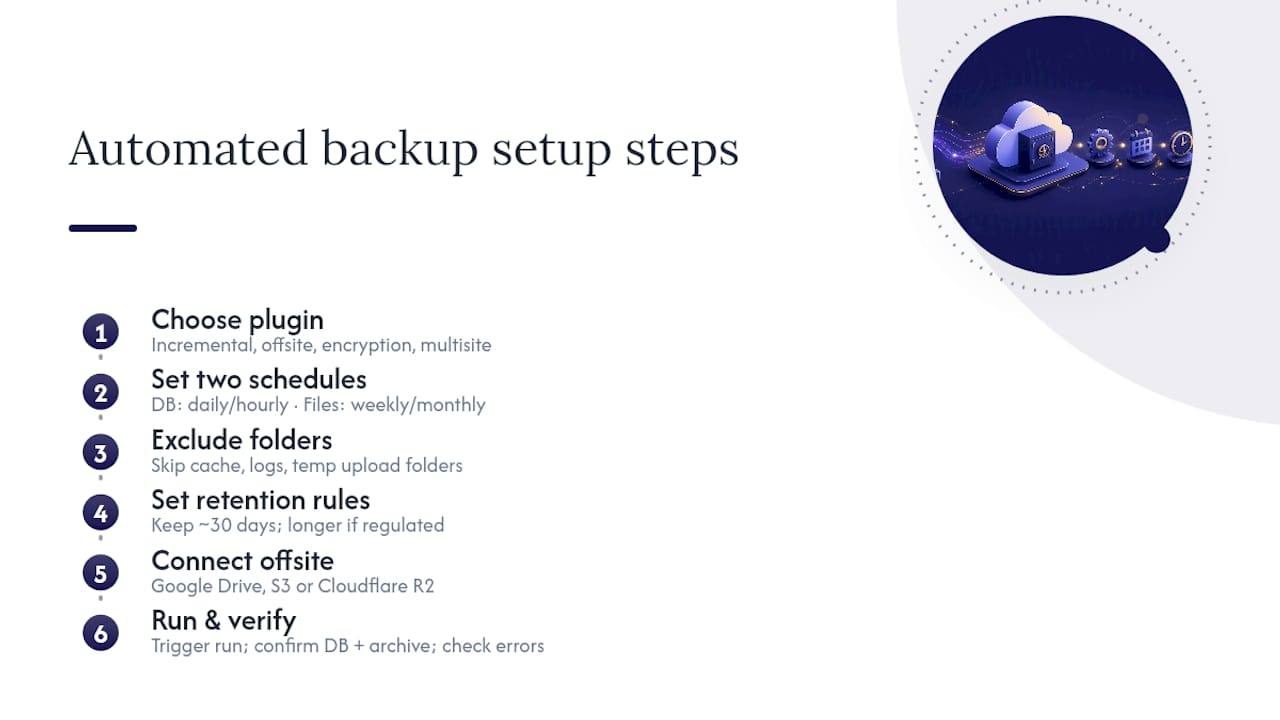
3. Exclude bloated, low-value folders. Cache directories, log files and temporary upload folders can balloon a backup’s size without adding anything worth restoring. Excluding them speeds up every run and saves on storage fees.
4. Set retention rules. Decide how many backup copies you keep before older ones are deleted automatically. Thirty days is a common baseline for most sites; regulated or ecommerce sites often keep longer.
5. Connect an offsite destination. Google Drive, Amazon S3 and Cloudflare R2 are the three most common choices. Each requires you to generate an access key or authorise the connection through OAuth, and it’s worth double-checking the permissions granted are scoped to a single folder rather than your entire cloud storage account.
6. Run your first backup manually and check the output. Don’t wait for the schedule. Trigger a manual run, then go into your offsite storage and confirm you can see both a .sql database file and a compressed file archive, not just one or the other.
7. Diagnose common failures early. Timeouts usually mean your hosting has strict execution limits; switch to smaller, incremental chunks. Storage limit errors mean your offsite plan is full or your retention rules aren’t clearing old copies. Both are fixable in minutes once you know what you’re looking at.
Pro Tip: Set a calendar reminder to check your backup destination once a month. Plugins fail silently more often than you’d expect, usually after a host changes PHP versions or a storage token expires without any obvious warning.
Can you rely on your host’s built-in backups?
Most hosting backups are useful as a first line of defence, but they weren’t built to be your only line. Retention is usually short, ranging from a few days to a couple of weeks, and the copies typically sit inside the same hosting account as your live site. If that account is suspended, hacked, or the host suffers an outage, your “backup” is exposed to the same failure.
Treat hosting backups as a convenient extra layer, not your full strategy.
On cPanel, backups usually live under a “Backup” or “Backup Wizard” icon in the dashboard, where you can generate and download a full account backup or request individual database and file downloads.
On Plesk, look for the “Backup Manager” tool, which lists scheduled backups and lets you download them directly to your computer or push them to a remote FTP location.
On managed WordPress hosts, backups are often handled entirely behind the scenes. In that case, contact support and ask specifically for a full site export, including the database, since some managed hosts only surface file backups through their dashboard by default.
Once you have a host backup in hand:
- Check whether it includes a separate
.sqlfile or whether the database is bundled inside a larger archive that needs extracting first. - Extract the database dump using a tool like phpMyAdmin or a standard archive utility if it’s compressed.
- Move a copy to your own cloud storage immediately. A host backup that never leaves the host’s servers doesn’t count as an independent copy.
That last step is the one people skip, and it’s the one that matters most.
How do I manually back up my WordPress files and database?
Manual backups are the fallback every technical site manager should know, particularly useful when a plugin fails, a host restricts automated tools, or you’re troubleshooting something odd and want a clean copy before you touch anything.
1. Connect via SFTP. Use a client such as FileZilla with your host’s SFTP credentials, not plain FTP, since SFTP encrypts the connection.
2. Download the full wp-content folder, along with wp-config.php and .htaccess from the root directory. Skip the core WordPress files themselves; they’re identical across every install and can be redownloaded from wordpress.org if needed.
3. Preserve file permissions where possible. Most SFTP clients retain them automatically, but it’s worth a quick check, since incorrect permissions after a restore are a common cause of a “white screen” site.
4. Export the database via phpMyAdmin. Log in through your host’s control panel, select your WordPress database, click “Export,” choose the “Custom” method rather than “Quick,” and make sure DROP TABLE statements are included, since this makes the restore cleaner if tables already exist.
5. Alternatively, use mysqldump over SSH with a tool like PuTTY on Windows, which gives you a scriptable, repeatable export ideal if you’re managing several client sites.
6. Verify the export. Open the .sql file in a text editor briefly and confirm it contains real table data, not an empty or truncated file, which happens more often than you’d expect on shared hosting with strict execution limits.
For very large sites, split the database export into chunks by table group, compress the files folder before transfer, and consider streaming directly to Amazon S3 rather than downloading locally first.
Pro Tip: If a phpMyAdmin export times out on a large site, use mysqldump over SSH instead. It runs server-side rather than through your browser, so it isn’t limited by your connection or a PHP execution timeout.
How often should you back up, and how long should you keep backups?
Two concepts decide this for you: RPO and RTO. Recovery Point Objective (RPO) is how much data you can afford to lose, measured in time. If your RPO is four hours, your last backup can never be older than four hours when disaster strikes. Recovery Time Objective (RTO) is how long you can afford to be down while you restore.
These two numbers should drive your entire schedule, not a generic “back up daily” rule copied from a checklist.
- Brochure or portfolio sites — daily backups are usually enough. Content rarely changes, so an RPO of 24 hours is an acceptable risk.
- Content-heavy sites (blogs, membership platforms) — daily database backups with incremental file syncing, since new content is published constantly but the file structure barely changes.
- WooCommerce or high-transaction stores — hourly, or as close to real-time as your plugin allows, for the database specifically. Losing four hours of orders on a busy store is a genuine financial hit, not an inconvenience.
Agency-focused guidance on backup and disaster recovery consistently maps backup frequency directly to this kind of risk assessment rather than treating every client site the same way.
Retention matters as much as frequency. Keeping thirty days of full backups sounds thorough until you realise it can quietly consume gigabytes of storage every month. Incremental backups, where the plugin only saves what’s changed since the last full backup, cut both storage costs and backup windows significantly, since many plugins support hourly database increments layered on top of a weekly full file backup.
How do you test a WordPress restore properly?
A backup you’ve never restored is a theory, not a safety net. Testing it is the step almost everyone skips, and it’s the step that determines whether your recovery actually works when it counts.
1. Restore to a staging environment first, never directly onto your live site. Most managed hosts include a one-click staging clone; if yours doesn’t, a subdomain with a fresh WordPress install works as a substitute.
2. Follow the correct restore order. Files go in first, then the database, then check wp-config.php for any mismatched database credentials or table prefixes that need adjusting after the import.
3. Run through a verification checklist, not just a glance at the homepage:
- Log into wp-admin and confirm your user account still works.
- Test any contact forms to confirm submissions still send.
- If you run WooCommerce, walk through a test checkout end to end.
- Check that media files display correctly, not as broken links.
- Click through your main navigation and confirm permalinks resolve rather than throwing 404 errors.
4. Time the entire process. Note how long the restore took from start to finish and compare it against your RTO. If your target is two hours and the restore took five, you have a gap worth solving before an actual emergency forces the issue.
A documented recovery plan that includes restore timing, not just a stored backup file, is what separates teams that recover quickly from teams that improvise under pressure. Schedule a full restore drill quarterly, treating it the same as any other recurring maintenance task rather than something you’ll “get to eventually.”
Pro Tip: Use an analytics tool such as Microsoft Clarity after a staging restore to spot broken user flows a manual click-through might miss, particularly on longer checkout or signup sequences.
What are the most common backup mistakes to avoid?
Most backup failures aren’t dramatic. They’re quiet gaps that only surface the day you actually need the file.
- Relying only on hosting backups. This breaks the 3-2-1 rule outright, since a host backup is one copy in one location. If the host account is compromised, you lose your site and your “backup” simultaneously.
- Never testing a restore. A backup that has never been restored is unverified. You find out it’s corrupted, incomplete, or missing wp-content precisely when you can least afford the surprise.
- No offsite copy. Storing everything in the same account, server or building as the live site defeats the purpose. Offsite means genuinely separate infrastructure, not a different folder on the same host.
- Large-file failures and silent timeouts. Big media libraries or WooCommerce databases with years of order history frequently hit server execution limits mid-backup. Switching to incremental backups or streaming directly to offsite storage usually resolves this.
- Lost credentials. If the one person who knows the hosting login, database password and cloud storage keys leaves the team without documenting them, your backups might as well not exist.
A backup without a tested recovery plan tends to create long downtime, and restore drills reveal hidden gaps like missing credentials or oversized backup files that nobody noticed until the drill forced the issue.
The minimum documentation every team needs: hosting login, database credentials, cloud storage access keys, and the name of whoever is responsible for checking backups ran successfully each week.
Running backups across an agency’s whole client base
Handling backups for one site is straightforward. Handling them for thirty client sites, each on a different host with different risk levels, is where most agencies quietly start losing money and sleep.
Standardise the approach rather than configuring each site individually from scratch:
- Set one backup schedule template per site tier (brochure, content, ecommerce), rather than deciding case by case every time a new client signs.
- Document every credential in a shared, permissioned password manager, not in individual team members’ heads or personal notes.
- Enforce a pre-update backup rule so nobody runs a plugin or core update without a fresh backup taken in the last hour.
- Apply the 3-2-1 rule at scale: three copies of every client site, on two different storage types, with one copy always offsite from the hosting account.
- Write a restore runbook that names who restores, in what order, and what “verified” means, so a restore doesn’t depend on whichever developer happens to be online that day.
This is precisely where Wpcto sits behind agencies as the specialist backup and maintenance partner, standardising these policies across an entire client roster so nobody’s Friday afternoon depends on remembering who last checked the backup logs. If you want a clearer sense of where your current backup gaps might be quietly costing you client trust, and revenue, the WordPress Profit Calculator shows what uncaptured maintenance revenue looks like across your existing client base in under ninety seconds.
Pro Tip: Build a one-page retention policy template for every new client onboarded, covering schedule, storage location and who’s responsible. It takes ten minutes and saves hours the first time something goes wrong.
Why “just enable a backup plugin” isn’t the whole answer
The advice you’ll find everywhere treats backups as a box to tick: install a plugin, pick a schedule, move on. That’s not wrong exactly, but it misses the part that actually determines whether a backup saves you or fails you. A backup file sitting untested in cloud storage is a guess dressed up as a safety net.
What gets underestimated most is retention discipline. Site owners obsess over backup frequency and barely think about how long copies are kept or whether database and file schedules are separated. A WooCommerce store backing up its database hourly but its files monthly is protected against very different risks than a brochure site running one combined weekly job, and treating them the same is where most plans quietly fail.
The single highest-leverage habit isn’t a tool choice. It’s the quarterly restore drill. Everything else, plugin selection, offsite storage, retention windows, only proves its worth the moment you actually try to bring a site back from nothing. Prioritise that first, and the rest of the backup stack becomes a lot easier to get right.
Let Wpcto handle backups so your team doesn’t have to
Wpcto is the alternative to absorbing WordPress support in-house, whether you’re managing backups yourself right now or fielding the emergency call when a client’s site goes down without one. Instead of your designers and account managers learning phpMyAdmin exports or chasing failed backup notifications between billable client work, Wpcto sits behind your agency handling maintenance, security monitoring, offsite backups and emergency restores directly.

Agencies partnering with Wpcto keep the client relationship and the recurring revenue while offloading the technical delivery entirely, no plugin configuration, no 2am restore panics, no Sunday spent untangling a broken update. Whether you need full white-label WordPress support or want backups folded into a broader agency maintenance plan, the work happens invisibly under your brand.
Start by finding out what your existing client base is already worth in uncaptured maintenance revenue. The WordPress Profit Calculator takes under ninety seconds and gives you a concrete figure to work from, not a vague estimate.
Frequently asked questions
How do I backup my WordPress site for free?
Install a free backup plugin, connect it to a free-tier cloud storage account like Google Drive, and run a manual export through phpMyAdmin as a second, independent copy. This gives you an automated schedule plus a manual fallback without any paid tools.
How often should I backup my WordPress website?
Brochure and portfolio sites are usually fine with daily backups. Content-heavy sites should back up the database daily with incremental file syncing. WooCommerce or high-transaction stores need hourly, or close to real-time, database backups given how quickly orders and stock levels change.
Can I restore a WordPress backup myself without a developer?
Yes, provided your backup includes both the database and wp-content, and you restore to staging first rather than directly onto the live site. Most backup plugins include a guided restore wizard that handles the technical steps automatically.
Is a hosting backup enough on its own?
No. Hosting backups typically have short retention windows and live inside the same account as your live site, which breaks the 3-2-1 rule. Always keep an independent offsite copy as well.
What’s the difference between RPO and RTO?
RPO (Recovery Point Objective) is how much data you can afford to lose, measured in time since your last backup. RTO (Recovery Time Objective) is how long you can afford to be down while restoring. Both should shape your backup schedule.
Sources
- Backups – Advanced Administration Handbook
- How to Backup Your WordPress Site (Ultimate Guide)
- The Agency Survival Guide to Backup & Disaster Recovery
- Duplicator plugin page