

Effective WordPress management comes down to a small set of repeatable practices executed on a reliable schedule: daily backups stored off-server, controlled updates tested on staging, security hardening with 2FA and a web application firewall, performance ownership through hosting and image optimisation, and disciplined plugin hygiene. Get those five things right, and most WordPress sites run without drama. Miss any one of them consistently, and you are one abandoned plugin away from a compromised site or a 3 AM phone call.
Here is the core checklist you can copy into a calendar today:
- Daily: Confirm automated backups completed and are stored off-site (UpdraftPlus to Amazon S3, Google Drive, or Backblaze B2).
- Weekly: Check for plugin, theme, and core updates; review uptime monitor alerts; scan security logs.
- Monthly: Apply staged updates, run a performance spot-check against Core Web Vitals, review user accounts and permissions.
- Quarterly: Test a full restore from backup, audit the plugin list for abandoned or unused installs, review hosting and CDN configuration.
Your one-sentence action plan for this week: Set up UpdraftPlus with off-site storage tonight, enable WP 2FA for every admin account, and book a 20-minute weekly slot to run updates on staging before pushing to production.
Statistic callout: According to Synmek’s State of WordPress 2026, a significant portion of disclosed vulnerabilities had no patch available at the time of disclosure, which means a shorter plugin list and rapid detection matter as much as keeping plugins updated.
If you run WordPress for agency clients and want to know exactly how much revenue is sitting uncaptured in your existing client base, the Wpcto WordPress Profit Calculator gives you a clear figure in under 90 seconds.
Pro Tip: Set up a dedicated maintenance user account with a strong, unique password and 2FA rather than running routine tasks as your primary admin. If that account is ever compromised, the blast radius is contained.
Key takeaways
Effective WordPress management is a small set of repeatable routines, executed on a reliable schedule, owned by a named person, and tested regularly to confirm they actually work.
| Point | Details |
|---|---|
| Daily backups, off-site storage | Configure UpdraftPlus to push to an independent cloud destination; test a full restore at least quarterly. |
| Staged updates, every time | Always back up, sync to staging, test, then deploy; never apply major updates directly to production. |
| 2FA for all admin accounts | Enable WP 2FA for every Administrator and Editor; this single control stops the majority of credential attacks. |
| Monthly plugin audit | Remove any plugin not updated in 12 months or with an open vulnerability; a shorter list is a security decision. |
| Wpcto for agency scale | Wpcto handles maintenance, security, hosting, and migrations for UK agencies under a white-label model, converting support overhead into recurring revenue. |
Table of Contents
- What does an effective WordPress management schedule actually look like?
- How should you configure backups and test that they actually work?
- How do you update WordPress core, themes and plugins without breaking anything?
- What security hardening does your WordPress site actually need?
- How do you improve WordPress performance and Core Web Vitals?
- How do you audit and manage plugins and themes safely?
- How should you organise content and editorial workflows in WordPress?
- What are the right user roles and credential practices for WordPress?
- Which metrics should you monitor to keep a WordPress site healthy?
- How do you choose hosting and set up a staging environment?
- Should you self-manage WordPress or outsource it to a specialist?
- How Wpcto helps agencies remove the WordPress burden
- What is disaster recovery planning beyond backups?
- Wpcto takes the WordPress burden off your agency’s plate
- Sources
What does an effective WordPress management schedule actually look like?
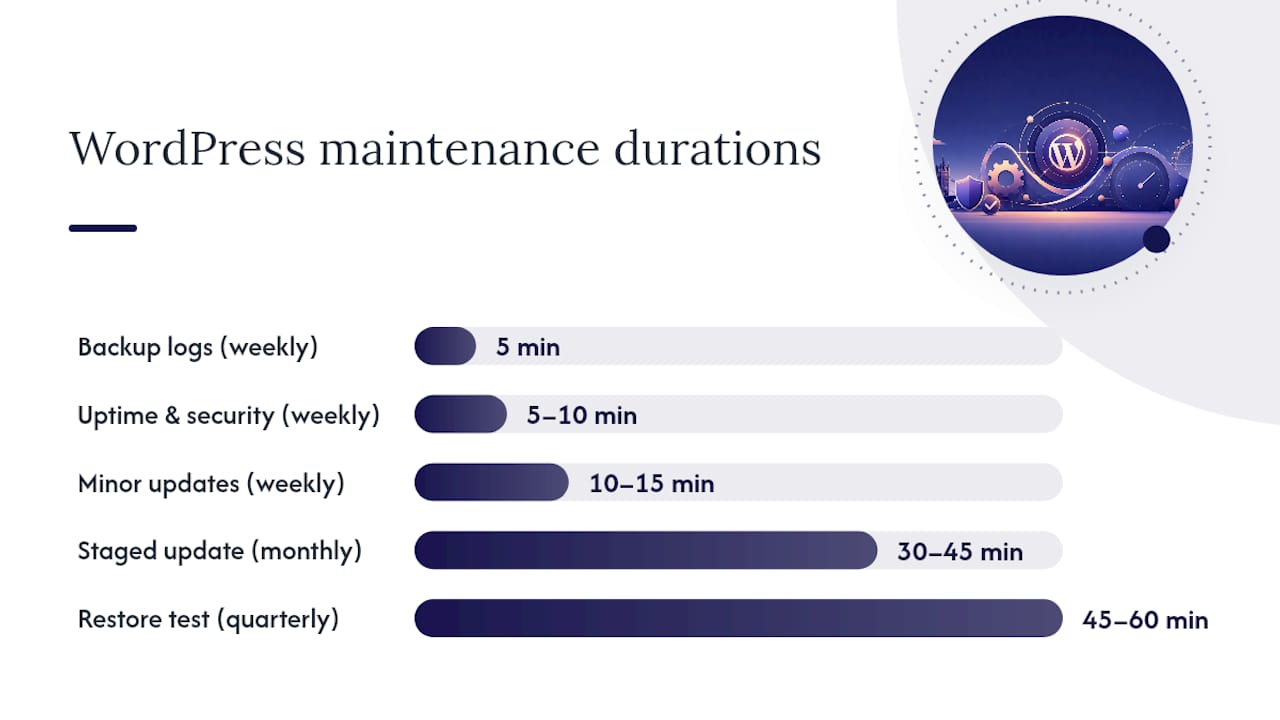
A realistic maintenance cadence for most UK small business sites is 10–20 minutes weekly, 45–60 minutes monthly, and 1–2 hours quarterly when tasks are grouped and automated. That is achievable in-house for a single site. For agencies managing ten or more client sites, the maths shifts quickly.
| Task | Frequency | Time per run | Suggested owner |
|---|---|---|---|
| Review backup logs | Weekly | 5 min | In-house / host |
| Check uptime and security alerts | Weekly | 5–10 min | In-house / monitoring tool |
| Apply minor plugin/theme updates | Weekly | 10–15 min | In-house (staging first) |
| Full staged update cycle | Monthly | 30–45 min | In-house or agency |
| Performance spot-check (Core Web Vitals) | Monthly | 15–20 min | In-house or agency |
| User account and permissions audit | Monthly | 10 min | In-house |
| Full restore test from backup | Quarterly | 45–60 min | Agency or managed plan |
| Plugin audit (remove abandoned installs) | Quarterly | 30 min | Agency or managed plan |
| Hosting and CDN configuration review | Quarterly | 30 min | Agency or managed plan |
| Security vulnerability review | Quarterly | 30–45 min | Agency or managed plan |
For WooCommerce sites or high-traffic news sites, the cadence shifts. WooCommerce sites process transactions and store customer data, so backups should run hourly during trading hours and updates need a staging environment before every push. High-traffic editorial sites benefit from weekly performance checks and more frequent security scans given the larger attack surface.
Pro Tip: Use a tool like WP-CLI or a managed hosting scheduler to automate the backup verification email. A daily confirmation that the backup ran and the file size is non-zero takes five seconds to read and catches silent failures before they matter.
For a broader set of agency-oriented operational tips, the Wpcto 2025 agency WordPress guide covers scheduling and outsourcing decisions in more depth.
How should you configure backups and test that they actually work?
Backups are only useful if you can restore from them quickly and cleanly. Most sites that get hacked or corrupted discover their backup either did not run, stored only on the same server as the site, or had never been tested. All three failures are preventable.
Recommended backup frequency by site type
- Brochure or portfolio sites: Daily full backups, 30-day retention minimum.
- WooCommerce or membership sites: Hourly database backups, daily full backups, 90-day retention to support any dispute or GDPR subject access request.
- High-traffic editorial sites: Daily full backups with real-time database replication if the host supports it.
Your Recovery Point Objective (RPO) is the maximum data loss you can accept. For a WooCommerce site taking orders every hour, an RPO of 24 hours means you could lose a full day of orders. Hourly backups bring that down to one hour. Your Recovery Time Objective (RTO) is how quickly you need the site back online. A realistic RTO for a managed restore is 2–4 hours; plan for it, do not assume it.
Where to store backups
Never store backups only on the same server as the site. If the server is compromised or the host has an outage, both the site and the backup are gone. UpdraftPlus supports direct push to Amazon S3, Google Drive, Dropbox, Backblaze B2, and SFTP. For UK businesses, Backblaze B2 with a UK or EU storage region keeps data within GDPR-compliant jurisdictions. Keep at least two independent copies: one on the host and one off-site.
Retention guidance for UK businesses: keep 30 days of daily backups as a baseline. If you process personal data, a 90-day retention window gives you a clean restore point for most GDPR-related scenarios.
How to test a restore (step by step)
- Spin up a staging environment or a local install (Local by Flywheel works well for this).
- Download the most recent backup archive from your off-site storage location.
- Restore the database and files to the staging environment using UpdraftPlus or your host’s restore tool.
- Check the front end loads correctly and key pages render without errors.
- Log in to wp-admin and confirm posts, products, and settings are intact.
- Check that any custom post types, WooCommerce orders, or form submissions from the backup period are present.
- Document the time taken from download to confirmed restore.
Run this test at least quarterly. If the restore fails, you want to find out during a drill, not during an incident.
Quick checklist to confirm your backups are working tonight:
- Log in to UpdraftPlus and check the last backup timestamp and file size.
- Confirm the remote storage destination is connected and the most recent file is present there.
- Download a small database backup file and verify it is not zero bytes.
- Check your host’s own backup schedule in the control panel and confirm it is independent of your plugin backup.
How do you update WordPress core, themes and plugins without breaking anything?
Updates are the single most common cause of site breakage, and also the most common cause of compromise when skipped. The answer is not to avoid updates; it is to apply them through a controlled workflow that makes rollback straightforward.
WordPress core minor updates (security patches, e.g. 6.7.1 to 6.7.2) should be set to apply automatically. Major core updates (e.g. 6.x to 7.x) warrant a staged approach. Plugin and theme updates sit in the middle: most are safe to apply in small batches on staging, but any update to a page builder, WooCommerce, or a payment gateway plugin deserves a full smoke test.
The staged update workflow
- Take a full backup before touching anything. Confirm it completed successfully.
- Sync production to staging. Push a current copy of the database and files to your staging environment.
- Apply updates in small batches on staging, not all at once. Start with security-critical plugins, then page builders, then everything else.
- Run a smoke test: check the home page, a key landing page, the checkout or contact form, and wp-admin. Look for PHP errors, layout breaks, and 404s.
- Check the WP Health plugin in the admin area for any new warnings or failed checks after the update.
- Deploy to production only after staging passes. Use your host’s push-to-live feature or a migration plugin.
- Monitor for 24 hours after deployment. Check uptime alerts and error logs.
If something breaks on production after deployment, restore from the pre-update backup immediately. Do not try to debug a broken live site under pressure.
Who should own updates? For a single site, the site owner or a nominated developer. For agencies managing multiple client sites, a dedicated maintenance slot (Tuesday morning, for example) with a shared staging environment reduces context-switching. For ten or more sites, a managed plan is almost always more cost-effective than in-house labour.
Pro Tip: After any major update, run the WP Health plugin status check. It surfaces post-update regressions, deprecated function warnings, and long-running cron issues that would otherwise sit silently in the background for weeks.
What security hardening does your WordPress site actually need?
Most WordPress breaches are opportunistic, not targeted. Attackers scan for known vulnerabilities in unpatched or abandoned plugins and exploit them automatically. That means the most effective security posture is not exotic; it is consistent application of a short list of controls.
Statistic callout: The 365i UK security checklist notes that SSL, 2FA, timely updates, daily backups, user permissions, and monitoring together address the most common causes of WordPress compromise for UK businesses.
Essential hardening steps
- Enforce 2FA for all admin and editor accounts using WP 2FA. This single control stops the majority of credential-stuffing attacks.
- Remove unused admin accounts immediately. Every dormant account with admin privileges is a potential entry point.
- Set correct file permissions: directories at 755, files at 644, wp-config.php at 600.
- Disable XML-RPC unless you have a specific need for it. It is a common brute-force vector.
- Add security headers (X-Frame-Options, Content-Security-Policy, X-Content-Type-Options) via your host or a plugin like Wordfence.
- Install Wordfence for its web application firewall (WAF), malware scanner, and login protection. The free tier covers the essentials for most sites.
Ongoing monitoring
- Run Wordfence or the Sucuri scanner weekly for malware and file integrity checks.
- Set up uptime monitoring with an external tool (UptimeRobot or similar) so you are alerted within minutes of a site going down.
- Review Wordfence’s security log monthly for blocked attacks, failed logins, and flagged files.
- Check for plugin vulnerabilities using WPScan or the Wordfence vulnerability database quarterly.
For a deeper look at hardening practices for agency-managed sites, the Wpcto WordPress security guide covers hosting-level controls and compliance considerations.
UK GDPR and security incidents
A security breach on a WordPress site is not just a technical problem. Under UK GDPR, if personal data is accessed, exfiltrated, or destroyed, you may have a 72-hour notification obligation to the ICO. The overlap between security and data protection means your incident response plan needs to include a GDPR assessment step.
Incident response steps:
- Detect: Wordfence alert, uptime monitor, or user report.
- Isolate: Take the site offline or put it in maintenance mode to prevent further damage.
- Restore: Restore from the most recent clean backup to a staging environment first, verify it, then push to production.
- Forensic check: Review access logs and Wordfence scan results to identify the entry point and confirm it is closed.
- Notify: Assess whether personal data was affected. If it was, notify the ICO within 72 hours and affected individuals where required. Keep a record of the incident and your response in your Data Processing Agreement (DPA) documentation.
Keep your hosting provider’s DPA on file. If your host processes personal data on your behalf (which they do if your site collects any), their DPA is a UK GDPR requirement, not optional paperwork.
For a practical overview of security plugin options for Elementor-based sites, this security plugins comparison covers the main contenders and their trade-offs.
How do you improve WordPress performance and Core Web Vitals?
LCP failures on WordPress sites are most commonly caused by hosting (slow TTFB), oversized hero images, and render-blocking font loading.
Quick wins in priority order
- Fix TTFB first. If your server response time is above 600ms, no amount of front-end optimisation will get you to a good LCP. Move to a host with edge caching or a managed WordPress platform with server-side caching enabled.
- Compress and convert hero images to WebP or AVIF. Use ShortPixel or Smush to bulk-convert your media library and serve next-gen formats automatically. Both integrate with WordPress’s native image handling.
- Defer render-blocking scripts and styles using Autoptimize, which aggregates and defers CSS and JavaScript to reduce the resources blocking first paint.
- Enable page and object caching with W3 Total Cache, which supports full-page caching, database object caching, and CDN integration in a single plugin.
- Add a CDN. Cloudflare’s free tier reduces latency for UK visitors and adds DDoS protection. For sites with global audiences, a paid Cloudflare plan or a dedicated CDN improves LCP for non-UK visitors significantly.
- Check your PHP version. PHP 8.2 or 8.3 is materially faster than PHP 7.x. Most managed hosts let you switch in the control panel with no code changes required.
Diagnostic table: performance issues and fastest fixes
| Symptom | Likely cause | Fastest fix |
|---|---|---|
| LCP above 4s on mobile | Slow TTFB or uncompressed hero image | Upgrade hosting tier or enable server cache; convert hero to WebP via ShortPixel |
| High CLS score | Images without width/height attributes | Add explicit dimensions to all img tags or use Smush’s lazy-load with dimension output |
| INP above — | Excessive JavaScript on page load | Defer non-critical JS with Autoptimize; audit and remove unused scripts |
| Slow admin area | Too many active plugins or large database | Deactivate unused plugins; run WP-Sweep or WP-Optimize to clean database tables |
| Poor performance for non-UK visitors | No CDN | Enable Cloudflare or W3 Total Cache CDN integration |
Measurement quickstart: Test your five highest-traffic pages in Google PageSpeed Insights and Google Search Console’s Core Web Vitals report. Focus on LCP, INP (Interaction to Next Paint), and CLS. Fix in that order: LCP is the metric most correlated with bounce rate and conversion.
For a detailed speed optimisation walkthrough, the Wpcto site speed guide covers CDN configuration and caching layer setup step by step. For caching plugin options specifically for Elementor-built sites, this caching plugins guide is worth a read.
How do you audit and manage plugins and themes safely?
Every active plugin is a maintenance obligation and a potential attack surface. The goal is not zero plugins; it is the smallest set of well-maintained plugins that delivers the functionality you need.
Plugin audit checklist
Run this quarterly:
- Last updated: Any plugin not updated in 12 months is a risk. Check the WordPress.org plugin page for the last update date and compatibility with the current WordPress version.
- Active install count: Plugins with fewer than 1,000 active installs have a smaller support community and are more likely to be abandoned.
- Vendor support: Is there a support forum with recent responses? A commercial plugin should have a support channel and a clear update history.
- Security history: Search the WPScan vulnerability database for the plugin name. Any unpatched CVE is a removal candidate.
- Functionality overlap: Does this plugin duplicate something WordPress core or another active plugin already does?
Decision flow: remove or retain?
- If the plugin has an unpatched security vulnerability, remove it immediately and find an alternative.
- If the plugin has not been updated in 12 months and the vendor is unresponsive, remove it.
- If the plugin’s functionality is now available in WordPress core or your page builder, remove it.
- If the plugin is retained, confirm it is licensed, auto-update is configured, and it is on your quarterly review list.
Theme hygiene
Keep one active theme and one default WordPress theme (e.g. Twenty Twenty-Four) as a fallback. Remove all other themes. Unused themes with known vulnerabilities are exploited even when inactive. If you use a child theme, keep the parent theme updated; child theme updates do not cascade to the parent.
Pro Tip: Use a role editor plugin like Adminimize or Members to restrict heavy plugins (WooCommerce reports, SEO dashboards, form builders) to the user roles that actually need them. Reducing the admin UI surface for editors and contributors limits accidental misconfiguration and reduces the temptation to install plugins they do not need.
Numbered steps for a clean plugin audit
- Export a list of all active plugins with their version numbers (the WP Health plugin can generate this).
- Cross-reference each against the WPScan vulnerability database.
- Flag any plugin not updated in 12 months or with an open CVE.
- For flagged plugins, identify a replacement or confirm the functionality can be dropped.
- Deactivate before deleting; confirm the site functions correctly after deactivation.
- Delete the plugin files entirely. Deactivated plugins still present a risk if their files remain on the server.
How should you organise content and editorial workflows in WordPress?
Content architecture decisions made early are expensive to undo later. The most common mistake is using custom post types (CPTs) for everything, which creates a fragmented database and confusing navigation for editors.
When to use CPTs, categories, and tags
Use a CPT when the content type has its own distinct fields, permalink structure, and display template, and when you expect more than 20–30 items of that type. Team members, case studies, and properties are good CPT candidates. Blog posts, news articles, and resources that share the same fields and template should stay as standard posts, organised with categories and tags.
Use categories for primary content groupings (hierarchical, used in navigation). Use tags for cross-cutting attributes (non-hierarchical, used for filtering). Avoid creating both a CPT and a taxonomy for the same concept; pick one.
Editorial workflow steps
- Define roles clearly: who can draft, who can review, who can publish. Use WordPress’s built-in roles (Author, Editor, Administrator) and supplement with a role editor plugin if you need finer control.
- Set a content review cadence: weekly for active editorial sites, monthly for brochure sites.
- Use a staging or preview environment for layout-sensitive content before publishing.
- Document content guidelines (image dimensions, excerpt length, category rules) in a shared document linked from the WordPress dashboard.
- Schedule a quarterly media library audit: delete unused images, check for oversized uploads, and confirm auto-generated image sizes match your active theme’s requirements.
Page builders and Full Site Editing
Elementor Editor Pro consolidates forms, popups, and performance controls into a single plugin, which reduces the number of separate plugins needed and lowers the overall attack surface. The trade-off is lock-in: Elementor-generated markup is not portable to another builder without rebuilding. Full Site Editing (FSE) with block themes is the direction WordPress core is heading, and for new builds it is worth evaluating whether a block theme meets your needs before committing to a page builder.
For content workflow automation ideas, this content marketing automation guide covers AI-assisted editorial workflows that integrate with WordPress.
What are the right user roles and credential practices for WordPress?
WordPress ships with five built-in roles: Subscriber, Contributor, Author, Editor, and Administrator. The principle of least privilege applies directly: give users the minimum role they need to do their job, and nothing more.
Quarterly user audit steps
- Export the full user list from wp-admin > Users.
- Identify any accounts with Administrator role that do not require it. Downgrade to Editor where appropriate.
- Remove accounts for former staff, contractors, or clients who no longer need access.
- Confirm every active account has a unique email address (shared accounts are an audit and accountability problem).
- Check that 2FA is active for all Administrator and Editor accounts via WP 2FA.
Credential practices
- Every user gets their own account. No shared logins.
- Enforce strong passwords via the WordPress password policy or a plugin.
- Mandatory 2FA for Administrator and Editor roles. WP 2FA supports TOTP apps (Google Authenticator, Authy) and email-based codes.
- Change the default admin username if it is still “admin”. Attackers target that username specifically in brute-force campaigns.
Onboarding and offboarding policy snippet
Onboarding: Create a new account with the minimum required role. Send a temporary password via a secure channel. Require 2FA setup before the first login. Document the account in your user register.
Offboarding: Disable the account on the last day of access. Do not delete it immediately; retain it for 30 days in case content attribution or audit trail is needed. After 30 days, delete the account and reassign content to an active user.
Pro Tip: For external contractors or freelancers, create a time-limited account and use a plugin like Adminimize to restrict their view to only the areas they need. Set a calendar reminder to remove the account the day their engagement ends. Do not rely on remembering to do it.
Which metrics should you monitor to keep a WordPress site healthy?
Monitoring tells you when something has gone wrong before your client does. The minimum viable monitoring stack for a UK WordPress site covers uptime, error rates, security events, and search performance.
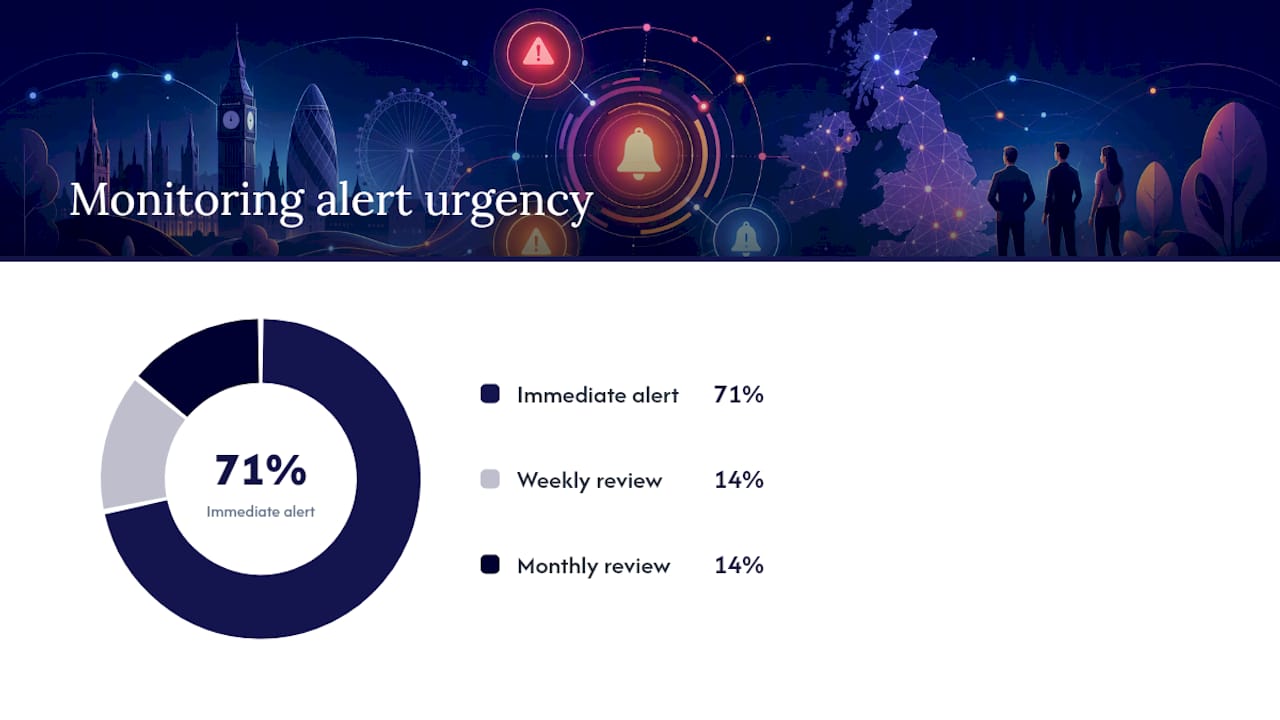
| Metric | Why it matters | Alert threshold |
|---|---|---|
| Uptime | Revenue and reputation impact of downtime | Alert if site is down for more than 1 minute |
| Server response time (TTFB) | Directly affects LCP and user experience | Alert above — |
| PHP error rate | Indicates plugin conflicts or broken updates | Alert on any new PHP fatal error |
| Failed login attempts | Signals brute-force or credential-stuffing attack | Alert above 10 failed attempts in 5 minutes |
| Wordfence malware scan result | Detects file changes and injected code | Alert on any scan failure or flagged file |
| Google Search Console coverage | Tracks crawl errors and indexing issues | Review weekly; alert on sudden coverage drops |
| Core Web Vitals (LCP, INP, CLS) | Affects search rankings and conversion | Review monthly; investigate any metric moving to “Needs improvement” |
Set uptime monitoring with an external tool such as UptimeRobot (free tier checks every 5 minutes) or a paid service for sub-minute alerting. External monitoring is critical because a plugin that crashes the site will also prevent any on-server monitoring from firing.
For UK sites, connect Google Search Console and review the Core Web Vitals report monthly. A sudden drop in indexed pages or a spike in crawl errors often precedes a ranking drop by several weeks, giving you time to investigate before it affects traffic.
For hands-on optimisation tactics that tie into your monitoring data, the Wpcto WordPress optimisation guide for agencies covers the diagnostic-to-fix workflow in detail.
How do you choose hosting and set up a staging environment?
Hosting is the foundation everything else sits on. The choice between managed WordPress hosting and a general-purpose VPS or shared host determines your default security posture, your update workflow options, and your baseline performance.
Managed vs self-managed hosting: what each covers
Managed WordPress hosting typically handles:
- Server-level caching and PHP configuration optimised for WordPress.
- Automatic daily backups with one-click restore.
- Server-side malware scanning and firewall rules.
- Staging environments built into the control panel.
- WordPress core auto-updates (configurable).
What managed hosting does not handle:
- Plugin and theme updates (that is your responsibility).
- Application-level security hardening (2FA, user permissions, file permissions).
- Content and editorial workflows.
- Performance issues caused by poorly coded plugins.
Synmek’s State of WordPress 2026 notes that hosting decisions made at launch have outsized impact on long-term performance, which is why switching hosts is often the highest-leverage action for an underperforming site.
Staging workflow
- Sync production to staging. Use your host’s staging tool or a plugin like WP Migrate to push a current copy of the database and files.
- Apply and test changes on staging. Updates, theme changes, new plugins, and content migrations all go through staging first.
- Run a smoke test: home page, key landing pages, forms, checkout, and wp-admin.
- Push to production using your host’s push-to-live feature or a manual migration.
- Verify production immediately after the push. Check the same pages you tested on staging.
Staging checklist:
- Confirm staging URL is not indexed by search engines (noindex set in staging wp-config or host settings).
- Confirm staging database is a copy of production, not a shared live database.
- Confirm any payment gateways on staging are in test/sandbox mode.
- Confirm email sending is disabled or redirected on staging to prevent accidental sends.
UK GDPR and your hosting provider
If your WordPress site collects personal data (contact forms, WooCommerce orders, newsletter sign-ups), your hosting provider processes that data on your behalf. Under UK GDPR, you need a Data Processing Agreement (DPA) in place with your host. Most major managed WordPress hosts provide a DPA on request or in their terms of service. Check for it before signing up, not after.
Pro Tip: When evaluating a new host, ask specifically for their DPA and check whether their data centres are in the UK or EU. Post-Brexit, UK GDPR applies to data processed in the UK; transfers to non-adequate countries require additional safeguards. Most reputable hosts have UK or EU data centre options.
For guidance on migration triggers and minimising downtime during a rehost, the Wpcto hosting and migration service page covers the process in detail.
Should you self-manage WordPress or outsource it to a specialist?
The honest answer depends on scale, risk tolerance, and what your team’s time is actually worth. For a single brochure site with low traffic and no e-commerce, in-house management is viable if someone owns it consistently. For agencies managing five or more client sites, the calculus changes fast.
Decision checklist
- Scale: How many WordPress sites are you responsible for? Above five, the overhead of individual site management compounds quickly.
- Risk tolerance: What is the cost of a site being down for four hours? For a WooCommerce client, that is a concrete revenue figure.
- Internal capacity: Does your team have a named person who owns WordPress maintenance, or does it fall to whoever is available?
- Client SLAs: Have you committed to uptime or response time SLAs with clients? If so, do you have the monitoring and incident response capability to meet them?
- Growth strategy: Is WordPress maintenance a service you want to grow, or a distraction from your core offering?
Questions to ask a prospective managed WordPress partner
| Question | What a good answer looks like |
|---|---|
| What is your SLA for critical incidents (site down)? | Response within 1 hour, resolution target within 4 hours |
| How do you test backups? | Regular scheduled restore tests to a staging environment |
| How often do you report on maintenance activity? | Monthly written report with update log, security scan results, and performance metrics |
| Who owns security incidents and GDPR notification? | Clear written escalation path; partner should assist with forensics and notification drafting |
| What is your pricing model? | Transparent per-site or per-plan pricing with no hidden fees |
| Do you have a DPA available? | Yes, provided before contract signing |
Red flags when vetting a provider
- No DPA available or unwillingness to sign one.
- Cannot demonstrate that backups are tested, not just taken.
- Opaque pricing with “it depends” answers to direct cost questions.
- No clear ownership of security incidents.
- No staging environment in their workflow.
- Trustpilot or Google reviews that mention poor communication or slow response to critical issues.
When you are evaluating whether outsourcing makes financial sense, the Wpcto WordPress Profit Calculator shows you the revenue opportunity in your existing client base in under 90 seconds. It is the fastest way to turn a gut feeling into a number.
For a structured comparison of self-managing versus using a specialist partner, the Wpcto vs self-managing comparison page lays out the operational differences clearly. The Wpcto outsourcing guide for design agencies covers the vetting process in more depth.
How Wpcto helps agencies remove the WordPress burden
The agencies that come to Wpcto typically share the same story: WordPress maintenance started as a small part of the service, absorbed more and more team time, and eventually became a source of Sunday evening calls, uncharged fixes, and client anxiety that nobody signed up for.
Wpcto’s approach is to sit behind the agency invisibly, handling all WordPress delivery so the agency keeps the client relationship and earns recurring revenue without touching a support ticket.
What Wpcto handles for agency partners:
- Monthly maintenance and care plans covering updates, backups, and security monitoring.
- Security hardening, malware remediation, and incident response.
- Performance optimisation and Core Web Vitals remediation.
- Hosting management, site migrations, and rehosting.
- Emergency support for hacked or offline sites.
- Fractional WordPress CTO consulting for agencies that need strategic input without a full-time hire.
A typical agency with ten WordPress clients spending two hours per client per month on maintenance is absorbing 20 hours of team time that could be billed elsewhere or freed for creative work. Wpcto’s white-label plans convert that overhead into a managed cost and a recurring revenue line.
Pro Tip: Before you decide whether outsourcing makes sense, run the numbers. The Wpcto WordPress Profit Calculator takes under 90 seconds and shows you exactly how much uncaptured revenue is sitting in your current client base.
What is disaster recovery planning beyond backups?
Backups are the foundation of disaster recovery, but a backup without a tested recovery plan is just a file on a server. Disaster recovery planning means defining your RTO and RPO targets, documenting the recovery procedure, and running drills before you need them.
RTO (Recovery Time Objective) is the maximum time your site can be offline before the impact becomes unacceptable. For a WooCommerce site, that might be two hours. For a brochure site, it might be 24 hours. Define it explicitly; do not leave it as “as fast as possible.”
RPO (Recovery Point Objective) is the maximum data loss you can accept. If your RPO is one hour, you need hourly backups. If it is 24 hours, daily backups suffice. RPO drives your backup frequency decision.
Disaster recovery planning steps
- Document your RTO and RPO for each site you manage. Write them down and share them with your client or stakeholder.
- Map your recovery procedure: which backup, which restore tool, which environment, who does it, and in what order.
- Run a recovery drill quarterly. Restore from backup to a staging environment, time the process, and document any gaps.
- Identify single points of failure: if your only backup is on the same host as the site, that is a gap. If only one person knows the restore procedure, that is a gap.
- Test your communication plan: who do you notify when a site goes down, in what order, and through which channel?
- Review after every real incident. What worked, what did not, and what changes to the plan does the incident reveal?
A recovery drill that takes 90 minutes and reveals a broken restore process is one of the most valuable 90 minutes you can spend. The alternative is discovering the same problem at 2 AM with a client on the phone.
What agencies consistently get wrong about WordPress management
The most preventable failures we see are not technical. They are organisational. A site gets compromised not because the team did not know about 2FA, but because nobody was explicitly responsible for enabling it. A backup fails not because UpdraftPlus does not work, but because the remote storage credentials expired six months ago and nobody checked.
The pattern is consistent: WordPress management works when it is owned by a named person with a calendar slot, and it fails when it is assumed to be everyone’s responsibility and therefore nobody’s.
The second most common failure is the plugin audit that never happens. Agencies build sites with 30 plugins, hand them over to the client, and six months later half of those plugins are abandoned. Synmek’s State of WordPress 2026 found that nearly half of disclosed vulnerabilities had no patch available at disclosure, which means you cannot rely on “just keep everything updated” as a complete strategy. A shorter, well-chosen plugin list is a security decision, not just a performance one.
If there is one operational habit worth adopting immediately, it is this: at the start of each month, spend 15 minutes reviewing the previous month’s backup logs, security scan results, and update history. Not to fix anything, just to look. Most problems announce themselves quietly before they become emergencies.
Wpcto takes the WordPress burden off your agency’s plate
Agencies that partner with Wpcto stop absorbing WordPress support hours and start earning from them. Wpcto’s agency maintenance and support plans cover everything from monthly updates and security monitoring to emergency incident response and fractional CTO consulting, all delivered under your brand if you prefer.
The services most agencies use from day one: WordPress maintenance and care plans, security hardening and monitoring, performance optimisation, hosting management, and site migrations. For agencies that want to white-label the entire WordPress delivery function, Wpcto’s white-label support offering lets you resell managed WordPress under your own brand with no visible Wpcto branding.
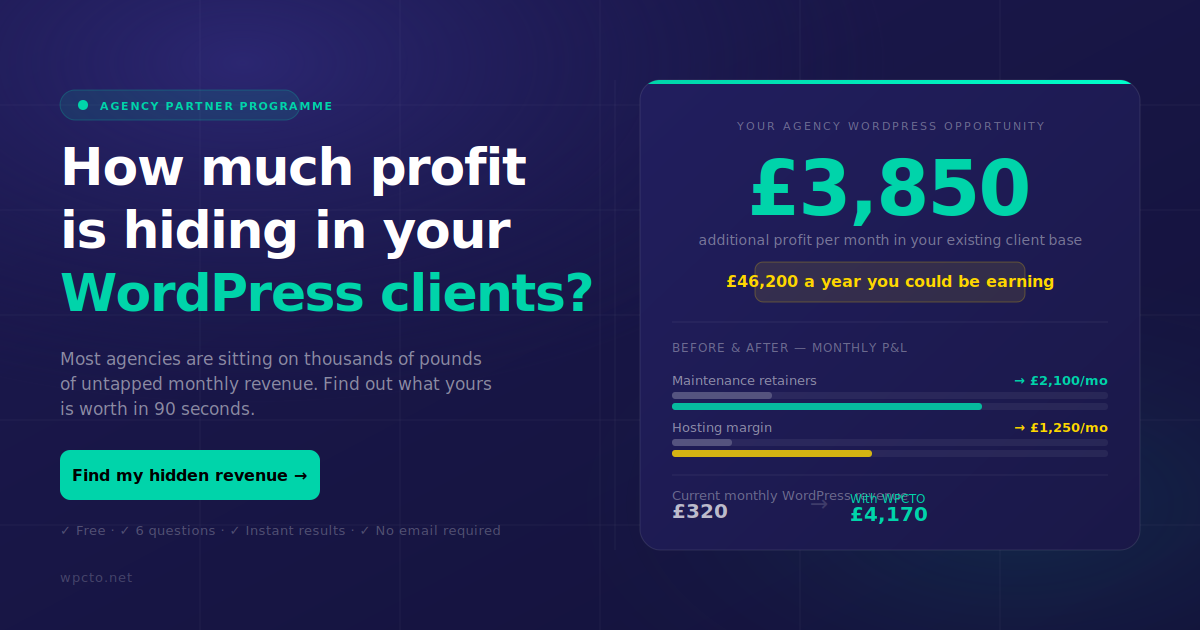
The starting point for most agency conversations is the Wpcto WordPress Profit Calculator. It takes under 90 seconds and shows you the revenue sitting uncaptured in your existing client base. Run it, then get in touch to talk through what a partnership looks like for your agency.
Sources
Plugin pages:
- Is WordPress Still Relevant in 2026? — Explained for 2026
- The State of WordPress 2026 | Synmek Annual Report
- The 7-Step WordPress Security & GDPR Checklist for UK Small Businesses | 365i
- Day‑to‑Day WordPress Maintenance for UK SMEs: A Monthly Checklist That Actually Fits Your Schedule – G7Cloud
- Autoptimize — WordPress plugin
UK GDPR and compliance:
Maintenance and performance references:
Wpcto resources: