

TL;DR:
- Optimizing WordPress performance requires prioritizing hosting upgrades, caching, and image compression to achieve the largest impact.
- Effective server response times and proper caching strategies are essential foundation steps before front-end optimizations can significantly improve user experience.
WordPress powers over 40% of the web, and that popularity comes with real performance trade-offs. Many agency professionals find themselves caught between delivering feature-rich client sites and keeping those sites genuinely fast. Poor performance costs more than rankings. Reducing load time by one second increases conversion rates by 17%, while a 100ms delay causes a 7% drop. The wordpress optimisation strategies in this guide are ordered by impact, explained with enough technical depth to be useful, and written specifically for the people managing multiple WordPress sites rather than just one.
Table of Contents
- Key takeaways
- 1. Evaluate your hosting environment first
- 2. Implement a proper caching strategy
- 3. Audit and optimise your plugins and themes
- 4. Optimise images and media for Core Web Vitals
- 5. Control JavaScript and CSS delivery
- 6. Maintain your database for sustained performance
- 7. Prioritise strategies by impact and effort
- My perspective on realistic optimisation expectations
- How Wpcto supports agency performance work
- FAQ
Key takeaways
| Point | Details |
|---|---|
| Hosting is the foundation | Upgrading server environment reduces TTFB before any front-end change can make a meaningful difference. |
| Caching is the biggest lever | Full-page caching alone can cut TTFB from 500ms to under 50ms on most WordPress sites. |
| Plugin bloat is measurable | Auditing and conditionally loading plugins reduces page weight and improves Core Web Vitals directly. |
| Image format matters | Converting to WebP or AVIF cuts file sizes by 25–50% with no visible quality loss. |
| Measure before and after | Continuous monitoring separates real gains from assumed improvements and guides prioritisation decisions. |
1. Evaluate your hosting environment first
Every WordPress optimisation strategy you apply on the front end is limited by what the server delivers underneath it. Time to First Byte (TTFB) is the starting measurement. It tells you how long the server takes to respond before the browser has even begun rendering anything. If your TTFB is above 400ms, no amount of image compression or script deferral will get you to a passing Core Web Vitals score. As the research confirms, front-end optimisations alone cannot achieve passing performance without first improving server response times.
The practical difference between hosting tiers is substantial. Shared hosting with no server-level caching regularly produces TTFB figures above 800ms. Managed hosting with CDN and server-level caching can bring that figure below 200ms. That shift happens before you touch a single plugin.
Key server-level considerations worth prioritising:
- PHP version: Running PHP 8.2+ reduces typical WordPress execution time by 15–25%. Many shared hosts still default to PHP 7.4.
- Web server technology: Nginx with PHP-FPM and OPcache tuning outperforms Apache with mod_php for WordPress workloads.
- CDN integration: A content delivery network reduces latency for static assets globally without any WordPress-side changes.
- Server-level page caching: This bypasses PHP entirely for cached pages, which is where the biggest TTFB gains come from.
Pro Tip: Before migrating a client to a new host, clone the site to a staging environment and run GTmetrix and PageSpeed Insights against both. You will have data to justify the recommendation and avoid surprises post-migration.
2. Implement a proper caching strategy
Caching is the single most impactful optimisation lever available in WordPress. Full-page caching can reduce TTFB from over 500ms to below 50ms on sites with predominantly non-logged-in traffic. That is not a marginal improvement. It is a transformation.

The basics of WordPress caching split into two categories. Full-page caching stores complete HTML output and serves it without executing PHP on each request. Object caching stores the results of database queries in memory, reducing repeated database calls within a single page load.
Recommended plugin options for full-page caching include:
- WP Rocket: The most polished paid option with sensible defaults. Good for agencies managing multiple client sites.
- LiteSpeed Cache: Free and deeply integrated with LiteSpeed server environments. Very fast when the stack matches.
- W3 Total Cache: Highly configurable but requires careful setup to avoid conflicts.
One of the most common support issues we see is two caching plugins running simultaneously. They override each other’s headers and break caching behaviour entirely. Pick one and configure it properly.
For browser caching, cacheable subresource requests should use cache lifetimes of at least 30 days, with up to one year plus the "immutable` directive for assets that rarely change. This satisfies Google’s Use Efficient Cache Lifetimes insight and reduces repeat-visit load times significantly.
Learn more about how caching works in WordPress and common pitfalls to avoid.
Pro Tip: After configuring caching, verify it is actually working by checking response headers in Chrome DevTools. Look for X-Cache: HIT or Cache-Control: max-age values. Many sites run with misconfigured caching and assume it is working because a plugin is installed.
3. Audit and optimise your plugins and themes
Every plugin you install adds PHP execution time, database queries, and often additional CSS and JavaScript files to your pages. The compounding effect of 40 or 50 plugins on a WordPress site is substantial, and most agencies inherit client sites where nobody has audited this in years.
The choice of theme framework has a direct impact before you even consider plugins. Heavyweight page builders often load their entire asset library on every page, regardless of whether those assets are used. Lighter frameworks such as GeneratePress, Astra, and Kadence load only what is needed by default and give developers far more control over the output.
For plugin audits, a structured approach works best:
- Use Query Monitor to identify which plugins add the most database queries per page load.
- Use the Health Check & Troubleshooting plugin to disable plugins selectively without affecting live visitors.
- Remove deactivated plugins entirely. Deactivated does not mean unloaded in all cases.
- Identify plugins that load scripts and styles globally when they are only needed on specific pages.
Conditional and per-page asset loading is one of the most underused WordPress speed improvement techniques available. Tools like Perfmatters and Asset CleanUp let you disable specific plugin scripts on pages where those plugins are not used. A contact form plugin loading its scripts on every product page is waste you can measure and remove.
Keep plugins and themes updated consistently. Outdated code is not just a security risk. It is often slower due to unpatched inefficiencies in older versions.
4. Optimise images and media for Core Web Vitals
Images are typically the largest assets on any WordPress page, and they directly affect two critical Core Web Vitals metrics. Largest Contentful Paint (LCP) measures how quickly the biggest visible element loads, and it is almost always a hero image or featured image. Cumulative Layout Shift (CLS) measures visual stability, and incorrectly sized images are a primary cause of layout shifts.
The most impactful image optimisation steps, in order of priority:
- Convert to WebP or AVIF: WebP and AVIF formats reduce file size by roughly 25–50% compared to JPEG or PNG with no visible quality loss.
- Add explicit width and height attributes: Explicit dimensions on images prevent layout shifts by telling the browser how much space to reserve before the image loads.
- Use responsive images correctly: WordPress generates srcset attributes automatically, but verify that your theme is not overriding these or serving unnecessarily large source files.
- Avoid lazy loading on above-the-fold images: Lazy loading the LCP image delays its load and worsens your LCP score. Apply
loading="eager"to hero images. - Use an image optimisation plugin: ShortPixel, Imagify, and Smush all handle bulk conversion and compression. ShortPixel’s AVIF support makes it particularly useful for 2026 performance targets.
For a deeper look at image optimisation for WordPress, including responsive image implementation and plugin configuration, we have a dedicated guide covering the specifics.
5. Control JavaScript and CSS delivery
Render-blocking JavaScript and CSS are a persistent source of poor performance scores in WordPress. The browser cannot render a page until it has downloaded and parsed all blocking resources. Every script and stylesheet loaded in the <head> without a defer or async attribute adds to this delay.
The practical steps for controlling asset delivery:
- Defer non-critical JavaScript: Most third-party scripts, analytics, chat widgets, and social sharing buttons do not need to execute before the page is visible. Delay them.
- Inline critical CSS: The CSS required to render above-the-fold content should be inlined in the
<head>to avoid a render-blocking stylesheet request. - Remove unused CSS: Page builders and themes frequently load thousands of lines of CSS that are never used. Tools within WP Rocket and standalone plugins like Asset CleanUp identify and remove these.
- Self-host Google Fonts: External font requests add a DNS lookup and connection time. Host fonts locally and use
font-display: swaporfont-display: optionalto prevent text from being invisible during load. - Limit font families: Every additional font family and weight adds a network request. Two families maximum is a practical rule for most client sites.
WP Rocket’s Delay JavaScript Execution feature handles much of this automatically and is worth using as a baseline configuration for agency-managed sites.
6. Maintain your database for sustained performance
WordPress databases accumulate waste quickly. Post revisions, transients, orphaned plugin options, spam comments, and auto-draft posts all contribute to a larger database that takes longer to query. On busy sites, this degradation is noticeable within months.
The wp_options table deserves specific attention. Autoloaded data in this table is loaded on every single WordPress request, regardless of whether it is needed. Poorly coded plugins frequently add large volumes of data here, and over time the autoloaded payload can grow to several megabytes per request.
Recommended database maintenance steps:
- Limit post revisions: Set
WP_POST_REVISIONSto 3 or 5 inwp-config.php. WordPress defaults to unlimited. - Schedule regular cleanups: WP-Optimize handles post revisions, transients, spam, and orphaned data with scheduled automation.
- Audit autoloaded options: Use a simple SQL query to identify large autoloaded entries and remove those left behind by uninstalled plugins.
- Implement Redis for object caching: Persistent object caching with Redis is more effective for database query performance than MySQL’s built-in query cache, particularly on WooCommerce and complex sites.
- Monitor queries with Query Monitor: This free plugin identifies slow queries and the plugins generating them. It is the fastest way to find database bottlenecks.
For agencies managing multiple client databases, read our guide on WordPress database optimisation for a structured approach to long-term maintenance.
Pro Tip: Run a database audit before and after a performance optimisation engagement. The before-and-after comparison of autoloaded data size and query times gives you concrete evidence of improvement to share with clients.
7. Prioritise strategies by impact and effort
Not every optimisation is worth the same effort. When you are managing multiple client sites, or advising an agency on where to spend limited time, a clear prioritisation framework matters more than a perfect technical checklist.
| Strategy | Speed impact | Core Web Vitals impact | Implementation complexity | Ongoing maintenance |
|---|---|---|---|---|
| Hosting upgrade | Very high | High (TTFB, LCP) | Medium | Low |
| Full-page caching | Very high | High (TTFB, LCP) | Low | Low |
| Image optimisation | High | High (LCP, CLS) | Low | Low |
| Plugin audit | Medium–High | Medium | Medium | Medium |
| JS/CSS delivery | Medium | High (FID, LCP) | Medium–High | Medium |
| Database maintenance | Medium | Low–Medium | Low | Medium |
| Google Fonts self-hosting | Low–Medium | Low–Medium | Low | Low |
The consistent advice from performance data is to fix hosting and caching first. Prioritising measurable gains over generic practices yields better business results. Everything else refines a foundation that is already working.
For agency professionals, the practicality of this matters. If a client’s site is on cheap shared hosting with no caching layer, you can spend days on front-end optimisation and still not pass Core Web Vitals. Address the foundation.
Pro Tip: Set up a monthly performance monitoring cadence using Google Search Console’s Core Web Vitals report and a tool like GTmetrix. Scores degrade over time as content grows and plugins update. Monitoring makes that visible before it becomes a problem.
Use the WordPress Profit Calculator to see how much uncaptured revenue is sitting in your existing client base. Many agencies discover that performance and maintenance work alone represents significant recurring income they are currently absorbing or ignoring.
My perspective on realistic optimisation expectations
I’ve worked across enough WordPress sites to know that the biggest performance mistakes are rarely technical. They are prioritisation mistakes. Agencies spend hours fine-tuning font loading and deferring obscure scripts while the site is still on a shared host with no caching. The result is marginal improvements on a broken foundation.
My honest take: the first three items in this list (hosting, caching, images) account for around 80% of the performance gains available on a typical WordPress site. The rest is refinement. That does not mean the rest is not worth doing. It means you should not start there.
I’ve also seen the opposite mistake. Over-optimisation that removes functionality clients rely on, or aggressive JavaScript deferral that breaks interactive elements. The goal is not a perfect PageSpeed Insights score. The goal is a site that loads fast, functions correctly, and stays that way.
For agency teams managing client sites, the realistic answer is often a managed maintenance arrangement. Not because the technical work is beyond them, but because ongoing optimisation, monitoring, and database maintenance should not consume creative team hours. That is a structural inefficiency, not a skill gap.
— Marcel
How Wpcto supports agency performance work
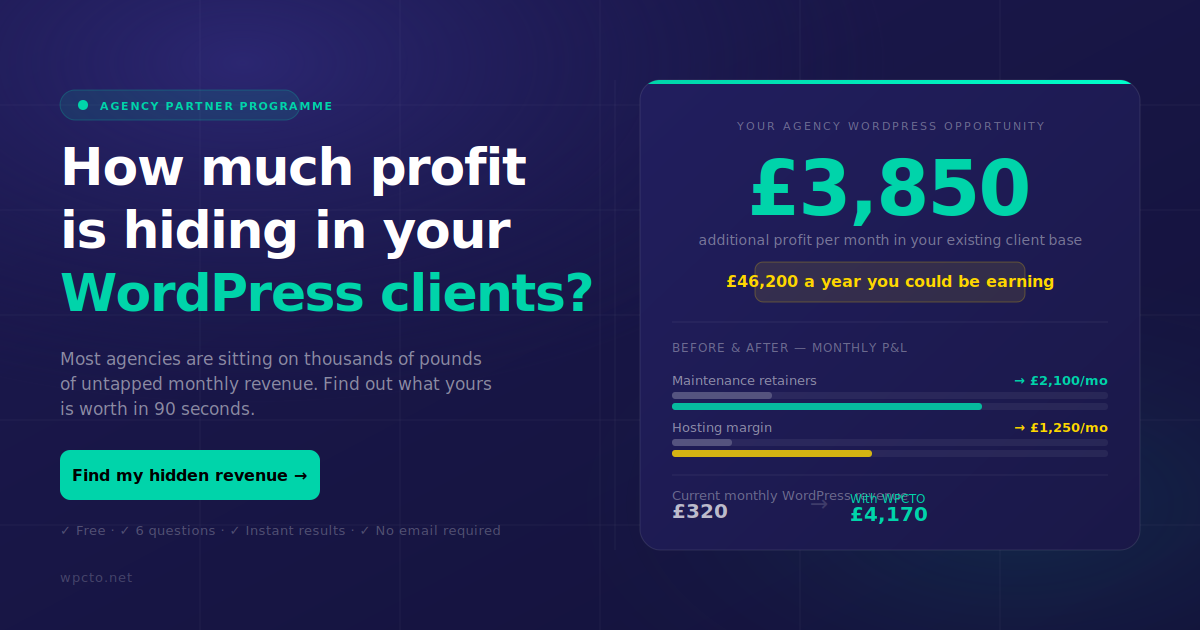
If performance optimisation is pulling your team away from client work you actually want to be doing, Wpcto is built for exactly that situation. We handle WordPress performance optimisation, hosting management, caching configuration, plugin audits, and ongoing database maintenance on behalf of agencies, invisibly and under your brand if needed. Our agency WordPress support services are designed to sit behind your team so your clients get expert WordPress care and you keep the relationship and the revenue. For agencies who want to offer this as a white-label service, our white label support gives you a fully managed solution your clients never see. To understand what this could mean for your bottom line, run your numbers through the WordPress Profit Calculator in under 90 seconds.
FAQ
What are the most impactful WordPress optimisation strategies?
Upgrading to managed hosting with server-level caching and a CDN delivers the biggest performance gains, often reducing TTFB from 800ms to under 200ms. Full-page caching and image optimisation follow closely behind.
How does caching improve WordPress speed?
Full-page caching stores complete HTML and serves it without executing PHP on each request, reducing TTFB from 500ms or more to below 50ms in many cases. It is the single most effective WordPress speed improvement available.
Why does my WordPress site score well in tools but load slowly for visitors?
PageSpeed Insights scores reflect lab conditions and specific metrics. Real-world load times depend on server response times, CDN coverage, and browser caching. Verify your caching headers are actually working with Chrome DevTools rather than relying on scores alone.
How often should WordPress database maintenance run?
Monthly automated cleanups using a tool like WP-Optimize cover most sites adequately. High-traffic sites with WooCommerce or heavy content publishing benefit from weekly maintenance to control transient accumulation and post revision bloat.
Can plugin bloat alone cause poor Core Web Vitals scores?
Yes. Plugins that load scripts and stylesheets globally add to render-blocking resources and total page weight on every request, including pages where the plugin has no function. Conditional loading tools like Perfmatters address this directly.