

More than 30 percent of all websites worldwide use WordPress, making it a prime target for cyberattacks, especially on british websites. A single breach can put your data, customer trust, and even business reputation at risk. Learning how to quickly assess, secure, and recover your site minimises damage and restores confidence. This guide breaks down each recovery step so you can protect your british WordPress site effectively and avoid common pitfalls faced by site owners.
Table of Contents
- Step 1: Assess And Isolate The Hacked WordPress Site
- Step 2: Back Up Current Files And Database Securely
- Step 3: Remove Malicious Code And Suspicious Users
- Step 4: Restore Clean Core Files, Plugins, And Themes
- Step 5: Upgrade Security Measures And Credentials
- Step 6: Verify Functionality And Ongoing Protection
Quick Summary
| Essential Insight | Explanation |
|---|---|
| 1. Isolate the compromised site immediately | Disconnect your site from public access to prevent further damage and document any unusual changes carefully. |
| 2. Create a comprehensive backup | Systematically download your WordPress files and database, ensuring they’re stored securely and encrypted. |
| 3. Remove malicious code and accounts | Conduct a thorough user account audit and eliminate any suspicious profiles, ensuring only known users have access. |
| 4. Restore verified core files and plugins | Replace compromised files with clean versions and verify all components against a secure backup to avoid reinfection. |
| 5. Implement robust security measures | Upgrade security protocols, use strong passwords, and monitor for unusual activity to enhance site protection. |
Step 1: Assess and isolate the hacked WordPress site
When your WordPress site has been compromised, quick and systematic assessment becomes critical to minimise potential damage. According to research from arxiv.org, identifying compromised sections of your website requires a methodical approach that examines HTML code and detects visual inconsistencies.
Begin by creating an immediate snapshot of your current website state. This involves disconnecting your site from public access while preserving critical evidence of the breach. Use your hosting control panel to temporarily disable website visibility or switch to maintenance mode. Thoroughly document any unusual changes you observe such as unexpected files, modified code snippets, or suspicious user accounts. The research by arxiv.org suggests implementing strategic obfuscation techniques to protect against further vulnerability scanning during this assessment phase.
Warning: Do not attempt to immediately delete or modify potentially compromised files without first documenting their current state. Creating a comprehensive backup before taking any remediation steps will protect your ability to investigate the breach thoroughly and potentially recover critical website data. Your next step will involve performing a detailed security scan to uncover the specific mechanisms of the hack.
As part of the why prioritise WordPress security process, understanding how to systematically assess a compromised site is your first line of defence against potential long-term damage.
Step 2: Back up current files and database securely
Before proceeding with any recovery efforts, creating a comprehensive and secure backup of your WordPress site is absolutely crucial. As recommended by Learn WordPress, this process involves systematically preserving both your website files and database to ensure you have a complete restoration point in case of unexpected complications.
To begin, you will need to download your entire WordPress file structure using an SFTP client such as FileZilla.
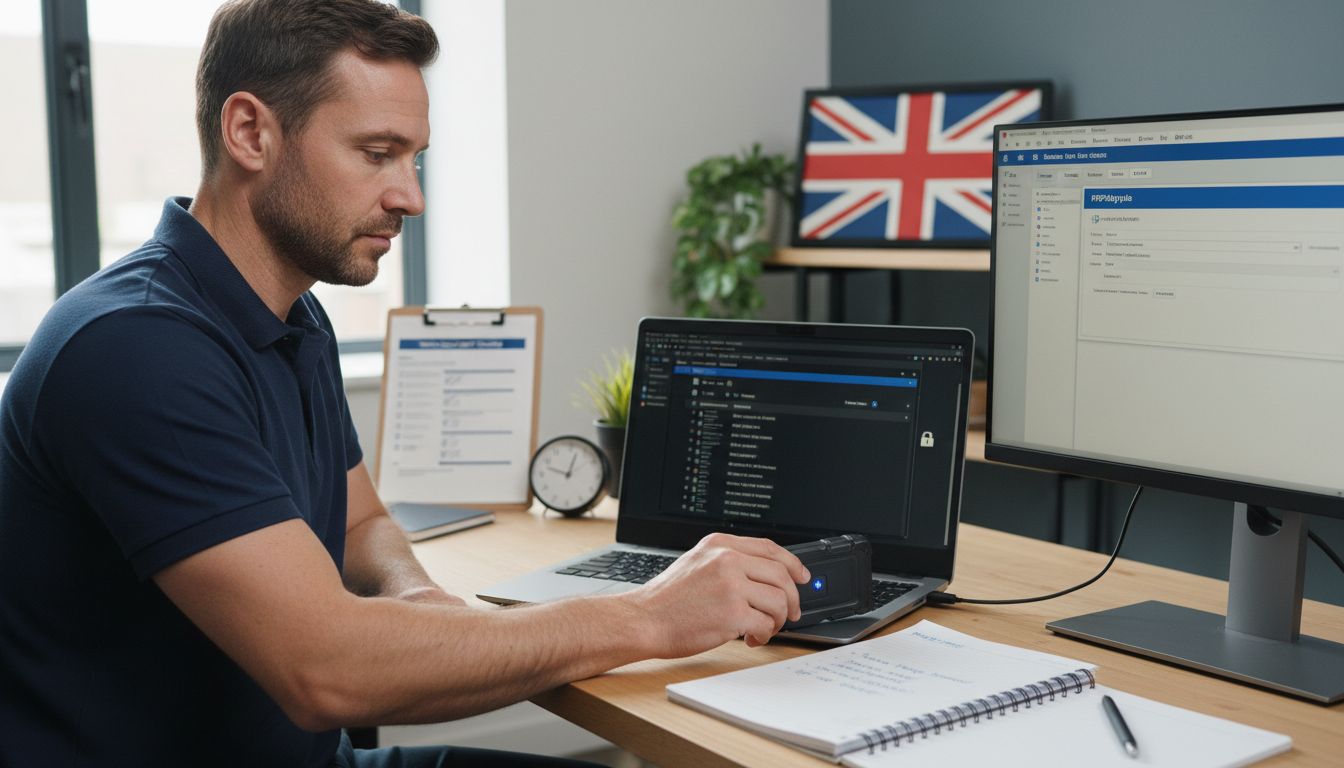 Connect to your web hosting account and download all WordPress core files, themes, plugins, and uploads directories to a secure local storage device. Simultaneously, access your database through PHPMyAdmin or your hosting control panel. Support documentation suggests exporting the entire database as a SQL file and saving it in a separate secure location away from your primary backup.
Warning: Ensure your backup locations are encrypted and password protected. Store multiple copies across different storage mediums such as an external hard drive, cloud storage, and a local computer to minimise the risk of data loss. Your next step will involve preparing to clean and restore these backed-up files during the WordPress site recovery process.
As part of your security WordPress tips, creating robust and comprehensive backups is your primary defence against potential long-term website damage.
Step 3: Remove malicious code and suspicious users
Addressing the security breach requires a systematic approach to identifying and eliminating malicious elements from your WordPress site. According to research from arxiv.org, WordPress plugins can harbour significant vulnerabilities that attackers exploit to gain unauthorised access to your website.
Begin by conducting a comprehensive user account audit. Review all administrator and user accounts, immediately removing any unfamiliar or suspicious profiles. Pay special attention to recently created accounts or those with unusual email addresses or usernames.
The research by arxiv.org highlights the importance of identifying cross-origin web service vulnerabilities that might have been used to introduce malicious code. Use your WordPress admin panel to change all existing user passwords and implement two-factor authentication for added security.
Warning: When removing malicious code, exercise extreme caution. Do not simply delete files without understanding their purpose. Instead, compare your clean backup files against the current site files to identify specific changes. Look for unexpected PHP files, suspicious scripts in theme or plugin directories, and any modifications to core WordPress files. Your next step will involve thoroughly scanning and cleaning your WordPress installation to ensure complete removal of potential security threats.
As part of your security WordPress tips, systematically removing malicious code and suspicious users is crucial to restoring your website’s integrity and preventing future breaches.
Step 4: Restore clean core files, plugins, and themes
Restoring your WordPress site requires a methodical approach to replacing compromised components with clean, verified files. As outlined in the Packt Administrator’s Reference, the restoration process involves strategically replacing core files, plugins, and themes to ensure a secure and functional website.
Begin by downloading a fresh copy of the latest WordPress core files from the official WordPress repository. Replace your existing core files carefully, ensuring you do not overwrite any custom configurations or wp-config.php settings. For plugins and themes, Wiley’s documentation emphasises the critical importance of restoring the entire wp-content folder from your clean backup. Verify that each plugin and theme is the most recent version from their official sources, and remove any plugins or themes that are not currently in use.
Warning: During restoration, never directly replace files without first comparing them against your clean backup. Some malicious code might attempt to disguise itself as legitimate files. Use file comparison tools to identify any discrepancies and ensure you are truly restoring a clean version of your website. Your next step will involve carefully reintegrating your website content and verifying the integrity of your restored WordPress installation.
As part of your security WordPress tips, methodical file restoration is crucial to rebuilding a secure and reliable website.
Step 5: Upgrade security measures and credentials
Securing your WordPress site requires a comprehensive approach to enhancing your digital defences. According to Pearson Media, updating WordPress core, plugins, and themes to their latest versions is a critical first step in maintaining robust website security.
Implement a multi-layered security strategy by installing a reputable security plugin and configuring advanced protection settings. Research from arxiv.org suggests using innovative cyber deception techniques that can obfuscate your site’s vulnerabilities from potential attackers. Generate strong, unique passwords for all user accounts using a password manager, and enable two-factor authentication across your WordPress admin panel. Implement login attempt limitations, create IP blocking rules, and consider using a web application firewall to prevent brute force attacks.
Warning: While upgrading security, avoid using generic credentials or reusing passwords across multiple platforms. Each password should be complex, unique, and changed regularly. Enable email notifications for login attempts and administrative changes to maintain constant vigilance over your website’s security. Your next step will involve ongoing monitoring and maintenance to ensure your WordPress site remains protected against emerging threats.
As part of your security WordPress tips, systematically upgrading security measures is crucial to preventing future breaches and maintaining your website’s integrity.
Step 6: Verify functionality and ongoing protection
After restoring your WordPress site, comprehensive testing becomes crucial to ensure complete recovery and operational integrity. Learn WordPress emphasises the importance of systematic verification to maintain ongoing site protection and functionality.
Begin by conducting a thorough functional review of your website. Test all pages, posts, navigation menus, forms, and interactive elements to confirm they are working correctly. Verify user login processes, plugin functionalities, and theme responsiveness across different devices and browsers. Use online tools to check website speed, performance, and compatibility. Configure automated backup solutions that create regular site snapshots, ensuring you have multiple restore points in case of future security incidents. Set up monitoring services that provide real-time alerts for unexpected changes, unusual traffic patterns, or potential security vulnerabilities.
Warning: Ongoing protection requires consistent vigilance. Schedule regular security audits, keep all WordPress components updated, and maintain a proactive approach to website maintenance. Consider implementing a monthly review process where you systematically check your site’s security settings, update credentials, and verify backup integrity. Your next step involves developing a long term security strategy that prevents future potential breaches.
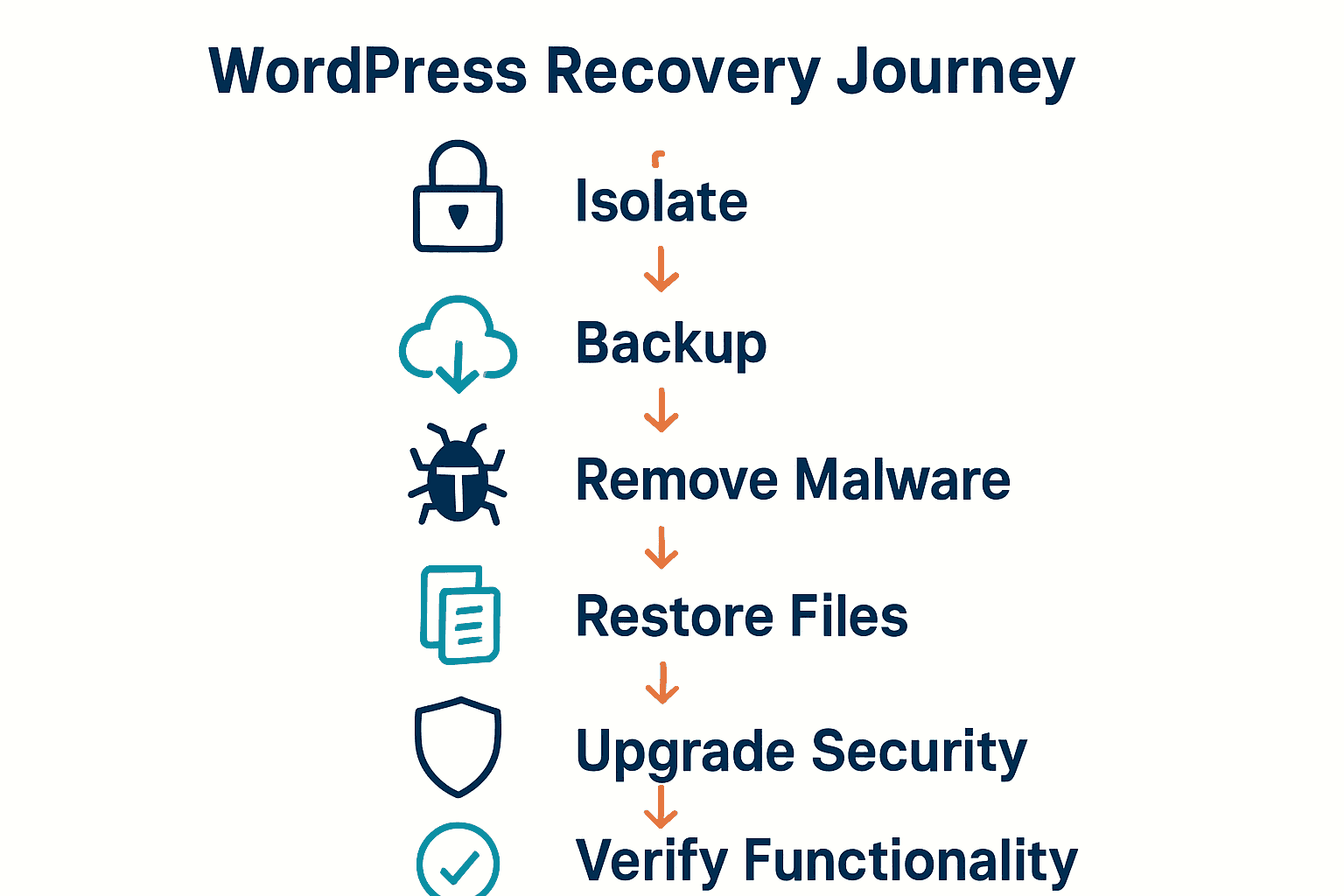
As part of your secure WordPress site guide, continuous verification and protection are essential to maintaining a robust and resilient website ecosystem.
Secure Your WordPress Site from Hackers with Expert Recovery and Ongoing Protection
A hacked WordPress site can leave you feeling vulnerable and overwhelmed. This article highlights critical steps like assessing the breach, backing up your files, removing malicious code, and restoring clean versions while upgrading your security. These processes require technical expertise and careful handling to avoid further damage or data loss. If you are facing such challenges or want to ensure a swift recovery, expert support is key.
Protect your digital presence with WPCTO.net where we specialise in WordPress site management, emergency recovery, and security enhancement. Our professional team acts quickly to isolate breaches, securely restore your website, and upgrade your defences with advanced strategies tailored for your site. Don’t wait until the next hack jeopardises your business. Visit WPCTO.net now to get immediate assistance and explore our security WordPress tips for long-term peace of mind. Take the first step toward restoring your site’s integrity today.
Frequently Asked Questions
How can I assess and isolate my hacked WordPress site?
Begin by disconnecting your site from public access using your hosting control panel to prevent further damage. Document any unusual changes you observe, such as unexpected files or modified code snippets, as this will aid in your recovery process.
What should I do before backing up my hacked WordPress site?
Create a comprehensive backup of your site by downloading all WordPress files and exporting your database securely. This ensures you have a restoration point in case complications arise during the recovery process.
How do I remove malicious code from my WordPress site?
Systematically review your user accounts and remove any suspicious profiles. Check for unexpected files or modifications, then compare current files against your clean backup to identify and eliminate malicious code carefully.
What steps are involved in restoring clean files for my hacked site?
Download a fresh copy of the latest WordPress core files and replace the existing ones without overwriting custom configurations. Ensure that you restore your wp-content folder from your clean backup for plugins and themes, verifying their integrity before reactivating them.
How can I upgrade my WordPress security measures?
Implement a multi-layered security strategy by using a reputable security plugin and configuring its settings to protect your site. Generate strong, unique passwords for all user accounts and enable two-factor authentication to enhance account security.
What ongoing measures should I take to protect my WordPress site?
Schedule regular security audits to ensure all components are up to date and functioning correctly. Additionally, configure automated backups to create regular snapshots of your site and monitor for unusual activity to maintain ongoing protection.