

Caching makes a website faster by reusing a response that has already been produced, instead of building and sending it again for every visitor. Done well, it removes the slowest parts of a page load: database queries, PHP and template rendering on the server, and long network trips. Done badly, it shows customers stale prices, or someone else’s basket. This guide explains what each cache layer does, where it helps most on WordPress, and how to configure it safely for client sites.
TL;DR
- Caching speeds up sites in two ways: it keeps content physically closer to the visitor, and it skips work the server would otherwise repeat.
- Four layers matter: the browser, a service worker, a CDN or proxy, and the origin server. Most WordPress gains come from page caching plus a CDN.
- Carts, checkouts and account pages must stay out of shared caches, or personal data can reach the wrong person.
- Caching does not fix a heavy admin area, slow plugins or an outdated PHP version.
- Caching setup, testing and monitoring is recurring work an agency can price, or hand to a specialist partner.
Table of Contents
- What caching actually does to page speed
- The four places a page can be cached
- What to cache, and for how long
- Where caching goes wrong
- A safe setup process for client sites
- Does clearing the cache help?
- Where the revenue is hiding
- Let us handle the WordPress side
- FAQ
- Sources
What caching actually does to page speed
An HTTP cache stores a response against the request that produced it and reuses it for later matching requests. According to MDN’s guide to HTTP caching, reuse can avoid delivery to the origin server and cut request processing, database work and template rendering.
That tells you where the speed comes from. There are two separate mechanisms:
- Proximity. A file served from the visitor’s own browser, or from a server in their region, never crosses the full distance to your host.
- Less origin work. If a finished HTML page is ready, WordPress does not need to run PHP, query MySQL and assemble a template again.
The Varnish documentation puts the result simply: HTTP caching reduces network traffic and server load, which gives lower response times. Under traffic, that second effect matters as much as raw speed. A server answering from cache can cope with far more visitors before it slows down.
How much faster will it be?
There is no honest universal figure. The gain depends on how heavy the uncached page is, how far the visitor is from the server and how much of the page can be cached. Be careful with headline numbers. For example, AWS notes that in-memory cache reads can be sub-millisecond, but that describes reading data from an application cache, not loading a whole page.
The practical way to know is to measure before and after, on the same pages, from the same location, several times. Our guide to running a WordPress page speed test that means something covers how to do that without fooling yourself, and which metrics to show a client.
The four places a page can be cached
The 2020 Web Almanac names four common cache locations: the browser, a service worker, a CDN or proxy, and the origin server. Each one removes a different cost.
| Cache layer | What it stores | What it saves | Typical WordPress example |
|---|---|---|---|
| Browser | Images, CSS, JavaScript, sometimes pages | The network request itself on repeat visits | Long cache lifetimes on versioned theme assets |
| Service worker | Whatever the script chooses | Network trips, even offline | Progressive web app behaviour (rare on agency sites) |
| CDN or proxy | Static files, sometimes full pages | Distance between visitor and origin | Edge caching of images, fonts and HTML |
| Origin server | Generated pages, objects, query results | PHP and database work | Page cache plugin, server-level cache, object cache |
Browser caching
Before making a network request, a browser checks its HTTP cache. web.dev explains that a valid match removes network latency and data transfer costs entirely. This is why a second page on a site often feels instant: the logo, stylesheet and fonts are already on the device.
Browser caching is controlled by response headers. Cache-Control is the main one, and it decides whether and for how long browsers and intermediate caches keep a response. Two directives cause the most confusion. MDN defines max-age=N as keeping a response fresh for N seconds after it was generated. no-cache still allows storage, but requires validation before reuse. no-store is the one that stops storage altogether.
When a cached copy expires, it does not always have to be downloaded again. Validators such as ETag and Last-Modified let the browser ask whether the file has changed. If not, the server can skip sending it.
CDN and proxy caching
A CDN keeps copies of your content on servers nearer to visitors. Cloudflare describes the flow: a cache hit is delivered immediately, while a miss goes to the origin and the returned content is cached for next time. For a UK agency whose client sells to Europe or North America, this is often the biggest single win for first-time visitors, because the first byte no longer travels from one London data centre.
Server-side caching
This is the layer WordPress owners mean most often. Instead of rebuilding every page from the database on each request, the server or a plugin stores the finished HTML. The Web Almanac notes that server caching lets the application reuse generated responses and reduces application load. On a brochure site with mostly anonymous visitors, page caching can transform response times. Object caching, which stores database query results, helps the dynamic parts that cannot be cached as whole pages.
What to cache, and for how long
The Web Almanac gives three principles worth pinning above any developer’s desk: cache as much as possible, for as long as possible, and as close as possible to end users. In practice that translates into a simple policy:
- Long lifetimes for static files whose names change when the content changes (versioned JavaScript, CSS, images, fonts). If the file name includes a version or hash, a lifetime of months is safe.
- Shorter lifetimes for HTML pages that editors update, with a clear way to purge them when content changes.
- No shared caching for anything personal.
If an asset keeps the same file name when it is edited, a long lifetime becomes a trap: visitors keep the old version. Versioning is what makes aggressive caching safe.
Where caching goes wrong
Personalised pages
MDN distinguishes private caches, usually tied to one browser, from shared caches that sit between clients and the origin and can serve many users. Its warning is plain: personalised content placed in a shared cache can be returned to other users, which is an information-leak risk. Such responses generally need a private cache or to bypass shared storage.
For WordPress, that means logged-in areas, membership content and anything tied to a session.
WooCommerce carts and checkouts
Stores need particular care. The WooCommerce developer documentation says the Cart, My Account and Checkout pages should be excluded from the cache because they show information specific to the current customer and their basket. Many popular caching plugins handle this by default, but you should confirm it rather than assume it. On the service worker side, web.dev lists network-only as the right approach where content must always be current, including payments and checkouts.
Speed on a store has a direct commercial effect, which we cover in why WooCommerce site speed matters for sales and SEO. If you manage client stores, the seven checkout efficiency quick wins pair well with a correctly excluded cache.
Stale content
The usual complaint is “I changed it and the site still shows the old version”. The fix is a purge process, not shorter caching everywhere. Decide who clears what, and when: on publish, on plugin update, after a deployment. For content that can be briefly out of date, web.dev lists stale-while-revalidate as a sensible pattern, and cache-first for non-critical resources.
Note that service-worker caching does not happen automatically. A fetch handler has to intercept requests and choose when to serve from the Cache API, so it is a deliberate build decision, not a setting you switch on.
What caching will not speed up
The WordPress admin area, saving and publishing cannot be cached in the same way. If editing feels slow, look at the weight of the site: plugins, database size, hosting resources and PHP version. Our piece on how PHP updates affect WordPress performance explains why a cache sitting on an old runtime only hides the problem.
A safe setup process for client sites
This is the sequence we would follow on any agency-built WordPress site.
- Take a baseline. Record load time, time to first byte and the Core Web Vitals on three representative pages, with caching off or purged.
- Take a backup first. Caching rules can interact badly with plugins. Our weekly baseline and handoff checklist covers what to have in place before you change anything.
- Enable page caching at server level if your host provides it, or through one well-maintained plugin. Never stack two page-cache plugins.
- Set long lifetimes for versioned assets and check the response headers in the browser’s network panel.
- Add a CDN and confirm that cache hits are being reported.
- Exclude dynamic routes: cart, checkout, account, any logged-in session, form endpoints and anything using nonces.
- Test as a logged-out visitor and as a logged-in customer, in a private window, including a full test purchase on stores.
- Write down the purge rules so the client’s team knows what happens when they publish.
- Re-test after every major update, because a theme, plugin or core change can alter what is cacheable.
Once the process is stable, speed gains are only part of the picture. If you want a fuller look at what to monitor each month, our list of 12 site management checks agencies can bill for is a good place to start.
Does clearing the cache help?
Sometimes. Cloudflare says clearing a browser cache can fix content that was cached incorrectly, but it also makes the next pages load as if you were visiting for the first time, so it can temporarily slow things down. It is a troubleshooting step, not a speed tactic. Server-side purges work the same way: the first visitor after a purge pays the cost of rebuilding the page. Schedule large purges for quiet periods.
Where the revenue is hiding
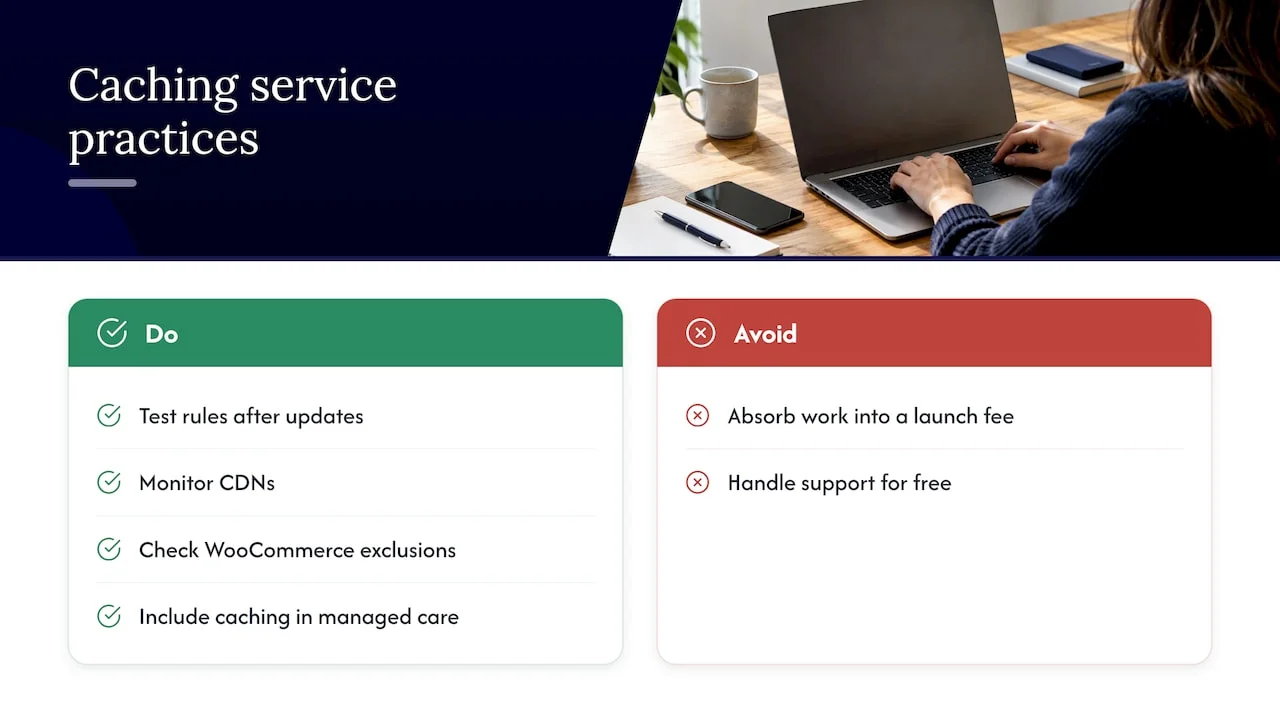
Here is the commercial point most agencies miss. Caching is rarely a one-off job. Rules need testing after updates, CDNs need monitoring, WooCommerce exclusions need checking, and clients ask why the site “feels slow” months after launch. If that work is absorbed into a launch fee or handled free on a Friday afternoon, it becomes uncharged support.
We built a free tool for exactly this. The WordPress Profit Calculator takes under 90 seconds and shows how much uncaptured revenue is sitting in your existing WordPress client base. Run it with your current client list before you decide how to price performance work.
For teams who want to improve speed beyond caching, this overview of practical ways to boost website speed covers the wider checklist alongside the caching layers above.
Our view on caching as a service
We see the same pattern across agency-built WordPress sites: caching is switched on at launch, then nobody owns it. A plugin update changes a rule, a client adds a members area, a store goes live, and the cache quietly starts doing the wrong thing, either slowing the site or serving the wrong content.
Our position is that caching belongs inside a managed care plan, not a one-off setup. It sits alongside security updates, plugin and theme management, hosting and performance work, because they all affect each other. A cache that is tuned for one PHP version, one plugin set and one hosting environment needs checking when any of those change.
For agencies, the best arrangement is one where the client never sees us. You keep the relationship and the creative direction, we handle the technical delivery behind you, and the recurring revenue stays with your studio.
Marcel
Let us handle the WordPress side
If your team would rather spend time on design and strategy than on cache rules and purge tickets, we can take that work on. WPCTO provides white-label WordPress management for agencies, from maintenance and security updates to performance work, hosting and migration, and emergency support. Our Bronze, Silver and Gold SLAs are published at £450, £750 and £1,850 per year.

For one-off performance questions, look at our consultancy or hosting and migration services. If a move to a better-suited host is on the cards, how site migration affects SEO is worth reading first.
Ready to see what WordPress work is currently going unbilled? Run the WordPress Profit Calculator and get your figure in under 90 seconds.

FAQ
Does caching always make a website faster?
In most cases it reduces load time and server strain, because responses are reused instead of rebuilt. The effect is smaller on pages that are personalised or change on every request, and caching does not speed up the admin area. Measure before and after to see the real gain on your own pages.
What is the difference between browser caching and server caching?
Browser caching stores files on the visitor’s device, so repeat visits skip network requests. Server caching stores generated pages or data on the host side, so the application does less work for each request. A CDN adds a third layer between the two, closer to the visitor.
Should I cache WooCommerce pages?
Cache product and category pages if your setup supports it, but keep the Cart, Checkout and My Account pages out of the cache. They show information specific to each customer. Always run a full test order as both a guest and a logged-in customer after any change.
Does clearing the cache speed up a site?
Not for visitors. It can fix content that was cached incorrectly, but the next page loads will be slower while the cache refills. Use it for troubleshooting rather than as a routine speed measure.
Sources
- HTTP caching, MDN
- Cache-Control header, MDN
- HTTP caching basics, Varnish Cache
- Caching, 2020 Web Almanac
- Prevent unnecessary network requests with the HTTP Cache, web.dev
- Service worker caching and HTTP caching, web.dev
- What is Caching?, Cloudflare
- What is Caching and How it Works, AWS
- How to configure caching plugins for WooCommerce
- How to Boost Website Speed