

Are you ready to transform your website’s performance and security? In 2025, the opportunity to host WordPress on Google unlocks new levels of speed, reliability, and scalability for your site. Many website owners worry that cloud hosting is too complex, but Google’s evolving tools and ecosystem are making the process more accessible than ever. This comprehensive guide will show you, step by step, how to launch, optimise, and maintain a WordPress site on Google Cloud with minimal technical headaches. We will cover hosting options, setup, performance, security, maintenance, cost management, and expert troubleshooting to ensure your site runs smoothly.
Why choose Google for hosting WordPress in 2025?
Choosing to host wordpress on google in 2025 is a strategic move for anyone seeking high performance, reliability, and future-proof technology. As the web hosting landscape evolves, Google Cloud Platform (GCP) continues to set itself apart, offering an impressive blend of speed, security, and scalability. Let’s explore what makes Google Cloud the preferred choice for WordPress sites today.
The evolution of Google Cloud for WordPress
The decision to host wordpress on google is backed by Google Cloud’s rapid growth and commitment to innovation. In recent years, GCP has gained significant market share, especially among WordPress site owners who value robust infrastructure and flexibility.
In 2025, Google Cloud has rolled out major updates. Compute Engine VMs are now faster, networking is more efficient, and new managed services make complex tasks simpler. These improvements provide a foundation for running high-traffic WordPress sites with minimal downtime.
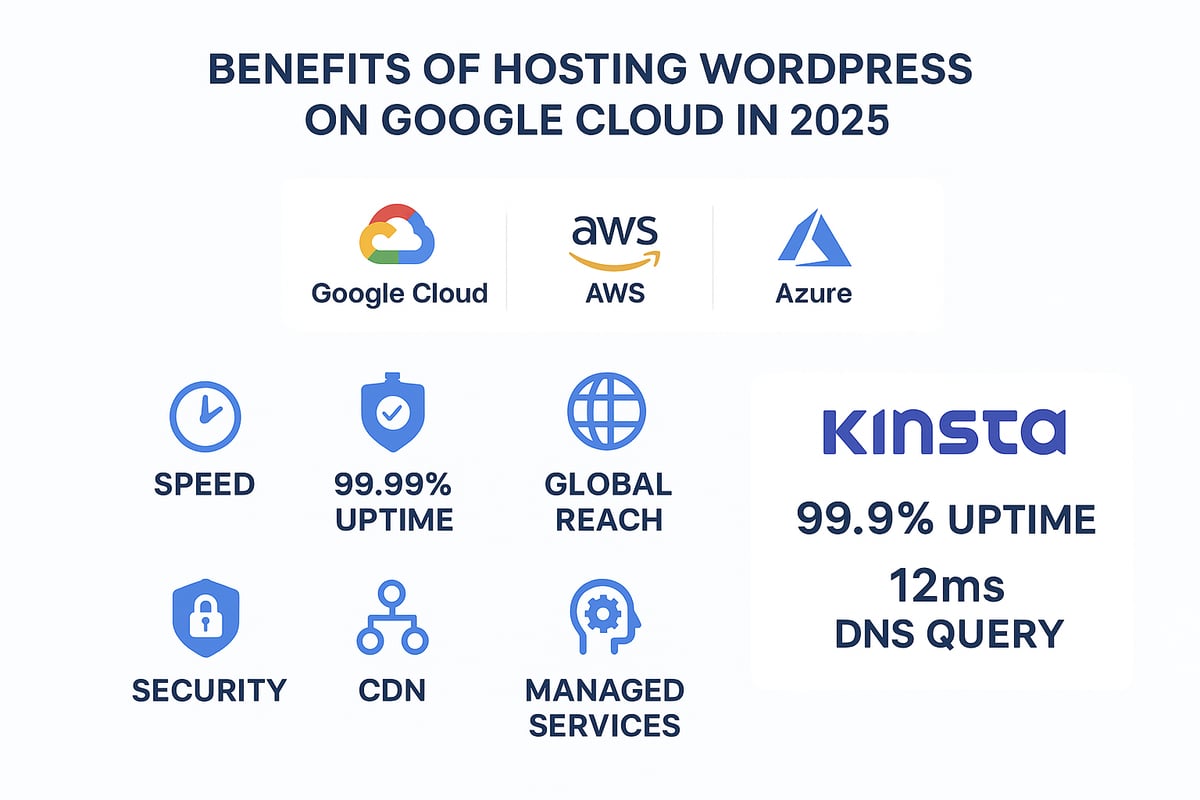
When comparing GCP with AWS and Azure for WordPress hosting, Google’s premium-tier network stands out. It offers low latency, extensive global reach, and exceptional reliability. This is reflected in uptime statistics, with GCP maintaining a 99.99% uptime SLA.
Here’s a quick comparison:
| Feature | Google Cloud | AWS | Azure |
|---|---|---|---|
| Uptime SLA | 99.99% | 99.99% | 99.95% |
| Premium Network | Yes | Yes | No |
| Managed WordPress | Available | Available | Available |
| Global Data Centres | 35+ | 30+ | 60+ |
Brands like Kinsta have chosen to host wordpress on google, powering enterprise WordPress sites with GCP’s infrastructure. Their migration to Google Cloud has resulted in measurable performance gains and improved reliability.
Google Cloud’s flexible scalability is also crucial for sites facing unpredictable traffic surges, such as e-commerce or media platforms. For an in-depth look at these differences, see this Comprehensive Comparison of WordPress on AWS vs. GCP.
Key advantages for WordPress users
For WordPress users, the decision to host wordpress on google brings a suite of unique advantages. GCP’s on-demand resource scaling means you can handle peak traffic effortlessly, then scale down to save costs during quieter periods.
Google’s CDN and Cloud DNS integration deliver global speed improvements. Cloud DNS, for instance, offers query times of 51ms, compared to Cloudflare’s 12.61ms and AWS Route53’s 31.37ms. This ensures your site loads quickly, wherever your users are.
Security is another compelling reason to host wordpress on google. Google Cloud’s infrastructure is built with advanced security measures, meeting GDPR and other compliance standards by default. Coupled with regular updates and automated patching, your site remains protected against emerging threats.
You’ll also benefit from access to Google’s AI and analytics tools, which can support future growth and give you deep insights into user behaviour. Whether you’re a business, agency, or developer, GCP offers the control and flexibility needed for professional WordPress hosting.
Ultimately, hosting on Google Cloud unlocks a blend of performance, security, and scalability that is difficult to match elsewhere.
Preparing to host WordPress on Google: What you need to know
Before you host wordpress on google, it is vital to understand the platform's options and plan your approach. Preparation is the foundation for a stable, secure, and high-performing WordPress site. Whether you are a business owner or developer, the right choices now will save you time and resources in the long run.
Understanding Google Cloud hosting options
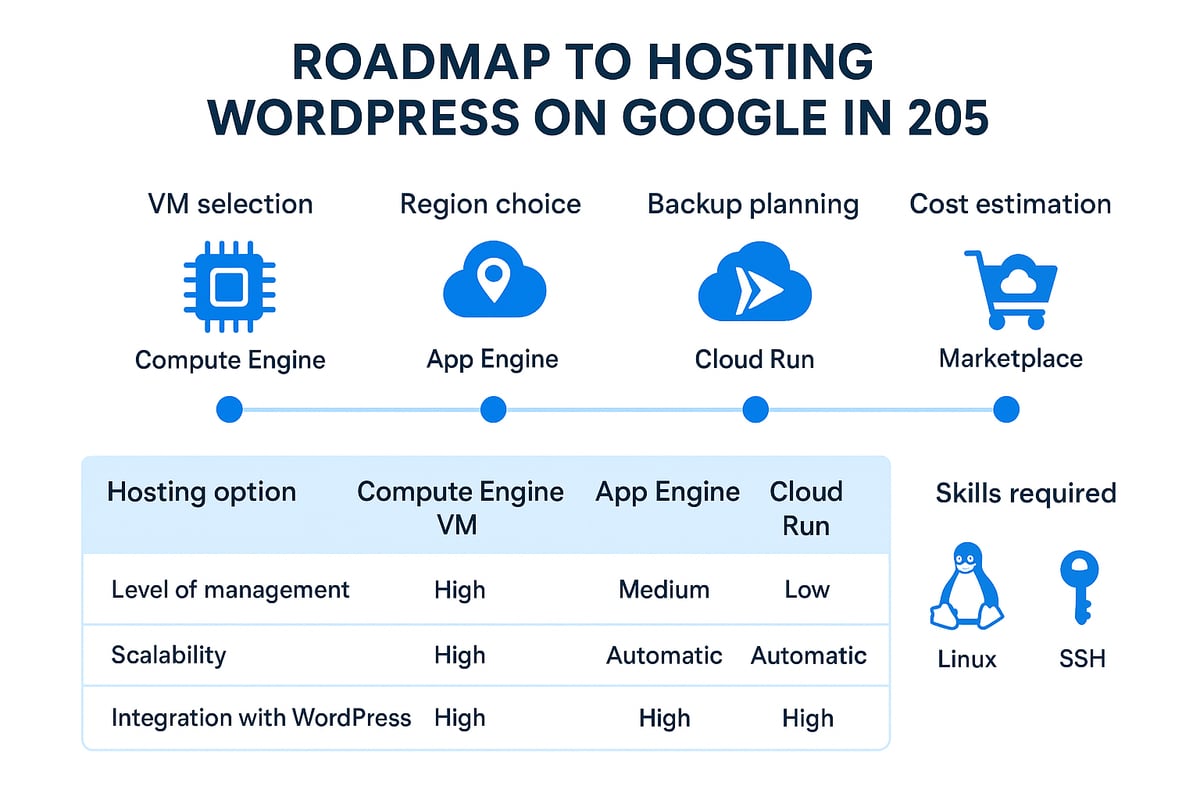
When you host wordpress on google, you have several hosting paths to consider. Google Cloud Platform offers Compute Engine (VMs), App Engine, Cloud Run, and a Marketplace with one-click WordPress deployments. Each option suits different experience levels and requirements.
| Option | Best For | Pros | Cons |
|---|---|---|---|
| Compute Engine | Advanced users | Full control, customisation | Steeper learning curve, manual setup |
| App Engine | Developers | Auto-scaling, managed environment | Limited flexibility, higher cost |
| Cloud Run | Modern apps | Serverless, scales to zero | Needs container knowledge |
| Marketplace | Most users | Quick, easy WordPress launch | Less custom, still needs basic skills |
Marketplace’s one-click deployment is ideal if you are new and want to host wordpress on google without deep technical expertise. For those comfortable with Linux, SSH, and server configuration, Compute Engine offers granular control. Managed WordPress providers like Kinsta, built on Google Cloud, are well suited for non-technical users seeking simplicity and robust support.
Reddit users often recommend managed solutions for beginners and self-hosting for experienced admins. If you want a detailed breakdown of these deployment models, see Google Cloud’s WordPress Hosting Options.
Planning your hosting architecture
To successfully host wordpress on google, you must plan your hosting architecture. Start by selecting the right VM machine family: E2 for cost efficiency, N2 for general workloads, C2 or C3D for high performance. Consider your site's expected traffic and workload to estimate CPU, RAM, SSD storage, and bandwidth.
Choose data centre regions wisely, as this affects both performance and compliance. European businesses, for example, may need data residency within the EU.
Do not overlook backups, redundancy, and disaster recovery. Schedule regular backups, use snapshot features, and set up offsite storage where possible. These steps are critical for business continuity when you host wordpress on google.
Budgeting is straightforward thanks to Google’s pay-as-you-go model. Monitor your usage and adjust resources as needed to optimise costs. Planning ahead ensures you avoid surprises and maintain control over ongoing expenses.
Step-by-step guide: Hosting WordPress on Google Cloud in 2025
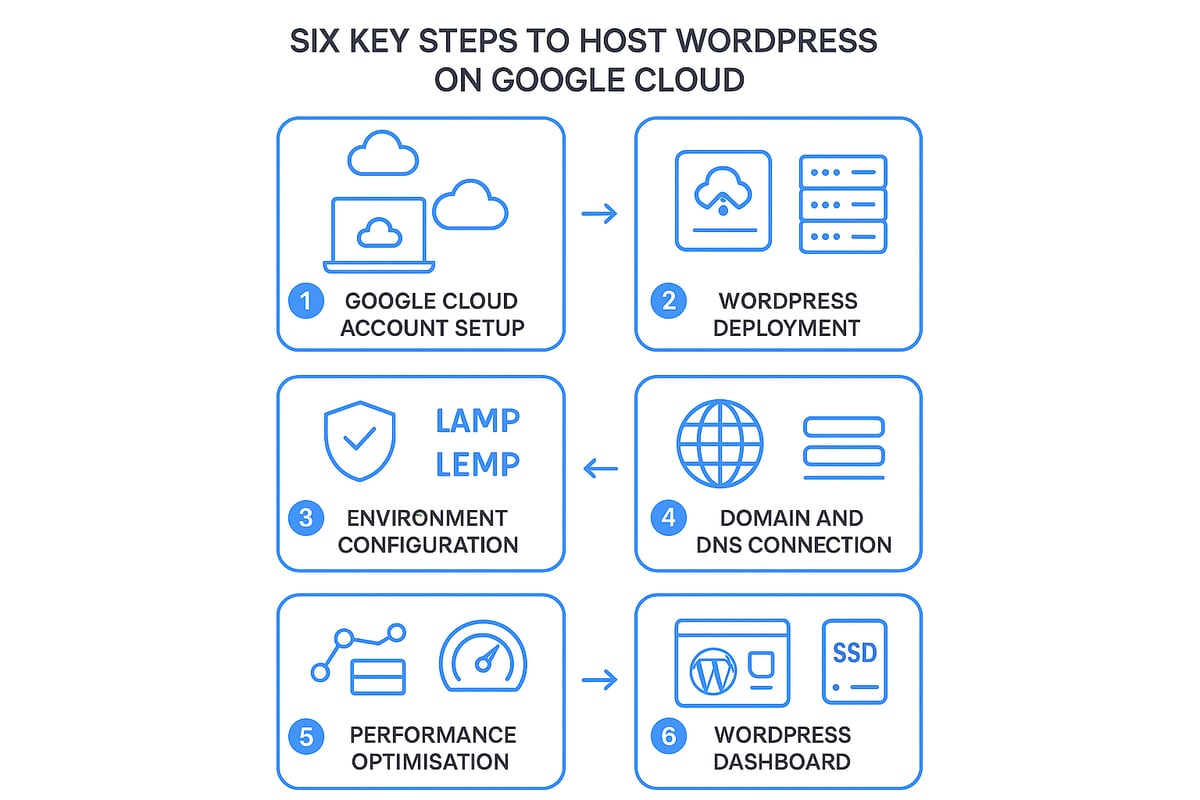
Launching a high-performing, secure website does not need to be overwhelming. This step-by-step guide will show you exactly how to host wordpress on google in 2025. By following these detailed instructions, you will move from initial setup to a fully optimised, live WordPress site with confidence.
Step 1: Setting up your Google Cloud account and project
Begin by visiting the Google Cloud Platform (GCP) website to create your account. Sign up with your business or personal email, then activate billing to unlock all features.
Navigate the GCP Console, which is your central hub for managing resources. Assign IAM roles if you work in a team, ensuring each user has the right permissions for your project.
Next, set up a dedicated project for your WordPress site. This helps you organise resources and manage billing efficiently. Enable the necessary APIs: Compute Engine, Cloud SQL, Cloud DNS, and Cloud CDN. New users can take advantage of GCP’s free tier and trial credits, making it cost-effective to start as you host wordpress on google.
Step 2: Deploying a WordPress instance
There are two main ways to deploy WordPress: using the GCP Marketplace for a one-click setup, or manually installing it on a Compute Engine virtual machine.
Marketplace deployment:
- Fastest method, ideal for beginners.
- Pre-configured with WordPress and required software.
- Automated security updates.
Manual installation:
- Greater control, preferred by advanced users.
- Launch a Compute Engine VM and choose an OS like Debian or Ubuntu.
- Configure your machine’s specs according to your needs (CPU, RAM, SSD storage).
- Set up persistent disks for your database and files.
- Assign a static IP to your VM for reliable DNS pointing.
Some users opt for OpenLiteSpeed on a free-tier micro instance for budget hosting. Choose the method that best matches your technical expertise and goals as you host wordpress on google.
| Deployment Method | Pros | Cons |
|---|---|---|
| Marketplace | Quick, easy, secure | Less customisation |
| Manual | Full control, flexible | Requires technical skills |
Step 3: Configuring your WordPress environment
Once deployed, your next task is to configure your WordPress environment for security and performance. If you want to host wordpress on google efficiently, focus on these essentials:
- Install and secure the LAMP (Linux, Apache, MySQL, PHP) or LEMP (Linux, Nginx, MySQL/MariaDB, PHP) stack.
- Use Let’s Encrypt and Certbot to set up SSL certificates for HTTPS. This ensures your site is secure and trusted by browsers.
- Configure firewall rules to limit access to only required ports (usually 80, 443, and SSH). Use SSH keys for secure remote access.
- Create and manage your Cloud SQL databases for reliable and scalable data storage.
Many users find SSL setup straightforward with Certbot, but be aware of common challenges such as DNS propagation delays or firewall misconfigurations. If you host wordpress on google with these best practices, your site will be both robust and secure.
Example firewall rule to allow HTTP, HTTPS, and SSH:
gcloud compute firewall-rules create allow-http-https-ssh \
  --allow tcp:80,tcp:443,tcp:22 \
  --target-tags wordpress-server
Step 4: Connecting your domain and DNS
To make your site publicly accessible, register a domain or use an existing one. Configure Cloud DNS for fast and reliable name resolution.
Set up the following DNS records:
- A Record: Points your domain to the VM’s static IP.
- CNAME Record: For subdomains or aliases.
- MX Record: For email routing.
- TXT Record: For verification and security features.
Cloud DNS is known for its low latency, but you can also compare alternatives like AWS Route53 or Cloudflare depending on your needs. When you host wordpress on google, efficient DNS setup is vital for speed and reliability.
DNS records example:
| Record Type | Name | Value |
|---|---|---|
| A | @ | VM Static IP |
| CNAME | www | yourdomain.com |
| MX | @ | mail server |
| TXT | @ | verification |
Step 5: Optimising performance with Google Cloud tools
Optimising your site’s performance is critical when you host wordpress on google. Take advantage of Google Cloud’s built-in tools:
- Integrate Cloud CDN for global asset delivery, reducing latency for visitors worldwide.
- Enable HTTP/2 and QUIC protocols for faster connections.
- Use Anycast IPs for resilient and speedy routing.
- Deploy local SSDs for Redis caching, accelerating database queries.
- Leverage Google’s Premium Tier network for best-in-class speed.
For example, Kinsta’s migration to C2 and C3D VMs yielded up to 200% faster performance. These strategies ensure your site is ready for traffic surges and delivers an outstanding user experience.
Step 6: Installing WordPress and completing setup
With the infrastructure in place, it is time to install WordPress. Access the browser-based installer using your VM’s IP or domain.
- Create a strong admin account and secure all login credentials.
- Install essential plugins and a lightweight, responsive theme.
- Configure automatic updates for WordPress core, plugins, and themes.
- Set up regular backups using Cloud Storage or third-party plugins.
Managed hosts like Kinsta automate many of these tasks, but if you host wordpress on google yourself, you can follow a proven process. For further insights, refer to the WordPress hosting and maintenance guide to ensure your site remains fast, secure, and well-maintained.
Advanced configuration, optimisation and security best practices
Unlocking the full potential of your site when you host wordpress on google means going beyond the basics. Advanced configuration, optimisation and robust security are essential for reliability, speed and peace of mind. Whether managing a business site or scaling an agency project, these best practices will help you create a resilient, high-performing environment.
Scaling and resource management
When you host wordpress on google, the ability to scale your infrastructure efficiently is a game-changer. Google Cloud’s auto-scaling allows your virtual machines to adjust resources automatically based on live traffic. This means your WordPress site can handle unexpected spikes, such as during product launches or seasonal campaigns.
Load balancers distribute incoming requests evenly across multiple servers. This not only boosts availability but ensures your site stays online even if one server experiences issues. For high-availability WordPress setups, deploying a global load balancer is recommended.
Monitoring is vital. Use Google Cloud Monitoring to track CPU, memory, and network usage. Set up custom alerts to notify you of irregularities, such as high load or downtime. This proactive approach helps prevent problems before they impact visitors.
Here’s a quick comparison of scaling features:
| Feature | Benefit | Tool/Setting |
|---|---|---|
| Auto-scaling | Handles traffic surges | Instance Groups |
| Load balancing | Ensures high availability | Google Cloud Load Balancer |
| Monitoring | Early issue detection | Cloud Monitoring, Alerts |
For example, a restaurant booking site that host wordpress on google can automatically scale VM resources up every Friday evening, then reduce them during weekday lulls. This flexibility keeps costs in check while maintaining performance.
Security hardening for WordPress on Google Cloud
When you host wordpress on google, security must be a top priority. Start by enabling multi-factor authentication on both Google Cloud and your WordPress admin accounts. Regularly update your VM operating system, PHP version, and all WordPress components to patch vulnerabilities quickly.
Apply strict firewall rules, only allowing essential ports like 80 (HTTP) and 443 (HTTPS). Restrict SSH access to trusted IP addresses using the following example:
gcloud compute firewall-rules create allow-ssh \
  --allow tcp:22 \
  --source-ranges=YOUR_IP_ADDRESS/32
Install reputable security plugins for WordPress and leverage Google’s Security Command Center for advanced threat detection. Schedule automated backups and store them offsite to ensure rapid recovery in case of incidents.
For those seeking further detail, Secure your WordPress site offers an in-depth look at the essential steps to safeguard your setup when you host wordpress on google.
Keep GDPR and other compliance standards in mind, especially if you handle user data. Reddit users often highlight the importance of staying on top of updates and patching, as neglect can leave sites exposed.
Performance tuning and caching strategies
To maximise speed when you host wordpress on google, leverage Google Cloud’s performance tools. Enable object caching with Redis or Memcached on local SSDs to accelerate database queries and reduce page load times.
Fine-tune PHP-FPM settings and database parameters for your workload. For example, adjusting pm.max_children in your php-fpm.conf can optimise resource use based on available RAM.
Integrate Cloud CDN and configure cache rules to serve static and dynamic content efficiently worldwide. Enable GZIP compression and browser caching for static assets. Here’s a sample .htaccess snippet:
<IfModule mod_deflate.c>
  AddOutputFilterByType DEFLATE text/html text/css application/javascript
</IfModule>
Migrating to newer VM families like C3D can deliver 20-50% faster response times compared to C2, as seen in recent case studies. When you host wordpress on google with these strategies, your site remains fast, reliable and ready for global audiences.
Ongoing maintenance, troubleshooting and cost management
Keeping your WordPress site healthy on Google Cloud is essential for long-term success. Regular maintenance ensures your site remains fast, secure and reliable. Start by setting up robust monitoring using Google Cloud Monitoring and third-party tools to track uptime, performance and error rates. Schedule frequent software updates for WordPress core, plugins and themes to reduce vulnerabilities.
Automate backups using Google Cloud Storage or reputable plugins, ensuring you can quickly restore your site if needed. Manage SSL certificate renewals and domain settings to maintain secure connections and avoid downtime. If you need a comprehensive maintenance checklist, explore these WordPress management best practices to keep your site in peak condition as you host wordpress on google.
Troubleshooting common issues
Even with the best preparations, issues can arise when you host wordpress on google. Common problems include server errors, database connection failures, and slow page loads. Use Google Cloud’s logging and error reporting tools to pinpoint the root cause. Review logs for warnings or failed processes, then address them promptly.
Community support is invaluable. Platforms like Reddit, Google support, and WordPress forums offer practical advice based on real experiences. If you encounter persistent issues or require expert intervention, review these WordPress hosting support options to find the right solution for your needs. Sometimes, migrating to a managed WordPress host can resolve complex or recurring technical challenges.
Managing and optimising costs
Effective cost management is crucial when you host wordpress on google. Monitor your resource usage closely within the Google Cloud Console and establish budget alerts to prevent unexpected charges. Right-size your virtual machine resources according to your actual traffic and performance needs.
Take advantage of Google’s sustained use discounts and committed use contracts for further savings. For static sites or low-traffic projects, consider using Google Cloud Storage buckets alongside Cloudflare to achieve ultra-low-cost hosting. By regularly reviewing your setup, you can ensure your site remains efficient, scalable and affordable while you host wordpress on google.
Expert help for WordPress on Google: When to seek professional support
When to consider WordPress consultancy and support
Even with the simplicity of tools available to host wordpress on google, not every business has the right in-house skills for ongoing management. Persistent technical issues, frequent downtime, or security breaches are clear signals that specialist support is needed.
Partnering with WordPress experts brings access to proactive maintenance, advanced optimisation, and rapid problem resolution. This is particularly vital as the number of businesses choosing to host wordpress on google continues to rise, reflecting broader WordPress Hosting Market Growth Projections for 2025.
If your team lacks deep WordPress or cloud expertise, or if you are facing complex migrations or compliance requirements, seeking external consultancy ensures your site remains stable, secure, and high-performing.
Expert WordPress consultancy and support from WPCTO
WPCTO specialises in supporting businesses that host wordpress on google, offering tailored consultancy, technical fixes, and ongoing maintenance. Their team addresses challenges such as security hardening, performance optimisation, and disaster recovery, giving peace of mind to business owners.
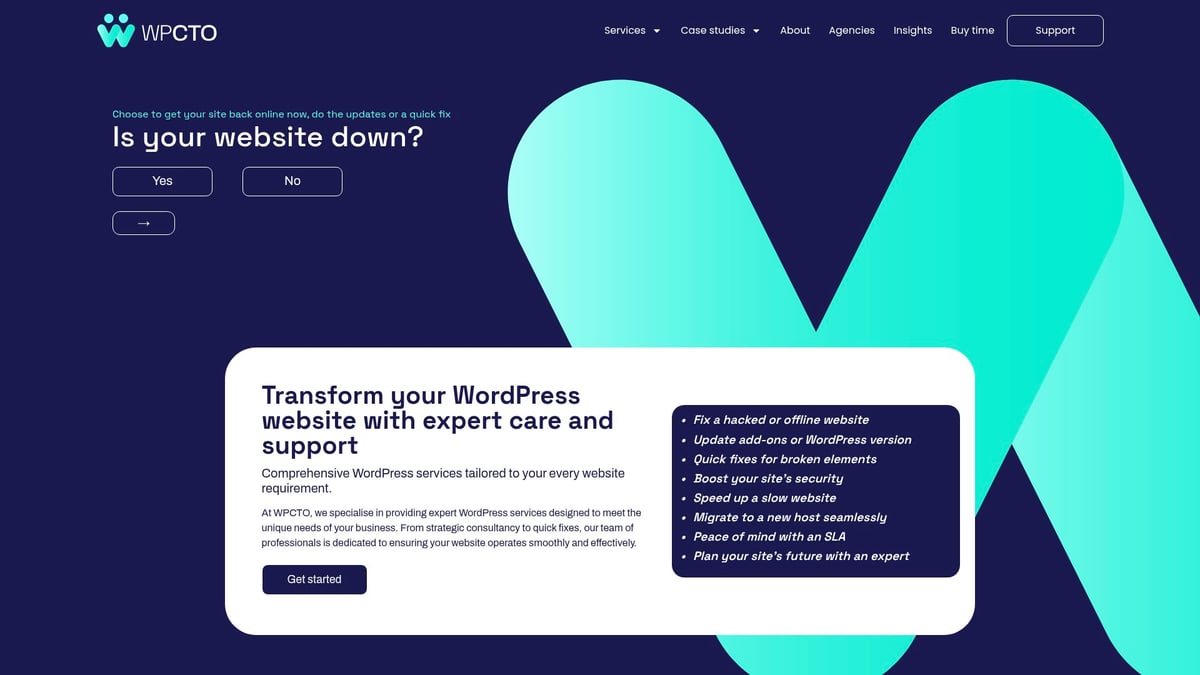
With flexible support options and transparent service levels, WPCTO suits agencies and enterprises that lack dedicated technical resources. Hundreds of brands trust their proactive monitoring and emergency response, ensuring your site remains robust and aligned with your business goals.
Whether you’re aiming to boost your site’s speed, enhance security, or simply make the most of Google Cloud’s powerful features, you now have a clear roadmap for hosting WordPress with confidence in 2025. We’ve covered everything from setup to optimisation and ongoing maintenance, ensuring you’re ready for each step. If you want expert guidance, strategic support, or a helping hand with technical challenges, you don’t have to do it alone. Your website’s potential is just beginning—let’s unlock it together.
Ready to transform your WordPress website?