

A single poorly handled theme update can take a client’s site offline, expose it to security vulnerabilities, and land an emergency call on your desk at the worst possible moment. Outdated WordPress themes are a leading cause of security breaches, yet the update process itself carries real risk if your team doesn’t follow a structured approach. For agencies managing multiple WordPress sites, the stakes are high: broken sites erode client trust, absorb billable hours, and pull your team away from the creative work that actually grows your business. This guide gives you a clear, repeatable process to update WordPress themes safely, efficiently, and with minimal disruption.
Table of Contents
- Preparing for a theme update: Requirements and agency checklist
- Step-by-step guide: Updating your WordPress theme safely
- Avoiding security pitfalls: Best practices during updates
- Troubleshooting, verification, and ongoing maintenance
- A fresh perspective: Why efficient, documented updates are your agency’s superpower
- Streamline theme updates with expert WordPress support
- Frequently asked questions
Key Takeaways
| Point | Details |
|---|---|
| Preparation prevents downtime | Creating backups and using a checklist prior to updating dramatically reduces the risk of errors. |
| Staging is essential | Always test theme updates in a safe staging environment before pushing live. |
| Security comes first | Up-to-date themes and diligent post-update checks keep client sites secure and compliant. |
| Document every update | Clear record-keeping simplifies troubleshooting and helps with compliance audits. |
| Consider managed services | Agencies can save time and avoid mistakes by using specialist WordPress support teams. |
Preparing for a theme update: Requirements and agency checklist
Once the significant risks and benefits are clear, the first step is proper preparation. Rushing into a theme update without groundwork is where most problems begin. Proper preparation, including backups and compatibility checks, reduces downtime and data loss significantly. Treat every update as a small project, not a quick task.
Before touching anything, run through this pre-update checklist:
- Check PHP compatibility: Confirm the new theme version supports the PHP version running on the hosting environment.
- Review plugin compatibility: Cross-reference the theme changelog with your active plugins, particularly page builders, WooCommerce, or custom integrations.
- Back up everything: Export both the database and all site files. A full backup is non-negotiable before any update.
- Set up a staging environment: Clone the live site to a staging URL where you can test the update safely.
- Notify the client: Let them know the update is scheduled and give them a time window. Clients appreciate proactive communication far more than a post-incident explanation.
Here’s a quick reference for what to check before proceeding:
| Preparation task | Why it matters | Priority |
|---|---|---|
| Full site backup | Enables rollback if anything breaks | Critical |
| PHP version check | Prevents fatal errors post-update | Critical |
| Plugin compatibility review | Avoids conflicts with key functionality | High |
| Staging environment setup | Allows safe testing before going live | High |
| Client communication | Manages expectations and builds trust | Medium |
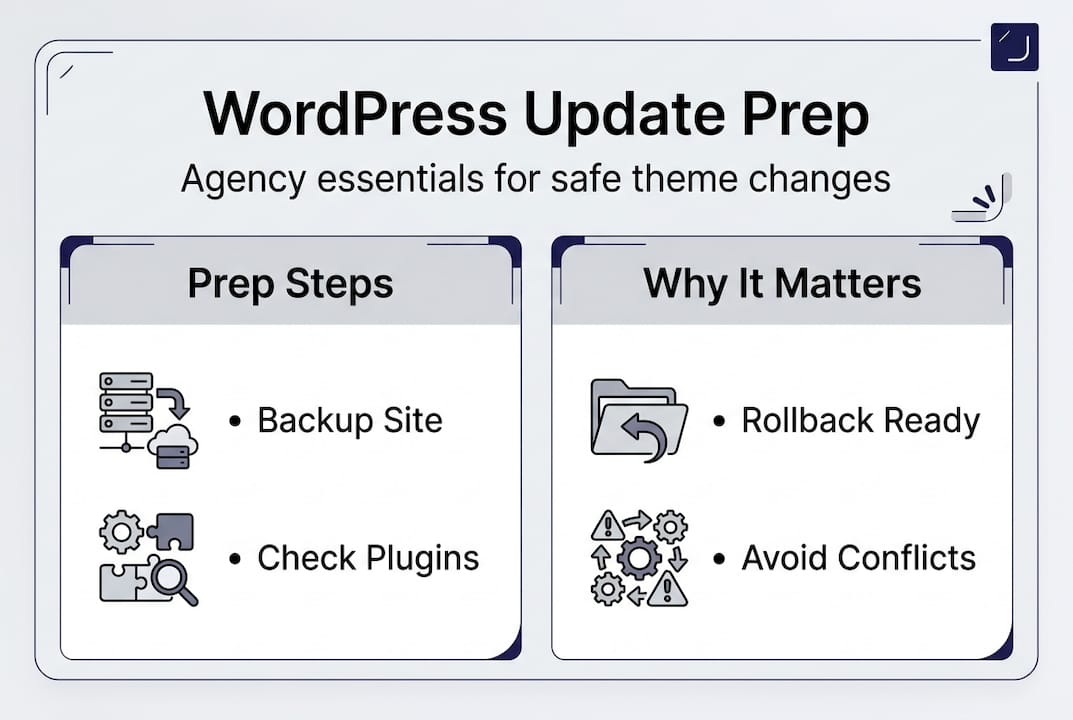
A solid WordPress update checklist and a reliable maintenance checklist are two documents every agency should have templated and ready to use across all client accounts.
Pro Tip: Store your staging environment credentials and backup locations in a shared, secure document for your team. When something goes wrong at speed, you don’t want anyone hunting for access details.
Step-by-step guide: Updating your WordPress theme safely
With all preparation complete, follow these practical agency steps to execute the update safely. This is the part where discipline pays off. A structured approach here is the difference between a smooth update and a frantic rollback.
- Enable maintenance mode on the live site. Use a maintenance mode plugin to display a holding page to visitors. This prevents users from encountering a broken state mid-update.
- Log in to the staging environment. Never test directly on the live site. Using a staging environment prevents live site issues during update testing.
- Apply the theme update on staging. Navigate to Appearance > Themes, and update the theme. If you’re using a child theme, update the parent theme first, then review the child theme for any conflicts.
- Test thoroughly on staging. Check the homepage, key landing pages, contact forms, navigation menus, and any WooCommerce or booking flows. Test on both desktop and mobile.
- Document all changes observed. Note any visual differences, layout shifts, or functionality changes. This creates a clear record for your team and the client.
- Apply the update to the live site during a low-traffic window. Early mornings or weekday evenings typically work well. Use your documented safe update process as your guide.
- Disable maintenance mode and verify the live site. Run through your post-update checklist immediately after going live.
“The agencies that handle updates best are the ones that treat every update like a deployment, not a checkbox. Process protects your reputation.”
Pro Tip: Schedule updates during a consistent weekly window rather than reacting to update notifications as they arrive. Batching updates reduces context-switching and makes your process more predictable.
Avoiding security pitfalls: Best practices during updates
After the update process, it’s critical not just to focus on appearance, but on site security at each stage. Theme updates are one of the most common entry points for vulnerabilities, and agencies that cut corners here are taking risks on behalf of their clients.
Here are the security practices your team should follow without exception:
- Never use nulled or pirated themes. These almost always contain malicious code. Only download themes from the official WordPress repository or verified premium marketplaces.
- Verify the theme source before every update. Even legitimate themes can be compromised if downloaded from unofficial mirrors.
- Update child themes before parent themes when customisations are involved. This prevents your customisations from being overwritten or creating conflicts.
- Keep SFTP credentials secure. Avoid sharing credentials over email or chat. Use a password manager and restrict access to those who need it.
- Test client login flows after every update. Authentication issues are easy to miss during visual checks but immediately noticed by clients.
- Document changes for compliance. A log of what was updated, when, and by whom is valuable for audits and client reporting.
Most WordPress breaches exploit outdated themes and plugins, making regular, secure updates one of the most effective defences available to your agency.
Security callout: A single compromised theme can expose client data, damage SEO rankings through malware injections, and trigger hosting suspensions. The cost of a breach far outweighs the time invested in a secure update process.
For a broader view of hardening client sites, our secure WordPress guide and WordPress security tips cover the full picture beyond theme updates.
Pro Tip: Set up security monitoring alerts on all client sites. If a theme update introduces a vulnerability, you want to know before the client does.
Troubleshooting, verification, and ongoing maintenance
Having completed the update, agencies now need robust troubleshooting, verification, and maintenance practices. An update that looks fine immediately after deployment can still hide issues that surface hours later. Verification isn’t optional.

Use a comparison approach to catch problems quickly:
| Area to check | Pre-update state | Post-update check |
|---|---|---|
| Homepage layout | Screenshot taken | Visual comparison |
| Contact forms | Confirmed working | Submit test entry |
| Navigation menus | All links correct | Click-through test |
| WooCommerce checkout | Functional | Full test purchase |
| Mobile responsiveness | Reviewed | Cross-device check |
| Page load speed | Baseline recorded | Post-update benchmark |
The most common post-update issues agencies encounter include:
- White screen of death: Usually caused by a PHP error or plugin conflict. Enable WP_DEBUG temporarily to identify the source.
- Lost customisations: If you’re not using a child theme, parent theme updates can overwrite custom CSS or template files.
- Styling breaks: Minor CSS changes in the new theme version can shift layouts unexpectedly. Check all key page templates.
- Plugin conflicts: Some plugins rely on specific theme hooks. After updating, test all major integrations.
Verifying the site after updates ensures client services stay uninterrupted and gives your team confidence before closing the task. For e-commerce clients, also review update security for WooCommerce sites to cover the additional complexity those sites introduce.
Schedule recurring site audits, at minimum monthly, to review logs, check for pending updates, and confirm site health. Reactive maintenance costs far more in time and client goodwill than a consistent proactive routine.
Pro Tip: Use a post-update report template to send clients a brief summary after each maintenance window. It reinforces your professionalism and makes the value of your ongoing care visible.
A fresh perspective: Why efficient, documented updates are your agency’s superpower
Bringing all the technical steps together, let’s reflect on the strategic value of getting theme updates right. Most agencies treat updates as admin, something to get through rather than something to get right. That mindset is costing them more than they realise.
Well-documented updates save countless hours on rework and troubleshooting. When something breaks six months after an update, a clear change log tells you exactly what happened and when. Without it, your team is investigating blind.
Clients notice stability. They may not understand what a theme update is, but they absolutely notice when their site works consistently and when it doesn’t. Reliability builds confidence, and confidence drives referrals. The agencies we work with that invest in structured update processes consistently report fewer support escalations and stronger client retention.
There’s also a commercial angle worth considering. Agencies that treat why update themes matters as a client-facing value proposition, rather than a background chore, are able to package and price maintenance services properly. Updates become a reason clients stay, not just a task your team absorbs silently. That shift in framing changes everything about how your agency approaches WordPress maintenance.
Streamline theme updates with expert WordPress support
For agencies wanting to ensure flawless updates without losing creative focus, here’s how WPCTO can help. Managing theme updates across a portfolio of client sites takes time, discipline, and technical expertise that most agency teams would rather direct elsewhere.
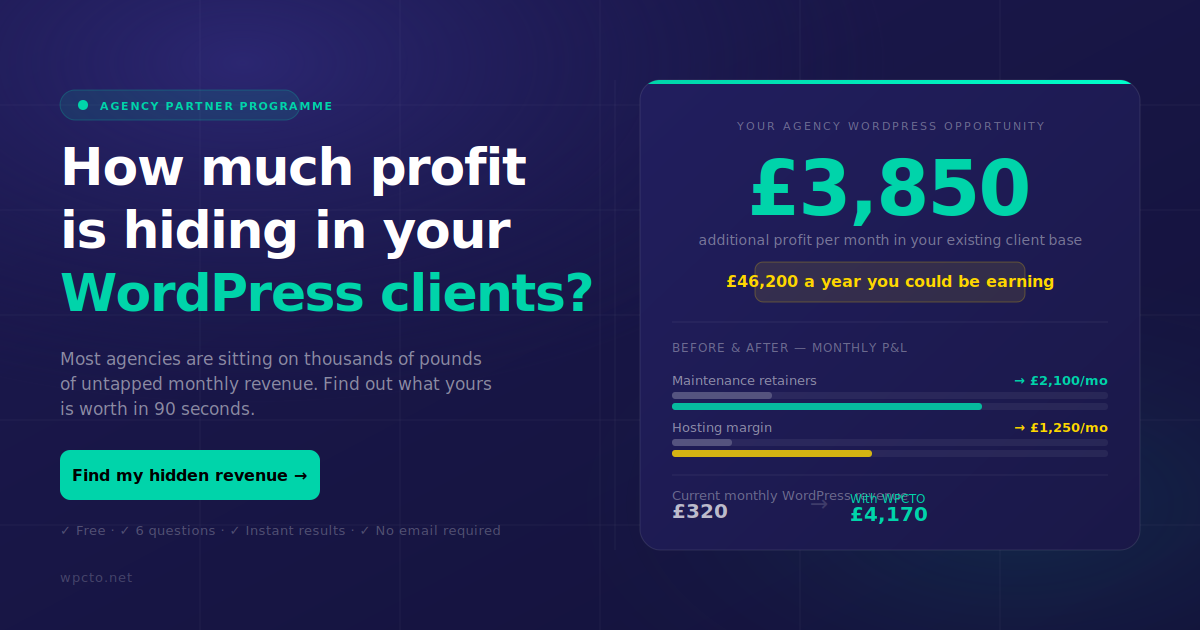
At WPCTO, we handle the full update cycle for agencies across the UK, from pre-update compatibility checks and staging tests through to post-update verification and client reporting. Our agency services are built around removing the WordPress maintenance burden entirely, so your team stays focused on creative and strategic work. If you’d prefer a fully invisible solution, our white label WordPress support means your clients receive seamless care under your brand. Use our free WordPress Profit Calculator to see exactly how much uncaptured revenue is sitting in your existing client base right now.
Frequently asked questions
What’s the safest way to test a WordPress theme update?
Always use a staging environment to test updates before applying them on the live site. Staging prevents live site errors and gives you a safe space to catch conflicts before they affect clients.
How can I roll back a theme update if something goes wrong?
Restore your backup from before the update to return the site to its previous state. Site backups are crucial for safe updates and should always be taken immediately before any changes are made.
How often should agencies update client WordPress themes?
Themes should be updated as soon as new versions are released, ideally after testing for compatibility on a staging environment. Regular updates minimise vulnerabilities and keep client sites stable and secure.
What are the most common issues during a theme update?
Issues include white screen errors, lost customisation, or plugin conflicts after updating. A proper update process with staging, backups, and post-update verification prevents most of these problems before they reach the live site.