

Over 80 percent of WordPress sites that fall victim to cyber attacks have outdated software or weak access controls. For british website owners, maintaining a secure site is not just about following trends, it is crucial for protecting customer data and building trust online. Learning how to audit your site, tighten user controls, and use the right tools will strengthen your WordPress security and help you stay one step ahead of online threats.
Table of Contents
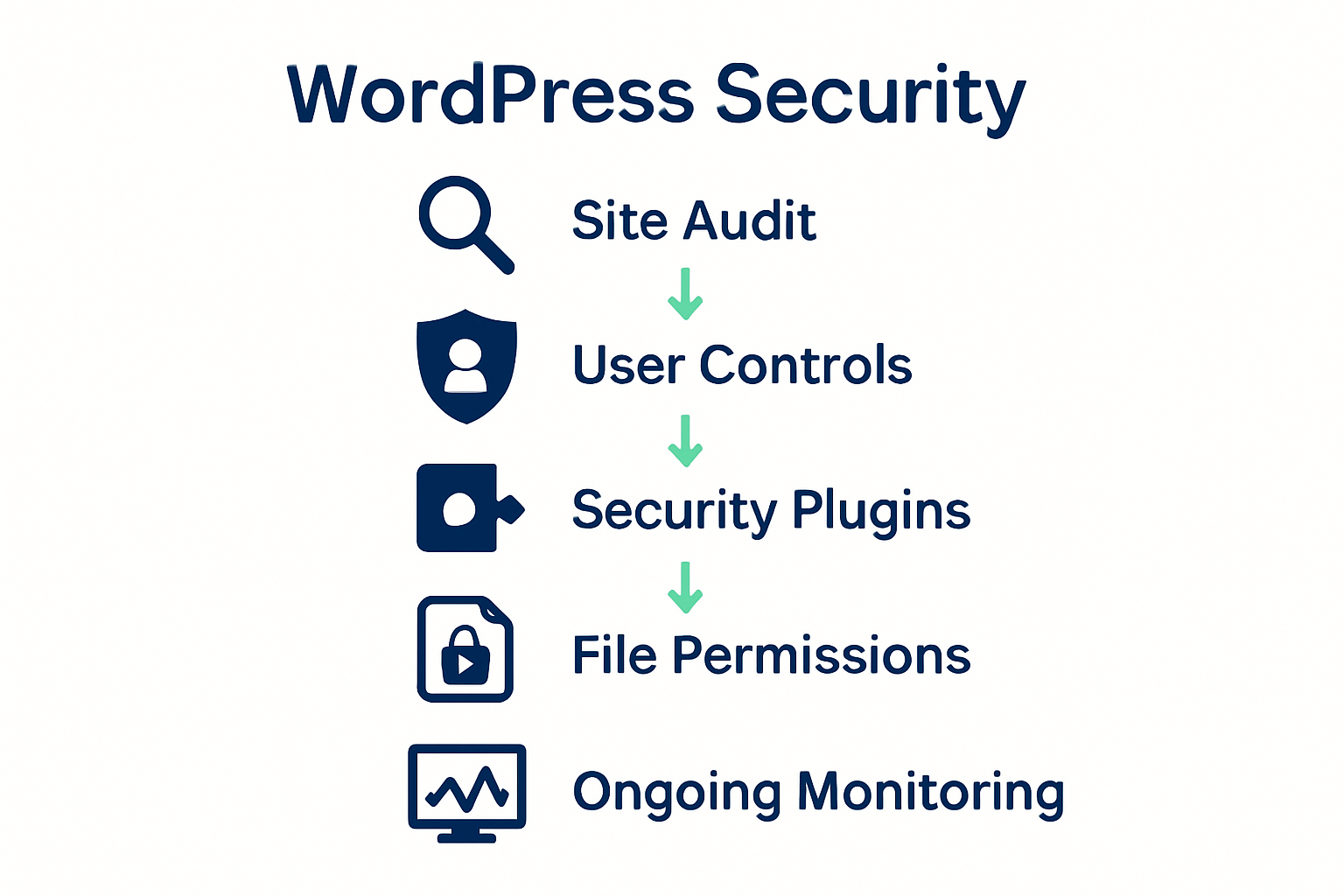
- Step 1: Audit Site And Update Core Components
- Step 2: Configure Strong User Access Controls
- Step 3: Install Essential Security Plugins
- Step 4: Harden Server And File Permissions
- Step 5: Monitor And Verify Site Security
Quick Summary
| Key Message | Explanation |
|---|---|
| 1. Regularly audit your site | Conduct frequent audits of your WordPress version, themes, and plugins to identify and fix vulnerabilities immediately. |
| 2. Implement strong user controls | Limit administrative access, use two-factor authentication, and enforce strong password policies to enhance site security. |
| 3. Use reliable security plugins | Select and configure plugins with multiple layers of protection, including malware scanning and firewall features, to safeguard your site. |
| 4. Set strict file permissions | Adjust file and directory permissions properly to limit access and protect sensitive information from unauthorized users. |
| 5. Establish a monitoring routine | Set up regular security scans and log reviews to promptly detect and respond to potential threats or breaches on your site. |
Step 1: Audit site and update core components
Securing your WordPress site begins with a comprehensive audit and strategic updates of core components. According to WordPress Developer, regular auditing is fundamental to maintaining robust website security and preventing potential vulnerabilities.
To conduct an effective site audit, start by checking your current WordPress version, themes, and plugins. Log into your WordPress dashboard and navigate to the updates section. Review each component carefully: look for outdated plugins, themes that haven’t been updated recently, and ensure your WordPress core is running the latest stable release. Site Checker offers an excellent tool for performing these comprehensive security checks.
When updating, always follow a strategic approach. Create a complete website backup before making any changes to protect against potential data loss. Update WordPress core first, followed by themes and plugins. Check plugin compatibility and read update notes to ensure smooth transitions. After updating, perform a quick functionality test to confirm all site features work correctly. A proactive approach to updates will significantly reduce security risks and maintain your website’s performance and reliability.
Step 2: Configure strong user access controls
Strengthening user access controls is a critical defence mechanism for protecting your WordPress website from potential security breaches. WordPress Security highlights the importance of implementing robust authentication measures to prevent unauthorised access and potential cyber threats.
Start by reviewing and managing user roles within your WordPress site. Limit administrator privileges to only essential personnel and assign minimal necessary permissions to other team members. Implement two factor authentication which requires users to provide a second verification method beyond their password typically through a mobile app or SMS code. Create strong password requirements by enforcing complexity rules such as minimum length mandatory character types and periodic password rotation.
As an additional security layer, consider implementing login attempt restrictions. Configure settings to automatically block IP addresses after multiple failed login attempts and set up email notifications for suspicious login activities. Regularly audit user accounts removing inactive or unnecessary profiles and ensuring each user has appropriate access levels. By proactively managing user access controls you significantly reduce the risk of potential security vulnerabilities and protect your WordPress site from unauthorised intrusions.

Step 3: Install essential security plugins
Enhancing your WordPress site’s security requires strategic plugin selection that provides comprehensive protection against potential cyber threats. SecuPress offers a robust solution for safeguarding your website with advanced features designed to detect and prevent various security vulnerabilities.
When selecting security plugins, focus on those providing multiple layers of protection. Ultimate Security recommends implementing plugins that offer features such as two factor authentication, malware scanning, firewall protection, and automated vulnerability detection. Begin by researching and comparing different security plugins in the WordPress repository, paying close attention to user ratings, update frequency, and specific security functionalities. Prioritise plugins that provide real time monitoring, automatic threat detection, and comprehensive reporting mechanisms.
Before installation, create a complete website backup to ensure you can restore your site if any conflicts arise. Install one security plugin at a time, carefully configuring each setting and testing your site’s functionality after each installation. Remember to keep your security plugins updated regularly and periodically review their settings to maintain optimal protection against emerging cyber threats. By taking a proactive approach to plugin selection and configuration, you significantly strengthen your WordPress site’s security infrastructure.
Step 4: Harden server and file permissions
Securing your WordPress site requires meticulous attention to server and file permissions to prevent potential security breaches. WordPress Developer provides comprehensive guidelines for implementing robust permission settings that protect critical website components from unauthorised access.
Begin by reviewing and adjusting file and directory permissions across your WordPress installation. Set your core WordPress files to 644 permissions and directories to 755 which allows read and execute access while preventing direct modifications. Pay special attention to sensitive files like wp-config.php which should have the most restrictive permissions possible typically 400 or 600. WordPress Support recommends ensuring that only the web server user has read access to configuration files to minimise potential exploitation risks.
Consider implementing additional security measures such as disabling file editing through the WordPress admin panel by adding specific code to your wp-config.php file. Regularly audit file permissions and ownership ensuring no unnecessary write permissions are granted to directories or files. By taking a proactive approach to permission management you create multiple layers of defence against potential security vulnerabilities and significantly reduce the risk of unauthorised system access.
Step 5: Monitor and verify site security
Ensuring ongoing security requires a proactive approach to monitoring and verifying your WordPress site’s health and potential vulnerabilities. Site Checker provides comprehensive monitoring capabilities that help website owners conduct thorough security audits and performance assessments.
Implement regular security scanning routines using reputable WordPress security plugins that offer real time monitoring and vulnerability detection. Set up automated weekly or monthly scans that check for malware, outdated components, potential security breaches, and unexpected file modifications. Configure email notifications to alert you immediately about any suspicious activities or detected vulnerabilities. Pay special attention to reviewing login attempts, tracking user activities, and monitoring critical files for unexpected changes.
Security WordPress Insights recommends establishing a consistent monitoring schedule where you systematically review security logs, analyse performance metrics, and verify the integrity of your website components. Create a checklist of critical security checks including verifying user permissions, reviewing plugin and theme updates, checking file integrity, and scanning for potential security risks. By maintaining a vigilant and structured approach to site security monitoring, you can quickly identify and address potential threats before they escalate into significant security challenges.
Protect Your WordPress Site with Expert Support Today
Securing a WordPress site is not just about applying updates or installing plugins. It demands detailed audits, strong user access controls, and continuous monitoring to prevent unauthorised access and emerging threats. Many website owners feel overwhelmed by managing these critical security tasks consistently. If you want trusted expertise that ensures your core components, file permissions and user roles are always hardened, it is time to consider professional help.
At WPCTO.net, we specialise in comprehensive WordPress security enhancements and ongoing site management. Our services include quick fixes for vulnerabilities, strategic consulting on access controls, and proactive monitoring to identify risks before they impact your site. Do not wait for a breach to happen. Visit our homepage to discover how our expert team can help you maintain a secure, optimised WordPress site with confidence. Start securing your WordPress site effectively now by visiting WPCTO.net.
Frequently Asked Questions
How can I identify potential vulnerabilities on my WordPress site?
To identify potential vulnerabilities, conduct a comprehensive site audit focusing on your WordPress version, themes, and plugins. Log into your dashboard, navigate to the updates section, and check for any outdated components that need addressing.
What should I do before updating my WordPress site?
Before updating your WordPress site, create a complete backup to protect your data from potential loss during the update process. This step is crucial to ensure you can restore your site if anything goes wrong after the updates.
How do I implement strong user access controls on my WordPress site?
To implement strong user access controls, limit administrator privileges to essential personnel only, and enforce strong password requirements for all users. Additionally, activate two-factor authentication to add an extra layer of security during the login process.
What essential security plugins should I consider for my WordPress site?
Consider installing security plugins that offer features like two-factor authentication, malware scanning, and firewall protection. Research each plugin’s capabilities and install them one at a time, configuring settings carefully to protect your site effectively.
How can I check and adjust file permissions for my WordPress site?
Check and adjust file permissions by setting core WordPress files to 644 and directories to 755 to prevent unauthorised access. For sensitive files like wp-config.php, consider setting permissions to 400 or 600 for maximum security.
What steps can I take to continuously monitor my WordPress site’s security?
To continuously monitor your WordPress site’s security, establish a regular routine for security scans and check important logs for any suspicious activities. Schedule automated scans weekly or monthly and keep track of user activities to quickly identify and rectify potential threats.