

WordPress issues in 2025 can feel overwhelming, especially as plugins and site dependencies grow more complex. A sudden error or unexpected downtime can disrupt your business, frustrate your readers, and put your reputation at risk.
Whether you are running a blog, managing an agency, or overseeing a large business site, even the most common WordPress fix challenges can have a big impact. Problems like error messages, bugs, or site outages can lead to lost traffic and revenue.
This guide offers a step-by-step approach to every WordPress fix you might need, making it accessible for both beginners and experienced users. You will find clear instructions for troubleshooting, quick resolutions for typical issues, and advice on keeping your site secure and optimised.
Follow this comprehensive resource to master every WordPress fix, maintain your site efficiently, and prepare for whatever 2025 brings. Inside, you will learn the basics of troubleshooting, how to resolve frequent errors, advanced repair methods, and the best practices for security, optimisation, and ongoing maintenance.
Understanding Common WordPress Issues in 2025
WordPress powers millions of websites in 2025, but with its growth comes a rise in technical challenges. Understanding frequent issues is the foundation for any effective wordpress fix. This section explores typical problems, their causes, how to interpret error messages, the impact of updates, the crucial role of hosting, and why backups are indispensable.
The Most Frequent WordPress Problems
WordPress users frequently encounter issues like the white screen of death, critical errors, plugin or theme conflicts, and database connection failures. Error messages such as “There has been a critical error on this website” or “Error establishing a database connection” are now common.
According to WordPress.org forums, plugin-related issues account for over 60% of support queries. These problems can disrupt user experience and halt business operations, making a prompt wordpress fix essential. For practical steps and solutions, see the Common WordPress help solutions resource for further guidance.
Causes Behind Typical WordPress Errors
The root causes of WordPress errors often trace back to outdated plugins or themes, PHP version mismatches, and incorrect server settings. Incompatible updates are a leading cause, as shown by many plugin and theme support threads.
Statistics reveal that 45% of sites break after major updates due to compatibility issues. Staying vigilant and proactive with your wordpress fix strategy can dramatically reduce site downtime and prevent larger disruptions.
Recognising Error Messages and Symptoms
Deciphering WordPress errors starts with reading error logs, on-screen notifications, and backend alerts. Enabling debug mode in WordPress helps to identify the source of problems quickly.
For example, the “AUTO DRAFT” message may point to autosave issues, while “critical error” notifications signal deeper faults. Using debug tools is a vital step in any wordpress fix process, allowing users to gather actionable information before making changes.
How WordPress Updates Affect Site Stability
Updates to WordPress core, plugins, or themes bring new features and security patches but can also introduce instability. For instance, the recent WordPress 6.8 update led to widespread compatibility issues, as seen on support forums.
Risks include broken layouts or features and even site crashes. To ensure a smooth wordpress fix, always test updates on a staging site and follow best practices for safe deployment.
The Role of Web Hosting and Server Environment
The underlying server environment is critical for WordPress stability. In 2025, PHP and MySQL version requirements have evolved, demanding up-to-date hosting configurations. Common pitfalls include incorrect file permissions and insufficient memory limits.
Data shows that 20% of WordPress errors originate from hosting misconfiguration. Addressing these at the start of any wordpress fix effort can resolve many persistent issues before they escalate.
The Importance of Backups Before Troubleshooting
Backups are your first line of defence when facing WordPress problems. A reliable backup solution and regular scheduling ensure you can restore your site quickly if something goes wrong.
For example, if a plugin update fails and breaks the site, a recent backup allows you to roll back safely. Making backups a central part of your wordpress fix routine is essential for long-term site health and peace of mind.
Step-by-Step Troubleshooting Process for WordPress
When a WordPress site encounters problems, a structured approach is essential. A systematic wordpress fix process not only resolves issues faster, but it also prevents further disruptions. Let’s walk through each step, from initial assessment to recovery, so you can regain control of your site with confidence.

Step 1: Assess and Document the Issue
Begin your wordpress fix journey by gathering all relevant details about the problem. Record any error messages, note the exact time and area affected, and list recent changes such as plugin installs or updates.
Use browser developer tools to inspect console errors. Access server error logs through your hosting dashboard. Documenting symptoms, for example, a broken contact form or missing menu, will help you pinpoint the issue and communicate clearly if you need external support.
A clear record ensures you do not miss any contributing factors and sets the stage for an efficient resolution.
Step 2: Enable WordPress Debugging
Activating debug mode is a crucial step in any wordpress fix process. To do this, edit your wp-config.php file and set:
define('WP_DEBUG', true);
This action will display detailed error messages, revealing the source of problems. Watch for file paths, line numbers, or specific functions mentioned in the output. For example, a faulty function in functions.php will now be easier to spot.
Remember to turn off debugging when finished to avoid exposing sensitive information to visitors.
Step 3: Deactivate Plugins and Themes Systematically
Most wordpress fix scenarios involve plugin or theme conflicts. Safely deactivate all plugins via the dashboard or, if locked out, by renaming the plugins folder in FTP. Check if the issue resolves.
If it does, reactivate each plugin one by one, testing after each activation. This isolation method identifies the culprit quickly. Statistics show over 60 percent of issues are resolved by this process.
If themes are suspected, switch to a default theme like Twenty Twenty-Five and observe changes.
Step 4: Check for Core File Integrity
Corrupted or missing core files can disrupt a site. For a thorough wordpress fix, compare your files to a fresh WordPress download. Replace any files that differ or are missing.
Tools like WP-CLI can automate this process:
wp core verify-checksums
If discrepancies are found, restore the affected files. This step is especially important after malware removal or failed updates.
Step 5: Examine Hosting and Server Settings
Your hosting environment directly affects site stability. For a successful wordpress fix, review PHP and MySQL versions, memory limits, and file permissions. Adjust these settings via your hosting dashboard or cPanel.
For example, increasing the PHP memory limit can resolve upload errors. File permissions should be restrictive enough for security, but not so tight that WordPress cannot function.
For further guidance, see these WordPress website support tips to optimise your hosting setup and troubleshoot server-related issues.
Step 6: Restore from Backup if Needed
If the previous steps do not resolve the problem, a backup is your safety net. As part of your wordpress fix strategy, restore your site to a point before the issue appeared.
Use your backup plugin or hosting provider’s restore function. After rolling back, verify site health and test all key areas. This approach is especially effective after failed updates or malware infections.
Always keep recent backups and schedule automated ones to prevent data loss in the future.
Fixing the Most Common WordPress Errors in 2025
Troubleshooting WordPress errors in 2025 can seem daunting, but most issues share common roots and proven solutions. By following a systematic approach, you can resolve even complex problems efficiently. Let us explore the most frequent errors you may encounter and outline clear steps for each wordpress fix.
Resolving the White Screen of Death
The dreaded White Screen of Death leaves your site blank, offering no clues. This error is commonly triggered by PHP code errors, memory exhaustion, or plugin conflicts.
To start your wordpress fix, enable WP_DEBUG in wp-config.php to catch underlying PHP issues. If nothing appears in debug logs, increase your PHP memory limit by editing the wp-config.php file:
define('WP_MEMORY_LIMIT', '256M');
If the site remains blank, disable all plugins via the dashboard or FTP by renaming the plugins folder. Switch to a default theme like Twenty Twenty-Five. Reactivate plugins one by one to isolate the culprit.
Example: After installing a new plugin, your homepage is blank. Disabling the plugin restores access, confirming the source of the problem.
Fixing “There Has Been a Critical Error on This Website”
This message often follows a major update or code change. It means a fatal PHP error has halted site execution.
Begin your wordpress fix by checking the email sent to your admin address, which often contains error details. Use WordPress Recovery Mode to log in and deactivate the problematic plugin or theme.
Enable debug mode for more insight. Review recent updates or changes. Ensure your PHP version is compatible with all plugins and themes.
Example: After bulk updating plugins, the error appears. Deactivating the last updated plugin via Recovery Mode restores site access.
Repairing Database Connection Errors
“Error establishing a database connection” is a classic WordPress problem, typically caused by incorrect credentials, database corruption, or server outages.
For a wordpress fix, open wp-config.php and verify your database name, username, and password. If these are correct, access phpMyAdmin and use its repair feature. Run the following SQL command if needed:
REPAIR TABLE wp_options;
If the issue persists, contact your hosting provider to check for server problems.
Example: After a site migration, the database error appears. Updating credentials in wp-config.php resolves the problem.
Dealing with Plugin and Theme Conflicts
Conflicts between plugins and themes can break site features, such as visual editors or dynamic menus.
For an effective wordpress fix, deactivate all plugins and switch to a default theme. Reactivate each plugin one at a time, testing after each step. If the issue returns, the last activated extension is likely to blame.
Contact the developer for an update or alternative. Always test new plugins or themes in a staging environment first.
Example: Changing your theme causes the visual editor to stop loading. Switching back to the previous theme restores functionality, confirming a conflict.
Solving File Upload and Media Library Issues
File upload errors manifest as “HTTP error” or “Upload path not writable” messages. These often result from incorrect file permissions, PHP limits, or broken .htaccess files.
For your wordpress fix, check that the wp-content/uploads folder has 755 permissions. Increase your PHP upload limit in php.ini:
upload_max_filesize = 64M
post_max_size = 64M
If issues persist, regenerate your .htaccess by saving permalinks again in the dashboard.
Example: Media uploads fail after a site migration. Updating folder permissions and regenerating .htaccess solves the problem.
Addressing Email Delivery Failures
WordPress sites rely on email for notifications, order confirmations, and contact forms. Delivery failures are often caused by blocked ports, misconfigured SMTP, or plugin errors.
Start your wordpress fix by installing an SMTP plugin like WP Mail SMTP. Configure it with your provider’s settings and test email delivery. If emails still fail, check your DNS records for correct SPF and DKIM entries.
Example: Contact form submissions are not reaching your inbox. Switching to SMTP authentication resolves the issue.
Handling Security Breaches and Hacked Sites
A hacked site may display defaced content, spam pop-ups, or unknown users in the admin area. Immediate action is vital.
Begin your wordpress fix by restoring a recent backup and scanning your site with a security plugin. Change all passwords and update plugins, themes, and WordPress core. According to the State of WordPress Security Report 2025, unpatched plugins remain a major vulnerability in 2025.
Example: After noticing spam posts, you restore from backup and remove suspicious users. Regular security scans help prevent future attacks.
Advanced WordPress Repair and Optimisation Techniques
For site owners seeking a robust wordpress fix strategy in 2025, advanced repair and optimisation techniques are essential. This section explores the latest professional tools and methods to ensure your site remains fast, secure, and resilient, even in challenging scenarios.
Using WP-CLI and Advanced Tools
The command line is a powerful ally for any wordpress fix, especially when dashboard access is lost. WP-CLI lets you manage plugins, themes, and core files directly from the terminal. With commands like wp plugin deactivate --all or wp core verify-checksums, you can swiftly isolate and resolve issues.
When plugins lock you out or a theme update breaks the site, WP-CLI can reactivate defaults, clear caches, or repair databases with minimal downtime. For multisite or high-traffic environments, scripts automate repetitive tasks efficiently. Always back up before using advanced scripts, as changes are immediate and irreversible.
Database Optimisation and Repair
A sluggish or corrupted database can undermine any wordpress fix effort. Start by cleaning post revisions, transients, and spam comments. Plugins like WP-Optimize run regular sweeps, but manual SQL commands via phpMyAdmin or WP-CLI offer granular control.
To repair tables, use the command wp db repair or the built-in repair option in wp-config.php. Removing orphaned tables left by old plugins also improves performance. For WooCommerce stores, optimising order and product tables can significantly reduce load times. Schedule monthly database checks to keep your site healthy.
Performance Tuning for 2025
Performance is a core part of a successful wordpress fix. Start by implementing caching plugins such as W3 Total Cache or WP Super Cache. Integrate a CDN to distribute assets globally, reducing latency for visitors.
Optimise images before upload using tools like ShortPixel. Consider lazy loading for media-heavy pages. For large catalogues and busy WooCommerce sites, monitor queries and use object caching to avoid database overload. Regularly review your site with tools like GTmetrix to spot bottlenecks and sustain fast load times.
Securing WordPress Against Modern Threats
Security is crucial for any wordpress fix in 2025. Two-factor authentication, regular malware scans, and a web application firewall are essential. According to the 2024 Annual WordPress Security Report by Wordfence, plugin vulnerabilities remain a leading cause of breaches.
Enforce strong passwords and review user permissions frequently. Schedule vulnerability scans after every major update. If a plugin is flagged as vulnerable, disable it immediately and seek alternatives. Stay informed about new threats by subscribing to security bulletins and updates.
Migrating and Restoring WordPress Sites Safely
A reliable wordpress fix often involves safe migration or restoration. Use plugins like Duplicator or WP Migrate for seamless moves between servers or domains. Always perform a full backup of files and database before starting.
Test the migration on a staging environment to catch errors early. For zero downtime, update DNS records during off-peak hours. After restoring, verify all site functions, including forms and user logins. Document the process for future reference to streamline future migrations.
Proactive Maintenance and Prevention Best Practices
Proactive maintenance is essential to prevent disruptions and reduce the need for emergency wordpress fix interventions. By following a structured approach, you can keep your WordPress site secure, high-performing, and resilient throughout 2025.
Keeping WordPress, Plugins, and Themes Updated
Routine updates are the cornerstone of any wordpress fix strategy. Unpatched core files, plugins, or themes often introduce vulnerabilities and compatibility issues. Schedule regular update checks, ideally using a staging environment to test changes before applying them to your live site.
- Review plugin and theme changelogs for potential conflicts.
- Test updates on staging to avoid site-breaking bugs.
- Roll out updates during low-traffic periods when possible.
Pre-update testing dramatically reduces the risk of downtime or errors, safeguarding your site’s performance and reliability. Keeping everything current is the simplest way to minimise the need for emergency fixes.
Implementing Automated Backups and Monitoring
A robust backup system is vital for any wordpress fix plan. Automated backups ensure you can quickly restore your site if something goes wrong. Choose a backup solution that allows for scheduled backups and easy restores.
- Select plugins or managed hosting with built-in backups.
- Store backups off-site or in the cloud for added security.
- Enable real-time uptime and security monitoring.
Monitoring tools alert you to issues before they escalate, so you can act swiftly. Automatic rollback features can further reduce downtime if a plugin or update fails.
Regular Security Audits and Vulnerability Scans
Frequent security checks are non-negotiable in 2025, especially as threats evolve. Incorporating vulnerability scans into your wordpress fix routine helps detect hidden malware, outdated plugins, or suspicious user activities. Use both automated tools and manual reviews for comprehensive coverage.
- Scan for known vulnerabilities and outdated components.
- Audit user roles, file permissions, and installed plugins.
- Review recent WordPress Vulnerability Report — June 25, 2025 to stay informed about the latest threats.
Staying up to date with current risks allows you to act before attackers can exploit weaknesses.
Educating Users and Team Members
Human error remains a leading cause of site outages, making training a crucial wordpress fix prevention tactic. Educate all users and team members on safe update practices, strong password policies, and recognising phishing attempts.
- Provide guidance on user management and permission settings.
- Share security awareness resources during onboarding.
- Encourage reporting of suspicious activities promptly.
Well-informed teams are your first line of defence, helping to prevent accidental downtime and maintain site integrity.
When to Seek Expert Help: WordPress Support Services
WordPress issues can sometimes spiral into complex challenges. Knowing when to seek professional support is crucial for minimising downtime and protecting your website’s reputation. This section guides you through making informed decisions about expert help, what to expect from support services, and preparing for a smooth resolution.
Choosing Between DIY Fixes and Professional Support
Deciding whether to tackle a wordpress fix on your own or bring in expert help depends on several factors. If you encounter persistent errors, repeated downtime, or critical failures affecting business operations, it is wise to consult a specialist. DIY solutions are suitable for minor plugin conflicts or simple configuration issues.
Consider the complexity of the problem, your technical skills, and the potential business impact. For example, if a plugin update breaks your site and you are unsure how to safely restore it, professional intervention minimises risk. Choosing the right hosting environment also plays a role. For more insight, see Shared vs own WordPress hosting to understand how hosting choices affect support needs.
What to Expect from Managed WordPress Support
When you opt for managed support, you gain access to a dedicated team focused on rapid resolution of your wordpress fix. Managed services typically offer 24/7 monitoring, guaranteed response times, and proactive site health checks. You can expect thorough malware removal, performance optimisation, and emergency repairs as part of the package.
A managed provider will often use advanced diagnostic tools, ensuring that even hidden or recurring issues are addressed efficiently. This level of service is particularly valuable for agencies and businesses where uptime is mission-critical. By relying on experts, you benefit from reduced downtime and a more resilient WordPress environment.
WPCTO: Expert WordPress Consultancy and Fix Services
WPCTO delivers a comprehensive wordpress fix solution tailored to your site’s unique requirements. Their team offers immediate assistance for hacked or broken websites, as well as strategic advice and long-term maintenance. With options like ticketed support, service-level agreements, and fractional CTO engagement, WPCTO adapts to organisations of all sizes.
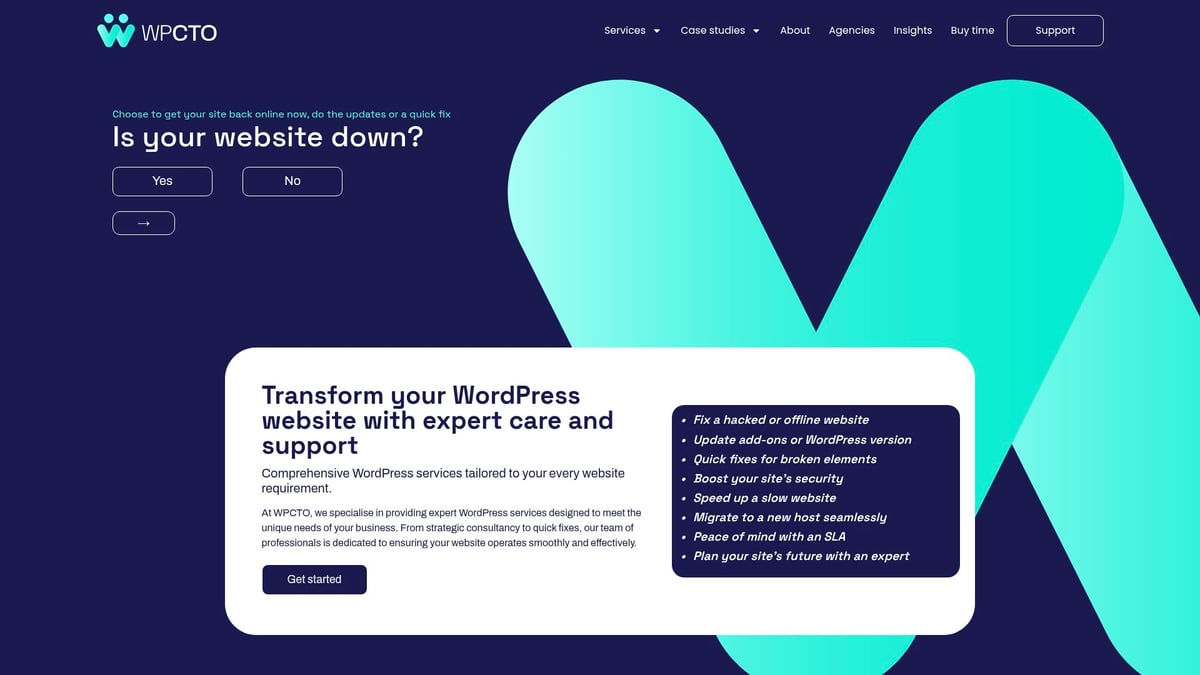
Hundreds of businesses trust WPCTO for rapid response and expert-led guidance. Their services include proactive security enhancements and emergency fixes, delivering peace of mind for mission-critical WordPress sites. Choosing WPCTO ensures you have reliable support whenever you need it most.
How to Prepare Before Contacting Support
Preparation is key to a swift and effective wordpress fix. Before reaching out, gather all relevant details: error logs, descriptions of recent changes, and specific problem areas. Documenting this information helps support teams diagnose issues faster.
Provide secure access credentials as requested and clearly outline any steps already taken. Effective communication reduces resolution times and minimises the risk of misunderstandings. By being organised, you help experts resolve your issue efficiently and restore your website’s functionality with minimal disruption.
You’ve now got a solid roadmap for tackling WordPress issues in 2025—from recognising error messages and plugin conflicts to adopting best practices for backups and ongoing maintenance. But sometimes, you need a bit of extra help to keep your site running smoothly or resolve complex technical problems quickly. If you ever find yourself facing persistent issues, or simply want the peace of mind that comes with professional expertise, you don’t have to handle it alone. We’re here to support you every step of the way—Contact us now for immediate services and support and let our WordPress specialists help you get back on track.