

The most impactful WordPress administration tips you can act on right now are these five, listed in order of urgency:
- Run a verified backup (files + database, stored offsite) — 10 minutes with a plugin like UpdraftPlus
- Check user accounts and remove anyone who no longer needs access — 10 minutes
- Update WordPress core, plugins and themes on a staging copy first, then push to production — 30–60 minutes
- Review your PHP version in Site Health (Tools > Site Health) and flag anything below PHP 8.1 — 10 minutes
- Set a recurring maintenance slot in your calendar: 30 minutes weekly, 90 minutes monthly — 5 minutes now
Patchstack data shows that 96% of WordPress vulnerabilities originate in plugins and themes, not core. That single figure reframes everything: the risk on your site is almost entirely driven by what you have installed, not by WordPress itself.
If you manage WordPress sites for clients and suspect you are absorbing hours of uncharged maintenance time, the Wpcto WordPress Profit Calculator shows you exactly how much uncaptured revenue is sitting in your existing client base in under 90 seconds.

Table of Contents
- Your daily, weekly and monthly admin routine
- How to secure your site and prepare for disaster
- How to manage plugins and themes safely and reduce plugin tax
- How to customise the admin for teams and clients
- Keep admin and front end fast: caching, images and hosting
- User accounts, roles and workflows that scale
- Quick fixes and emergency steps when things go wrong
- When to keep admin in-house and when to outsource
- How to access and use the admin panel and key admin screens
- How to set up and manage automated updates
- Managing and scheduling WordPress cron jobs
- Monitoring and analysing site traffic from the admin panel
- Key takeaways
- The real cost of WordPress admin in agency life
- Stop absorbing WordPress admin costs your agency should not be carrying
- Useful sources and further reading
Your daily, weekly and monthly admin routine
Consistent admin habits prevent the kind of slow drift that turns a healthy site into a liability. Here is a schedule you can copy straight into your task manager.
Daily (5–10 minutes)
- Check uptime alerts (your host’s dashboard or a free tool like UptimeRobot)
- Scan for critical PHP errors or 500 responses in your error log
- Confirm contact forms are delivering (send a test submission weekly at minimum)
Weekly (20–30 minutes)
- Apply core, plugin and theme updates to a staging environment first, smoke-test, then deploy to production
- Verify that the most recent backup completed and is accessible
- Moderate comments and clear spam queues
Monthly (60–90 minutes)
- Run a database optimisation (remove post revisions, transients, orphaned metadata)
- Audit installed plugins: anything inactive, unsupported or duplicating another plugin’s function should go
- Pull a performance report (PageSpeed Insights or Site Health) and note any regressions
- Review and archive or delete draft content older than 90 days
| Cadence | Time estimate | Rough cost (outsourced, UK) |
|---|---|---|
| Daily checks | 5–10 min | Included in most care plans |
| Weekly updates + backup | 20–30 min | £30–£60/month |
| Monthly audit + optimisation | 60–90 min | £60–£120/month |
| Annual full audit | Half day | — |
The Depeche Code maintenance checklist is a useful reference for teams building their own internal schedule.

How to secure your site and prepare for disaster
Security hardening and a reliable restore process are two sides of the same coin. Get both right and most incidents become recoverable inconveniences rather than emergencies.
Core hardening steps:
- Use a unique, strong password for every admin account (a password manager removes the friction)
- Enable two-factor authentication on all Administrator-level accounts
- Limit login attempts with a plugin or at server level to blunt brute-force attacks on wp-login.php
- Set file permissions correctly: directories at 755, files at 644, and wp-config.php at 440 or 400
- Keep WordPress core, plugins and themes current; unpatched vulnerabilities are the most common entry point
Backups: what, how often and where:
- Back up both the database and all site files (wp-content, wp-config.php, .htaccess)
- Daily backups for active sites; weekly is the minimum for low-traffic informational sites
- Store at least one copy offsite (cloud storage separate from your host) — if your host is compromised, an onsite backup is worthless
- Verified restores matter as much as the backup itself; test a restore to a staging environment at least quarterly
Restore playbook:
- Confirm the backup file is intact and not from a period after a known compromise
- Put the live site into maintenance mode
- Restore files via FTP/SFTP or your host’s file manager
- Import the database backup via phpMyAdmin or WP-CLI
- Update wp-config.php database credentials if they changed
- Run a full smoke test: front end, admin login, forms, e-commerce checkout if applicable
- Remove maintenance mode and monitor error logs for 24 hours
Pro Tip: Set up an admin-area email alert for new user registrations and password resets. Unexpected notifications are often the first sign of a compromise, and catching them early gives you time to act before damage spreads.
How to manage plugins and themes safely and reduce plugin tax
The hidden cost of a large plugin stack is not just the licence fees. It is the maintenance time, the compatibility drift, and the security surface that grows with every additional dependency. Agencies that manage dozens of client sites feel this acutely.
Evaluation checklist for every plugin and theme:
- Last updated: anything not updated in 12 months warrants scrutiny
- Active installs and support-forum response rate as a proxy for author reliability
- PHP 8.1+ compatibility confirmed in the plugin’s tested-up-to field
- Does it duplicate functionality already provided by another plugin or your theme?
- Is it actually active and used, or was it installed for a one-off task?
Safe update process:
- Take a full backup before any update session
- Update on staging first; use a distinct development, staging and production environment workflow
- Update in order: WordPress core first, then plugins, then themes
- Run smoke tests after each batch: check the front end, admin, and any custom post types or forms
- If something breaks, roll back the specific plugin before investigating further
The plugin tax is real and it compounds. Every plugin you add is a future update to schedule, a potential PHP compatibility problem to debug, and another attack surface to monitor. Advanced Custom Fields (ACF) is a good example of a plugin that earns its place — it replaces what would otherwise require custom database tables and bespoke admin interfaces. Most plugins are not ACF. Before installing anything new, ask whether the feature could be handled by a small custom function, a theme option, or a host-level feature instead.
Wpcto’s guide to plugin management for agencies covers the audit process in more depth if you are working through a large client portfolio.
How to customise the admin for teams and clients
A cluttered admin panel is one of the most common reasons clients accidentally break things. Tailoring the experience for each role takes less time than you might expect and pays back in reduced support requests.
-
Hide unused menu items using a plugin like Admin Menu Editor, or with a small
remove_menu_page()call in a custom plugin. Clients who only publish posts do not need access to Appearance, Tools or Settings. -
Simplify the dashboard by removing default widgets (Dashboard > Screen Options) and replacing them with a welcome widget that links to your documentation or support contact. The
wp_add_dashboard_widget()function handles this in a few lines. -
Create role-specific experiences by mapping what each user type genuinely needs. An Editor needs Posts, Pages and Media. A Contributor needs Posts only. Giving everyone Administrator access because it is easier is one of the most common admin mistakes on small team sites.
-
Add client branding to the login page and admin bar using a plugin like Custom Login Page Customizer or the
login_enqueue_scriptshook for a lightweight custom approach. A branded login screen builds client confidence and reduces confusion about which site they are logging into. -
Use must-use plugins (mu-plugins) for admin customisations that should survive theme changes. Drop a PHP file into
wp-content/mu-plugins/and it loads automatically, without appearing in the standard Plugins list where a client could accidentally deactivate it.
Pro Tip: Create a separate Administrator account named something like “Training Demo” with a strong password you control. Use it to walk clients through the admin without touching live content. It also doubles as a safe account for testing custom workflows before rolling them out to real users.
Keep admin and front end fast: caching, images and hosting
Admin performance is a separate diagnostic category from front-end performance, and it is often overlooked. A slow dashboard wastes your team’s time every single day.
Key measurements to run first:
- Tools > Site Health: flags outdated PHP, insecure settings and known performance issues
- Query Monitor plugin: surfaces slow database queries, hook load times and — critically — autoloaded options size
- Autoloaded options exceeding roughly 800KB in the
wp_optionstable are a recognised performance red flag; transient bloat from inactive plugins is a common cause
Immediate admin speed fixes:
- Upgrade to PHP 8.2 or 8.3 if your host supports it; the performance difference over PHP 7.x is substantial
- Throttle the Heartbeat API to 60–120 seconds rather than disabling it entirely; this reduces admin-ajax.php overhead while keeping autosave and post locking intact
- Disable dashboard widgets you do not use (Screen Options > uncheck); some third-party plugins add widgets that fire additional database queries on every admin page load
- Audit and clean autoloaded options using WP-CLI:
wp option list --autoload=yes --format=table
Image workflow:
Compress images before upload using a tool like Squoosh or ShortPixel. Use responsive images via the srcset attribute (WordPress generates these automatically for registered image sizes). Where your host provides CDN or image optimisation features, enable them at infrastructure level rather than adding another plugin.
Hosting considerations:
Managed WordPress hosting (such as Kinsta, WP Engine or Pressidium) handles PHP version management, server-level caching and automatic backups as part of the service. A generic VPS gives you more control but requires you to configure and maintain those layers yourself. For agencies managing multiple client sites, the time saved on server administration often justifies the higher managed hosting cost.
User accounts, roles and workflows that scale
Administrator access gives full control over a site, including the ability to delete content, install plugins and change settings irreversibly. Assigning it by default is a significant risk on any multi-user site.
Practical role mapping for small teams:
- Administrator: site owner, lead developer, or the person responsible for updates and security. One or two accounts maximum.
- Editor: content managers who need to publish, edit and delete any post or page.
- Author: individual contributors who publish and manage their own posts only.
- Contributor: guest writers or trainees who draft content for editorial review before it goes live.
- Subscriber: registered users who need login access but no publishing capability.
Account lifecycle best practices:
- Use a consistent naming convention (firstname.lastname or role-based) so accounts are easy to audit
- Record the date each account was created and its purpose
- Run a quarterly check on last-login dates; accounts inactive for 90 days should be reviewed and either retained with a note or removed
- Offboard promptly: when a team member or contractor leaves, delete or demote their account the same day
Multisite considerations:
On a WordPress multisite network, the Super Admin role sits above site-level Administrators and controls network-wide settings, plugin activation and new site creation. Limit Super Admin access to one or two trusted people. Site-level Administrators on a network have fewer capabilities than on a standalone install, which is worth communicating to clients who manage their own sub-sites.
Quick fixes and emergency steps when things go wrong
When a site goes down or the admin becomes inaccessible, a methodical approach recovers it faster than panic. Work through this checklist in order.
- Enable WP_DEBUG by setting
define('WP_DEBUG', true);anddefine('WP_DEBUG_LOG', true);in wp-config.php. This writes errors towp-content/debug.logwithout displaying them publicly. - Check the error log (your host’s control panel or the debug.log file) for the specific PHP error or database connection message.
- Disable recently activated plugins by renaming the
wp-content/plugins/plugin-namefolder via FTP/SFTP. If the site recovers, reactivate plugins one at a time to isolate the conflict. - Switch to a default theme (Twenty Twenty-Four) by renaming your active theme folder. A theme conflict is less common than a plugin conflict but does occur after theme updates.
- Restore from a verified backup if the above steps do not resolve the issue and you have a clean backup from before the problem started.
Before you make any changes, capture evidence:
- Screenshot the error message and the exact URL where it appears
- Export the current database via phpMyAdmin or WP-CLI
- Note the timestamp and the last action taken before the problem appeared (plugin update, theme change, new user added)
When to escalate:
Stop and call in a developer or your host’s support team if you see signs of a compromise (unfamiliar admin accounts, injected content, Google Safe Browsing warnings), if the database is corrupted, or if a restore attempt fails. Continuing to make changes on a potentially compromised site can destroy forensic evidence and make recovery harder.
When to keep admin in-house and when to outsource
This is the decision most agency owners delay too long. Here is a concise checklist to make it concrete.
Keep it in-house when:
- You have a developer with dedicated WordPress time each week
- Your client sites are simple (under 15 plugins, no e-commerce, low traffic)
- Maintenance is already packaged into client retainers and generating margin
Outsource when:
- Support requests are interrupting creative or strategic work
- You are absorbing hours of uncharged fixes each month
- A security incident has occurred in the past 12 months
- Your plugin surface area across client sites is large and growing
- You cannot guarantee a same-day response to a site outage
The plugin surface area is a useful proxy for maintenance burden: sites with many plugins require meaningfully more ongoing attention than those with fewer, and that cost compounds across a portfolio of clients.
A worked example: an agency with eight WordPress clients, each averaging two hours of maintenance per month, is spending 16 hours a month on work that is either uncharged or absorbed into project fees. At a conservative internal rate of £60/hour, that is £960/month in cost. Outsourcing those eight sites to a specialist typically costs a fraction of that, and the agency retains the client relationship and a margin on the referral.
Run the Wpcto WordPress Profit Calculator to see what that number looks like for your own client base. It takes under 90 seconds and the result is often surprising.
How to access and use the admin panel and key admin screens
The WordPress admin panel is accessible at yoursite.com/wp-admin. After logging in, the left-hand navigation gives you access to every core function.
Key screens to know:
- Posts / Pages: create, edit, schedule and organise content. Use the Screen Options panel (top right) to show or hide columns like author, categories and date.
- Media: the media library stores all uploaded files. Use the List View to bulk-delete unused attachments and keep the library manageable.
- Appearance > Menus: manage navigation menus. If you are using a block theme, this moves to the Site Editor under Appearance > Editor.
- Settings > General: site title, tagline, admin email and timezone. The timezone setting affects scheduled posts and cron jobs, so confirm it matches your client’s location.
- Settings > Permalinks: controls URL structure. Save this screen after any migration or domain change to flush rewrite rules, even if you change nothing.
- Tools > Site Health: a built-in diagnostic that flags security issues, outdated software and performance concerns. Check it monthly.
The WordPress dashboard lesson on learn.wordpress.org is a reliable reference for new users getting familiar with the interface.
How to set up and manage automated updates
Automated updates reduce the window between a vulnerability being disclosed and your site being patched. WordPress core minor updates (security and maintenance releases) are enabled by default. Major version updates are not.
What to automate and what to handle manually:
- Automate: WordPress core minor releases, trusted plugins from reputable authors with a strong update history
- Handle manually: major WordPress core versions, plugins that touch payment processing or custom post type data, theme updates on heavily customised sites
To enable automatic plugin updates, go to Plugins > Installed Plugins, select the plugins you trust, and use the “Enable Auto-Updates” bulk action. Alternatively, add add_filter('auto_update_plugin', '__return_true'); to a mu-plugin for a code-based approach.
Safeguards to put in place first:
- Confirm daily backups are running and verified before enabling any automation
- Set up an email notification for automatic updates (WordPress sends these by default when auto-updates fire)
- Review the update log weekly; automated updates can still introduce conflicts, and catching them quickly matters
For agencies managing multiple sites, a WordPress workflow tool that centralises update management across a portfolio is far more practical than logging into each site individually.
Managing and scheduling WordPress cron jobs
WordPress uses a pseudo-cron system called WP-Cron to handle scheduled tasks: publishing scheduled posts, sending emails, running backup jobs and clearing transients. Unlike a true server cron, WP-Cron fires only when someone visits the site, which means low-traffic sites can miss scheduled tasks entirely.
Common issues and fixes:
- Missed scheduled posts: usually caused by WP-Cron not firing. Verify by installing the WP Crontrol plugin, which shows all scheduled events and lets you run them manually.
- Slow admin on high-traffic sites: WP-Cron fires on every page load by default, adding overhead. Disable it in wp-config.php with
define('DISABLE_WP_CRON', true);and replace it with a real server cron job that callswp-cron.phpevery 5–15 minutes via your host’s cron scheduler. - Orphaned cron events: deactivated plugins sometimes leave scheduled events behind. WP Crontrol surfaces these so you can remove them.
Setting up a real server cron is a five-minute task via cPanel or your host’s control panel, and it makes scheduled publishing and automated backups far more reliable.
Monitoring and analysing site traffic from the admin panel
WordPress does not include built-in analytics beyond basic stats on WordPress.com-hosted sites. For self-hosted installations, you need to connect an external tool.
Practical options:
- Google Analytics 4 (GA4): the standard choice. Connect via a plugin like Site Kit by Google, which surfaces key metrics directly in the WordPress dashboard without requiring you to leave the admin.
- Microsoft Clarity: a free behaviour analytics tool that adds session recordings and heatmaps with no sampling limits. Useful for diagnosing UX problems that traffic numbers alone do not explain.
- Jetpack Stats: a lightweight option built into Jetpack, suitable for simple content sites where GA4 feels like overkill.
What to monitor monthly:
- Top landing pages and their bounce rates (a sudden spike in bounces on a previously stable page often signals a broken element or slow load time)
- Search traffic trends (a drop in organic visits after a plugin or theme update can indicate a redirect or canonical tag problem)
- 404 error pages (Settings > Permalinks flush helps, but persistent 404s need individual redirects)
For agencies, connecting client sites to a shared GA4 property or a reporting tool like Google Looker Studio lets you deliver monthly performance summaries without logging into each WordPress admin individually.
Key takeaways
Consistent, scheduled WordPress administration prevents the majority of security incidents, performance regressions and client emergencies before they happen.
| Point | Details |
|---|---|
| Backups are non-negotiable | Run daily backups with offsite storage and test a restore to staging at least quarterly. |
| Plugin surface drives security risk | 96% of WordPress vulnerabilities originate in plugins and themes; audit and reduce your plugin count regularly. |
| Admin speed has its own diagnostics | Use Query Monitor and check autoloaded options; payloads over ~800KB in wp_options are a performance red flag. |
| Role assignment limits accidental damage | Assign the minimum role each user needs; reserve Administrator access for one or two trusted accounts. |
| Wpcto handles the admin burden for agencies | Wpcto’s agency services cover maintenance, security monitoring and plugin management so your team stays focused on creative work. |
The real cost of WordPress admin in agency life
There is a version of WordPress administration that looks manageable on paper: a few plugin updates, a monthly backup check, the occasional security scan. Then reality arrives. A client calls on a Friday afternoon because their site is down. A plugin update breaks the checkout. A security scan flags a compromised file that nobody noticed for three weeks. These are not edge cases. They are the normal texture of managing WordPress at any meaningful scale.
The honest calculation most agencies avoid is not “how much does maintenance cost?” but “how much does it cost when we absorb it silently?” Uncharged hours, interrupted creative sprints, and the slow erosion of developer goodwill are harder to put on an invoice than a support ticket, but they are just as real.
The agencies that handle this well tend to do one of two things: they package maintenance explicitly into client fees and staff it properly, or they partner with a specialist and stop touching it altogether. The middle ground, where maintenance happens reactively and gets absorbed into project time, is where margin disappears.
If you are not sure which category your agency falls into, the Wpcto WordPress Profit Calculator is a useful starting point. It will not tell you what to do, but it will show you the number clearly.
Stop absorbing WordPress admin costs your agency should not be carrying
Agencies that manage WordPress for clients without a clear maintenance structure are typically carrying costs they cannot see and cannot charge for. Wpcto exists to change that. As a specialist WordPress management partner built specifically for UK design, brand and digital agencies, Wpcto handles maintenance, security monitoring, plugin management, performance work and emergency support, sitting invisibly behind your agency so you keep the client relationship and the recurring revenue without touching a support ticket.
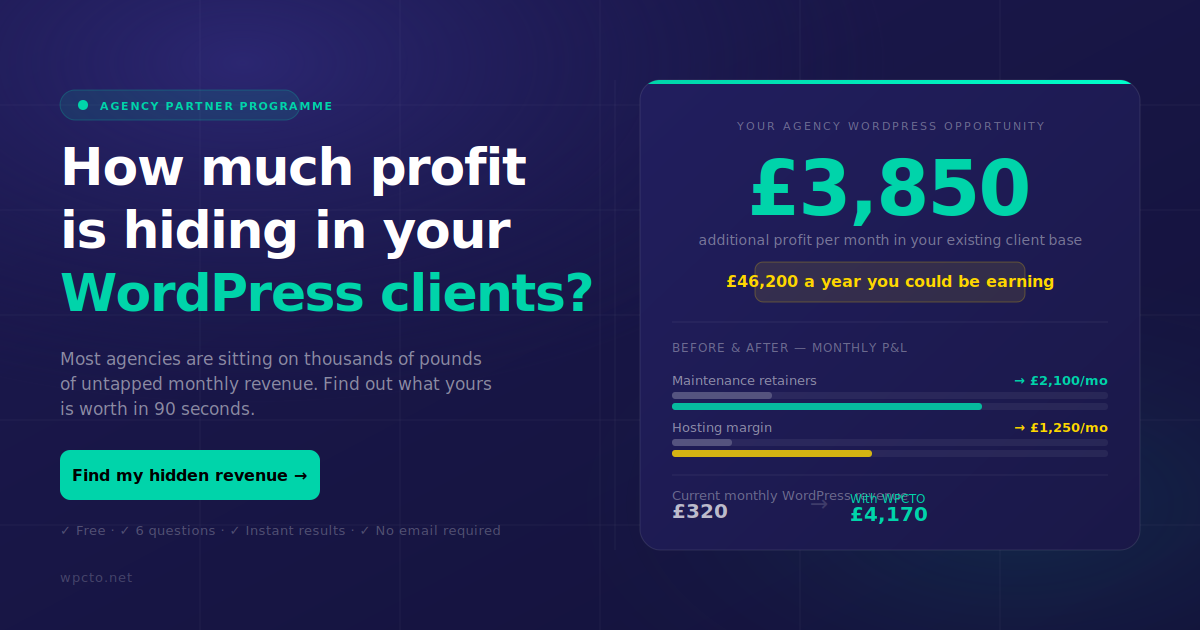
The practical next step is straightforward: run the Wpcto WordPress Profit Calculator to see how much uncaptured revenue is sitting in your existing client base. Then, if the number makes sense, explore Wpcto’s agency services to see how a white-label partnership works in practice.
Useful sources and further reading
- WordPress dashboard: getting started — the official WordPress.org lesson covering the admin interface; a reliable reference for new users.
- Autoloaded options and Query Monitor — practical guidance on diagnosing slow admin dashboards via wp_options bloat.
- Heartbeat API throttling — explains how to reduce admin-ajax.php overhead without disabling autosave.
- WordPress user roles and security — clear explanation of role capabilities and why correct assignment matters.
- Agency best practices for managing WordPress — covers staging environments, backups and update workflows for agency teams.
- Microsoft Clarity — free behaviour analytics with session recordings and heatmaps; no sampling limits.
- Wpcto plugin management guide for agencies — audit and reduction strategies for agencies managing large plugin portfolios.
- Wpcto WordPress audit guide — a step-by-step audit checklist for agencies reviewing client sites.
- Depeche Code WordPress maintenance plans — a partner resource for agencies benchmarking managed maintenance options.