

If your WordPress site has just gone down, do this first: put it into a safe state before you touch anything else. That means pausing traffic if you can (via your CDN or host), capturing the exact error message on screen, and taking a backup of the current broken state. You need that snapshot for diagnosis, even if the site is broken.
Here is a five-minute triage checklist to run before applying any fix:
- Capture the error. Screenshot the exact message, URL, and HTTP status code.
- Test scope. Open the site in a private/incognito browser window and from a mobile on a different network. If it works there, the problem may be a local cache or a logged-in user session.
- Check whether it is sitewide or page-specific. Load the homepage, a single post, and the admin login separately.
- Check your hosting dashboard. Look for server alerts, resource usage spikes, or scheduled maintenance notices.
- Enable debug logging (if you can reach wp-config.php via FTP) to capture PHP errors without displaying them to visitors.
- Take a full backup if the site is partially accessible. Even a broken-state backup is better than none.
The single most common troubleshooting mistake is applying random fixes before identifying the trigger. Before you change anything, ask: what changed in the last 24–48 hours? A plugin update, a theme edit, a hosting migration, a PHP version change — one of those is almost always the cause. Narrowing it down first saves hours.
Pro Tip: Write down the exact time the problem started. You will need that timestamp to match entries in your server error log.
Key takeaways
Fixing WordPress problems reliably comes down to one discipline: identify the trigger before applying any fix, capture the error precisely, and always take a backup before making changes.
| Point | Details |
|---|---|
| Ask “what changed?” first | Check recent updates, deploys, and hosting changes before applying any fix. |
| Enable WP_DEBUG immediately | Add debug constants to wp-config.php to convert silent failures into logged, readable PHP errors. |
| Rename plugins folder for fast isolation | FTP rename of /wp-content/plugins/ force-deactivates all plugins and confirms or rules out plugin conflicts in seconds. |
| Backups before every fix | Take a backup of the broken state before restoring — it preserves forensic evidence and gives you a fallback. |
| Wpcto handles what agencies should not | For persistent, high-risk, or time-sensitive WordPress problems, Wpcto provides specialist support so agencies keep the client relationship without absorbing the technical cost. |
Use the WordPress Profit Calculator to quantify how much your agency’s WordPress support time is actually costing you.
Table of Contents
- How to find and view WordPress errors: WP_DEBUG, logs and recovery mode
- White Screen of Death: how to diagnose and fix a blank page
- Internal Server Error (HTTP 500): how to diagnose and fix it
- Error establishing a database connection: checks and repair steps
- Failed auto-upgrade and stuck maintenance mode: quick recovery
- Connection timed out and slow site: quick wins and when to upgrade hosting
- Permalinks, 404s and media that won’t load: rewrite rules and file path fixes
- Critical error messages and plugin/theme conflicts: isolation and resolution
- Reading PHP and database error logs: what common messages mean
- Restore from backup and emergency recovery best practice
- Short prevention and maintenance checklist for agencies and site owners
- The “What changed?” troubleshooting checklist
- How to fix WordPress login problems: locked out, forgotten passwords and cookie errors
- Resolving SSL certificate errors and HTTPS configuration issues
- How to fix broken links and 404 errors from URL changes or deleted content
- Dealing with WordPress memory limit exhausted errors
- Steps to repair corrupted WordPress database tables
- Agency perspective: when to outsource and when to fix it yourself
- Wpcto: specialist WordPress support for agencies who have better things to do
- Sources
How to find and view WordPress errors: WP_DEBUG, logs and recovery mode
The fastest way to convert a silent failure into a diagnosable error is to enable WP_DEBUG in wp-config.php. Add these three lines above the /* That's all, stop editing! */ line:
define( 'WP_DEBUG', true );
define( 'WP_DEBUG_LOG', true );
define( 'WP_DEBUG_DISPLAY', false );
Setting WP_DEBUG_DISPLAY to false keeps errors out of the browser and writes them to wp-content/debug.log instead. That file is where you will find the exact PHP error, the file path, and the line number causing the failure.
When the dashboard is reachable, use the built-in Site Health tool at Tools → Site Health for a quick overview of PHP version, active plugins, and known conflicts. The Health Check & Troubleshooting plugin goes further: it lets you enable a private troubleshooting mode that deactivates plugins and switches themes only for your logged-in session, leaving the live site untouched for visitors.
When the dashboard is not reachable, go straight to your server logs. In cPanel, find them under Logs → Error Log. On a managed host, check the file manager or SSH into the server and look at /var/log/apache2/error.log or /var/log/nginx/error.log depending on your stack. PHP-FPM logs are often at /var/log/php-fpm/www-error.log. The entries you want start with [error] or PHP Fatal error.
Key insight: A PHP Fatal error log line gives you three things at once — the timestamp, the file path, and the line number. That single line usually tells you which plugin or theme file to inspect. Everything else in the log is context.
Safety note: always take a backup before editing wp-config.php or any core file. On a production site, never set WP_DEBUG_DISPLAY to true — it exposes internal file paths to anyone who visits the site.
Pro Tip: Match the timestamp of the first error in the log to the time the site broke. Filter the log to that window and you will typically find the root cause in fewer than ten lines.
White Screen of Death: how to diagnose and fix a blank page
Enable WP_DEBUG immediately. A White Screen of Death (WSOD) is almost always a silent PHP fatal error, and the debug log will name the file causing it. If you cannot reach the dashboard, connect via FTP and add the debug lines to wp-config.php directly.
Step-by-step when admin is inaccessible:
- Connect via FTP or your host’s file manager.
- Rename the
/wp-content/plugins/folder to/wp-content/plugins_disabled/. This force-deactivates all plugins instantly. - Reload the site. If it comes back, a plugin is the cause. Rename the folder back, then reactivate plugins one at a time to find the culprit.
- If the WSOD persists, rename the active theme folder inside
/wp-content/themes/. WordPress will fall back to a default theme (Twenty Twenty-Four or similar). - If it still fails, restore from your most recent clean backup.
Common causes of a WSOD:
- PHP fatal error in a plugin or theme file (most common)
memory_limitset too low — many sites need a sufficiently high memory limit- Syntax error introduced by editing
functions.phpdirectly - PHP version incompatibility after a host upgrade
To increase the memory limit, add this line to wp-config.php:
define( 'WP_MEMORY_LIMIT', '256M' );
You can also add php_value memory_limit 256M to .htaccess on Apache, or set it in php.ini if your host allows it.
The WordPress developer handbook documents the WSOD alongside other common errors and confirms that plugin and theme conflicts are the leading cause.
Pro Tip: Check the file modification timestamps in your debug.log. The first error entry usually points to the file that was most recently changed — that is your starting point.
Internal Server Error (HTTP 500): how to diagnose and fix it
Check your server error log first and enable WP_DEBUG. If the log is empty, the error is likely occurring at PHP startup — before WordPress even loads — which points to a php.ini or server configuration problem rather than a plugin.
Quick checks in order:
- Replace
.htaccess: Rename the existing file to.htaccess_oldand create a new one with the default WordPress rewrite rules (below). A corrupted.htaccessis a very common 500 cause. - Check file permissions: WordPress files should be
644, directories755. Anything set to777is both a security risk and a potential server error trigger. - Raise the PHP memory limit as described in the WSOD section above.
- Deactivate all plugins via FTP rename, then reactivate one by one.
- Switch to a default theme to rule out theme-level PHP errors.
- Revert recent changes — if you edited a file or ran an update just before the error appeared, roll that back first.
Default WordPress .htaccess rewrite block for Apache:
# BEGIN WordPress
<IfModule mod_rewrite.c>
RewriteEngine On
RewriteBase /
RewriteRule ^index.php$ - [L]
RewriteCond %{REQUEST_FILENAME} !-f
RewriteCond %{REQUEST_FILENAME} !-d
RewriteRule . /index.php [L]
</IfModule>
# END WordPress
If a 500 error appears only on high-traffic pages or under load, suspect resource limits rather than a single file. High Time to First Byte (TTFB), PHP-FPM queue timeouts, and slow MySQL queries all produce 500s under load. In that case, the fix is a hosting upgrade or query optimisation, not a plugin toggle.
Pro Tip: If the server log shows a 500 but no PHP error, ask your host to check the PHP-FPM or FastCGI error log — those are separate from the web server log and often contain the real message.
Error establishing a database connection: checks and repair steps
Verify your wp-config.php credentials first. Open the file via FTP and confirm that DB_NAME, DB_USER, DB_PASSWORD, and DB_HOST exactly match what your hosting control panel shows. A single character difference — including a trailing space — will produce this error.
Diagnostic steps:
- Log into cPanel or your host’s dashboard and confirm the database exists and the user has full privileges assigned to it.
- Check whether MySQL is running. In cPanel, look under Databases. Via SSH, run
mysqladmin -u root -p status. - If credentials are correct and MySQL is running, the database itself may be corrupted.
To run the WordPress database repair tool, add this line to wp-config.php:
define( 'WP_ALLOW_REPAIR', true );
Then visit https://yoursite.com/wp-admin/maint/repair.php. The tool will attempt to repair and optimise all tables. Remove the WP_ALLOW_REPAIR line immediately after — leaving it active allows anyone to run the repair tool without authentication.
Recovery sequence:
- Take a backup of the current database if MySQL is accessible.
- Run the repair page.
- If repair fails, restore from a recent clean backup.
- If MySQL is down entirely, escalate to your host — this is a server-level failure outside WordPress’s control.
When contacting your host, provide: the exact error message, the timestamp it first appeared, any recent changes (migrations, PHP upgrades, credential resets), and whether the problem is sitewide or affects specific tables.
Pro Tip: Database connection errors after a migration almost always mean the credentials in wp-config.php were not updated to match the new host’s database details. Check that first.
Failed auto-upgrade and stuck maintenance mode: quick recovery
Delete the .maintenance file. That single action gets the site back online immediately. Connect via FTP, navigate to the WordPress root directory (the same folder as wp-config.php), and delete the file named .maintenance. WordPress creates this file at the start of every update and removes it on completion. An interrupted update leaves it behind.
Why it happens: a slow server, a permissions error, or a file system lock can interrupt the update process mid-way. The update stalls, WordPress never cleans up, and every visitor sees the “Briefly unavailable for scheduled maintenance” message.
Step-by-step recovery:
- Take a backup before touching anything.
- Delete
.maintenancefrom the WordPress root via FTP. - Check for partially updated plugin or theme folders in
wp-content/plugins/andwp-content/themes/. A half-updated plugin folder may contain mismatched files. - Finish or roll back any partial updates. If a plugin folder looks incomplete, delete it and reinstall the plugin from the WordPress repository.
- Run
wp core verify-checksumsvia WP-CLI to confirm core files are intact.
Pro Tip: Avoid running updates on a Friday afternoon. If something breaks, you want a working day ahead of you, not a weekend. Use a staging environment for major updates and enable automatic backups before the update window.
Connection timed out and slow site: quick wins and when to upgrade hosting
Test with a synthetic audit tool first. Run the URL through Lighthouse (built into Chrome DevTools) or GTmetrix and look at the server response time (TTFB). A TTFB above 600ms on a simple page points to a server or database problem. A fast TTFB with a slow overall load time points to front-end assets.
Quick wins that usually cut load time immediately:
- Clear all caches: browser cache, WordPress page cache (via your caching plugin), object cache, and CDN cache.
- Convert images to WebP and serve responsive sizes using
srcset. Tools like Imagify or ShortPixel handle this automatically. - Defer non-critical JavaScript using a performance plugin or by adding
deferattributes manually. - Audit and remove heavy plugins — particularly page builders, sliders, and analytics plugins that load scripts on every page.
Signs you need a hosting upgrade rather than a code fix:
- Consistently high TTFB even on cached pages
- PHP-FPM worker queue backing up under normal traffic
- MySQL slow query log showing queries over 2 seconds on simple lookups
- Frequent timeout errors that clear on their own and return under load
For complex, dynamic sites with logged-in users or WooCommerce, object caching via Redis or Memcached makes a significant difference. Ask your host whether Redis is available on your plan. For managed hosting options that reduce these problems at the infrastructure level, hassle-free WordPress hosting for agencies is worth reviewing.
Pro Tip: Enable Redis object caching before concluding you need a server upgrade. On a database-heavy site, it can cut server response time by more than half without changing your hosting plan.

Permalinks, 404s and media that won’t load: rewrite rules and file path fixes
Go to Settings → Permalinks and click Save Changes without changing anything. This regenerates the .htaccess rewrite rules and fixes the majority of 404 errors on posts and pages instantly. No FTP required.
If that does not work:
- Connect via FTP and open
.htaccessin the site root. - Confirm the standard WordPress rewrite block is present and not duplicated or corrupted (see the block in the HTTP 500 section above).
- If
.htaccessis missing or damaged, recreate it with the default block and save. - Check that
mod_rewriteis enabled on your server — your host can confirm this.
For broken media and missing images:
- Check that the
/wp-content/uploads/folder exists and has permissions set to755. - Confirm the actual files are present in the expected year/month subfolder structure.
- If you recently migrated domains or switched from HTTP to HTTPS, image URLs stored in the database still point to the old domain or protocol. Run a database search-and-replace to update them.
For a safe database search-and-replace, use the Better Search Replace plugin or WP-CLI:
wp search-replace 'http://olddomain.com' 'https://newdomain.com' --all-tables
Always take a database backup before running a search-and-replace. The operation rewrites data directly and cannot be undone without a backup.
Pro Tip: After a domain migration, also regenerate image sizes using wp media regenerate via WP-CLI. Responsive images rely on multiple size variants being present — a migration that only copies the originals will leave srcset broken.
Critical error messages and plugin/theme conflicts: isolation and resolution
When a critical error appears, deactivate all plugins at once via FTP. Rename /wp-content/plugins/ to /wp-content/plugins_disabled/, reload the site, then rename it back and reactivate plugins one by one. The plugin that triggers the error when reactivated is the cause.
Selective testing approaches:
- Binary deactivation: deactivate half the plugins, test, then narrow to the failing half. Faster than one-by-one when you have 20+ plugins.
- Pairwise testing: some conflicts only appear when two specific plugins are active together. If deactivating all plugins fixes the error but reactivating them one-by-one does not reproduce it, activate them in pairs to find the combination.
Safe theme checks:
- Rename the active theme folder in
/wp-content/themes/to force WordPress to fall back to a default theme. - Alternatively, use WP-CLI:
wp theme activate twentytwentyfour.
Reading the error log for plugin conflicts:
Open wp-content/debug.log and search for the plugin’s folder name. A fatal error caused by a plugin will include its file path, e.g., /wp-content/plugins/plugin-name/includes/class-something.php on line 47. That path tells you exactly which plugin to deactivate.
To roll back a plugin to a previous version, deactivate and delete it, then download the older version from the WordPress plugin repository (each plugin’s Advanced View page lists all historical versions).

Pro Tip: Keep a simple change log — a shared spreadsheet or a note in your project management tool — recording what was updated and when. When a conflict appears, you can cross-reference the log and skip straight to the plugin that changed that day.
Reading PHP and database error logs: what common messages mean
A PHP Fatal error line gives you the file path and line number in one entry. That is the file to inspect. Everything else in the log is supporting context.
Anatomy of a typical PHP error log entry:
[14-Jun-2026 09:42:11 UTC] PHP Fatal error: Uncaught Error: Call to undefined function
some_function() in /var/www/html/wp-content/plugins/example-plugin/includes/functions.php:142
Stack trace:
#0 /var/www/html/wp-includes/class-wp-hook.php(324): example_plugin_init()
The timestamp, error type (Fatal error, Warning, Notice), file path, and line number are the four tokens you need. The stack trace shows the call chain — read it bottom-up to understand what triggered the error.
Server settings to check when diagnosing performance or fatal errors:
| Setting | Recommended value | Where to set it |
|---|---|---|
| PHP version | 8 or higher | Hosting control panel |
memory_limit |
256M minimum | php.ini or wp-config.php |
max_execution_time |
a few minutes | php.ini or .htaccess |
upload_max_filesize |
256M or higher | php.ini or .htaccess |
post_max_size |
Equal to or larger than upload_max_filesize |
php.ini |
MySQL errors to watch for:
- InnoDB: Table is marked as crashed — run
REPAIR TABLEor use the WordPress repair page. - Too many connections — MySQL has hit its connection limit; a hosting upgrade or connection pooling is needed.
- MySQL server has gone away — the query took too long or the connection was dropped; check
max_allowed_packetandwait_timeout.
Pro Tip: When you reproduce an error deliberately, note the exact time. Then filter the log to a 30-second window around that time. You will find the relevant entries immediately rather than scrolling through thousands of lines.
Restore from backup and emergency recovery best practice
If diagnosis is failing or the site is compromised, restore from a known good backup. Before you do, take a backup of the broken state — even a corrupted database export is useful for forensic analysis later.
Restore checklist:
- Identify the correct backup: you need both the files backup and the database backup from the same point in time.
- Put the site into maintenance mode (create a
.maintenancefile in the root, or use your host’s maintenance toggle). - Restore files via FTP or your host’s restore tool.
- Import the database via phpMyAdmin or WP-CLI:
wp db import backup.sql. - Update
wp-config.phpif the database host, name, or credentials changed. - Flush all caches: page cache, object cache, CDN.
- Test the front end and admin on multiple pages.
- Rotate all passwords and WordPress security keys after any security incident.
Plugin-based vs. manual restore: UpdraftPlus handles scheduled backups and one-click restores for most scenarios and is the most widely recommended option for non-technical site owners. Manual restores via FTP and phpMyAdmin give more control and are preferable when a plugin-based restore is itself failing or when the database is large enough to time out through a browser interface. For server-level failures, ask your host to restore from a server snapshot — this is faster and more reliable than any application-level restore.
Validation after restore:
- Spot-check five to ten key pages including the homepage, a product or service page, and the contact form.
- Test form submissions and confirm emails are sending.
- Check that media files load correctly.
- Confirm scheduled tasks and cron jobs are running.
- Run a malware scan after any security-related restore.
Pro Tip: Keep at least one offsite backup — separate from your hosting provider — and a rolling 30-day retention for any client site. If your host has a catastrophic failure, an offsite copy is the only thing that saves you.
Short prevention and maintenance checklist for agencies and site owners
A small, regular maintenance routine prevents most common WordPress errors. The items below are the high-impact ones — the rest is noise.
Weekly:
- Confirm automated backups ran and files are accessible.
- Check uptime monitoring alerts (tools like UptimeRobot or your host’s monitoring).
- Review any available plugin or core updates.
Monthly:
- Apply plugin, theme, and core updates on a staging environment first, then push to production.
- Run a security scan (Wordfence or Sucuri).
- Check SSL certificate expiry date.
- Run a performance audit (Lighthouse or GTmetrix) and compare against the previous month.
- Optimise the database: remove post revisions, expired transients, and spam comments.
Quarterly:
- Test a full backup restore on a staging environment to confirm the backup is actually usable.
- Review user accounts and remove any that are no longer needed.
- Audit installed plugins and remove anything inactive or unsupported.
- Review PHP version and confirm compatibility with active plugins.
Maintenance schedule template:
| Task | Frequency | Owner |
|---|---|---|
| Automated backup verification | Weekly | Hosting / backup plugin |
| Uptime monitoring review | Weekly | Agency / site owner |
| Plugin and core updates (staging first) | Monthly | Developer / agency |
| Security scan | Monthly | Security plugin / agency |
| SSL certificate check | Monthly | Agency / host |
| Performance audit | Monthly | Developer / agency |
| Database optimisation | Monthly | Developer / WP-CLI |
| Full restore test | Quarterly | Developer / agency |
| User account audit | Quarterly | Site owner / agency |
For a detailed breakdown of what each maintenance task involves and how to automate the routine parts, the WordPress maintenance guide for agencies covers frequency, tooling, and delegation clearly.
Pro Tip: Automate backups and uptime monitoring so they run without human intervention. Keep a short runbook — even a single page — documenting the recovery steps for your most common incidents. When something breaks at 11pm, you want a checklist, not a memory test.
The “What changed?” troubleshooting checklist
Always ask three questions before touching anything: what is the exact symptom, what changed just before it appeared, and is it affecting everyone or just some users? Those three answers eliminate most possible causes before you run a single test.
Diagnostic checklist:
- Exact symptom: note the error message, HTTP status code, affected URL, and whether it is front end, admin, or both.
- What changed: check the activity log (plugins like WP Activity Log record updates, logins, and setting changes), recent plugin or core updates, hosting or DNS changes, recent deployments or file edits, and any client-side changes (new content, media uploads, form submissions).
- Scope: test in incognito, on a different device, and from a different network. If the error disappears in incognito, it is a cache or cookie issue. If it disappears on a different network, check DNS propagation.
- Eliminate categories fast: use the Health Check & Troubleshooting plugin to test with all plugins deactivated and a default theme active — without affecting live visitors.
- Check hosting: look for server alerts, resource usage spikes, or scheduled maintenance in your hosting dashboard.
Practical troubleshooting guides consistently recommend this diagnostic-first approach as the fastest way to reduce resolution time. Jumping straight to fixes without identifying the trigger is the most common mistake, and it often makes things worse.
For agencies managing client sites, capture screenshots of the error, list the timestamps of recent changes, and note any approvals or deployments. That information makes handing the problem to a developer or support partner far faster — and it protects you if the client asks what happened.
Pro Tip: Good diagnostic notes are the difference between a 20-minute fix and a two-hour investigation. If you are going to outsource the problem, send the notes with the ticket — it cuts resolution time significantly.
How to fix WordPress login problems: locked out, forgotten passwords and cookie errors
The fastest fix for a forgotten password when the email reset is not arriving is to reset it directly in the database. In phpMyAdmin, open the wp_users table, find the user row, click Edit, and set the user_pass field to a new MD5 hash. Use an online MD5 generator for the hash, save the row, and log in with the new password.
If you are locked out entirely:
- Check whether a security plugin (Wordfence, iThemes Security) has blocked your IP address. Temporarily rename the plugin folder via FTP to disable it, then log in and whitelist your IP.
- If login redirects loop back to the login page, a cookie or
siteurl/homemismatch is usually the cause. Check those values inwp-config.phpor thewp_optionstable in phpMyAdmin. - Clear all browser cookies for the site domain and try again in a fresh incognito window.
Cookie and redirect loop fixes:
Add these lines to wp-config.php if the login page keeps redirecting:
define('COOKIE_DOMAIN', '');
define('COOKIEPATH', '/');
Confirm that siteurl and home in wp_options both use the same protocol (both https://) and the same domain. A mismatch between the two is a common cause of redirect loops after an SSL migration.
Resolving SSL certificate errors and HTTPS configuration issues
Check the certificate first. Use a tool like SSL Labs’ SSL Test or your browser’s padlock icon to confirm the certificate is valid, not expired, and issued for the correct domain. Let’s Encrypt provides free automated certificates and handles renewal automatically when configured correctly — most managed WordPress hosts support it natively.
Common SSL problems and fixes:
- Expired certificate: renew via your host’s control panel or by running
certbot renewif you manage your own server. - Mixed content warnings: the certificate is valid but the page loads HTTP resources (images, scripts, stylesheets). Mixed content triggers browser security warnings and can break rendering. Fix it by updating hardcoded HTTP URLs in your content and theme, or install the Really Simple SSL plugin to handle the rewrite automatically.
- Redirect loop after enabling HTTPS: confirm
siteurlandhomeinwp_optionsare set tohttps://. Add$_SERVER['HTTPS'] = 'on';towp-config.phpif behind a load balancer or proxy that terminates SSL. - Certificate not covering
wwwsubdomain: reissue the certificate with both the root domain andwwwas Subject Alternative Names.
After fixing SSL, run a full site crawl with a tool like Screaming Frog or the browser console to confirm no mixed content remains.
How to fix broken links and 404 errors from URL changes or deleted content
Broken links after URL changes are a two-part problem: the old URL no longer exists, and any external links or internal references pointing to it now return a 404. Fix both.
For deleted or moved content:
- Set up 301 redirects from the old URL to the new one. The Redirection plugin handles this without touching server configuration and logs 404s automatically so you can see which URLs need redirecting.
- For bulk URL changes after a domain migration, use WP-CLI search-replace (as described in the permalinks section) to update all internal links in the database.
Finding broken links:
- Use Screaming Frog SEO Spider (free up to 500 URLs) to crawl the site and export all 4xx responses.
- Check Google Search Console under Pages → Not Found (404) for URLs that Google has indexed but can no longer reach.
- The Redirection plugin’s 404 log captures broken links as real visitors hit them.
For SEO-related link management, WordPress automatic internal linking tools can help maintain internal link integrity as content evolves, reducing the risk of orphaned pages after restructuring.
After setting up redirects, submit an updated sitemap to Google Search Console to accelerate re-indexing of the corrected URLs.
Dealing with WordPress memory limit exhausted errors
The WP_MEMORY_LIMIT setting controls how much PHP memory WordPress allocates. When a page or process exceeds that limit, WordPress throws a fatal error: Allowed memory size of X bytes exhausted. The fix is to raise the limit.
Three places to increase the memory limit (in order of preference):
wp-config.php:define( 'WP_MEMORY_LIMIT', '256M' );.htaccess(Apache):php_value memory_limit 256Mphp.ini:memory_limit = 256M
Practitioner guidance commonly recommends a moderately increased memory limit for most WordPress sites, with more complex sites often needing higher amounts.
If raising the limit does not resolve the error, the underlying problem is a memory leak in a plugin or theme — something is allocating memory and not releasing it. Enable WP_DEBUG, reproduce the error, and check the debug log for the file path. That file is where the leak originates.
To check the current memory limit, add this temporarily to a page template or use the Site Health tool: echo ini_get('memory_limit');. Remove it after checking.
Steps to repair corrupted WordPress database tables
Run the WordPress repair tool first. Add define( 'WP_ALLOW_REPAIR', true ); to wp-config.php, visit https://yoursite.com/wp-admin/maint/repair.php, and run both Repair Database and Repair and Optimize Database. Remove the line from wp-config.php immediately after.
If the repair tool does not resolve the problem:
- Open phpMyAdmin, select the affected database, tick all tables, and choose Repair table from the dropdown.
- For InnoDB tables marked as crashed, run
REPAIR TABLE wp_tablename;via MySQL command line. - If a specific table is severely corrupted and cannot be repaired, restore that table from a recent backup using a targeted database import.
Database optimisation steps to run monthly:
- Delete post revisions:
DELETE FROM wp_posts WHERE post_status = 'inherit' AND post_type = 'revision'; - Clear expired transients:
DELETE FROM wp_options WHERE option_name LIKE '_transient_%' AND option_value < UNIX_TIMESTAMP(); - Run
OPTIMIZE TABLEon the largest tables (wp_posts,wp_postmeta,wp_options) to reclaim fragmented space.
WP-CLI makes this straightforward: wp db optimize runs optimisation across all tables in one command. For ongoing database health, the effective WordPress management strategies guide covers automation options and scheduling.
Agency perspective: when to outsource and when to fix it yourself
Keep simple triage and low-risk fixes in-house. Deactivating a plugin, flushing a cache, regenerating permalinks — these are five-minute tasks that any agency team member can handle with a checklist. The moment a problem involves database corruption, a security incident, a failed migration, or a client SLA with financial consequences, the calculus changes.
The real cost of DIY troubleshooting is not the fix itself. It is the senior developer pulled off a client project for three hours, the account manager fielding anxious calls, and the relationship damage when a site stays down past the point a client considers acceptable. Recurring small fixes are the worst offender: individually they seem trivial, but across a portfolio of 20 client sites, they consume a disproportionate amount of unbillable time.
What to expect from a good support partner: transparent scoping before work begins, a clear time estimate, a documented rollback plan, and a monitoring window after the fix. A partner who fixes the problem and disappears is not a partner — they are a contractor. The difference matters when the same issue recurs or when something adjacent breaks two weeks later.
A predictable support retainer changes the economics entirely. Instead of absorbing unpredictable hours at cost, an agency can price WordPress support as a recurring line item, pass the delivery to a specialist, and keep the client relationship and the margin. For white-label WordPress support, that model is exactly what Wpcto provides.
Wpcto: specialist WordPress support for agencies who have better things to do
Agencies that manage WordPress client sites spend more time on support than they realise. Hacked sites, emergency restores, performance overhauls, plugin conflicts at 9pm — these are the scenarios where Wpcto adds direct, measurable value. We handle the technical delivery so your team stays focused on the work you were actually hired to do.
The typical engagement is straightforward: emergency fixes are scoped and priced quickly, often resolved within hours. Ongoing retainers cover maintenance, security monitoring, plugin management, and hosting oversight for a predictable monthly cost. Agencies refer their WordPress clients to us or white-label our services entirely — either way, the client relationship stays with you.
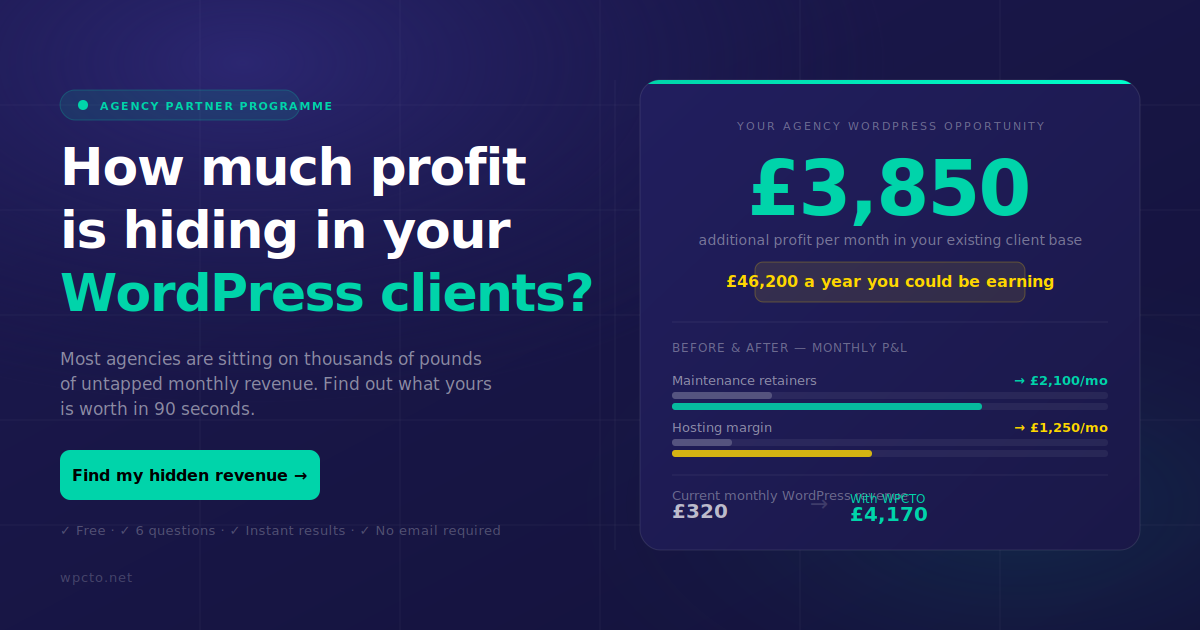
Before deciding whether to outsource, it is worth knowing the actual number. The WordPress Profit Calculator shows agencies exactly how much uncaptured revenue is sitting in their existing WordPress client base in under 90 seconds. If the number surprises you, that is the conversation to have next.
To see the full range of agency support packages or to discuss a white-label arrangement, get in touch with the Wpcto team directly.
Sources
- Debugging in WordPress — WordPress Developer Resources
- Mixed content – Web security | MDN
- Let’s Encrypt
- UpdraftPlus WordPress Backup Plugin