

Over 43 percent of all websites run on WordPress, making it a top target for cyber threats and unexpected technical problems. Maintaining a secure and smoothly functioning WordPress site takes more than occasional attention. Website failures, data loss, and broken features often start with skipped steps during updates. This guide breaks down each stage so you can protect your site, avoid common mistakes, and keep everything running at its best.
Table of Contents
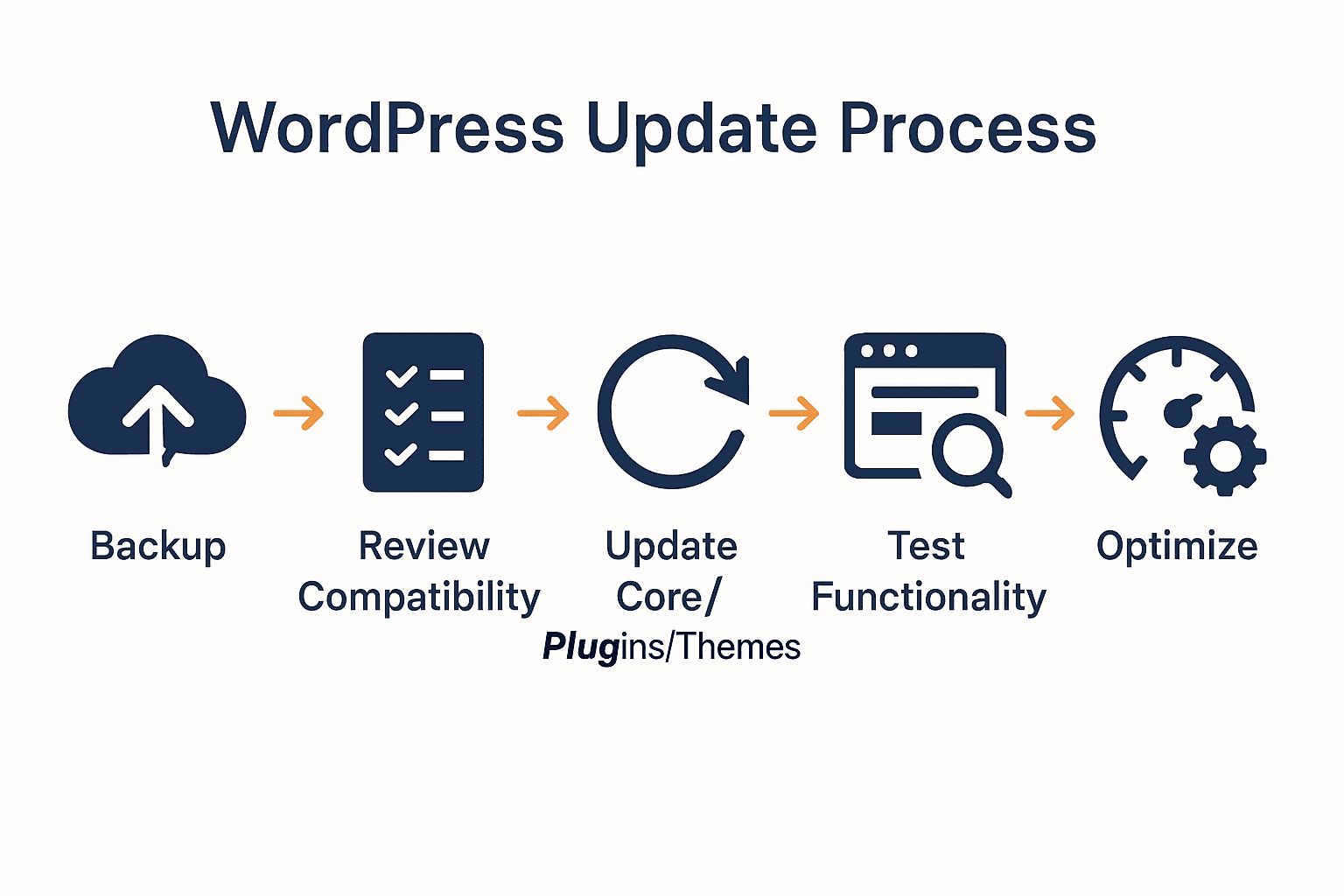
- Step 1: Back Up Your WordPress Website
- Step 2: Review Update Compatibility And Requirements
- Step 3: Update WordPress Core, Plugins, And Themes
- Step 4: Test And Verify Site Functionality
- Step 5: Resolve Post-Update Issues And Optimise
Quick Summary
| Key Point | Explanation |
|---|---|
| 1. Regularly back up your website | Protect against data loss with multiple backup copies stored securely in different locations. |
| 2. Verify update compatibility beforehand | Check plugins and themes for compatibility with the latest WordPress version to avoid conflicts. |
| 3. Test functionalities post-update | Thoroughly check your website’s features, loading speeds, and responsiveness across devices after updates. |
| 4. Optimize site performance after updates | Address any performance issues by implementing caching, compressing images, and optimizing the database. |
| 5. Maintain a regular website maintenance schedule | Establish a monthly routine to review performance and run optimizations to ensure ongoing site health. |
Step 1: Back Up Your WordPress Website
Backing up your WordPress website is a critical preventative measure that protects your digital assets from potential data loss. As recommended by the UK National Cyber Security Centre, having secure backup copies stored in separate locations can safeguard your website against unexpected technical failures, cyberattacks, or human error.
To create a comprehensive WordPress backup, you will need to save two primary components: your website files and your database. Start by accessing your hosting control panel or using an FTP client like FileZilla to download all WordPress files. This includes your themes, plugins, uploads directory, and core WordPress installation files. Next, export your WordPress database through phpMyAdmin or your hosting management tool. Look for an export function that allows you to download a complete SQL database backup file.
The most reliable backup strategy involves creating multiple copies in different locations. According to WordPress Developer Resources, you should consider using a combination of manual backups and automated backup plugins. Many hosting providers offer built in backup services, but do not solely rely on these. Create your own local backups and consider cloud storage solutions to ensure maximum data protection.
A quick pro tip: Always verify your backup files by performing a test restoration to confirm they are complete and functional. Store your backup files securely with strong passwords and consider keeping at least three separate backup copies using different storage methods.

Step 2: Review Update Compatibility and Requirements
Before proceeding with your WordPress update, you need to assess the compatibility of your current website configuration with the latest version. This critical step helps prevent potential conflicts or functionality issues that could disrupt your website’s performance. Your goal is to ensure a smooth and safe update process that maintains the integrity of your digital presence.
Begin by checking the current versions of your installed WordPress core, themes, and plugins. Navigate to your WordPress dashboard and review the updates section to identify any existing updates or potential incompatibilities. Pay special attention to themes and plugins that might not be fully compatible with the newest WordPress version. Look for clear version indicators and check the developer’s website or support forums for any known issues with recent updates.
A comprehensive compatibility review involves more than just checking version numbers. Test your website’s critical functionalities in a staging environment before applying updates to your live site. This means creating a duplicate of your website where you can safely experiment with updates without risking your primary site’s performance. Check for functionality across different pages run performance tests and ensure all critical features continue to work as expected. If you discover any potential conflicts or issues, consider reaching out to plugin or theme developers for guidance or waiting for compatibility patches.
Pro tip: Create a detailed inventory of all your website’s components before updating. Document the current versions of your WordPress core, themes, and plugins. This record will help you track changes and quickly identify any issues that might arise during the update process.
Step 3: Update WordPress Core, Plugins, and Themes
Updating your WordPress website requires a strategic approach to ensure seamless functionality and security. According to WordPress Developer Resources, the update process involves carefully managing your core WordPress installation, plugins, and themes to maintain optimal website performance.
Begin with the WordPress core update first. Navigate to the WordPress dashboard and look for update notifications. Before clicking update, ensure you have a recent backup of your entire website. Select the update option and allow the process to complete. After the core update finishes, move on to plugins. Review each plugin update individually understand potential compatibility issues. Update plugins one at a time checking your website functionality after each update to quickly identify any potential conflicts or errors.
Themes require similar careful attention. Check for theme updates in your WordPress dashboard and review the changelog for each update. Look for security patches performance improvements and compatibility fixes. If you are using a third party theme verify that the update is from the original developer and matches your current theme version. For complex websites with multiple custom elements consider updating themes in a staging environment first to test compatibility and prevent potential disruptions to your live site.
Learn more about the role of WordPress updates in our comprehensive guide to understand the broader context of maintaining your website’s health and security. Always monitor your website closely after performing updates and be prepared to troubleshoot any unexpected issues that may arise.
Step 4: Test and Verify Site Functionality
After completing your WordPress updates, a thorough testing process becomes crucial to ensure your website continues functioning optimally. As recommended by the WordPress Core Handbook, comprehensive testing helps identify and resolve potential issues that might arise from recent updates.
Start by systematically checking key website functionalities. Navigate through your entire site as a typical user would testing page loading speeds navigation menus forms and interactive elements. Pay special attention to critical components like contact forms checkout processes login screens and user registration systems. Click through every link verify that page redirects work correctly and confirm that all images graphics and media elements display properly. Test your website across different devices and browsers to ensure consistent performance and responsive design.
Dive deeper into specific functionality testing by verifying backend operations. Check that all plugins continue to work as expected run performance tests to measure page load times and confirm that database interactions remain smooth. If you discover any minor glitches or unexpected behaviors document them carefully. For more complex websites consider using specialized testing tools or browser developer consoles to diagnose potential javascript errors or rendering problems. Remember that some compatibility issues might not be immediately apparent and may require multiple rounds of testing to fully identify.
Pro tip: Create a detailed testing checklist before updates and use it systematically after each update. This approach helps you methodically verify every aspect of your website and quickly identify any potential issues that need immediate attention.
Step 5: Resolve Post-Update Issues and Optimise
After completing your WordPress updates, you might encounter performance challenges that require strategic optimization. WordPress Support recommends implementing targeted performance enhancement strategies to ensure your website runs smoothly and efficiently after updates.
Start by addressing any identified performance bottlenecks. Review your website analytics and performance testing results to pinpoint specific areas needing improvement. Implement browser caching to reduce load times by storing static website elements locally on visitors devices. Compress and optimise images to reduce file sizes without compromising visual quality. Consider using a content delivery network to distribute your website resources across multiple global servers reducing latency and improving overall site speed.
Database optimization becomes crucial at this stage. Clean up unnecessary data including post revisions spam comments and transient options that accumulate over time. Evaluate your installed plugins and deactivate or remove any that are no longer essential or compatible with your current WordPress version. Run database optimization tools to defragment and streamline your website database structure. For more complex performance tuning consider professional optimization services or advanced caching plugins that can provide comprehensive performance improvements.
A pro tip for long term website health: Establish a regular maintenance schedule. Set aside time monthly to review performance metrics run optimization processes and ensure your WordPress website continues delivering an exceptional user experience. This proactive approach will help you stay ahead of potential issues and maintain optimal website performance.
Ensure Your WordPress Updates Are Safe and Stress-Free
The process of updating WordPress brings both opportunity and risk. As highlighted in the article, the challenge lies in backing up your site securely, reviewing update compatibility, and testing your site thoroughly to avoid downtime or loss of valuable data. Many website owners feel overwhelmed by these technical steps, worried about potential conflicts with plugins and themes or facing performance issues after updates. If you want peace of mind knowing your WordPress website is in expert hands, you do not have to face these challenges alone.
Take control of your WordPress maintenance today with WPCTO.net Your site deserves specialised management that guarantees secure backups, seamless updates, and quick troubleshooting when issues arise. Our team of professionals offers tailored support including performance optimisation and comprehensive WordPress management so you can focus on growing your business. Visit WPCTO.net now to discover how our quick fixes and strategic consulting directly support the safe and effective update steps outlined in the article. Don’t wait until complications happen act now to protect and optimise your WordPress site with trusted expertise.
Frequently Asked Questions
What are the first steps to safely update my WordPress website?
To safely update your WordPress website, start with backing up your site. Use your hosting control panel or an FTP client to download your files and export your database, ensuring multiple copies are stored in different locations.
How do I check if my themes and plugins are compatible with the latest WordPress version?
You can check theme and plugin compatibility by reviewing the updates section in your WordPress dashboard. Look for version indicators and visit the developer’s website for any known compatibility issues before proceeding with the update.
What should I do if I encounter issues after updating my WordPress website?
If you encounter issues after an update, start by troubleshooting each component individually. Roll back updates if necessary, document errors, and reach out to plugin or theme developers for possible solutions.
How can I optimize my WordPress site after completing updates?
To optimize your WordPress site post-update, implement performance enhancements like browser caching and image compression. Regularly review your site’s analytics and focus on reducing load times by up to 20% for a smoother user experience.
What is a staging environment and how do I use it for updates?
A staging environment is a duplicate of your live website where you can test updates without affecting your main site. Create a staging site, apply updates there first, and check for any issues before applying changes to your live website.
How often should I conduct maintenance checks on my WordPress website?
You should conduct maintenance checks on your WordPress website at least once a month. This regular schedule helps you track performance metrics and identify potential issues early, keeping your site running smoothly.