

WordPress errors can stall even the busiest websites, and over 90 percent of sites face trouble from outdated plugins or settings at some point. These glitches not only disrupt your workflow but can also frustrate visitors and risk your site’s security. Understanding how to quickly spot and fix WordPress problems saves time and keeps your site running smoothly. Learn how a step-by-step troubleshooting approach can get your site back on track and protect it from future issues.
Table of Contents
- Step 1: Identify The Source Of The WordPress Error
- Step 2: Perform A Secure Site Backup Immediately
- Step 3: Deactivate Problematic Plugins And Themes
- Step 4: Restore Functionality With Default Settings
- Step 5: Verify Site Performance And User Accessibility
Quick Summary
| Key Point | Explanation |
|---|---|
| 1. Identify the error source | Check error logs and enable debug mode to find issues in your WordPress site. |
| 2. Always backup before changes | Secure a complete backup using reliable plugins to prevent data loss during troubleshooting. |
| 3. Deactivate plugins and themes | Systematically deactivate plugins and switch themes to isolate the part causing site disruption. |
| 4. Restore default settings | Reset customizations and configurations to default to resolve persistent functionality issues. |
| 5. Verify performance and accessibility | Test your site on multiple devices for speed, functionality, and accessibility to ensure optimal user experience. |
Step 1: Identify the source of the WordPress error
Finding the root cause of a WordPress error is like being a digital detective. According to insights from the StudyHub WordPress Security Masterclass, pinpointing the exact source of your WordPress site problem requires systematic investigation and strategic troubleshooting.
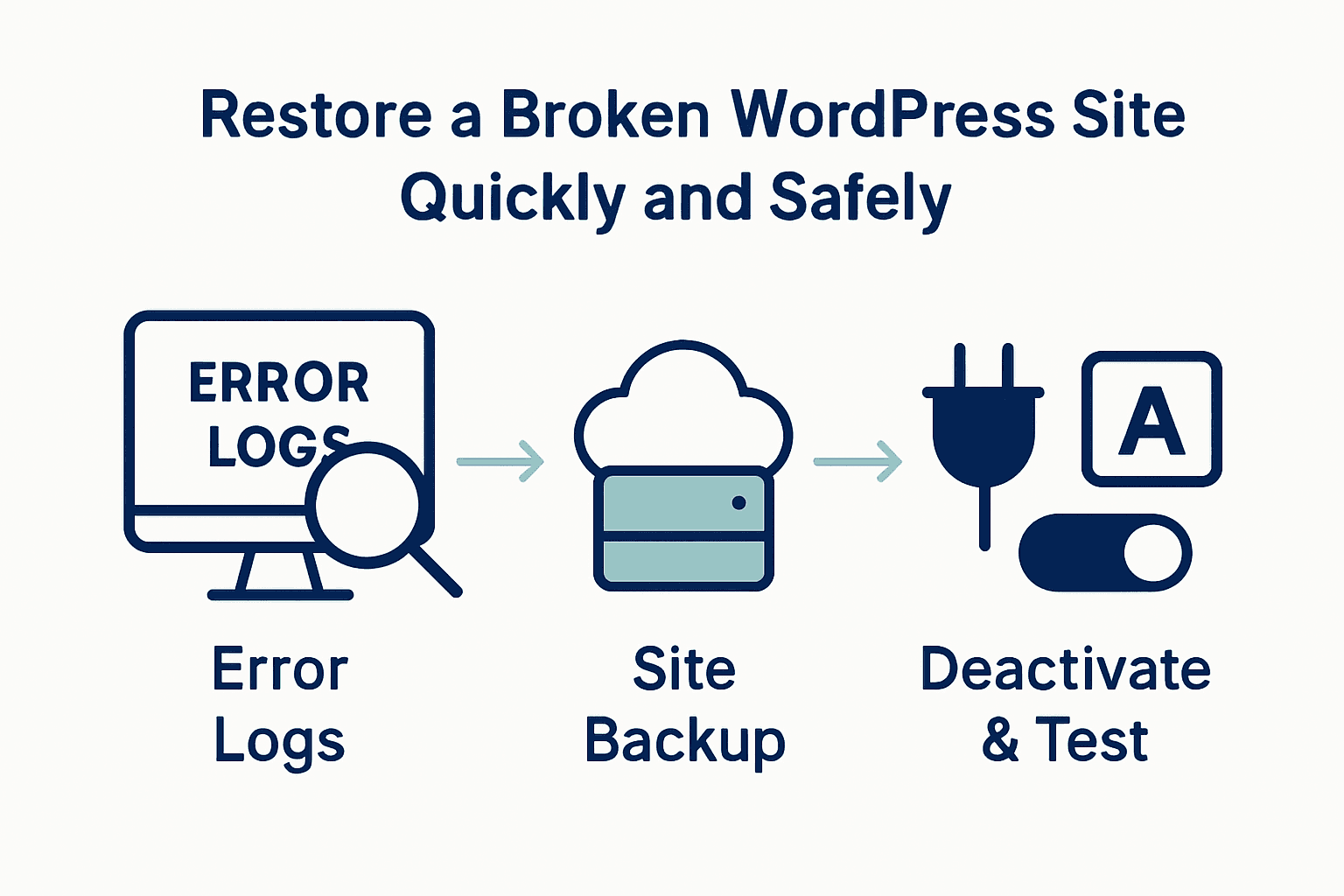
Start by checking the WordPress error logs and enabling debug mode. You can do this by adding the following code to your wp-config.php file: “define(‘WP_DEBUG’, true);” and "define(‘WP_DEBUG_LOG’, true);`. This will generate detailed error logs that reveal specific issues within your WordPress installation. Look for patterns in these logs such as plugin conflicts, theme incompatibilities, database connection problems, or PHP version mismatches.
Careful investigation is key. As recommended by the Springest WordPress Backup Security Performance course, examine recent changes you made to your site before the error occurred. Check if you recently updated plugins, themes, or WordPress core. Temporarily deactivate all plugins and switch to a default WordPress theme to isolate whether the issue stems from a specific plugin or theme. If your site works correctly after these steps, systematically reactivate each component to identify the problematic element.
Warning: Always backup your site before making any diagnostic changes. A comprehensive backup ensures you can easily restore your website if something goes wrong during troubleshooting.
Step 2: Perform a secure site backup immediately
Before diving into any complex fixes, creating a comprehensive backup is your critical safety net. As recommended by WordPress.org, securing your website data is paramount to preventing permanent information loss during troubleshooting.
To perform a secure backup, you have multiple reliable options. According to BlogVault, real-time backup solutions can automatically protect your entire WordPress site infrastructure. Start by selecting a robust backup plugin that offers complete site archiving including databases, themes, plugins, and media files. Popular options include UpdraftPlus, BackupBuddy, and BlogVault, which provide comprehensive backup strategies with cloud storage integration.
Prioritise creating multiple backup copies stored in different locations. Recommended storage options include your local computer, external hard drive, and cloud storage services like Google Drive or Dropbox. This multi-layered approach ensures you always have a recoverable version of your website, even if one backup method fails.
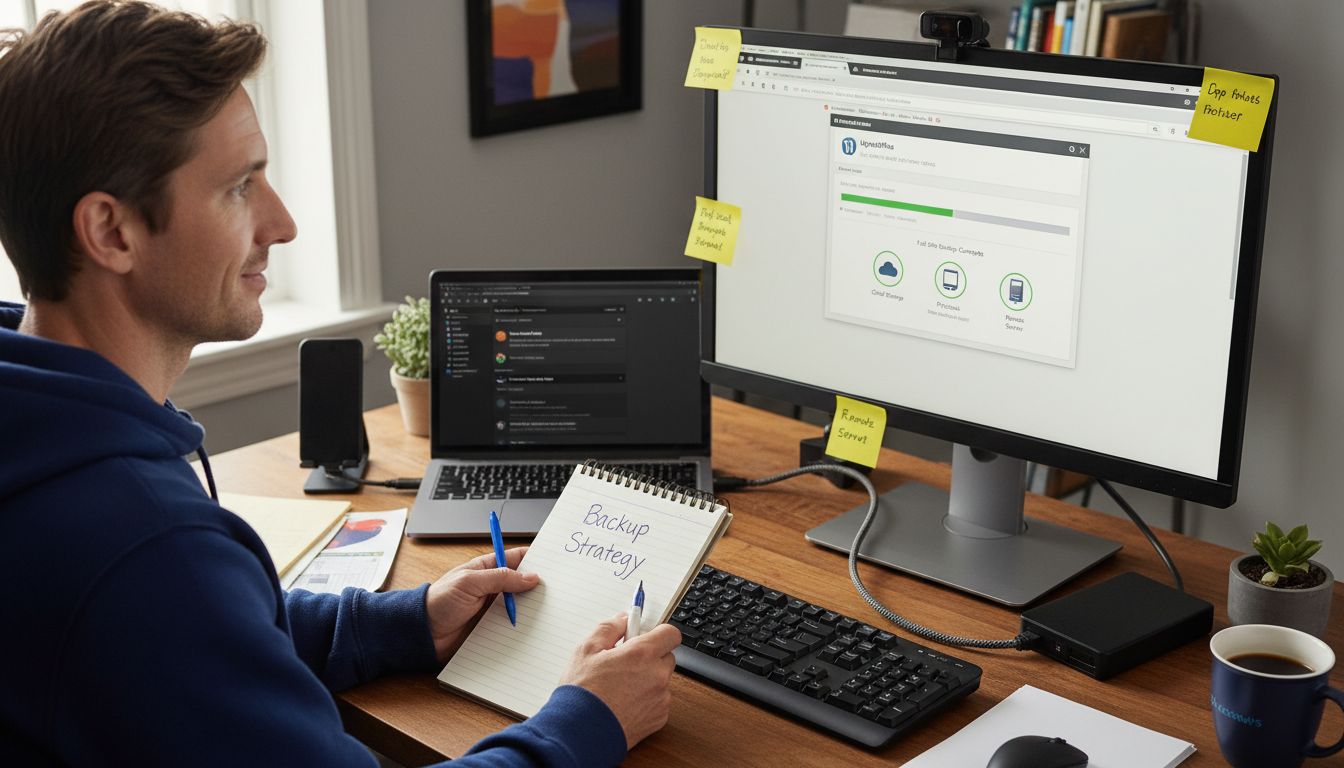
Warning: Always verify your backup by performing a test restore to confirm all site components have been correctly captured. A backup is only valuable if it can be successfully restored when needed.
Step 3: Deactivate problematic plugins and themes
Identifying and neutralising problematic plugins and themes is a critical step in resolving WordPress site issues. According to the StudyHub WordPress Security Masterclass, systematic plugin and theme management is essential for maintaining site stability and security.
Access your WordPress admin dashboard and navigate to the Plugins section. Select all plugins and deactivate them simultaneously. This comprehensive approach allows you to determine whether a specific plugin is causing your site disruption. After deactivating all plugins, check if your site functions correctly. If the issue resolves, begin reactivating plugins one by one to pinpoint the specific plugin causing the problem. As recommended by the Springest WordPress Backup Security Performance course, this methodical approach helps isolate potential conflicts.
Similarly, switch to a default WordPress theme like Twenty Twenty-Four to rule out theme related complications. If your site operates smoothly with the default theme, it indicates that your current theme might be the source of the problem.
 When reactivating themes or plugins, update them to the latest versions and check for compatibility with your current WordPress core version.
Warning: Always ensure you have a recent backup before making wholesale changes to your plugins or themes. This precautionary step protects your site from potential data loss during troubleshooting.
Step 4: Restore functionality with default settings
When WordPress site errors persist, restoring to default settings can be your most effective rescue strategy. WP Time Capsule provides powerful tools for reverting websites to previous stable configurations, offering a lifeline when troubleshooting becomes complex.
Begin by accessing your WordPress configuration file wp-config.php. Temporarily enable WordPress debug mode by adding these lines of code: define('WP_DEBUG', true); and define('WP_DEBUG_LOG', true);. This will generate detailed error logs revealing underlying issues. According to Watchful, remote management techniques can help diagnose and resolve site functionality problems systematically. If you cannot access your wp-config.php file via FTP, use your hosting control panel file manager to make these modifications.
Consider resetting WordPress to its default settings by deactivating all custom plugins, switching to a standard WordPress theme, and clearing your website cache. Some hosting providers offer one click restore options that can rapidly return your site to a previous stable state. Verify each step carefully to ensure you do not lose critical site data during the restoration process.
Warning: Always maintain a recent backup before attempting any site restoration. This precautionary measure ensures you can quickly recover if the default settings restoration does not resolve your specific issue.
Step 5: Verify site performance and user accessibility
After resolving initial WordPress issues, thoroughly testing your website’s performance and accessibility becomes crucial. Following the 7-Step Website Maintenance Checklist for WordPress can help ensure comprehensive site verification.
Start by checking your website across multiple browsers and devices. Test loading speeds using tools like Google PageSpeed Insights, which provides detailed performance metrics. Pay special attention to mobile responsiveness, page load times, and user interaction elements. Verify that all critical functions work correctly clicking buttons, submitting forms, and navigating between pages. Look for any broken links, missing images, or unexpected layout shifts that might disrupt user experience.
Conduct a comprehensive accessibility check to ensure your website remains inclusive. This means verifying colour contrast, ensuring keyboard navigation works smoothly, and checking that screen readers can effectively interpret your site content. Test your site’s functionality with browser developer tools, simulating different user scenarios and connection speeds. If you discover any performance bottlenecks, consider optimising images, minifying CSS and JavaScript, and leveraging browser caching to improve overall site speed.
Warning: Performance issues can significantly impact user experience and search engine rankings. Regular monitoring and proactive maintenance are key to keeping your WordPress site running smoothly.
Restore Your WordPress Site with Expert Support When every second counts in fixing a broken WordPress site, frustration and uncertainty can quickly take over. This article guides you through crucial steps like diagnosing errors, backing up your site, and managing plugins themes and settings. However the reality is that technical challenges such as plugin conflicts or unexpected theme issues demand swift and trusted assistance to prevent data loss and prolonged downtime.
Take control of your WordPress troubles and protect your business by partnering with WPCTO.net. Our professional team specialises in rapid issue resolution security enhancements and ongoing site optimisation tailored to your needs. Whether you require quick fixes or comprehensive WordPress management services you receive expert care and reliable solutions that restore your site fast and keep it running smoothly. Visit WPCTO.net now and discover how our trusted support can give your website the stability and performance it deserves.
Frequently Asked Questions
How do I identify the source of my broken WordPress site?
Finding the source of a broken WordPress site starts with reviewing the error logs and enabling debug mode in your wp-config.php file. Add define('WP_DEBUG', true); to view detailed logs, then look for plugin conflicts or theme issues.
What should I do before attempting to fix my WordPress site?
Before fixing your WordPress site, always create a comprehensive backup to avoid permanent data loss. Use a backup plugin to save a copy of your site’s content, plugins, and themes, storing it in multiple locations like cloud storage and an external hard drive.
How can I deactivate problematic plugins and themes on my WordPress site?
To deactivate plugins, go to the Plugins section in your WordPress admin dashboard and select all plugins to deactivate them at once. If the site functions correctly afterward, reactivate each plugin individually to find the one causing the issue.
What steps should I take to restore default settings on my WordPress site?
To restore default settings, access your wp-config.php file and enable debug mode. Next, deactivate all custom plugins, switch to a default theme, and clear your website cache to revert your site to a basic operational state.
How can I check the performance and accessibility of my WordPress site after fixing it?
Test your site’s performance by checking it across multiple browsers and devices, focusing on loading speeds and mobile responsiveness. Ensure all critical functions work properly, then perform an accessibility check by verifying color contrast and keyboard navigation functionality.
What are common signs that my WordPress site has broken and needs immediate fixing?
Common signs of a broken WordPress site include error messages when loading pages, inability to log into the admin dashboard, broken links, and layout issues. By identifying these errors, you can initiate troubleshooting to restore your site quickly.
Recommended
- Quick Fixes for your WordPress website – Fast, effective enhancements- WPCTO
- 7-Step Website Maintenance Checklist for WordPress Success – WPCTO
- WordPress Fix Guide: Resolve Issues Easily in 2025 – WPCTO
- Little Wins – Big impact for your WordPress site – WPCTO
- Améliorer vitesse site WordPress en 2025 : 6 étapes simples