

A WordPress core update means replacing the main WordPress software files with a newer version. The safe way to do it is simple: take a backup, test on staging where the site matters, update from Dashboard > Updates, then check the pages and journeys that earn your client money. This guide walks through each step, plus the manual and WP-CLI routes, and what to do when an update fails.
We write it for agency owners, directors and senior account managers who build WordPress sites but would rather not spend their Sunday evenings supervising updates.
TL;DR
- Core updates come as major releases (new features) and minor releases (security and critical bug fixes). Treat them differently.
- Always back up files and database first, and fix any existing errors before you update, so you can tell what the update changed.
- Use Dashboard > Updates for most sites. Keep manual or WP-CLI updates for when one-click fails or you need control.
- After updating, clear caches and test forms, logins, checkout and key plugins.
- If an update hangs, deleting the
.maintenancefile from the site root is the first fix to try.
Table of Contents
- What a WordPress core update actually is
- How WordPress releases are built, and why it helps you plan
- Understanding and managing automatic updates
- Before you update: the pre-flight checklist
- How to update WordPress core from the dashboard
- Manual updates and WP-CLI
- After the update: what to test
- When a core update goes wrong
- Turning core updates into a repeatable agency process
- Our perspective
- Let us handle the updates for you
- FAQ
- Sources
What a WordPress core update actually is
WordPress core is the software that runs every WordPress site: the admin area, the editor, the database layer and the files in wp-admin and wp-includes. Your theme, plugins and uploads sit alongside it in wp-content. A core update changes the first group and leaves the second alone, which is why plugin and theme compatibility is where most update trouble starts.
WordPress describes its releases as development, minor and major. Major releases may add user features and developer APIs, while minor releases are reserved for fixing security vulnerabilities and critical bugs. The version number tells you which is which: major versions use the first two number sequences, and minor versions use the third. So moving from one two-part version to the next is a major release, and a change in the third number is a minor one.
The WordPress learning materials add that minor updates often include maintenance fixes, security fixes and translation-file updates, while major updates bring new features.
For an agency, that distinction drives your risk planning:
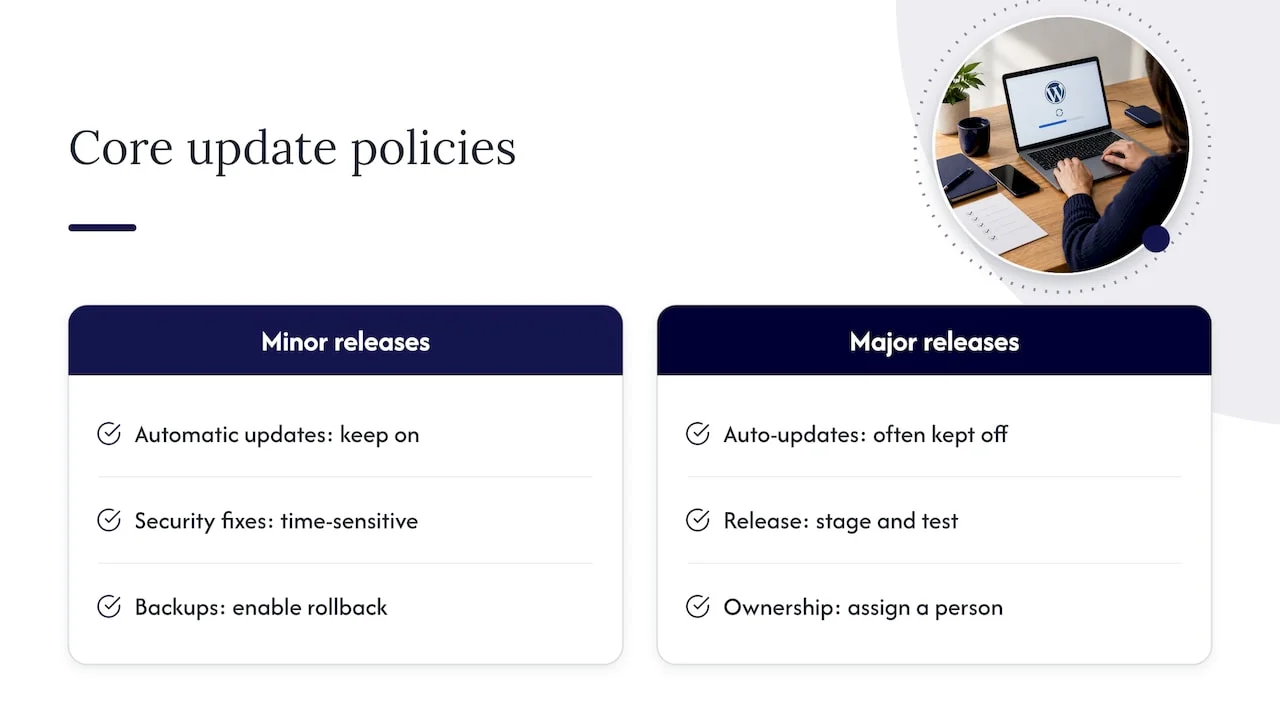
- Minor releases are usually low risk and time sensitive, because they close security holes. Delay costs more than the update does.
- Major releases deserve a staging test, because new features and changed APIs can interact with custom themes and older plugins.
If you want a shorter explainer to share with account managers, we have a plain guide to WordPress core updates for agencies.
How WordPress releases are built, and why it helps you plan
Knowing the release rhythm helps you schedule work. According to the WordPress Security White Paper, a release cycle usually lasts around four months from the first scoping meeting to launch. It runs through five phases: planning, development, beta, release candidate and launch.
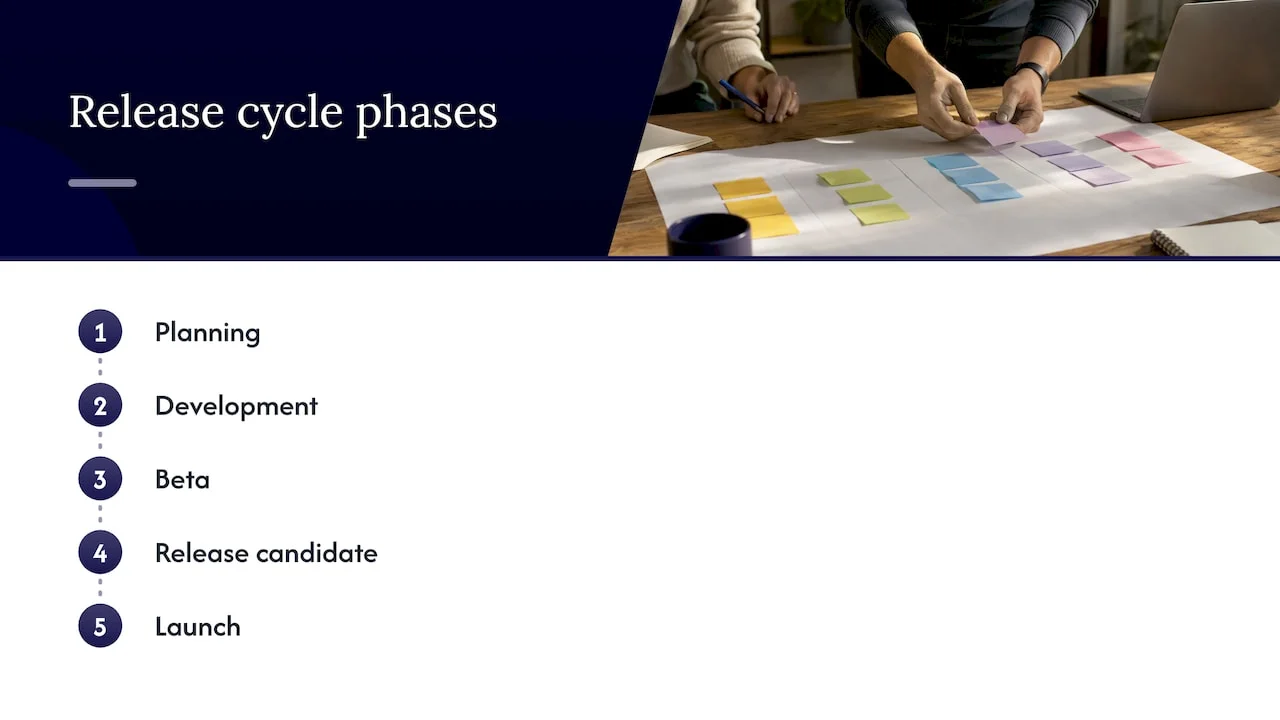
The beta phase is the one agencies tend to ignore. During it, plugin and theme authors are encouraged to test their code against upcoming changes. That means you can test your own custom themes and key plugins on a staging copy while a release is still in beta or release candidate, and arrive at launch day already knowing whether anything breaks. For a bespoke build, an hour spent here is far cheaper than an emergency call later.
Understanding and managing automatic updates
Many sites now update themselves, so the first question is what your sites are already doing. The official documentation says that new installations from version 5.6 onward have automatic updates enabled by default for major and minor core releases, unless WordPress detects a version-control checkout. Older installations receive minor core updates by default unless major auto-updates are switched on.
In practice, the sites in your portfolio will be a mix. Some were built years ago and only take minor updates. Some were migrated to a new host that has its own update policy. Some have auto-updates disabled by a developer who left. Audit them rather than assuming.
On minor releases, the guidance is clear: automatic updates for minor core releases are one of the best ways to keep a site up to date and secure, and disabling them is strongly discouraged. We agree. Leave minor auto-updates on unless there is a documented reason, and make sure backups run so you can roll back.
For major releases, many agencies choose to keep auto-updates off and update deliberately after a staging check. That is a sensible balance, as long as someone actually owns the job. The risk we see most often is not auto-updates breaking a site. It is nobody updating at all because nobody owns it.
Automation helps in other parts of WordPress work too, for example with WordPress publishing automation for content teams, but core updates still deserve a human check afterwards.
Before you update: the pre-flight checklist
Most failed updates are decided before anyone clicks the button. Work through this list.
- Back up files and database. The official advice is to back up your database and files so you can restore the website if issues arise. A full backup means both, not just the database. Store it off the server. Our guides on WordPress backups for agencies and matching recovery objectives to regular backups cover frequency and restore testing.
- Check the site is healthy first. If the site already shows errors, fix or document the existing problem before updating. Otherwise it is hard to tell which fault the update caused, and your client will blame you for both.
- List the plugins and theme. Note which plugins are active, which are out of date and which have not been updated by their authors for a long time. Our guide to plugin management best practices explains how to keep that list under control.
- Check compatibility. Each plugin in the WordPress.org directory shows the latest WordPress version it has been tested with. WordPress.com’s support pages explain how to check a plugin’s “Compatible up to” version under View Details against the latest WordPress version.
- Check PHP. A core update can raise the minimum PHP version, and your host may be running something old. Our piece on how PHP updates affect WordPress performance is worth reading before a major release.
- Pick a quiet window. Avoid campaign launches, sale periods and Friday afternoons. A client’s checkout should never be the thing you test live.
- Tell the client. A two-line note saying maintenance is planned prevents panic if the site shows a brief maintenance message.
Use staging for anything that earns money
For brochure sites with a handful of standard plugins, updating live after a backup is usually fine for minor releases. For WooCommerce stores, membership sites and bespoke builds, clone the site to staging, update there, test, and only then repeat on live. Many hosts offer one-click staging. If yours does not, a manual clone is worth the time for high-value sites.
How to update WordPress core from the dashboard
The one-click route is the right default. The official documentation confirms you can update from Dashboard > Updates with the one-click process, or use a manual update with FTP or shell access.
- Log in as an administrator and open Dashboard > Updates.
- Read the notice. It shows your current version and the version available.
- Confirm your backup finished and is stored away from the server.
- Click Update to version X.X (or Update Now).
- Wait for the process to complete without closing the tab. WordPress puts the site into maintenance mode while it copies files.
- If prompted, let WordPress update the database. It does this when a release changes the database structure.
- Clear any cache (more on this below), then run your post-update tests.
The same screen lists plugin, theme and translation updates. A common approach is to update core first, check the site, then update plugins and themes in a separate step. Doing everything in one go makes it harder to tell what caused a problem. Update one layer at a time, and note what you changed and when.
Manual updates and WP-CLI
Sometimes one-click fails, perhaps because of file permissions or a restricted host. The manual process is an option if one-click updating does not work or you prefer more hands-on control.
Manual update by FTP or SFTP
The broad steps are:
- Take a full backup and download the new WordPress package from WordPress.org.
- Deactivate nothing unless you have a reason, but note your active plugins.
- Replace the old
wp-includesandwp-admindirectories with the new ones. - Upload the individual files from the new
wp-contentfolder into the existing one. Do not delete existing files or folders there, because that is where your themes, plugins and uploads live. - Copy the remaining root files, but keep your own
wp-config.phprather than overwriting it. - Visit
/wp-admin/and run any database update prompt.
The classic mistake is deleting wp-content. That removes the client’s media library and theme. If you are not certain, stop and take the backup again before continuing.
WP-CLI for multiple sites
If you manage many sites, command-line updates save hours. The WP-CLI documentation shows that you can update to a specific version with the --version flag or perform only minor updates with --minor. The --minor option is useful for scripted, low-risk security updates across a portfolio, with major releases kept for staged, tested rollouts.
A typical pattern is to run minor updates on a schedule, and run major updates one site at a time with a human checking each one.
After the update: what to test
An update that completes is not the same as an update that worked. Spend ten minutes checking the things that matter commercially.
- Front end: the home page, a few inner pages, and any page with custom templates or page-builder layouts.
- Forms: submit every contact and enquiry form and confirm the email arrives. Broken forms are silent revenue losses.
- Login and admin: log in as an editor and an administrator, and open the editor on a page and a post.
- Search, menus and media: check the navigation, search and an image upload.
- Console and error log: look for new PHP warnings or JavaScript errors.
- Cache: if caching is enabled, clear the cache after an update so the changes go live immediately. That includes plugin cache, server cache and any CDN.
WooCommerce stores
A store needs more. Place a test order from product page to confirmation, using each payment method you offer in test mode where possible. Check the cart, coupon codes, shipping rates, tax display and order emails. Confirm the order appears in the admin. Our guide on WooCommerce checkout efficiency lists checks worth building into the routine.
When a core update goes wrong
Most problems have simple fixes, and the first rule is to stay calm and restore from backup if the site is down and you cannot find the cause quickly.
| Symptom | Likely cause | First thing to try |
|---|---|---|
| Site stuck on a message saying it is briefly unavailable for maintenance | Update interrupted, leaving a maintenance flag | Delete the .maintenance file from the WordPress root folder |
| Update asks for connection information (FTP details) | WordPress cannot write to its own files | Make sure the WordPress directory is owned by the user the Apache server runs as |
| White screen or critical error after update | Plugin or theme conflict | Rename the plugins folder via SFTP to disable all plugins, then re-enable one by one |
| Layout broken on one template | Theme or page builder incompatible | Restore staging copy, check theme update, then retest |
| Old content still showing | Cached pages | Clear plugin, server and CDN cache |
A few habits make recovery faster:
- Keep a record of what version each site was on before the update.
- Keep the last known good backup until you have confirmed the update is stable.
- Do not run several fixes at once. Change one thing, test, then move on.
If the failure involves a hacked or infected site rather than a broken update, that is a different job. Our notes on WordPress malware risks explain the common entry points, and out-of-date core and plugins are among them.
Turning core updates into a repeatable agency process
Updating one site is easy. Updating forty, with different hosts, plugin sets and client expectations, is where agencies lose hours. A workable process looks like this:
- Inventory: record WordPress version, PHP version, host, plugins and who owns the login for every client site.
- Classify: mark each site as brochure, ecommerce or bespoke. That decides whether it needs staging.
- Schedule: minor updates promptly, major updates within an agreed window after testing.
- Document: keep a short log of what was updated, when, by whom and what was tested.
- Report: send clients a short monthly note. It shows the work, which protects the relationship.
- Charge for it: this work has a cost, and it is billable. Our list of site management checks agencies can bill for is a good starting point.
Many agencies absorb this time without noticing: twenty minutes here, an hour after a failed update there, a weekend call when a client’s form stops working. It adds up. If you want to see how much revenue that unbilled care represents in your own client base, try our WordPress Profit Calculator for agencies. It takes under 90 seconds and shows the uncaptured revenue sitting in your existing WordPress clients.
Our perspective
We have seen the same pattern across agency portfolios for years. Core updates are not hard. What is hard is that nobody wants to own them. They are not creative work, they do not feel strategic, and they only get attention when something has already gone wrong.
Our view is that updates should be boring. That means a backup before every change, a staging copy for sites that matter, a short checklist after, and a log you can show the client. When the process is that dull, Sunday evening calls stop.
We also think agencies undervalue this work. Clients expect their sites to stay secure and working, and that has a real cost in skilled time. Passing the work to a specialist partner lets you keep the client relationship and a recurring revenue line, while we handle the delivery behind the scenes, white-labelled if you prefer.
If you take one thing from this guide, make it ownership: decide who updates each site, how often, and what gets tested.
Marcel
Let us handle the updates for you
If your team would rather design and advise than babysit updates, we can take it on. WPCTO provides WordPress management and support for agencies, from maintenance and security updates to hosting, migration and emergency fixes, delivered invisibly so you keep the client.
Our tiered service level agreements are published at £450 per year for Bronze, £750 per year for Silver and £1,850 per year for Gold. You can compare them on our WordPress service level agreements page, or look at our security updates and enhancements service.
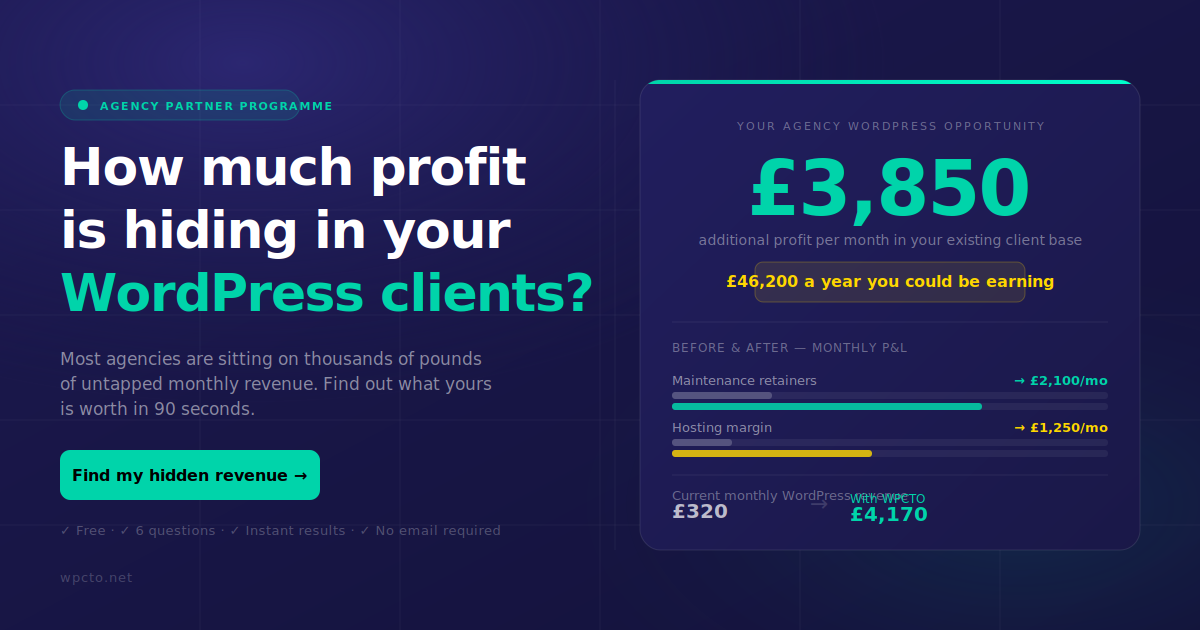
Not sure what your unbilled WordPress support is worth? Run the numbers first with our free WordPress Profit Calculator, then talk to us about taking the work off your plate.
FAQ
How often should I update WordPress core?
Apply minor releases as soon as you have a backup, because they exist to fix security vulnerabilities and critical bugs. Major releases can wait for a staging test, but not indefinitely. Many agencies aim to update within a couple of weeks of a major release once plugins have been confirmed compatible.
Should I turn off automatic WordPress updates?
Not for minor core releases. WordPress’s own learning materials say automatic minor updates are one of the best ways to keep a site secure and that disabling them is strongly discouraged. For major releases, it is reasonable to switch auto-updates off and update manually after testing, provided someone is responsible for doing so.
Can I update WordPress core without losing my content?
Yes. A core update replaces the core files and leaves your content in the database and your themes, plugins and uploads in wp-content. The risk comes from manual mistakes, such as deleting wp-content, which is why you take a full backup first.
What do I do if the update gets stuck?
If the site shows a maintenance message after a failed update, delete the .maintenance file from the WordPress root folder using SFTP or your host’s file manager. If that does not help, restore your backup and check file permissions and plugin conflicts before trying again.
How much revenue am I missing by absorbing WordPress support?
It depends on how many client sites you look after and how much unbilled time goes into them. Our WordPress Profit Calculator gives you an estimate in under 90 seconds, so you can decide whether to charge for care plans or refer the work to us.
Sources
- Upgrading WordPress, WordPress developer documentation
- Managing Updates, Learn WordPress
- WordPress Security White Paper
- Dashboard Updates screen, WordPress documentation
- Updating WordPress, WordPress documentation
- wp core upgrade, WP-CLI handbook
- Check your WordPress version, WordPress.com Support
- WordPress publishing automation