

The quickest way to see most publicly visible WordPress plugins is a free online scanner or a browser extension, both of which read what a site exposes to visitors. Backend-only and obfuscated plugins will not show up without server access, so treat the result as a strong lead, not a full inventory. Verify anything critical, then plan staging checks or a handover.
TL;DR:
- Scan several page types because forms, sliders, and other plugins may load only on specific pages, leaving a homepage check incomplete.
- When you control the site, WP Admin or WP CLI provides installed plugins, including inactive ones; public scans cannot supply that complete inventory.
- Treat reported versions and vulnerability flags as provisional: confirm file paths and versions, then prioritize exposed plugins with known issues over inactive ones.
- Merged or minified assets can hide plugin paths, so a short detector list may reflect site optimization rather than a genuinely small plugin set.
- Before updating anything, take a full backup and test changes on a staging copy where possible, then schedule maintenance to limit client site disruption.
Table of Contents
- Which tools and methods can you use right now?
- How do plugin detectors actually work?
- What are the limits and accuracy caveats?
- How do you read and validate a detector’s report?
- What should you do next: security, performance and agency options?
- Marcel’s agency perspective: why does this matter for agencies?
- How does WPCTO help?
- FAQ
- Sources
Which tools and methods can you use right now?
You do not need a login to get a useful answer to “what plugins does this site use”. You need a method that matches how much certainty you want. Here is the order we work in, from fastest to most authoritative.
- Run an online scanner. Paste the site URL into a plugin detector and read the returned list of plugins and the active theme. This gives you a first map of the site.
- Try a browser extension. Extensions scan each page as you browse, so you get instant results as you move through the site. Some, such as the WPoptic extension listed on Mozilla’s add-ons store, can also show the plugin name, category and install counts.
- Inspect the source by hand. Open the page, view the source, and search for
/wp-content/plugins/. Every hit shows a plugin folder name, and asset filenames often reveal plugin-specific scripts. - Use admin or command-line access. If you control the site, the WP-Admin Plugins screen is the authoritative list. Developers can also call get_plugins(), which returns every plugin installed in the plugins directory. Or they can run WP-CLI’s plugin list command, which reports name, status, version and update state in machine-readable formats such as JSON.
Each method has a different strength:
- Online scanners are fastest and need no installation.
- Extensions catch plugins that only load on certain pages.
- Source inspection lets you verify a scanner’s claim with your own eyes.
- Admin and CLI access give the complete inventory, including inactive plugins.
A workflow that rarely lets us down looks like this. Start with a quick scan. Confirm the key findings in the page source. Repeat with an extension on a few different pages, such as the homepage, a blog post, a contact page and a checkout. If the work justifies it, escalate to admin or CLI access for the full list.
The page-by-page step matters more than people expect. A form plugin may load its scripts only on the contact page, and a slider may appear only on the homepage. A single scan of one URL can miss both.
If you have a client site and no credentials yet, ask for them. A read-only admin account removes much of the guesswork. For a prospect’s site or a competitor’s, the first three methods are what you have, and they are enough for a sound first assessment.
How do plugin detectors actually work?
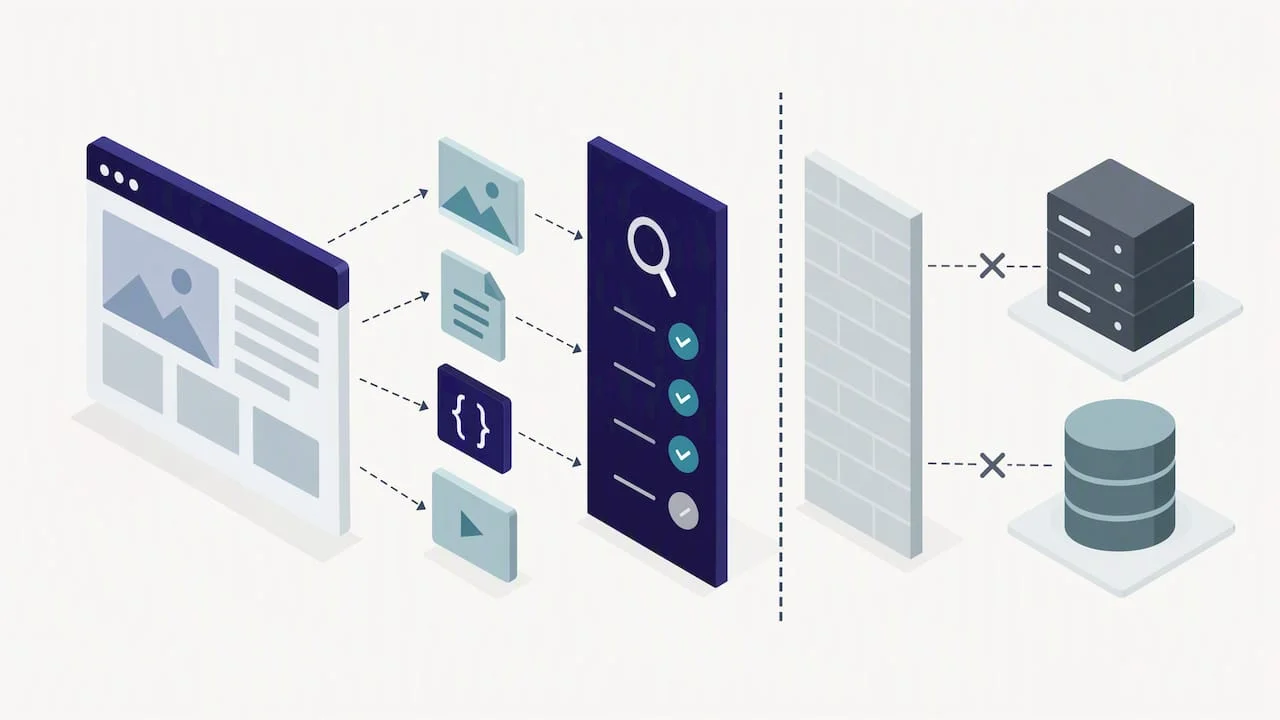
Detectors do not “see inside” a site. They read what the site sends to every visitor and match it against a catalogue of known patterns. Knowing this makes it much easier to judge a result.
Here is the logic most tools follow:
- They scan the page output. The HTML, CSS and JavaScript files a page loads often include file paths such as
/wp-content/plugins/plugin-slug/assets/script.js. The slug in that path names the plugin. - They keep a signature database. The tool maps asset paths, filenames and fingerprints to plugin slugs, so a known script name points to a known plugin even when the path is slightly unusual.
- They look for supporting signals. Theme files, meta tags, REST endpoints and generator strings can confirm a match or add context.
- They fetch metadata. Where a plugin is listed publicly, the tool can pull the version, author and description from WordPress.org or other known sources.
Another approach exists on the inside. Some detection methods use the updates API, reading the update_plugins site transient to discover which plugins WordPress knows about and whether updates are waiting. The WordPress developer reference shows how installed plugins and their update state are exposed. That route needs to run inside the site, so it is for people with access, not for external scanners.
Because detection depends on matching, quality depends on how current the signature database is. A scanner with an old database may miss newer plugins or mislabel renamed ones. Two scanners can therefore return slightly different lists for the same URL, which is a good reason to cross-check.
It also helps to know what a detector cannot see by design. It has no view of server-side code that never touches the page, and it cannot read your database. That is not a flaw in any one tool. It is how external detection works, and the next section covers what it means for accuracy.
What are the limits and accuracy caveats?
An external scan is a good estimate, not a certificate. We tell agencies to read every report with these limits in mind.
- Backend-only plugins stay invisible. A plugin that never adds a script or stylesheet to the front end leaves no trace for a scanner to find. Backup, import and many admin utility plugins fall into this group.
- Hardening can hide paths. Security plugins and server rules can rename or mask plugin folders, so the usual signatures disappear.
- Custom and modified plugins confuse matching. A bespoke plugin may have no entry in any database, and a modified copy of a public plugin may carry a generic or altered signature.
- Versions and vulnerability flags are hints. A reported version can be wrong if assets are cached or combined, and a vulnerability warning needs confirming before you act on it.
Combined and minified assets deserve a special mention. Many performance setups merge scripts from several plugins into one file with a hashed name. The original plugin paths vanish, and a scanner then sees a single opaque file. A short plugin list on a heavily optimised site often means “well optimised”, not “few plugins”.
The practical conclusion is simple. Absence of evidence is not evidence of absence. If a scanner does not list a security plugin, a caching plugin or a backup tool, you cannot conclude that the site has none.
For security context, it is worth knowing that the UK’s National Cyber Security Centre runs Web Check. It monitors websites automatically for common security issues and gives advice on fixes, including keeping a CMS such as WordPress patched and updated. That is a useful reminder of why the plugin list matters at all: outdated components are one of the issues such services are built to flag.
Source worth bookmarking: NCSC’s Web Check monitors websites automatically for common security issues and points to fixes such as patching your CMS and correcting TLS and HTTP header settings.
When the stakes are high, such as before you quote for a rebuild or take over a site, move from external scanning to an authenticated inventory.
How do you read and validate a detector’s report?
A report is only useful if you know what each field means and which ones to trust. Most tools return a similar set of fields, and each deserves a quick sanity check.
- Evidence type: how the tool found the plugin, such as an asset path, a meta tag or an endpoint. A direct file path is stronger than an inferred guess.
- Plugin name and slug: what the tool believes is installed. Watch for near-identical names, since some plugins share similar titles.
- Reported version: treat as approximate unless confirmed in a readme file or the admin screen.
- Author: helps separate public plugins from custom work.
- Free or premium marker: premium plugins often come from outside WordPress.org, so metadata may be thin.
Before you act on any of it, validate in this order:
- Open the reported asset URL in your browser and confirm that it loads from the claimed plugin folder.
- Check the plugin’s readme or main file path, where one is publicly reachable, to confirm the name and version.
- Visit several pages of the site to see whether other plugins appear on different templates.
- Cross-check with a second tool or extension.
- For anything business critical, get admin access or run the CLI inventory.
Vulnerability flags need particular care. Prioritise by exposure: a public-facing plugin with a known issue matters more than an inactive one. Take a full backup before making any update, and run it first on a staging copy where possible.
If the findings still feel uncertain, do not guess. Reproduce them on staging, or ask the site owner for authenticated access. A reliable list beats a doubtful one, especially when a client invoice or a security decision depends on it.
What should you do next: security, performance and agency options?
Finding the plugins is the beginning of the work. The next steps turn a list into a safer, faster site and, for agencies, into billable services.
Start with the immediate technical checks:
- Take a verified backup before touching anything. Our guide to WordPress backups for agencies covers sensible baselines.
- Run Lighthouse or check Core Web Vitals to see whether the plugin load is hurting speed.
- Scan for known vulnerabilities and outdated components, and review WordPress malware entry points so you know where plugin hygiene matters most.
- If a site has already been compromised, Hostme sets out containment and recovery steps.
Then set an operating routine. We suggest a staged plan: backup, then staging, then test the updates, then schedule a maintenance window. It keeps client sites stable and makes your work easy to explain and invoice.
Here is where the commercial value sits. Every step above is work a client would otherwise be doing badly or not at all:
- Plugin and theme inventories
- Staging tests for updates
- Plugin updates and compatibility checks
- Security hardening
- Onboarding onto a maintenance plan
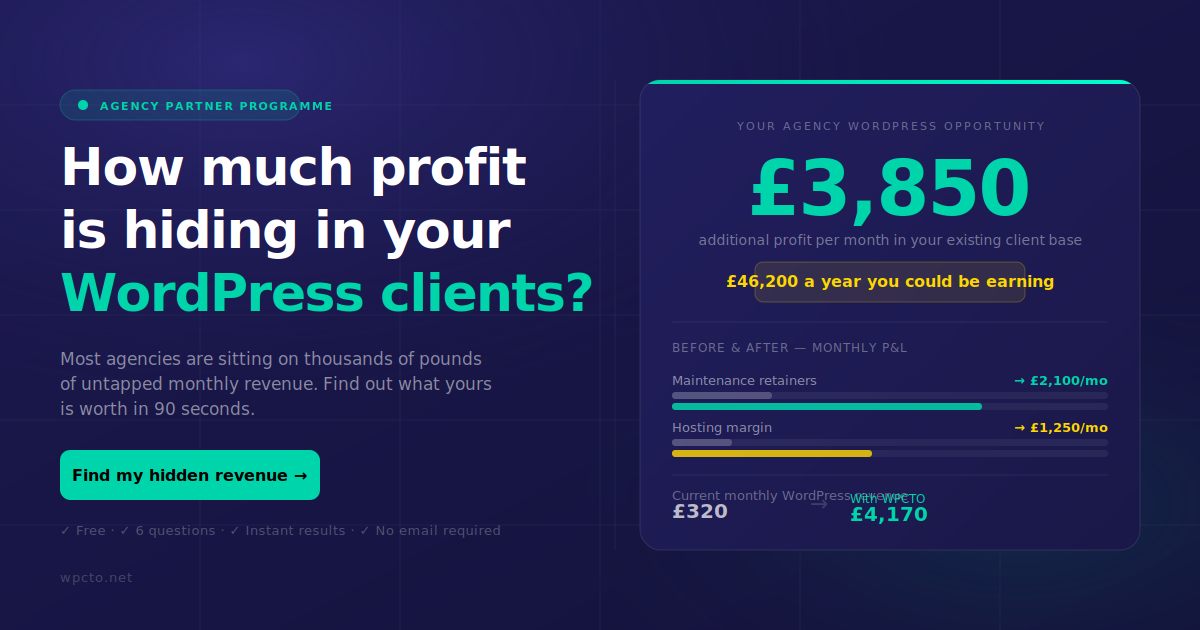
Our list of site management checks agencies can bill for breaks these down further. To see what this could be worth across your existing client base, run our free WordPress Profit Calculator. It helps you estimate how much uncaptured revenue may be sitting in your current WordPress clients, and it is a good moment to use it, right after an inventory has told you how much maintenance a site really needs.
Know when to hand off. If the same problems keep returning, if the site relies on complex or custom plugins, or if the client wants one accountable partner, that is the signal. Our guide to WordPress support services compares in-house and managed options if you are weighing it up.
Marcel’s agency perspective: why does this matter for agencies?
A plugin check can be the start of solving a problem. A plugin check often starts with a problem. A client site has slowed down, a form has stopped sending, or a new client arrives with a site nobody documented, and someone has to work out what is installed.
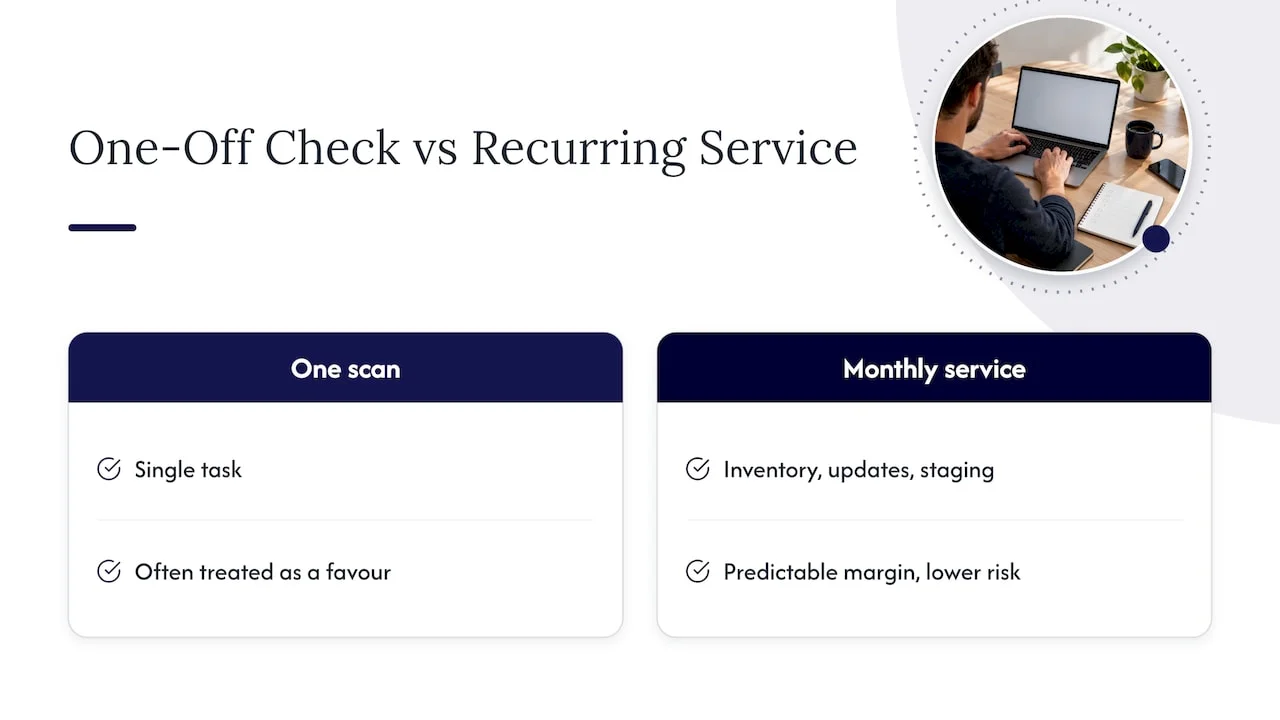
The uncomfortable part is that this work repeats. Every new client, every handover and every incident brings another round of checking, and that time is rarely charged for. In my view the mistake agencies make is treating the plugin check as a favour instead of the entry point to a recurring service. One scan is a task. A monthly inventory, update and staging routine is a product with predictable margin and lower risk.
That is why a white-label partner makes sense. When someone else owns the plugin and theme management, your team keeps the client relationship and the creative work, and the Sunday evening emergency stops landing on your desk.
— Marcel
How does WPCTO help?
We built WPCTO for agencies who want WordPress delivered well but do not want it to become their core offering. We sit behind you, invisibly, so you keep the client and the recurring revenue.
Here is what we handle for agency partners:
- Plugin and theme management, including inventories, updates and compatibility testing
- Security monitoring and security updates and enhancements
- Staging, hosting, re-hosting and migration
- Service level agreements you can resell: Bronze SLA at 450 GBP per year, Silver SLA at 750 GBP per year and Gold SLA at 1850 GBP per year
- Fractional CTO support and consultancy for the harder questions
If you want to know what this is worth to your agency, start with the WordPress Profit Calculator. It helps you estimate the revenue sitting in the WordPress clients you already have. When the number makes sense, look through our services and tell us which sites you want us to take on. We work through white-label and referral partnerships, so you can choose how visible we are to your clients.
FAQ
Which theme is this site using?
Most plugin detectors also report the active theme, because theme files load from /wp-content/themes/ in the page source. Search the source for that path and read the folder name that follows. Child themes will show both the child and the parent.
What are plugins on a website?
Plugins are add-on software packages that extend what WordPress can do, such as forms, caching, security or e-commerce. They install into the plugins directory and can be switched on or off without changing the core software.
How do you check if a plugin is installed?
If you have access, open the Plugins screen in WP-Admin or run wp plugin list through WP-CLI. Without access, search the page source for the plugin’s folder name under /wp-content/plugins/, or run an online scanner.
How do you find which template a site uses?
Check the page source for /wp-content/themes/ and read the theme folder name. A detector or browser extension will usually show the theme name and, where available, its version and author.