

A good WordPress theme fits your site’s purpose and editing model, loads lean code before it loads style, and passes real accessibility and performance checks on a staging copy rather than a demo page. It stays on an active update path, works inside the WordPress Site Editor when you need block-level control, and meets WCAG 2.2 AA as a working benchmark, not a marketing claim.
TL;DR:
- Choose a block theme for regular template edits; choose a classic theme with a builder when your agency already knows that workflow.
- Measure PageSpeed field data on a populated staging page, then inspect CSS and JavaScript use, assets that delay rendering, and remotely loaded fonts.
- Keyboard test every interactive element, confirm visible focus, zoom to 200%, and check labeled form fields; marketplace accessibility badges do not replace manual testing.
- After a demo import, review every plugin and test combined theme and plugin updates on staging across templates, menus, forms, and checkout if applicable.
- Patch removable issues such as unused scripts or sliders, but switch themes when proprietary shortcodes trap content or the editing model conflicts with your workflow.
Table of Contents
- At-a-glance checklist: the eight checks to run first
- Match the theme to your site’s purpose and editing model (block vs classic)
- Mobile and responsive checks you must run (practical tests)
- Real-world performance: tests to run and what the results mean
- Accessibility: checks to make before you buy
- Maintenance, updates and compatibility: what to vet and how to stage updates
- Customisation workflow and portability: what to expect for ongoing edits
- Demo imports and bundled plugins: inspection steps and red flags
- A concise decision checklist and practical next steps for agencies
- An agency-focused perspective: why a managed partner makes sense
- How WPCTO helps agencies remove theme and WordPress maintenance overhead
- FAQ
- Sources
- Key primary sources to consult
At-a-glance checklist: the eight checks to run first
Before you commit a client’s site to any theme, run it through these checks on a staging environment with real content, not the demo.
- Editing model: does it use the Site Editor (block theme) or the Customiser (classic theme)? Pass signal: it matches how your team and the client will actually publish.
- Responsiveness: resize the browser to narrow and wide widths and test on a real phone. Pass signal: layout and touch targets hold up at every breakpoint.
- Performance: run PageSpeed Insights on a staging page with real images and plugins installed. Pass signal: field data, not the lab score, stays within your budget.
- Accessibility: navigate the demo with keyboard only and zoom the browser to 200%. Pass signal: focus is always visible and nothing disappears.
- Maintenance: check the changelog for updates in the last three months. Pass signal: entries mention compatibility fixes, not just cosmetic tweaks.
- Customisation workflow: open the theme’s style settings and patterns. Pass signal: changes are portable, not locked into proprietary shortcodes.
- Demo and import risk: inspect the plugin list immediately after a demo import. Pass signal: only necessary plugins, none mandatory for basic layout.
- Staging test plan: install on staging and run a plugin and theme update together. Pass signal: nothing breaks on templates, menus or forms.
Match the theme to your site’s purpose and editing model (block vs classic)
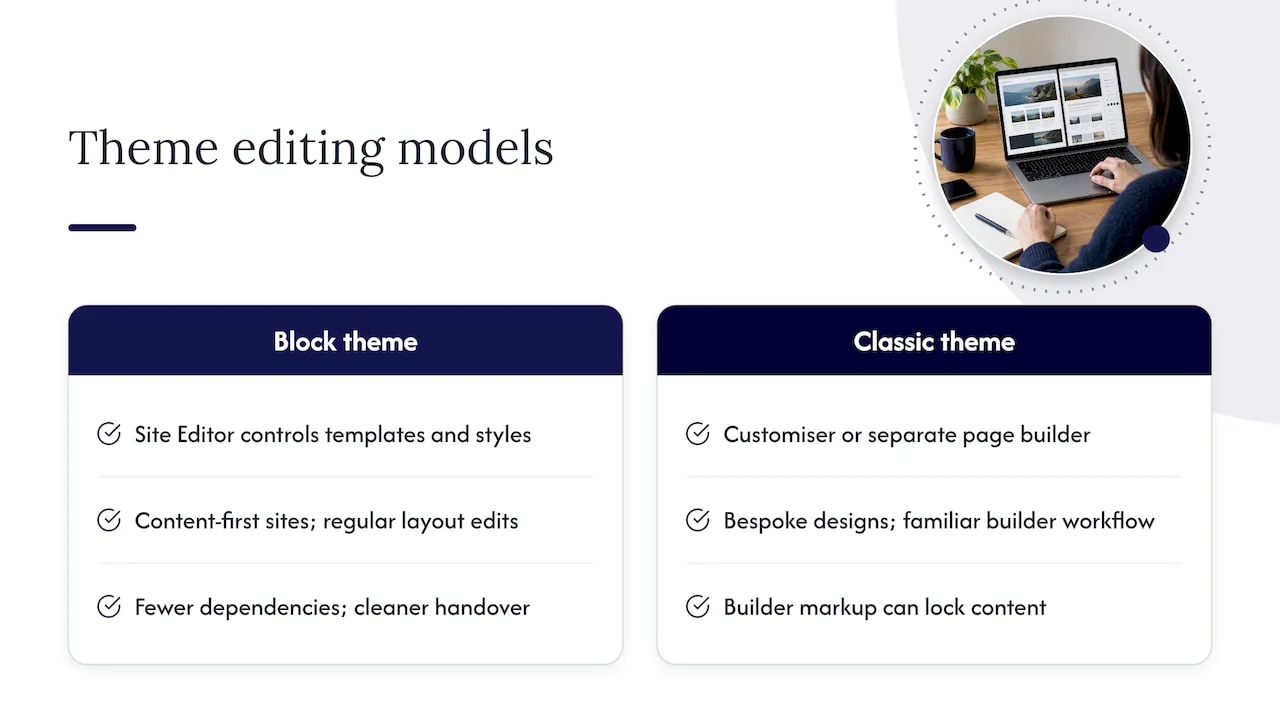
The single biggest decision in theme selection happens before you look at a single screenshot: block theme or classic theme. Block themes work with the WordPress Site Editor, which is available only when a block theme is active, and it hands you site-wide control over templates, styles, colours and typography directly inside WordPress. Classic themes rely on the Customiser or, more often in agency work, a separate page builder layered on top.
For content-first sites where the client or your team will be editing templates, headers and layout regularly, a block theme tends to be the better long-term fit. You get one consistent editing surface, fewer dependencies, and a cleaner handover document for whoever maintains the site after launch. Agencies building highly bespoke, componentised designs sometimes still find classic themes paired with a builder more practical, especially where the team already has deep experience in that builder’s workflow.
What rarely gets discussed in demo walkthroughs is the portability cost. A theme built around proprietary shortcodes, or a builder that stores content as builder-specific markup, makes it painful to ever leave that theme. If a client wants to redesign later, or if you need to migrate them to a faster host, content locked into non-standard formatting means rebuilding pages rather than reusing them. WordPress’s Site Editor documentation frames themes increasingly as editing architecture, not just visual skins, which is exactly why this decision deserves more scrutiny than colour schemes and font pairings. Choosing the wrong editing model here is one of the quiet reasons support hours creep up months after a site goes live, and it is worth running the numbers on what that creep is actually costing you through our WordPress Profit Calculator.
Mobile and responsive checks you must run (practical tests)
A theme that looks sharp on a large demo monitor can fall apart on a mid-range Android phone with a cracked screen and a patchy connection. GOV.UK’s mobile guidance recommends building responsive sites so users get the same content and functionality everywhere, and notes that responsive design is generally cheaper to build, maintain and iterate than maintaining separate native app versions, because you are not chasing multiple operating system releases.
Run these checks on a staging copy before you sign off on any theme:
- Resize the browser window across a range of widths and watch for layout breaks or overlapping text.
- Rotate a real phone between portrait and landscape and check that navigation menus still open and close cleanly.
- Enlarge the browser’s default text size and confirm nothing gets cut off or overlaps.
- Tap every button, menu item and form field with a finger, not a mouse pointer, and check touch targets are large enough to hit reliably.
- Throttle the connection in Chrome DevTools and watch how long the page takes to become usable.
Pro Tip: Keep a phone in the studio set to the largest system text size by default. It makes it easier to spot a theme that breaks under enlarged text and may save a support ticket after launch.
This test list can be run once you have a staging demo populated with representative content, helping catch mobile regressions before a client ever sees them.
Real-world performance: tests to run and what the results mean
Demo sites are performance theatre. They run on fast dedicated servers, with no real images, no analytics scripts, no forms plugin and no chat widget, so their Lighthouse score tells you almost nothing about how the theme behaves once a client’s actual content and plugin stack land on it.
GDS’s frontend performance guidance recommends setting a performance budget and running tests regularly rather than treating speed as a one-off launch check, because a site that passes today can slow down as content, tracking scripts and plugins accumulate. That principle applies directly to theme evaluation: test the candidate on staging with the fonts, forms, images and ecommerce components the client will actually use.
A practical staging test sequence:
- Run PageSpeed Insights on the populated staging page and look at the field data tab, not just the lab score.
- Open Chrome DevTools, run the Coverage panel, and check how much of the loaded CSS and JavaScript is actually used on that page.
- Count render-blocking assets in the Network tab; a large number of stylesheets and scripts blocking the first paint is worth questioning.
- Check whether fonts load from a remote CDN or can be self-hosted, and whether the builder or theme forces mandatory scripts site-wide.
Core Web Vitals form part of Google’s guidance on page experience, and GDS’s frontend performance standard treats a performance budget and ongoing monitoring as essential rather than optional, which matters because the most common theme-level culprits are predictable: auto-playing hero sliders, icon font libraries loaded wholesale for three icons, and page builders that enqueue their full asset library on every single page regardless of what that page actually uses. If you want a structured way to fix the issues a theme audit turns up, our partners at Monstrous Media Group have published a prioritised Core Web Vitals playbook worth keeping on hand for the agency toolkit.
Accessibility: checks to make before you buy
Accessibility deserves to sit at the same evaluation stage as performance and responsiveness, not as a fix-it-later task. GOV.UK’s service manual treats WCAG 2.2 AA as a strong practical benchmark and is explicit that testing needs to cover all A and AA requirements, repeated as designs, code and content change, because a theme that is accessible on day one can drift out of compliance as plugins and content get added.
An “accessibility-ready” tag in a theme’s marketplace listing is a starting point, never a guarantee. GOV.UK’s own accessibility guidance notes that automated checking helps surface problems, but manual and assistive-technology testing are also needed before you can trust the result. Run these checks on the demo yourself:
- Navigate the entire demo using only the Tab and Enter keys, with no mouse.
- Watch for a visible focus outline on every interactive element as you tab through it.
- Zoom the browser to 200% and disable images, then check the page still makes sense.
- Inspect form fields and links for proper labels, not just placeholder text standing in for a label.
A quick pre-purchase example: open the theme demo’s contact page, tab to the submit button without touching the mouse, and see whether you can tell, just from the keyboard, that you have reached it. If you cannot, that single check has told you more than any accessibility badge in the sales copy.
Maintenance, updates and compatibility: what to vet and how to stage updates
A theme’s changelog is one of the most honest documents you will find in the entire evaluation process. Look for entries that reference Interaction to Next Paint or Largest Contentful Paint fixes, jQuery removal, or compatibility updates for recent WordPress versions, because GDS’s guidance on frontend performance treats this kind of ongoing, measured attention as the difference between a theme that stays fast and one that quietly degrades.
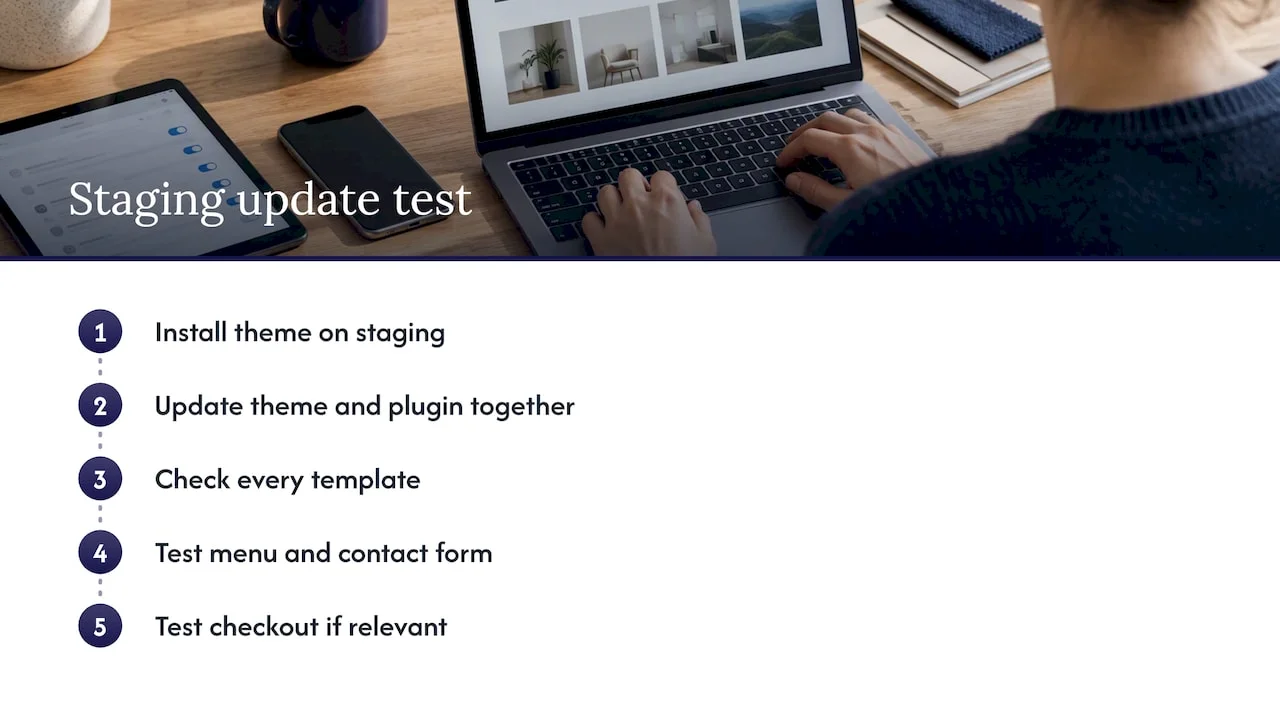
Before you commit, run a short staging update test: install the theme on staging, trigger a plugin and theme update together, and then walk through every template type, the main menu, a contact form and, if relevant, an ecommerce checkout flow. Anything that breaks here is a problem you want to find on staging, not three hours after a client’s Black Friday campaign goes live.
Themes that enqueue their CSS and JavaScript conditionally, loading only what a given page actually needs, and that use filterable templates rather than hard-coded markup, are consistently easier to patch and remediate than monolithic themes that load everything everywhere. That difference does not show up in a demo screenshot, but it shows up in your support hours six months later.
Customisation workflow and portability: what to expect for ongoing edits
The Site Editor’s styles and patterns, the Customiser, and a third-party builder’s own interface are three genuinely different editing experiences, and they carry different portability and team-familiarity trade-offs. Site Editor patterns and global styles tend to travel well between block themes because they follow a documented, open structure. Builder-generated content is far more tightly bound to that specific builder.
Watch for proprietary shortcodes and synced patterns that quietly lock your content into one theme or plugin. If you ever need to switch, that content either migrates cleanly or it does not, and there is rarely a middle ground. A short mitigation checklist: confirm before purchase whether content exports as standard blocks, check whether the builder has a documented export path, and test a page migration on staging before you roll the theme out to production.
As a rule of thumb, internal teams comfortable in the block editor tend to do best with Site Editor themes. Clients who want to make their own small edits often prefer the simplicity of the Customiser. Agencies planning to offload ongoing maintenance to a specialist partner benefit most from themes with the cleanest, most standard editing model, because it is the easiest for someone else to pick up later.
Demo imports and bundled plugins: inspection steps and red flags
One-click demo imports are convenient and risky in roughly equal measure. Some starter templates install many plugins at once to recreate the demo exactly, and some of those plugins may do more than the page actually needs. Inspect the full plugin list on staging immediately after import, before you add a single piece of real content.
Watch for these red flags: a mandatory page builder that cannot be removed without breaking layout, a single monolithic CSS or JavaScript file covering the entire site rather than per-page assets, sliders enabled by default on every page template, and web fonts loaded from a remote source with no self-hosted alternative offered.
Where you find these issues, remediation is often possible: dequeue unused scripts, replace an unnecessary slider with a static image, and self-host fonts instead of pulling them from a remote CDN. When the theme’s core templates are hard-coded to depend on a specific builder’s shortcodes throughout, remediation stops being realistic and migrating to a cleaner theme becomes the only practical fix.
A concise decision checklist and practical next steps for agencies
Run this sequence on a staging copy before you greenlight any theme for a client site:
- Confirm the editing model fits your delivery process, block or classic.
- Run the mobile and responsive checks across narrow, wide, portrait and landscape.
- Pull PageSpeed field data on a populated staging page, not the empty demo.
- Complete the keyboard-only and 200% zoom accessibility pass.
- Trigger a combined plugin and theme update on staging and test every template.
- Inspect the imported plugin list for anything unnecessary or mandatory.
Pro Tip: Keep this staging checklist in your project management tool. Running it for each theme candidate can catch issues that otherwise surface as support tickets after launch.
As a working rule: patch issues like unused scripts, missing font self-hosting or an unwanted slider rather than abandoning a theme over them. Switch themes entirely when the editing model fights your workflow or when content is locked into proprietary shortcodes you cannot export, because that is a structural problem, not a settings tweak.
If you are running several client sites through checks like these regularly, it is worth seeing what that work is actually worth. Our WordPress Profit Calculator helps agencies assess potential uncaptured revenue in their existing WordPress client base, free to use, with no commitment attached.
An agency-focused perspective: why a managed partner makes sense
The theme checks above are not difficult individually. What breaks agencies is doing them on every client site, every update cycle, on top of the creative and strategic work the agency was actually hired for. The Sunday evening email about a broken checkout after an automatic plugin update rarely lands on an invoice.
Handing theme oversight and maintenance to a specialist partner does not remove the agency from the relationship. It removes the agency from the ticket queue, while the recurring revenue and the client relationship stay exactly where they are.
— Marcel
How WPCTO helps agencies remove theme and WordPress maintenance overhead
We built WPCTO to sit behind agencies, handling the WordPress work the checklist above describes so your team never has to. Our WordPress services can help with the staging tests, update cycles and remediation this article walks through.
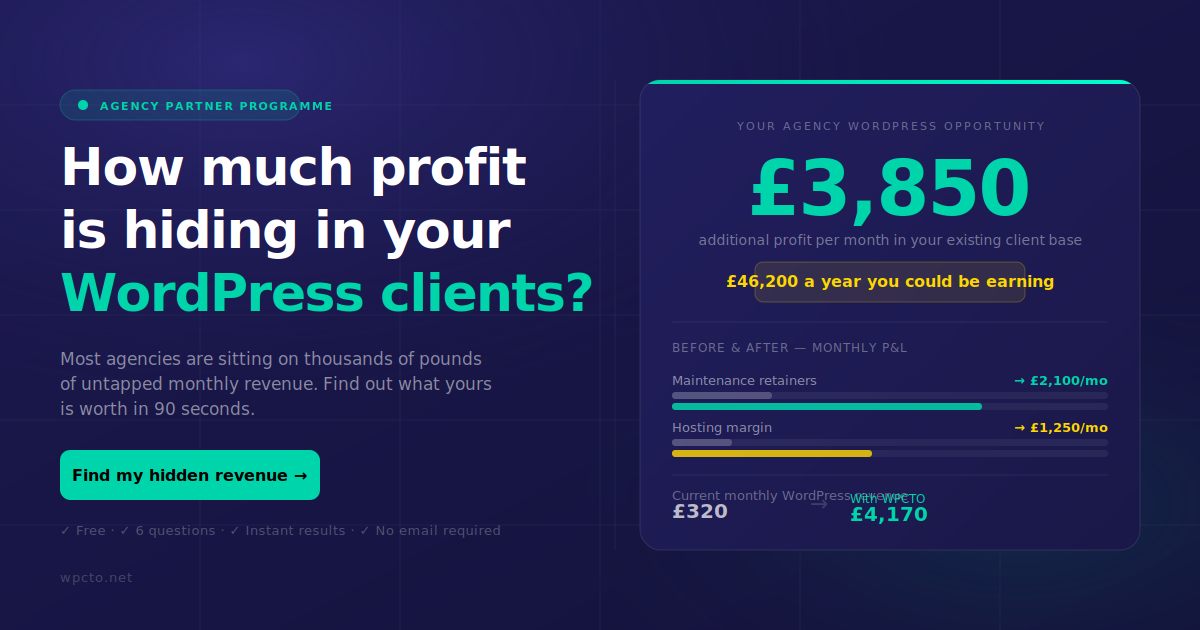
We work as a white-label partner or through direct referral, and either way the client relationship and the recurring revenue stay with you. Start with a discovery call, or run your own numbers first through our WordPress Profit Calculator to assess potential uncaptured revenue in your agency’s WordPress client base.
FAQ
How to choose a good WordPress theme?
Start by matching the theme to your editing model, block theme with the Site Editor or classic theme with a builder, then test responsiveness, performance and accessibility on a staging copy with real content before launch. Check the changelog for recent updates and confirm the theme does not lock content into proprietary shortcodes.
Is WordPress outdated in 2026?
WordPress remains an actively maintained platform with regular core releases, and the shift toward block themes and the Site Editor shows ongoing development of its editing architecture. A theme’s age matters far less than whether it has a current changelog and documented compatibility with recent WordPress versions.
What are the top 10 best WordPress themes?
There is no single definitive ranking, because the right theme depends on your site’s purpose, editing model and performance budget rather than a fixed list. Evaluate any candidate against the checks in this guide, including staging performance tests and accessibility checks, rather than relying on a marketplace popularity list.
Can I learn WordPress in 3 days?
You can learn the basics of publishing content and using the block editor within a few days, but evaluating themes properly, running staging tests, checking accessibility and managing updates takes ongoing practice. Many agencies choose to outsource that ongoing maintenance work rather than build it in-house.