

You minimise WordPress downtime by doing five things consistently: host on infrastructure backed by a written SLA, test updates in staging before they go live, keep tested off-site backups, monitor from outside the site so you hear about outages first, and follow a fixed first-response routine when something breaks. None of it is exotic. The sites that go down for hours are usually the ones where nobody owned these jobs.
If you run an agency, you know how this plays out. A client site falls over on a Sunday evening, the client rings the person who built it, and your creative lead spends the night in a hosting panel. This guide sets out how to prevent most of those calls and how to shorten the rest.
TL;DR
- Most downtime comes from resource limits, careless updates, plugin conflicts and misconfiguration, so prevention is mostly routine maintenance.
- Choose hosting that meets WordPress’s current requirements and comes with a written SLA, and test every update in staging first.
- Back up both files and database, keep 3 to 5 recent copies in different locations, and prove you can restore from them.
- Use external uptime monitoring with alerts that reach a named person, not a shared inbox.
- Work out what unmanaged client sites are costing you with our WordPress Profit Calculator, which takes under 90 seconds.
Table of Contents
- What actually takes a WordPress site down
- Start with hosting you can hold to account
- Update safely: staging first, backup always
- Backups that actually restore
- Monitor from outside, and make alerts reach someone
- Where the money is hiding
- What to check first when a site is down
- Extra steps for WooCommerce stores
- Our perspective
- Put cover in place before the next outage
- FAQ
- Sources
What actually takes a WordPress site down
Before you can reduce downtime, it helps to know where it comes from. In our experience with agency client portfolios, the causes fall into a handful of groups.
Resource exhaustion. WordPress’s own documentation on common WordPress errors notes that shared hosting environments are prone to failures when memory limits or server resources run out, whether through traffic or resource-hungry plugins. A site that has run happily for two years can tip over after a campaign sends a surge of visitors.
Updates gone wrong. A core, plugin or theme update that clashes with the rest of the stack is one of the commonest reasons a working site turns into a white screen. The update itself is rarely the real problem. The problem is applying it to a live site with no staging check and no fresh backup.
Server misconfiguration. WordPress’s hosting documentation is clear that a badly configured server can stop WordPress from working or even installing. PHP version changes are a common trigger, which is why we cover them in how PHP updates affect WordPress performance.
Security incidents. Compromised sites get suspended by hosts, blocked by browsers or simply broken by injected code. WordPress’s hardening guidance frames this as preparation: older versions are more open to attack, and a plan to back up and recover helps you get back online faster. Our piece on WordPress malware entry points lists the doors worth closing first.
Nobody watching. Sometimes the outage is minor, but it runs for a day because no one knew. Detection time is part of downtime.
Notice that four of the five are controllable with process. That is the good news.
Start with hosting you can hold to account
Hosting is the foundation. One guide from a backup-software company calls the host the single biggest factor in site reliability, and says a written SLA is what holds it accountable. We agree with the principle, whoever says it.
When you choose or review hosting for a client site, check:
- Technical fit. WordPress.org advises picking a host whose server meets WordPress’s current requirements. WordPress-specific hosts may also add backups, updates and developer tools.
- A written uptime commitment. If the host cannot tell you in writing what it commits to and what happens when it misses, you are relying on goodwill.
- Resource headroom. Shared plans share memory and CPU. A client with a busy shop or a campaign calendar should not sit on the cheapest tier.
- Backups outside the host. If the only copy of the site lives on the server that fails, it is not much of a backup.
- Who to call. Out-of-hours support matters more than any feature list.
Many agencies inherit a patchwork of hosts because clients arrived with their own accounts. Consolidating onto managed, monitored hosting is often the single biggest step toward fewer incidents. If that sounds like a project you do not have time for, our hosting, re-hosting and migration service handles it behind the scenes, and our guide to how site migration affects SEO explains how to move a site without losing rankings.
Update safely: staging first, backup always
Updates are non-negotiable, but how you apply them decides whether they cause downtime.
WordPress’s documentation on updating WordPress says to keep WordPress on the latest version, to back up before upgrading, and to use automatic minor and security updates where they are available. Our plain guide to WordPress core updates explains the difference between minor and major releases.
For plugins and themes, WordPress.org’s auto-updates documentation says they should be kept current for security, but recommends regular automatic backups before you switch auto-updates on. It also notes that WordPress normally checks for auto-updates twice a day, and that if scheduling fails you should investigate through Tools > Site Health, because it depends on WP-Cron.
A sensible routine looks like this:
- Back up files and database.
- Clone to staging and apply the updates there.
- Test the paths that earn money: contact forms, checkout, login, key landing pages.
- Schedule the live deployment for a quiet period, not Friday at 5pm.
- Check the live site straight afterwards, and keep the backup to hand for rollback.
- Log what changed so that the next fault is easier to trace.
Plugin sprawl makes all of this harder. Every plugin is another thing that can conflict, so it is worth following best practices for plugin management and removing anything unused.
For routine upkeep beyond updates, WordPress.org’s site maintenance documentation recommends a recurring calendar: check for updates at least every three months and no more than six months apart, review 404s and broken links, and validate the site after code or stylesheet changes. For a client who pays you for reliability, that is a minimum, not a target.
Backups that actually restore
A backup shortens downtime only if it restores cleanly. Three points from WordPress’s own backup guidance:
- Back up both parts. The database holds posts, comments and links. The files hold core, themes, plugins, uploads and configuration. You need both, as a matching set.
- Match frequency to activity. Smaller sites may back up weekly, high-activity sites daily. Keep at least 3 to 5 recent backups in different locations.
- Test them. Make an occasional manual backup to check the automated ones are working.
When you need to restore, the same guidance says to restore the files first, then restore or import the database, and to update wp-config.php if the database credentials have changed.
Two questions decide how much a failure costs: how much data can you afford to lose (recovery point), and how long can the site be offline (recovery time)? A brochure site might tolerate a weekly baseline. A shop taking orders around the clock cannot. We explain how to set both in matching RPO and RTO to regular WordPress backups and set out schedules in how often to back up WordPress.
If a client runs WooCommerce, the database changes with every order, so this is where WooCommerce backup plugins and more frequent database backups earn their place.
Monitor from outside, and make alerts reach someone
The fastest way to shorten an outage is to learn about it before the client does. Uptime monitoring checks your site at regular intervals from outside your own server and alerts you when it fails to respond properly.
Whatever tool you use, set it up with these in mind:
- Monitor from outside the hosting account. A plugin inside the site cannot report when the site is entirely down.
- Check more than the homepage. Add the checkout, login and a key landing page, and check for expected content, not just a response.
- Choose a sensible interval. For revenue-critical sites, a check every minute or two is common. For brochure sites, a few minutes is enough.
- Send alerts to more than one channel. Email alone gets missed at weekends. Use SMS or a messaging app as well.
- Name an owner. An alert that goes to a shared inbox is an alert no one acts on. Decide who responds, and who covers when they are away.
- Watch the certificate and domain. Expired SSL certificates and domain renewals cause outages that look like server failure but are really admin failure.
Our article on site uptime versus downtime explains what uptime percentages mean in real minutes, which helps when you are agreeing targets with clients.
Where the money is hiding
Here is the commercial side of downtime. Every unplanned fix your team absorbs for free is time you have not billed and attention you have not spent on creative work. Multiply that across a portfolio of client sites and the figure is usually larger than agencies expect.
Our free WordPress Profit Calculator shows you how much uncaptured revenue is sitting in your existing WordPress client base. It takes under 90 seconds, and it is a useful first step before you decide how to handle monitoring and maintenance. If you want the checks themselves, see 12 site management checks agencies can bill for.
What to check first when a site is down
When the alert fires, work through the same order every time. A fixed routine stops people guessing under pressure.
- Confirm it is the site. Test from another network or device, and from a different browser. Rule out your own connection and a stale cache.
- Check the host. Look at the hosting provider’s status page and your control panel. Look for suspended accounts, exhausted resources or an unpaid renewal.
- Check domain and SSL. Make sure DNS resolves and the certificate is valid.
- Read the error. A white screen, a database connection error and a 500 error point to different causes. WordPress’s common errors guide is the reference for matching a message to a fix.
- Ask what changed. An update, a new plugin, a PHP version change or a content edit usually precedes the failure. Your change log pays off here.
- Isolate. Deactivate plugins, or switch to a default theme, to find the conflict. Do this on a copy where you can.
- Restore if the cause is not quickly clear. Rolling back to the last good backup and diagnosing on staging is often faster than hunting live.
- Tell the client early. A short message saying you know, you are on it, and when you will update them again does more for the relationship than a silent fix.
- Write it up. Record the cause and the prevention step so that it does not recur.
If the cause points to an intrusion rather than a fault, the priority changes: contain, clean, then restore. Our guide on preventing website hacking covers what to do in the days around an incident.
Extra steps for WooCommerce stores
A brochure site that is offline for an hour is an annoyance. A shop that is offline for an hour during a sale loses orders. WooCommerce clients need a tighter version of everything above.
- Plan for spikes. Campaigns, newsletters and seasonal peaks bring traffic that shared hosting struggles with. Agree resource upgrades with the client before the campaign, not during it.
- Keep the database backup frequent. Orders and customer records change constantly, so a weekly backup leaves a large gap.
- Test checkout after every change. Run a complete test order through each payment method after updates, not just a page load.
- Monitor the checkout path. A homepage that loads while the basket or payment step fails will not trigger a basic uptime check.
- Update payment and shipping extensions carefully. They sit on the money path, so stage them first and apply them at quiet times.
- Keep the checkout light. Slow, heavy checkouts fail first under load. Our list of WooCommerce checkout quick wins shows what to tidy, and a proper page speed test shows where the weight sits.
Our perspective
We have taken the Sunday evening call more times than we would like to remember, and the pattern is always the same. The outage itself is rarely the hard part. The hard part is that nobody owned the boring jobs that would have prevented it: the staging test, the restore check, the alert that reaches a real person.
Agencies are hired for brand, design and strategy. WordPress care is a different discipline with its own tools and its own on-call burden, and it is difficult to do well as a side task for a creative team. That is why we built WPCTO to sit behind agencies, invisibly. You keep the client relationship and the recurring revenue. We handle the monitoring, the updates, the backups and the emergency response.
Our tiered service level agreements, from Bronze to Gold, exist so that the level of cover matches the client’s risk, and so that you can put a clear commitment in front of them rather than a promise to do your best. Taking this off your team’s shoulders is not a luxury. For most agencies it is the difference between a support cost and a profitable service line.
Marcel
Put cover in place before the next outage
If you would rather not carry this yourself, we can. Our service level agreements start with Bronze at £450 per year, Silver at £750 per year and Gold at £1,850 per year, so you can match cover to each client. For security patching and improvements, see our security updates and enhancements service, and for one-off help our quick fixes and advice are there when something breaks.
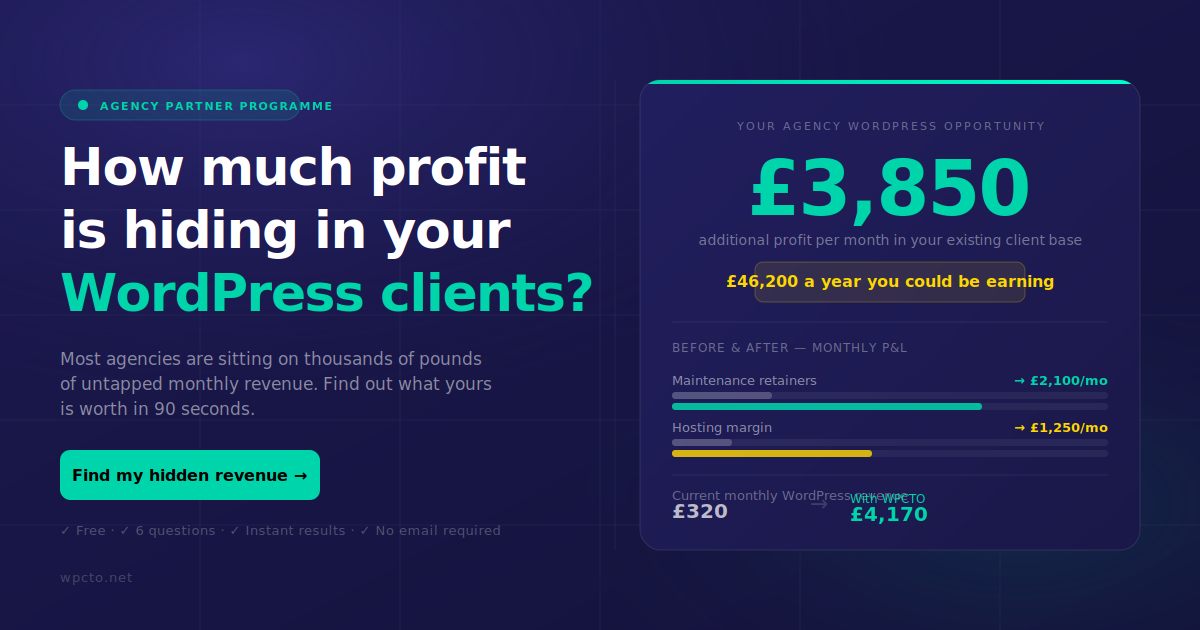
Not sure where to begin? Run the WordPress Profit Calculator to see what your current client base is worth when it is properly managed, then talk to us about taking the workload off your team.
FAQ
How much downtime is acceptable for a WordPress site?
That depends on what the site does. A brochure site can usually tolerate a short outage, while a shop or booking system cannot. Agree a target with each client in writing, and translate any uptime percentage into real minutes per month so both sides understand it. Our guide to uptime and downtime figures shows how.
How often should I back up a WordPress site?
WordPress’s developer documentation suggests weekly for smaller sites and daily for high-activity ones, keeping at least 3 to 5 recent backups in different locations. Always back up before an upgrade. Busy shops often need database backups far more often than that.
What should I check first when my WordPress site goes down?
Confirm the problem is not your own connection or cache, then check your host’s status and account, your domain and SSL, and the error message itself. Next, look at what changed recently, especially updates and plugins. If the cause is not clear quickly, restore the last good backup.
Do automatic updates cause downtime?
They can if you enable them without safeguards. WordPress.org recommends regular automatic backups before turning on plugin and theme auto-updates, and suggests checking Tools > Site Health if scheduled updates fail. Testing significant updates in staging first reduces the risk further.
Can an agency hand WordPress downtime to a specialist?
Yes. Many agencies pass monitoring, updates and emergency response to a specialist who works under the agency’s name, so the agency keeps the client relationship. We do this as a white-label partner, covering maintenance, security and emergency support.
Sources
- Common WordPress errors, WordPress Developer Resources
- Hosting WordPress, WordPress.org documentation
- Updating WordPress, WordPress.org documentation
- Plugins and themes auto-updates, WordPress.org documentation
- Hardening WordPress, WordPress Developer Resources
- Backups, WordPress Developer Resources
- WordPress site maintenance, WordPress.org documentation
- How to prevent WordPress downtime, Duplicator
- Top 8 backup plugins for WooCommerce