

Back up low-change brochure sites weekly and high-activity sites more frequently, with the schedule based on how quickly their data changes. The one variable that moves this schedule is how fast your content or transaction data changes: the faster it changes, the smaller your acceptable data-loss window, known as your Recovery Point Objective. Whatever the frequency, back up both the database and the files, and keep a copy offsite.
TL;DR:
- Static brochure sites need weekly database backups, a monthly full archive, and three to five retained copies; blogs with little activity need nightly database backups.
- Run database backups separately from files, create full site copies before deployments or migrations, and snapshot the database before each plugin or theme update.
- Set intervals shorter than the Recovery Point Objective, then increase frequency during launches, seasonal sales, or bulk imports when data loss would cost more.
- Keep three copies across two storage types, with one offsite; host snapshots alone cannot protect against failure of the live server.
- Test full restores in staging regularly, confirm recent orders and uploaded files survived, and record each test’s date, duration, and outcome.
Table of Contents
- Backup frequency by site type: a copy-ready schedule
- What to back up: database and files are not the same job
- How to automate backups: plugins, snapshots and manual exports
- Storage best practice: applying the 3-2-1 rule to WordPress
- Setting retention and matching your schedule to RPO and RTO
- Verifying backups and testing restores: a practical checklist
- Concrete schedules you can implement today
- Operational checklist for agencies delegating backups
- Why backups work better as managed, recurring work
- Managed WordPress backups through WPCTO
- FAQ
- Sources
Backup frequency by site type: a copy-ready schedule
Here is a baseline you can apply straight away, then adjust once you know your site’s actual change rate.
| Site type | Database frequency | Full/file backup | Retention |
|---|---|---|---|
| Static brochure | Weekly | Monthly archive | Last 3 to 5 |
| Low-change blog | Nightly | Weekly | Last 7 |
| Medium-activity blog | Based on data-change rate | Daily | Retain backups according to your recovery needs |
| High-activity blog | Based on data-change rate | Daily | Retain backups according to your recovery needs |
| Ecommerce | Based on transaction volume | Daily | Retain backups according to your recovery needs |
| Membership site | Based on transaction volume | Daily | Retain backups according to your recovery needs |
| Staging/dev | Before each push | Before each push | Last 3 to 5 |
WordPress’s own guidance states that weekly backups are usually sufficient for smaller sites with fewer posts, while high-activity sites need daily backups and at least 3 to 5 recent copies stored in different locations.
Raise the frequency temporarily around traffic spikes, product launches, seasonal sales or bulk import jobs, since these are the moments when an hour of lost data costs the most. Once the spike passes, you can step the schedule back down to its normal cadence, provided retention still covers the period you cared about.
What to back up: database and files are not the same job
A WordPress site is really two things that change at different speeds, and treating them identically wastes storage or risks data loss.
- The database holds posts, pages, comments, user accounts, orders and settings, and on an active site it can change by the minute.
- Files cover uploads, themes, plugins and core code, and they typically change only when you publish media, update a plugin or ship a design change.
- Use database-only backups for the frequent, lightweight job of capturing content and transaction changes.
- Use full backups (database and files together) before deployments, migrations or major plugin and theme updates.
WordPress’s developer documentation advises backing up both components regularly and automating the process wherever possible, rather than relying on an occasional manual export. Splitting the two jobs means database backups can run more frequently without the overhead of re-copying unchanged theme files every time.
How to automate backups: plugins, snapshots and manual exports
Automation is what turns a sound schedule into something that actually happens every day, rather than a task someone remembers after an incident.
- Backup plugins typically support incremental and full jobs on hourly, daily or weekly schedules, with configurable retention and automatic cleanup of older files, as seen in tools like Trinity Backup.
- Host or server snapshots are fast to create and restore, but they’re often stored on the same infrastructure as the live site, which makes them unsuitable as your only copy.
- Manual or scripted database dumps are a useful extra safeguard before risky changes, and the WordPress database backup guide recommends running one before every upgrade.
- Pre-update backup plugins, such as Auto Backup Before Update, automatically snapshot a specific plugin or theme immediately before it updates, so you can roll back that one component without a full restore.
Many backup tools also support full, database-only and files-only jobs with background processing, encryption and multiple remote destinations, including S3-compatible storage.
Pro Tip: Set your plugin to run a quick database-only backup immediately before any plugin or theme update, even on a site that already has a nightly schedule.
If backup frequency is already more than you want to manage internally, our essential guide to WordPress support services covers how a managed SLA takes this off an agency’s plate, and the WordPress Profit Calculator shows what that time is actually worth across your client base.
Storage best practice: applying the 3-2-1 rule to WordPress
The 3-2-1 rule means keeping three copies of your data, on two different types of media, with one copy stored offsite. Host-only snapshots are not sufficient on their own because they usually live on the same infrastructure as the site they protect, so a server failure can take both the live site and its only backup with it.
- Store one copy on object storage such as an S3-compatible service.
- Store a second copy on a cloud drive such as Google Drive or Dropbox, or on a remote SFTP destination.
- Keep a third, locally held encrypted archive for fast recovery when the primary offsite copy is unavailable.
- Restrict access to backup destinations to the smallest group of people who genuinely need it, and encrypt backups both in transit and at rest.
Spreading copies across destinations and formats removes the single point of failure that a host-only strategy leaves exposed.
Setting retention and matching your schedule to RPO and RTO
Your Recovery Point Objective is the maximum amount of data you can afford to lose, measured in time, and your Recovery Time Objective is how long you can afford to be down while restoring. Backup frequency should be set from these two figures, with the gap between backups kept shorter than your RPO.
- Set the interval between backups to be shorter than your RPO.
- Favour an incremental strategy for frequent jobs; it restores faster than rebuilding from a full backup each time.
- Keep at least 3 to 5 recent backups as a baseline, as WordPress’s own guidance recommends, extending retention further for regulatory or seasonal needs.
- Review RPO and RTO whenever transaction volume changes meaningfully, since a schedule set for a quiet brochure site stops being adequate once it starts taking orders.
For a deeper walkthrough of setting these figures for client sites, our piece on matching RPO and RTO to regular WordPress backups discusses database schedules for higher-value sites.
Verifying backups and testing restores: a practical checklist
A backup you have never restored is an assumption, not a safeguard. Build verification into the schedule itself rather than treating it as a one-off task.
- Check backup logs daily or weekly to confirm the job completed and the file manifest matches what you expect.
- Run full restore tests to a staging or local environment regularly.
- Confirm the database restored cleanly and recent orders, comments or form entries are present.
- Check that files restored correctly, including uploads, active plugins and theme assets.
- Log in to wp-admin to confirm the admin account and user roles survived the restore.
- Confirm scheduled jobs (cron tasks, subscription renewals) are still registered and firing.
- Record the test date, duration and outcome somewhere your team can audit later.
Pro Tip: Treat a failed restore test as more urgent than a failed backup job: it means your safety net has a hole you won’t discover until you actually need it.
Concrete schedules you can implement today
Pulling the matrix above into day-to-day practice looks like this for each common site type.
- Static brochure: weekly full backup, monthly archive copy, keep the last 3 to 5.
- Low-change blog: regular database backups, weekly full backup, retain recent backups in different locations.
- High-activity blog or membership site: daily full backup and more frequent database backups based on data-change rate, with retention suited to available storage and recovery needs.
- Ecommerce: frequent or incremental database backups based on transaction volume, daily full backups, plus snapshots around deployments and before code or data changes.
These are starting points, not fixed rules. A membership site with low transaction volume might sit closer to the medium-blog row, while a brochure site that runs a seasonal campaign should temporarily borrow the ecommerce schedule for that period.
Operational checklist for agencies delegating backups
Whether backups stay in-house or move to a managed partner, a written policy avoids the gap where everyone assumes someone else is checking.
- Document the agreed frequency, retention period, restore SLA and test cadence for each client site.
- Record encryption standards and who holds access to each backup destination.
- Assign internal monitoring responsibility: who checks the logs, and who approves a change before a backup is skipped.
- Define who is authorised to trigger a restore, and under what circumstances.
- For a managed partner, specify access levels, backup destinations, the restore testing schedule, and the reporting format you expect to receive.
Our guide to WordPress management for creative agencies sets out how different service models structure this handover, which is a useful reference when drafting your own SLA wording.
Why backups work better as managed, recurring work
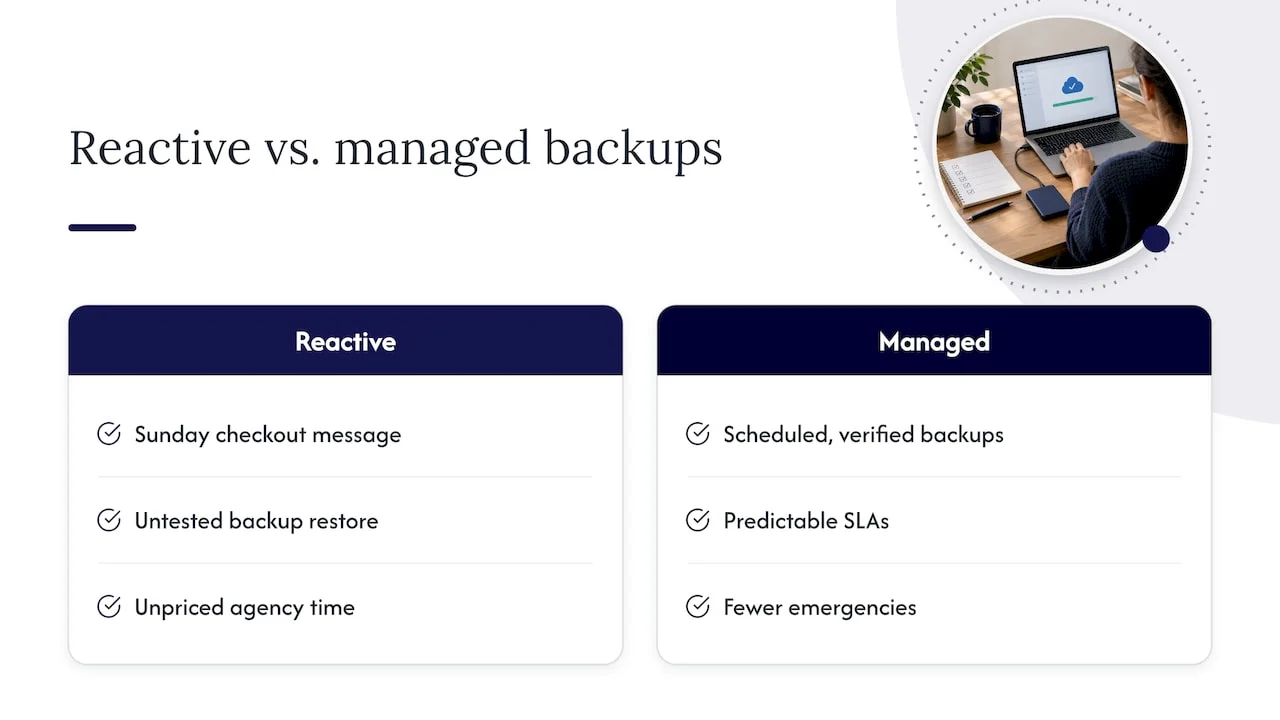
Most agencies we talk to didn’t choose to own backup monitoring, it arrived by accident, bundled into a client relationship nobody formally priced. The Sunday evening message about a broken checkout, the hour spent restoring a database because nobody had tested the backup since launch: these absorb time that was never on the invoice.
Treating backups as scheduled, verified, recurring work rather than a reactive scramble gives you predictable SLAs and fewer emergencies, and it keeps your team focused on the design and strategy work clients actually hired you for. If you want to see what that uncaptured time is worth across your client list, the WordPress Profit Calculator puts a number on it quickly.
— Marcel
Managed WordPress backups through WPCTO
We built our service level agreements around exactly this problem: agencies that need backups done properly without adding another task to someone’s Friday afternoon. Our Bronze, Silver and Gold SLAs (current prices are on our pricing page) cover scheduled backups alongside security updates, and our hosting, re-hosting and migration services handle the heavier lifting around moves and rebuilds.
For agencies weighing up whether to migrate client sites to tighter infrastructure, this partner guide to site migration SEO is a useful companion for keeping rankings intact around a backup-and-restore event.
If a client site needs something handled now, our quick fixes and advice services and emergency support through Buy Time cover the gap. Run the WordPress Profit Calculator to see what delegating backup management could be worth across your client base, then get in touch to talk through an SLA that fits.
FAQ
What is the 3-2-1 rule for backing up?
The 3-2-1 rule means keeping three copies of your data on two different types of storage media, with at least one copy stored offsite. For WordPress, that typically means a local or host copy plus a cloud destination such as S3-compatible storage and a separate remote location, since host snapshots alone should not be your only backup.
How do I backup my entire WordPress site?
A full backup covers both the database (posts, users, orders, settings) and the files (uploads, themes, plugins, core code), run together rather than separately. WordPress’s own documentation recommends automating this with a plugin or host tool rather than relying on manual exports.
How frequently should backups be taken?
Frequency depends on how fast your content or transactions change: weekly for static brochure sites, daily for active blogs, and hourly or near-real-time for ecommerce and membership sites. WordPress’s guidance confirms weekly is usually sufficient for low-activity sites, while high-activity sites need daily backups and several retained copies.
What is the 3-2-1-1-0 backup rule?
Definitions vary, but a common version extends the standard 3-2-1 rule with one additional immutable or offline copy that cannot be altered or deleted, plus zero errors confirmed through regular restore testing. The underlying principle still matches the RPO-based scheduling covered above: additional copies and verified restores can reduce your exposure.