

An accessible WordPress site starts with an accessibility-ready theme and plugins that output clean, semantic code. After that, the work is in the content: descriptive alt text and links, a logical heading structure, sufficient colour contrast, labelled forms and a site that works fully by keyboard. You then test with automated tools and by hand, and you keep testing as the site changes. This guide takes you through each stage in the order you would do it on a real build, with the checks we run ourselves when we pick up sites from agencies.
TL;DR
- Start with an accessibility-ready theme and test it on staging before you commit to it. Fixing a weak foundation later costs far more than choosing well.
- Aim for WCAG 2.2 at level AA, built on four principles: perceivable, operable, understandable and robust.
- Most failures are content failures: missing alt text, vague links, skipped headings, weak contrast and unlabelled form fields.
- Automated scanners miss real problems and flag false ones, so pair them with a keyboard walk-through and a screen reader check.
- Accessibility decays as editors, plugins and updates change the site, so treat it as an ongoing service rather than a launch task.
Table of Contents
- What an accessible WordPress site actually means
- The legal picture for UK sites
- Step 1: Choose an accessibility-ready theme
- Step 2: Fix the content, where most failures live
- Step 3: Make navigation and forms work without a mouse
- Is accessibility revenue sitting in your client base?
- Step 4: Test properly, with tools and by hand
- Step 5: Keep it accessible after launch
- Perspective: why we treat accessibility as maintenance
- How WPCTO can take this off your plate
- A short accessibility checklist for your next build
- FAQ
- Sources
What an accessible WordPress site actually means
Accessibility means people with disabilities can perceive, navigate and use your site. The W3C’s introduction to the topic gives plain examples: equivalent alt text for images, full keyboard access to functionality and transcripts for audio. That covers people who use screen readers, people who cannot use a mouse, people with low vision or colour blindness, and people who are deaf or hard of hearing. It also helps anyone using a phone in bright sunlight or a laptop with a dead trackpad.
The benchmark most clients and procurement teams refer to is the Web Content Accessibility Guidelines. WCAG 2.2 was published by the W3C on 12 December 2024 and organises everything under four principles:
- Perceivable: users can see, hear or otherwise take in the content.
- Operable: users can navigate and act without needing a mouse or fast reactions.
- Understandable: content and interface behaviour are predictable and clear.
- Robust: the code works with browsers and assistive technology, now and later.
WCAG 2.2 has three conformance levels: A, AA and AAA. Level AA is the sensible target for a commercial build, and it is the level the WordPress Accessibility Knowledge Base works to as of 2026. Level AAA is rarely achievable across a whole site, so use it for specific content where it makes sense rather than as a blanket promise.
The legal picture for UK sites
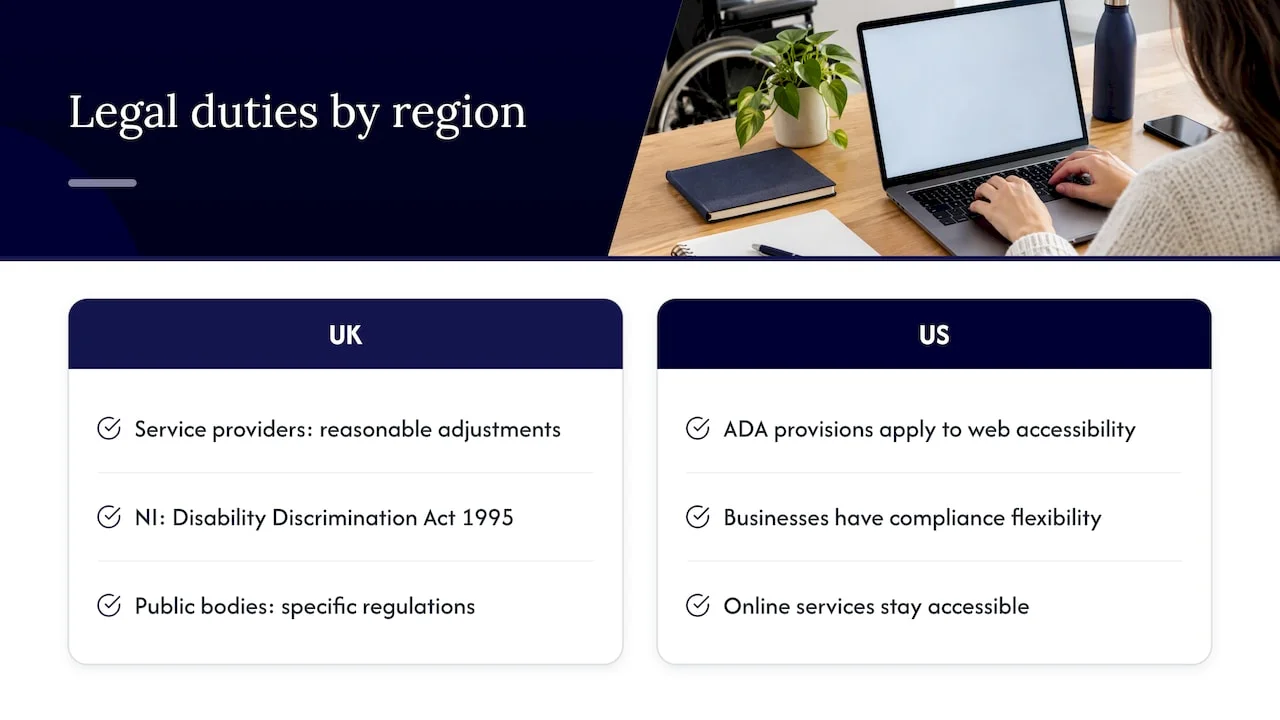
Your clients will ask whether they have to do this. In the UK, all service providers have a legal duty to make reasonable adjustments under the Equality Act 2010 (or the Disability Discrimination Act 1995 in Northern Ireland). Public sector bodies also have to meet specific accessibility regulations, and the same GOV.UK guidance sets out who is covered and who is exempt.
If your clients also sell to the United States, the picture differs. The US Department of Justice’s long-standing interpretation is that the ADA’s nondiscrimination and effective communication provisions apply to web accessibility, and it leaves businesses flexibility in how they comply while expecting online services to stay accessible. Further reading on how those obligations connect to search visibility is in this piece on web accessibility and SEO.
We are a WordPress team, not a law firm. If a client has a specific legal exposure, such as a public body, a regulated service or a customer contract that demands a conformance statement, they should take advice from a solicitor who knows accessibility law. What we can do is make the technical side defensible.
Step 1: Choose an accessibility-ready theme
The University of North Carolina Greensboro’s guidance for WordPress sites puts selecting an accessibility-ready theme as the first step, and we agree. The theme controls your markup, your focus styles, your navigation behaviour and your default colours. A poor one makes every later fix a fight.
The WordPress theme directory has an accessibility-ready tag, and the requirements behind it have just been refreshed. The Make WordPress team updated the accessibility-ready requirements in May 2026, reflecting how much the tooling and awareness have moved on since 2012. Treat the tag as a useful filter, not a guarantee. It tells you a theme passed a review at a point in time. It does not tell you how your build, with your blocks, your custom CSS and your plugins, behaves.
What to check on staging
Before you commit a client to a theme, load it on staging with realistic content and check:
- Keyboard use: tab through the header, menu, search, forms and footer. Focus should always be visible and never trapped.
- Semantic HTML: the WP Accessibility Knowledge Base recommends checking semantic HTML, keyboard functionality, accessible names and explicit form labels. Look for real headings, lists, buttons and landmarks rather than styled divs.
- Colour contrast: test the default palette and any colour options the theme offers.
- Menus on mobile: open, close and navigate the mobile menu without a mouse.
- Zoom and reflow: zoom to 200% and check nothing overlaps or disappears.
We have written up the broader staging process in our guide to what makes a good WordPress theme for agencies, and accessibility belongs on that checklist next to performance and update safety.
Page builders and plugins
The same tests apply to page builders, sliders, pop-ups, cookie banners, mega menus and form plugins. These are where good themes tend to be undone. A cookie banner that traps focus, a carousel that auto-advances with no pause control or a pop-up that cannot be closed with the Escape key will fail real users, whatever the theme tag says. If a plugin cannot pass a keyboard test, replace it. Do not paper over it with an overlay widget.
Step 2: Fix the content, where most failures live
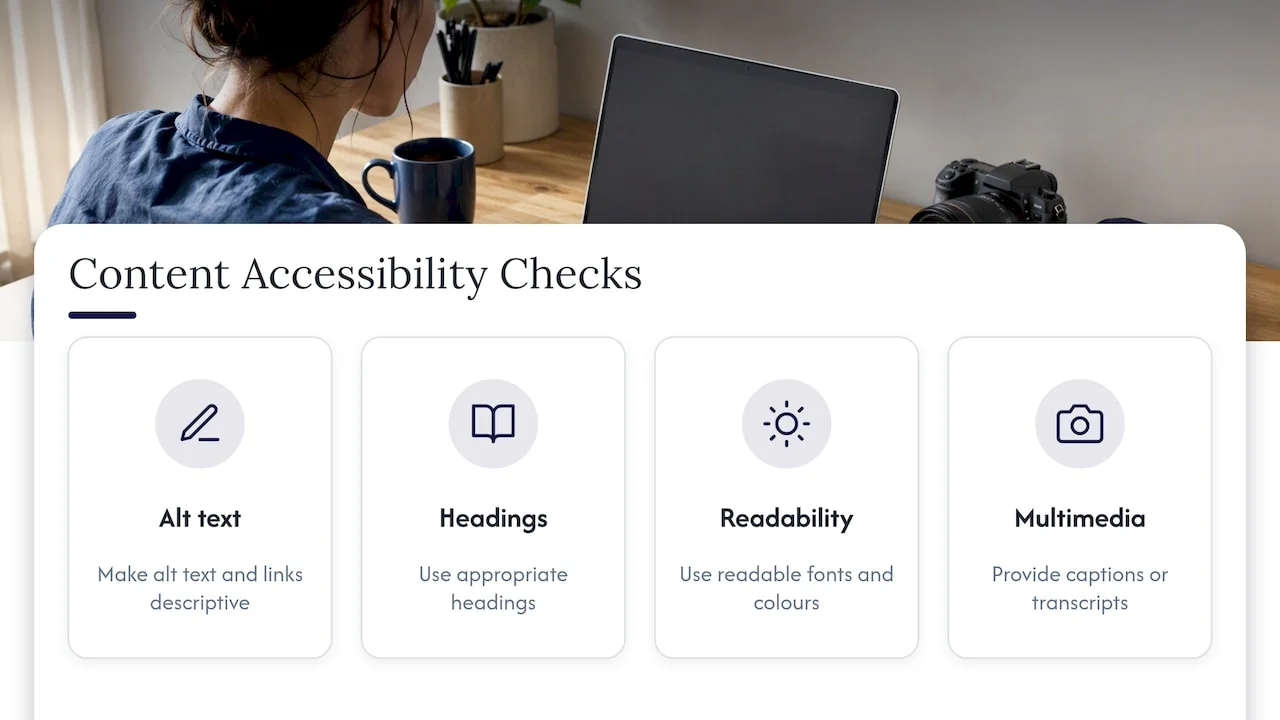
Most accessibility problems on agency-built sites are not clever code defects. They are content decisions made after handover. The WordPress.com accessibility guidance boils the editor’s job down to a short list: descriptive alt text and links, appropriate headings, readable fonts and colours, and transcripts or captions for multimedia. We will take each in turn.
Alt text
Descriptive alt text helps people with visual impairments, and WordPress.com notes it can be added in the Image, Gallery, Cover and Media & Text blocks. Write it for the purpose of the image on that page. A photo of a team on an About page might need a short description. A decorative flourish needs an empty alt attribute so screen readers skip it. An infographic needs its key message in the surrounding text.
Two quick rules we give clients:
- Describe what the image tells the reader, not what it is a file of. Skip phrases like image of.
- If the image is a link or button, the alt text should say where it goes or what it does.
Headings
Headings are navigation for screen reader users, who often jump from heading to heading. The Knowledge Base notes that heading text and level both matter. One H1 per page, H2s for main sections, H3s beneath them, and no skipping levels to get a smaller font. If you want a smaller heading, change the style, not the level.
Links and buttons
Links that say click here or read more mean nothing when a screen reader lists all links on a page. Write link text that makes sense alone. Also keep the distinction the Knowledge Base draws: links change location, buttons invoke actions. A styled link that opens a modal confuses assistive technology users, and so does a button that navigates to another page.
Colour, backgrounds and type
UNC Greensboro advises avoiding background images behind text and checking colour contrast. This is where brand and accessibility most often collide. A pale grey on white looks elegant in a mood board and fails in daylight. Agree an accessible palette with the client at design stage and write it into the brand guidelines, rather than discovering the problem when the audit lands.
Video and audio
Add captions to video and transcripts to audio. Do not rely on auto-generated captions without reading them through, as they routinely mangle names and technical terms.
Language and terminology
The WordPress community’s own guidelines recommend inclusive, approved terminology for people with disabilities rather than potentially stigmatising labels. It is a small point, but it signals care, and it belongs in the editorial guidance you hand over.
Step 3: Make navigation and forms work without a mouse
Forms and navigation are where users actually complete a task, so failures here cost the client enquiries and sales.
- Label every field. UNC Greensboro recommends clearly labelling each field and making sure every element stays usable without a mouse. Placeholder text is not a label, because it disappears when the user types.
- Name every interactive element. Icon-only buttons such as a hamburger, a search magnifier or a basket need an accessible name, as screen reader users depend on those names.
- Add a skip link. UNC Greensboro suggests a skip to main content link so screen reader users can bypass repeated navigation. Many accessibility-ready themes include one, but confirm it works and becomes visible on focus.
- Write useful error messages. Say which field failed and how to fix it, in text, not just a red border.
- Check WooCommerce flows. Checkout, coupon fields, quantity selectors and address forms deserve a full keyboard run-through. If a client’s shop has a clunky checkout, our notes on WooCommerce checkout quick wins are a good companion.
Is accessibility revenue sitting in your client base?
Most agencies we speak to know their older WordPress sites would not pass an accessibility review, but nobody has time to find out which ones, let alone quote for the fixes. Those sites are a recurring revenue opportunity as much as a risk. If you want a quick view of what your existing WordPress clients could be worth, the WPCTO WordPress Profit Calculator shows you the uncaptured revenue in your client base in under 90 seconds. It is free, and it is a sensible first step before you plan an accessibility offer.
Step 4: Test properly, with tools and by hand
No scanner can tell you your site is accessible. The W3C Web Accessibility Initiative is clear that no tool alone can determine whether a site meets accessibility guidelines and that knowledgeable human evaluation is required. The WordPress Accessibility Knowledge Base says the same from the build side: automated testing is imperfect, produces false positives and must be paired with manual testing.
A testing routine that fits an agency workflow
| Stage | What to do | Why it matters |
|---|---|---|
| Automated scan | Run a tool such as WAVE on key templates | Catches missing alt text, empty links, contrast failures and missing labels quickly |
| Keyboard pass | Tab through every template without touching the mouse | Finds focus traps, hidden focus and unreachable controls that scanners miss |
| Screen reader pass | Test key journeys such as contact form and checkout with a screen reader | Reveals confusing announcements and missing names |
| Zoom and reflow | Zoom to 200% and test on a narrow viewport | Finds overlapping or clipped content |
| Dynamic content | Open modals, menus, accordions and filtered lists | The Knowledge Base notes dynamic DOM changes need manual checks |
| Reporting | Record findings against WCAG criteria | A structured report is easier to quote, fix and re-test |
If a client needs a formal audit report, the W3C publishes an evaluation methodology, and the WCAG-EM Report Tool is one way to report against it. Test templates rather than every page: home, a standard page, a post, search results, a form, a 404 and any custom layouts.
Test early, too. The W3C recommends starting accessibility evaluation early and continuing through development, because a problem found in wireframes costs minutes and the same problem found after launch costs a sprint.
Step 5: Keep it accessible after launch
This is the stage most agencies skip, and it is where accessible sites quietly stop being accessible. A new editor uploads images without alt text. A plugin update changes a form’s markup. A marketing pop-up gets added for a campaign. Nobody re-tests.
Build these into the ongoing care of every site:
- Re-run automated scans and a quick keyboard check after plugin, theme or WordPress core updates.
- Test any new template, landing page or third-party embed before it goes live.
- Give editors a one-page content guide covering alt text, headings, link text and captions.
- Keep an accessibility statement current, and say how users can report a barrier.
- Review the site on a regular schedule, not only when someone complains.
That last point is a natural fit for a retainer. We covered how to package this kind of work in 12 site management checks agencies can bill for, and our agency guide to improving site accessibility goes further into the commercial side.
Perspective: why we treat accessibility as maintenance
We work behind design, brand and digital agencies, and the pattern is consistent. An agency builds a good-looking site, hands it over, and eighteen months later the client emails to say a customer could not complete the form, or a procurement questionnaire asks for evidence of WCAG conformance. The agency then absorbs the cost of untangling it, usually on a Sunday evening and rarely on an invoice.
Our view is that accessibility is not a one-off build feature. It is a property of a site that has to be maintained, like security and performance. The same discipline applies: a baseline checked on staging, updates tested before they reach production, and a named person responsible when something slips. That is why we fold accessibility checks into the care we provide rather than selling them as a separate rescue job.
We also think agencies are best placed to own the conversation. You have the client relationship and the design authority. We would rather you keep both and let us handle the WordPress delivery quietly behind you, so accessibility becomes recurring revenue for you instead of an unbilled worry.
— Marcel
How WPCTO can take this off your plate
We provide white-label WordPress management for UK agencies, so you keep the client and we handle the technical delivery. Our Service Level Agreements are published at three tiers: Bronze at £450 per year, Silver at £750 per year and Gold at £1,850 per year. If you want to work out where accessibility fits in a particular client’s site, our consultancy service is the place to start, and our quick fixes and fractional CTO support cover the hands-on work.
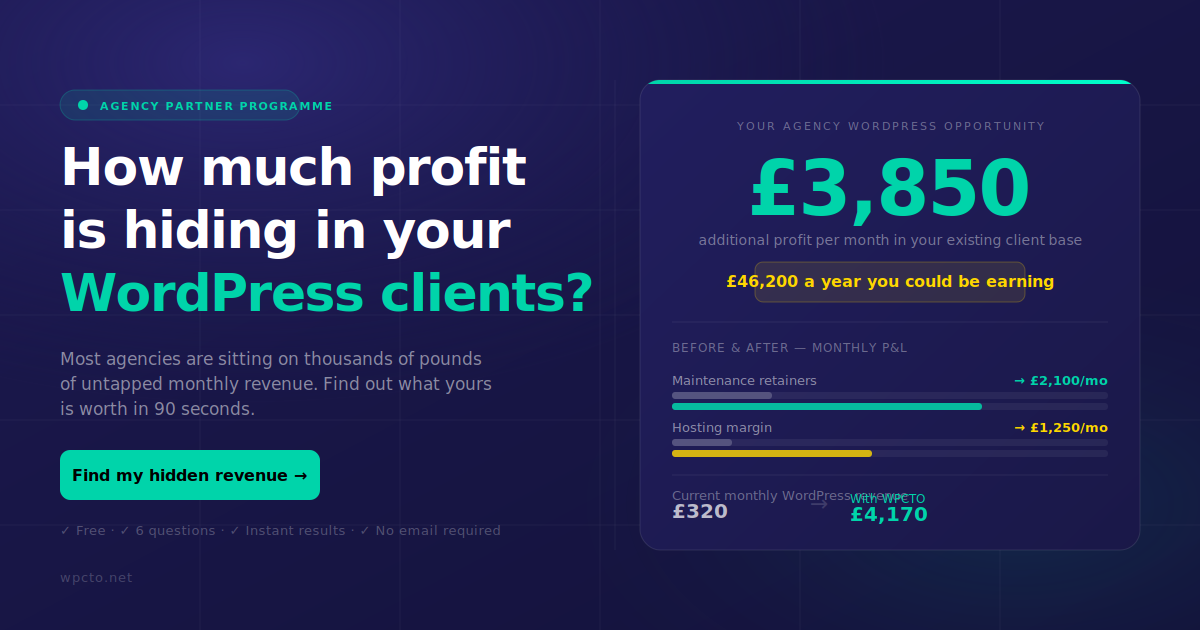
If a client site needs a specific piece of work, such as replacing a problem plugin, you can also buy time and we will get on with it. Before you decide what to offer, run your client list through the WordPress Profit Calculator to see where the recurring revenue is.
A short accessibility checklist for your next build
- Choose an accessibility-ready theme and test it on staging with real content.
- Agree an accessible colour palette with the client before design sign-off.
- Check every plugin that outputs front-end markup, especially forms, menus, sliders and pop-ups.
- Use one H1, nested headings and descriptive link text.
- Add alt text to meaningful images and empty alt to decorative ones.
- Label every form field and write clear error messages.
- Add captions and transcripts for audio and video.
- Run an automated scan, then a keyboard pass, then a screen reader pass.
- Hand over an editor guide and an accessibility statement.
- Schedule re-testing after updates and on a regular review cycle.
FAQ
Is an accessibility plugin enough to make my WordPress site accessible?
No. A plugin can help with specific tasks, such as adding a skip link or checking content, but it cannot fix poor theme markup or unclear content. The W3C notes that no tool alone can determine whether a site meets guidelines. Fix the source, then test by hand.
Which WCAG level should I aim for?
Level AA of WCAG 2.2 is the practical target for most commercial and public-facing sites, and it is the level the WordPress Accessibility Knowledge Base targets. Level A is the minimum and level AAA is not realistic as a whole-site requirement. If a contract or regulator specifies a level, follow that.
Do UK businesses have to make their websites accessible?
All UK service providers have a duty to make reasonable adjustments under the Equality Act 2010, and public sector bodies face additional accessibility regulations. What counts as reasonable depends on the organisation and the circumstances. For a specific legal question, speak to a solicitor.
How often should I test a WordPress site for accessibility?
Test during the build, before launch and after meaningful changes such as new templates, plugin updates or redesigned forms. The W3C recommends evaluating early and continuing throughout development. For live sites, add a scheduled review to the maintenance plan.
Can I fix accessibility on an existing site without rebuilding it?
Often, yes. Content fixes such as alt text, headings, link text and form labels need no rebuild. If the theme has structural problems, such as missing keyboard support in the menu, you may need a child theme fix or a replacement theme. A staging audit will tell you which.
Sources
- Introduction to Web Accessibility, W3C WAI
- Web Content Accessibility Guidelines (WCAG) 2.2, W3C
- Improve your site’s accessibility, WordPress.com Support
- Front-end code checks, WP Accessibility Knowledge Base
- Introduction to WCAG, WP Accessibility Knowledge Base
- Websites, Accessibility Resources at UNCG
- Accessibility, Make WordPress style guide
- Make WordPress Themes
- Understanding accessibility requirements for public sector bodies, GOV.UK
- Guidance on Web Accessibility and the ADA, ADA.gov