

Good plugin management comes down to six habits: keep an inventory, vet before you install, update on a fixed schedule, test on staging first, keep a rollback path, and remove what you no longer use. Most agencies do some of these some of the time. The trouble starts when nobody owns them, and a plugin update lands on a client’s live site at 5pm on a Friday.
This guide is written for agency owners, directors and senior account managers who build WordPress sites for clients and end up carrying the support burden afterwards. It covers the process we would put in place on any client estate, and where the time goes if you try to run it in house.
TL;DR
- Keep a plugin register for every client site: purpose, owner, licence and renewal date, last update, and the reason it exists.
- Apply security updates quickly. The NCSC’s guidance for internet-facing services is within 5 days of release, so a fixed weekly or fortnightly cadence beats ad hoc clicking.
- Test on a staging copy and take a backup before every update run. Never experiment on the live site.
- Delete unused plugins, and treat every new plugin as a long-term commitment, not a quick fix.
- Decide who is responsible. If the answer is “whoever is free”, the work is being absorbed, not managed.
Table of Contents
- Why plugin management is an agency problem, not a technical one
- Build a plugin register for every site
- Vet a plugin before it goes anywhere near a client site
- Set an update policy, not a habit
- Always test on staging, and always have a way back
- Finding the plugin that broke the site
- Keep the estate lean
- Our perspective: plugin management is where agency margin leaks
- See what the work is worth before you decide
- Who should own plugin management in your agency
- How we handle it at WPCTO
- A first-month plan you can start this week
- FAQ
- Sources
Why plugin management is an agency problem, not a technical one
A typical agency has a spread of client sites built over several years. Each one has its own mix of page builder add-ons, form plugins, SEO tools, caching, security and, for shops, WooCommerce extensions. Every plugin is code written by someone else, on their release schedule, with their own bugs.
The technical steps are not difficult. The difficulty is repetition across many sites, and the fact that the work is rarely scoped or charged. A fifteen-minute update turns into a two-hour conflict hunt, the client sees a broken contact form, and your designer is on the phone to a hosting company instead of working on the next pitch.
That is why we treat plugin management as an operations discipline. It needs a register, a schedule, a test environment and a named owner. The sections below take them in order.
Build a plugin register for every site
You cannot manage what you have not written down. For each client site, record:
- Plugin name and purpose, in plain English (“collects enquiry form submissions and sends to the sales inbox”).
- Source: WordPress.org directory, a commercial vendor, or custom code written by you or a freelancer.
- Licence details: who holds the key, which email account it is tied to, and the renewal date.
- Custom configuration: anything that would be lost or need redoing after a reinstall.
- Dependencies: what else breaks if this plugin is deactivated (a page builder add-on, a booking tool, a payment gateway).
- Last updated and last reviewed.
If you inherit a site and have no register, you can still see what is installed without logging in to the dashboard. We cover the method in how to check what plugins a site uses without a login, which is also a useful first step when taking on a client from another agency.
Expired premium licences are the quiet failure here. A plugin whose licence has lapsed often stops receiving updates through the dashboard, so the site looks fine while it falls behind. Put renewal dates in the register and review it monthly.
Vet a plugin before it goes anywhere near a client site
Most plugin problems are decided at the moment of installation. A short checklist avoids most of them:
- Does the site actually need it? Many features can be built into a theme or achieved with a few lines of reviewed code. Every plugin adds load, update work and attack surface.
- Who maintains it? Look at the last update date, how quickly the developer responds to support threads, and whether the plugin has a clear changelog.
- Is it compatible with your current WordPress and PHP versions? The plugin page lists tested-up-to versions.
- What happens if it is abandoned? Check whether the data it stores can be exported and whether a replacement exists.
- Does it overlap with something already installed? Two caching plugins or two SEO plugins is a recipe for conflicts.
- Is it from an official source? Download only from the WordPress.org directory or the developer’s own site. Nulled (pirated) premium plugins are a classic route for malware.
The WordPress project itself is candid that the directory has a rigorous human review for submissions, but after publication site owners are largely on their own. Directory approval is a starting point, not a guarantee.
It is also worth knowing how the safety net works. Every new release of a plugin hosted on WordPress.org goes through an automated security review before it is distributed through the update system, and releases with a high risk score can be held back until the developer fixes the problem. That is a welcome extra layer, but it covers directory plugins only. Commercial plugins distributed elsewhere sit outside it, so they deserve a closer look from you.
Watch for phishing dressed up as plugin advice
One practical warning for your team and your clients. The WordPress Security Team does not email people asking them to install a plugin or share admin credentials, and the project has warned about impersonation scams doing exactly that. If a client forwards you an “urgent security plugin” email, the answer is to get your own check done through the dashboard, never through the link.
Set an update policy, not a habit
Updates are the heart of plugin management, and also where the trade-off is sharpest. Update too slowly and you leave known vulnerabilities open. Update blindly and you risk breaking a checkout or a contact form.
The NCSC treats this as a policy question. Its guidance is to apply updates as soon as possible, ideally automatically, and it sets best-practice timescales: 5 days for internet-facing services, with other application updates completed within 7 days. It also says that website maintenance, including patching plugins and the CMS core, is a security priority, and that automation with phased rollouts is how organisations manage the burden without downtime.
Translated into agency practice, a workable policy looks like this:
| Update type | Suggested approach | Why |
|---|---|---|
| Security releases of plugins with known vulnerabilities | Test and apply as soon as possible, inside the NCSC’s 5-day window | Known flaws get exploited quickly |
| Routine plugin updates on brochure sites | Weekly or fortnightly batch, staging first | Predictable, low-risk, easy to scope |
| WooCommerce and payment-related extensions | Monthly batch with a staging test and post-update checks of the checkout | Revenue risk is higher |
| Major version jumps (for example a page builder rewrite) | Treat as a mini project with its own test plan | Large changes break layouts |
| Abandoned plugins | Plan replacement, do not wait for a vulnerability | No fixes are coming |
WooCommerce’s own documentation suggests a monthly cadence works well for most stores, checking WooCommerce, WordPress, extensions and theme updates around the same time. Use that as a baseline for shops, and tighten it when a security release is announced.
What WordPress automates, and what it does not
WordPress has built-in tools. The Updates screen and the Plugins page let you update manually, and since version 5.5 you can opt in to automatic updates for individual plugins and themes. That suits low-risk, well-maintained plugins such as a security scanner or an SEO tool with a long record of stable releases.
It is a poor fit for anything the client’s revenue depends on: payment gateways, booking engines, membership tools, or any plugin that touches the checkout. For those, auto-updates remove the one step you need, which is a human looking at the result.
The sensible middle ground is selective automation with human oversight: automate the dull, low-risk plugins, batch the rest through staging. If you are building publishing or deployment workflows around WordPress, the thinking is similar to how automated publishing pipelines keep a human in the loop: automation does the repetitive part, a person approves what matters.
Always test on staging, and always have a way back
WooCommerce’s guidance is plain: test updates on a staging site that clones production, never on the live site, because even small updates can cause compatibility conflicts that disrupt customers. We agree, and would add that staging is only useful if it is genuinely current. A staging copy from last spring will not show you today’s conflicts.
A repeatable update run looks like this:
- Back up the database and files, and confirm the backup completed. How often depends on how much the site changes. Our posts on matching backup frequency to recovery objectives and weekly baselines and a handoff checklist go into the detail.
- Refresh staging from production.
- Apply the updates on staging, in a sensible order: WordPress core if needed, then plugins, then the theme.
- Test the journeys that make money: forms submit and arrive, the checkout completes, key pages render on mobile, search and login work.
- Check the error log for PHP warnings that do not show on screen.
- Apply to production in a quiet window, not at the end of the working day.
- Verify and log it: repeat the key checks live and record what changed in the register.
The WordPress documentation also recommends regular backups of the database and files before updating, so you have a rollback path if something goes wrong. A backup you have never restored is an assumption. Test a restore at least once per site, and again after any hosting change.
Finding the plugin that broke the site
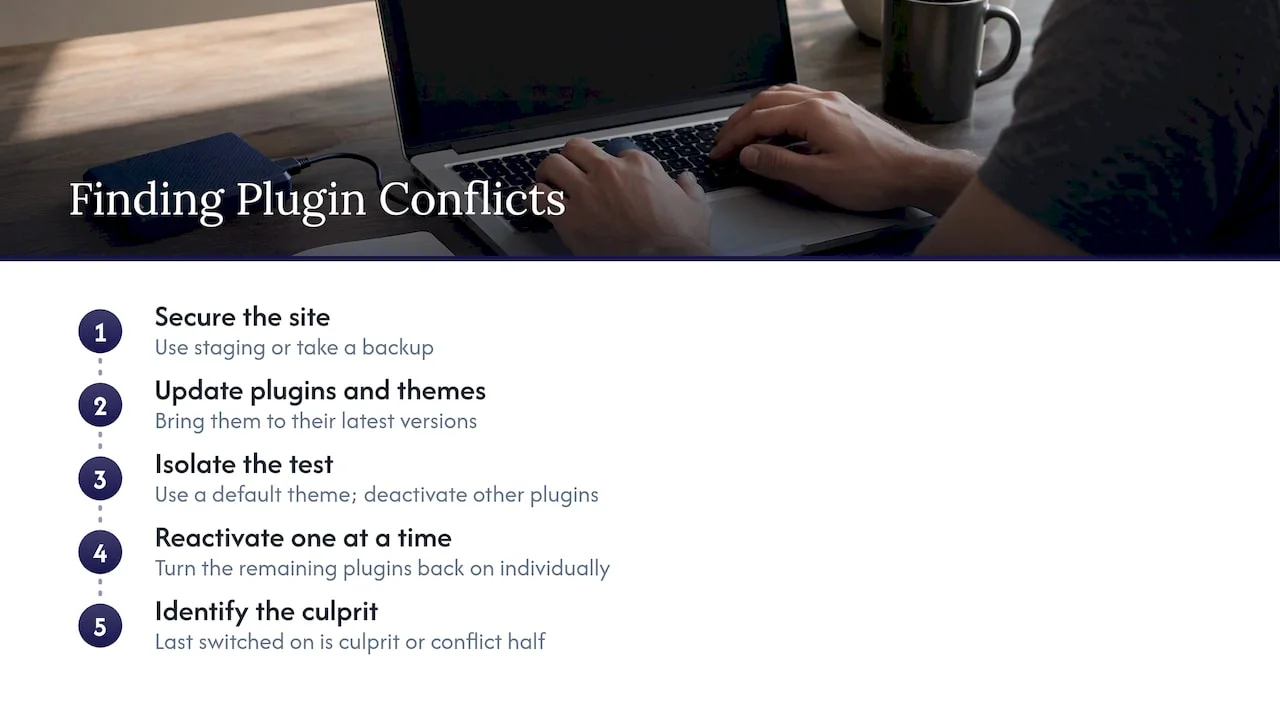
Even with staging, conflicts happen. The method is the same every time, and WooCommerce documents it well. First, update all plugins and themes to their latest versions. If the fault persists, switch to a default theme, deactivate everything except the plugin you are testing, and then reactivate the rest one at a time until the problem returns. The last one you switched on is the culprit, or at least one half of the conflict.
Do this on staging, or at minimum after taking a backup. Record the outcome in the register, including which two plugins clashed, so the next person does not repeat the investigation.
If the culprit is a plugin the client depends on, you have three options: roll back to the previous version while waiting for a fix, replace the plugin, or commission a small custom fix. Which is right depends on how actively the plugin is maintained, and that is where your register earns its keep.
Keep the estate lean
A tidy site is easier to update, faster and safer. Build these into a quarterly review:
- Delete, do not just deactivate. An inactive plugin’s files still sit on the server and can still contain vulnerable code.
- Replace overlapping plugins. If three plugins each add a small feature, one well-chosen plugin or a few lines of code may do the job.
- Check performance. Plugins that load scripts and styles on every page, including pages that do not use them, are a common cause of slow sites. Measure before and after removing them.
- Review user accounts. The government’s business guidance advises regular reviews of who has access to business accounts, including website admin, and unused or shared accounts are a real risk. Plugin admin screens are part of that.
- Review licences and renewals against the register.
If a plugin is custom built, the same hygiene applies to its code. WordPress’s own guidance puts security squarely on the developer, with rules such as sanitising input, validating data and escaping output. When you commission custom plugins, ask whether your developer follows them.
Our perspective: plugin management is where agency margin leaks
We work behind design, brand and digital agencies, and the pattern is consistent. Plugin work is rarely a problem because it is hard. It is a problem because it is unowned. Updates get done when someone remembers, conflicts get fixed by whoever is nearest, and the hours disappear into project budgets or goodwill.
Three things we would tell any agency director:
- Write the policy down and put a price on it. A client who has a stated update cadence, a staging process and a response time is buying something real. A client who gets fixes “when needed” is getting a favour, and favours do not renew.
- Do not make your creative team the support desk. The people who are best at your clients’ brands are rarely the people you want reading PHP logs on a Sunday evening.
- Count the work you already do for free. Most agencies are surprised by how many unbilled update, fix and check hours are sitting in their existing client base. Our 12 site management checks agencies can bill for is a good place to start listing them.
Our job is to take that work on invisibly, so you keep the client relationship and the recurring revenue while we handle the delivery.
— Marcel
See what the work is worth before you decide
If you are not sure how much plugin and maintenance work is going unbilled across your client sites, our free WordPress Profit Calculator for agencies gives you a figure in under 90 seconds. It is a sensible next step before you decide whether to price maintenance in house, refer it, or white-label it.
Who should own plugin management in your agency
There are broadly three models, and none is wrong for every agency.
| Model | Works when | Watch out for |
|---|---|---|
| Do it in house | You have a developer with spare capacity and fewer than a handful of maintained sites | Holiday cover, staff turnover, and the work never being quoted |
| Hand to a freelancer | You need occasional help and have a trusted individual | Single point of failure, no SLA, no monitoring |
| Use a specialist WordPress partner | You have a growing client base and want the work off your desk without losing the relationship | Choosing a partner who will contact your clients directly, so check how they handle white-label work |
The test is simple: if your lead developer were off for two weeks, would every client site still get its updates, tested and logged? If not, the process depends on a person, not a system.
How we handle it at WPCTO
We run plugin and theme management as part of our service level agreements, so the register, staging test, update run and verification described above are done for you, behind your brand. Our SLA tiers are published: Bronze at £450 per year, Silver at £750 per year and Gold at £1,850 per year. The SLA terms are set out in the document on that page, so you can see what each tier covers before you talk to anyone.
For specific needs we also offer security updates and enhancements, hosting, re-hosting and migration, and one-off help through our quick fixes and advice services. If a client needs a plugin audit or a decision on what to keep, our consultancy service is the route, and if you only need a few hours, you can buy time as required.
If you want to see how the main options compare for creative agencies, our comparison of WordPress management approaches sets them out by type.
A first-month plan you can start this week
You do not need a big project to improve things. Over four weeks:
Week 1: inventory. List every client site, its host, and every active plugin. Mark anything inactive, abandoned or with an expired licence.
Week 2: clean up. Delete inactive plugins, remove obvious overlaps, and confirm backups run and restore correctly.
Week 3: set the cadence. Choose your update days, build a staging process, and write the post-update checklist for forms, checkout and key pages.
Week 4: price it. Decide what clients receive, how fast you respond, and what it costs. Use the WordPress Profit Calculator to put a number on the opportunity, then talk to us if you would rather not deliver it yourself.
If you also want to reduce the wider risk, the checks in preventing website hacking this week and the five common entry points for WordPress malware pair well with this plan. Theme choice matters too, and our staging checks for a good WordPress theme cover that side.
FAQ
How often should WordPress plugins be updated?
Security updates should be applied as quickly as you can test them, and the NCSC’s best-practice window for internet-facing services is 5 days. Routine updates can go in a weekly, fortnightly or monthly batch, depending on how critical the site is. WooCommerce stores usually suit a monthly schedule with staging tests, tightened when a security release appears.
Is it safe to turn on automatic plugin updates?
It is safe for well-maintained, low-risk plugins, and WordPress lets you opt in plugin by plugin. For anything tied to payments, bookings or memberships, we would rather batch updates through staging so a person checks the result. A mixed approach gives you most of the speed with far less risk.
How many plugins is too many?
There is no magic number. Quality, maintenance and overlap matter more than count, since a few badly built plugins can do more harm than many good ones. Ask of each plugin whether it is needed, maintained, and not duplicated by another, and delete anything that fails.
What should I do if an update breaks a client’s site?
Restore from your backup or roll back the plugin first, so the site is working again. Then reproduce the fault on staging and run a conflict test: update everything, switch to a default theme, deactivate other plugins, and reactivate them one by one. Log the cause so it does not repeat.
Can we hand plugin management to a specialist without clients knowing?
Yes, if the partner works white-label. We handle delivery behind your agency, so you keep the client relationship and the recurring revenue. Check that any partner you choose agrees to this in writing.
Sources
- NCSC: Policy to update by default
- WordPress.org: Plugin and themes auto-updates
- WooCommerce: How to update WooCommerce
- WooCommerce: How to test for plugin and theme conflicts
- WordPress.org: Protect the Shire
- WordPress Developer Resources: Automated Security Review
- WordPress.org: Security Team impersonation scams alert
- WordPress Developer Resources: Common issues
- Business.gov.uk: Protecting business accounts and information