

Automated WordPress plugin updates are safe when you decide which plugins update on their own, back up before every run, and test the plugins that touch revenue on a staging copy first. Switch on auto-updates for low-risk plugins, keep a human in the loop for checkout, forms and page builders, and make sure someone is watching the notification emails. Leave it all on default and you will eventually get a Sunday evening call.
This guide is written for agency owners and directors who look after client WordPress sites alongside the creative work. It covers how auto-updates work, how to enable them, a sensible policy for deciding what updates automatically, and what to do when an update goes wrong.
TL;DR
- WordPress has had plugin auto-updates since version 5.5. You can enable them plugin by plugin, so it is a policy choice, not an all-or-nothing switch.
- Auto-update low-risk, well-maintained plugins. Keep checkout, payment, membership and page-builder plugins on a tested, staged route.
- Always have a current backup, and test on staging anything that touches forms, login or checkout.
- Auto-updates rely on WordPress Cron and email notices, so check Site Health and make sure someone actually reads the alerts.
- Working out what unmanaged updates cost your agency? Run the WordPress Profit Calculator and see it in under 90 seconds.
Table of Contents
- How automated plugin updates work in WordPress
- How to enable automatic plugin updates
- Which plugins should update automatically?
- Prepare the site before you automate
- A simple policy you can apply to every client
- WooCommerce: where auto-updates need the most care
- Where does this fit in your revenue? Run the numbers
- What to do when an update breaks a site
- Monitoring: the part people forget
- Perspective
- Hand the whole routine to a specialist
- FAQ
- Sources
How automated plugin updates work in WordPress
Plugin auto-updates were introduced in WordPress 5.5. Once you enable them for a plugin, WordPress checks for new versions and installs them without anyone logging in. By default these checks normally run twice a day.
Two details matter for agencies:
- The schedule runs on WordPress Cron. Per the same WordPress.org documentation, updates depend on Cron tasks running. If scheduled tasks are broken, for example because of a caching setup or a blocked loopback request, updates silently stop. WordPress.org tells administrators to check Tools → Site Health when scheduled updates are not working.
- WordPress emails you about the outcome. The site sends notifications after successful, failed or partly successful plugin auto-update attempts. Those emails go to the site admin address, which on many client sites is a long-forgotten inbox. Redirect them to somewhere your team actually looks.
It is also worth knowing that auto-updates are not a single site-wide setting. WordPress developer documentation shows that the decision can be controlled separately for core, plugins, themes and translations. That is what makes a per-client policy possible.
How to enable automatic plugin updates
There are three practical routes, depending on how many sites you manage.
In the dashboard
On the Plugins screen, each plugin has an automatic update action link. You can also tick several plugins and use the bulk-action selector to enable or disable auto-updates in one go, as described in the WordPress.org auto-updates guide. This is fine for one or two sites.
With WP-CLI
For agencies with a shelf of sites, the command line is quicker. The official WP-CLI documentation covers wp plugin auto-updates enable, including an --all option. Handy for onboarding, but think before you use --all on a store.
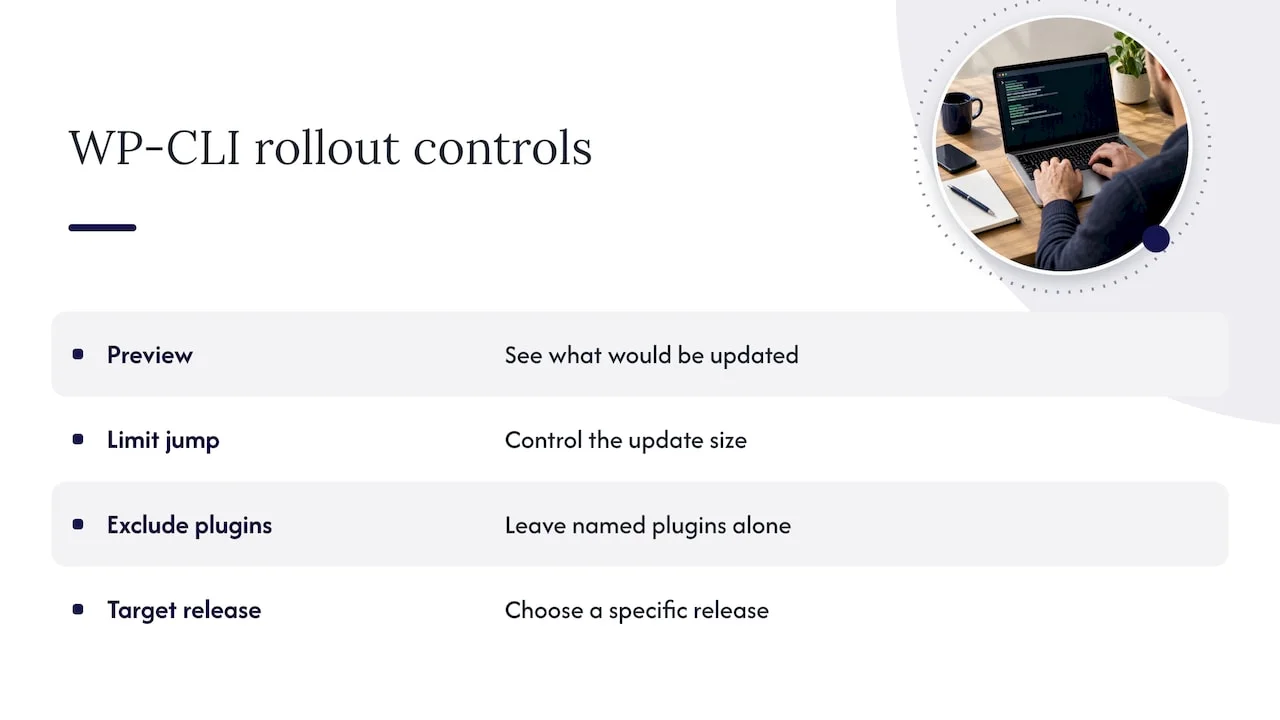
WP-CLI also gives you controlled manual updates. The wp plugin update command supports --dry-run to preview what would be updated, --minor and --patch to limit the size of the jump, --exclude to leave named plugins alone and --version to target a specific release. That is a useful toolkit for a staged rollout.
With code
Because plugin auto-updates are filterable, a developer can set rules in code, such as allowing every plugin except a named few. Treat this as a documented part of your build standard, otherwise the next person to touch the site will not know why a plugin is or is not updating.
Which plugins should update automatically?
There is no single right answer, but there is a sensible way to decide. Sort every plugin on a client site by what happens if it breaks.
| Tier | Examples of plugin type | Suggested approach |
|---|---|---|
| Low risk | Small utilities, SEO add-ons, image optimisation, security scanners | Auto-update, review the notification emails |
| Medium risk | Caching, forms, analytics, email marketing connectors | Auto-update minor and patch releases only, test major releases on staging |
| High risk | Page builders, checkout and payment extensions, membership, booking, multilingual | Update manually on staging first, then production in a planned window |
A pragmatic rule of thumb is to match the update to the release type. Security fixes should go live as soon as practical. Minor releases are generally lower risk after a quick compatibility check. Major releases belong in a planned maintenance window, because they can bring broader changes. That is also how professional maintainers think: urgency against compatibility risk. If you want to see that logic applied to a specific category, this overview of WooCommerce security plugins shows why some plugins are worth updating quickly and others need care.
For a deeper look at keeping the plugin list itself under control, our guide to best practices for WordPress plugin management covers audits, removals and ownership.
Plugins that should never be unattended
A few categories deserve a human every time:
- Anything that handles payments, tax or shipping.
- Page builders and the theme that depends on them, since a layout regression is visible to the client immediately.
- Plugins abandoned by their developer. Automating updates is pointless when no updates arrive, and the bigger issue is the risk they carry. Our article on WordPress malware risks explains the entry points agencies can close.
- Custom plugins you built yourself, unless you have a tested release process.
Prepare the site before you automate
Automation without a safety net is just a faster way to break things. Do these four things first.
1. Keep a current backup
WordPress.org advises keeping a current backup before updating plugins, so you can roll back if an update goes wrong. A weekly backup is not enough on a site that takes orders or form submissions daily. We cover how to match backup frequency to how much data a client can afford to lose in regular WordPress backups for agencies and how often to back up WordPress.
2. Check compatibility
The WordPress dashboard shows plugin compatibility information, as noted in the WordPress.org plugin management documentation. Look at it before a major release, and check the plugin’s changelog for notes about minimum PHP or WordPress versions. PHP is a common hidden cause of trouble, which we explain in how PHP updates affect WordPress performance.
3. Use a staging copy for anything important
A staging site that mirrors production lets you apply updates, click through the key journeys and only then push to live. On a brochure site that means contact forms, login if there is one, search, mobile layouts and any embedded integrations. On a store, it means the full buying path, covered below.
4. Fix the notification route
Set the admin email to a shared monitored mailbox or ticket queue. A failed update that nobody reads is the same as no monitoring.
A simple policy you can apply to every client
Write it down once and reuse it. Here is a template.
- Inventory. List every plugin, its purpose, its tier (low, medium, high) and who owns it.
- Auto-update the low tier. Enable per plugin, not with a blanket switch.
- Limit the medium tier to minor and patch releases, with major releases tested first.
- Stage the high tier. Backup, staging, test, production, verify.
- Schedule a window. Pick a quiet time for the high tier, for example early in the week, never Friday afternoon.
- Check Site Health monthly to confirm Cron is running and updates are not stalling.
- Report. Send the client a short summary of what changed. This is where an invisible task turns into visible, billable value.
That last step is worth a moment. Agencies often absorb update work because nobody sees it. Our list of 12 site management checks WordPress agencies can bill for shows how to package routine care so it gets paid for.
WooCommerce: where auto-updates need the most care
On a store, a plugin that installs successfully can still break checkout. WooCommerce’s own guidance on how to update WooCommerce is a good template:
- Back up the store.
- Update WooCommerce, its extensions, payment gateways and the theme together on staging.
- Test products, cart, checkout, payments, shipping, taxes, order emails and extension features.
- Apply the same update set to production once staging checks pass, using Coming soon mode during the update.
- Verify the live store afterwards, including a test order.
In other words, the decisive test is whether a customer can still pay. For that reason we would not put a payment gateway or a core WooCommerce extension on unattended auto-updates. Low-risk add-ons around the edges can be automated, but the commerce core should go through the staged routine.
If you build or maintain stores, these two guides pair well with this one: best practices for WooCommerce checkout and seven WooCommerce checkout quick wins agencies can delegate.
Where does this fit in your revenue? Run the numbers
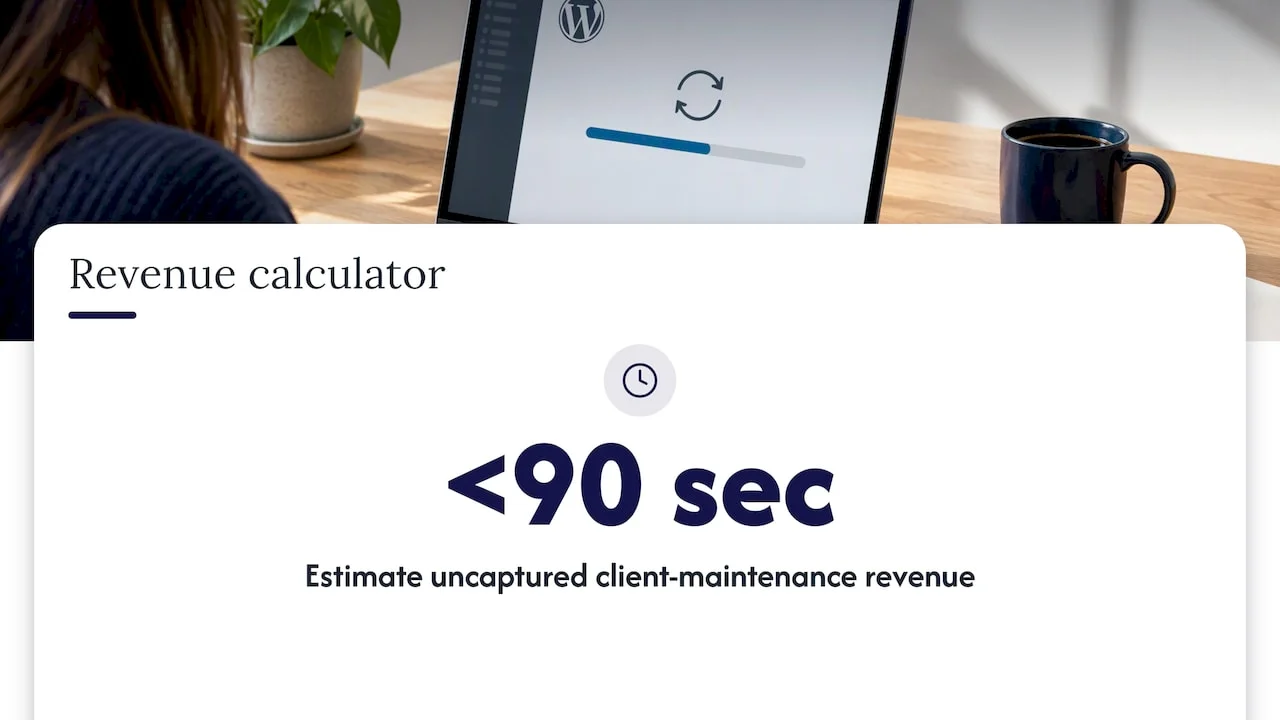
If you manage plugin updates for clients and do not invoice for it, you are funding their maintenance out of your margin. The WPCTO WordPress Profit Calculator shows how much uncaptured revenue is sitting in your existing WordPress client base. It takes under 90 seconds and needs no commitment, so it is a quick way to put a number on the hours your team currently gives away.
What to do when an update breaks a site
Even with good habits, an update will occasionally cause a problem. Work through it in order.
- Confirm what changed. Check the auto-update notification email, which tells you whether the attempt succeeded, failed or partly succeeded.
- Identify the plugin. If only one plugin updated recently, it is the first suspect. Smaller, deliberate update cycles make this far easier than a pile of changes landing at once.
- Deactivate or roll back. If you can still log in, deactivate the plugin. If you cannot, rename its folder over SFTP or use WP-CLI. Then restore the plugin version or the backup.
- Pin the version. With WP-CLI you can install a specified version and use
--excludeto keep that plugin out of future batch updates until the issue is fixed. - Retest on staging before moving forward again.
- Tell the client briefly what happened and how long it took to fix. Silence costs trust.
The point of the tiered policy is that when something does fail, it is a low-risk plugin on a quiet site, not the checkout of a store on a busy Saturday.
Monitoring: the part people forget
Auto-updates move the work from “doing updates” to “watching updates”. Someone has to:
- Read failure emails and act on them.
- Confirm Cron is healthy through Site Health.
- Check that the site still loads, forms still send and key pages still render after each cycle.
- Track plugins that stop receiving updates.
One helpful starting point is knowing exactly which plugins a site runs. Our piece on WordPress plugin checks without logging in explains how to do that as a quick, billable audit.
Perspective
We have watched agencies treat plugin updates as a favour they do for clients, a few minutes here and there that never reach an invoice. Then one update lands on a Friday, a form stops sending, and a quiet task becomes a weekend emergency with the client’s name on it.
Our view is simple. Automation is a good servant and a poor manager. Switch it on for the plugins where the downside is small, and put people, backups and staging around the ones that carry revenue. That is how we approach plugin and theme management for the agencies we support: a documented policy, tested releases, monitored alerts and a clear record of what was done.
The aim is that you never touch a WordPress support ticket yourself. You keep the client relationship and the creative work, and we handle delivery behind the scenes, invisibly if you prefer. Our own service agreements are built around that kind of predictable, recurring care.
Marcel
Hand the whole routine to a specialist
We built WPCTO for agencies who would rather not own this work. Our WordPress service level agreements are published at £450 per year for Bronze, £750 per year for Silver and £1,850 per year for Gold, so you can see how recurring care fits a client’s budget. Need one-off help instead, such as a stuck update or a migration to a safer host? Look at our Quick Fixes and other services, or ask about security updates and enhancements.
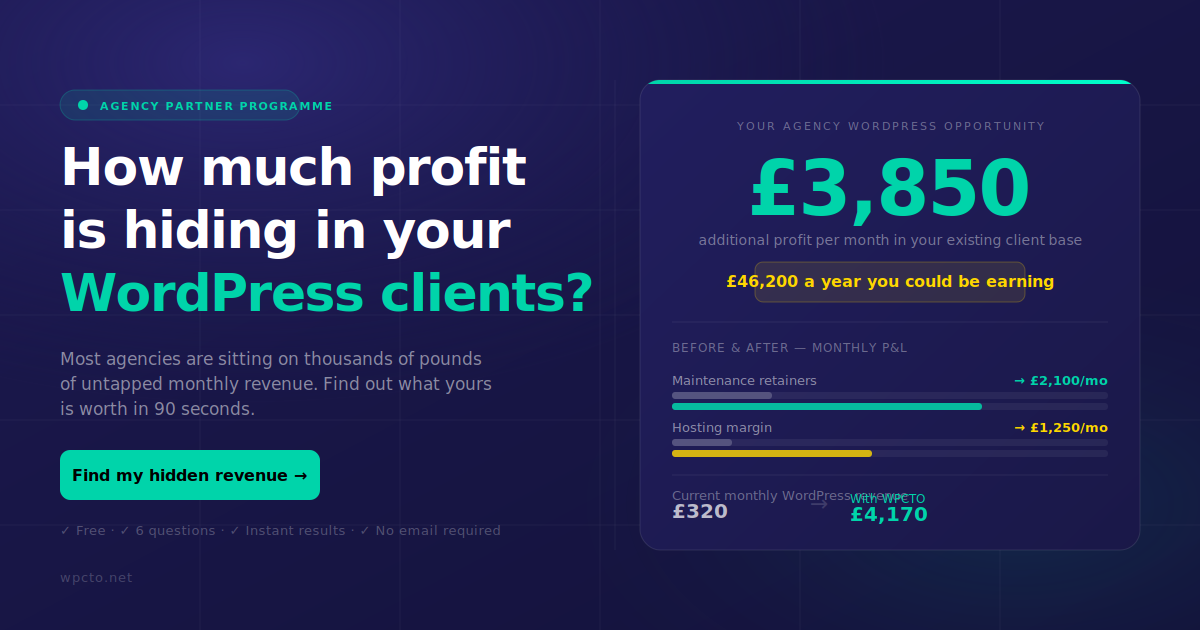
If you want to compare plans, the WordPress service level agreements page sets them out. If you would like a technical lead without hiring one, ask us about fractional CTO support or consultancy. Before you decide, use the WordPress Profit Calculator to see what your current client base could be earning you.
FAQ
Are automatic WordPress plugin updates safe?
They are safe for low-risk plugins when you have a current backup and someone reads the notification emails. They are riskier for checkout, payment, membership and page-builder plugins, which are better updated on staging first. Because you can enable auto-updates plugin by plugin, you can set the level of risk site by site.
How often do WordPress plugin auto-updates run?
According to WordPress.org, they normally run twice per day using WordPress Cron. If a site’s scheduled tasks are not running, updates will not run either. Check Tools → Site Health to find out whether Cron is working.
Can I automate plugin updates on WooCommerce stores?
You can for low-risk add-ons, but WooCommerce’s guidance is to update the core plugin, extensions, payment gateways and theme together on staging and then test the full buying path. We would keep the commerce core on a staged routine and verify with a test order after each production update.
What should I do if an automatic update breaks my site?
First check the update notification email to see which plugin changed. Deactivate that plugin or restore from your backup, then retest on staging before updating again. With WP-CLI you can also exclude the plugin from future updates until the issue is fixed.
Do I need a plugin to automate updates?
Not for the basics, since WordPress has built-in plugin auto-updates you can enable from the Plugins screen or WP-CLI. Extra tooling mainly helps when you manage many sites and want central reporting.
Sources
- Plugin and themes auto-updates, WordPress.org
- Manage Plugins, WordPress.org
- wp plugin auto-updates enable, WP-CLI
- wp plugin update, WP-CLI
- auto_update_{$type} hook, WordPress Developer Resources
- How to update WooCommerce, WooCommerce documentation